Download and install the TradingView desktop and mobile apps, then sign in so your subscription is active on each device.
Access TradingView Downloads 0:35
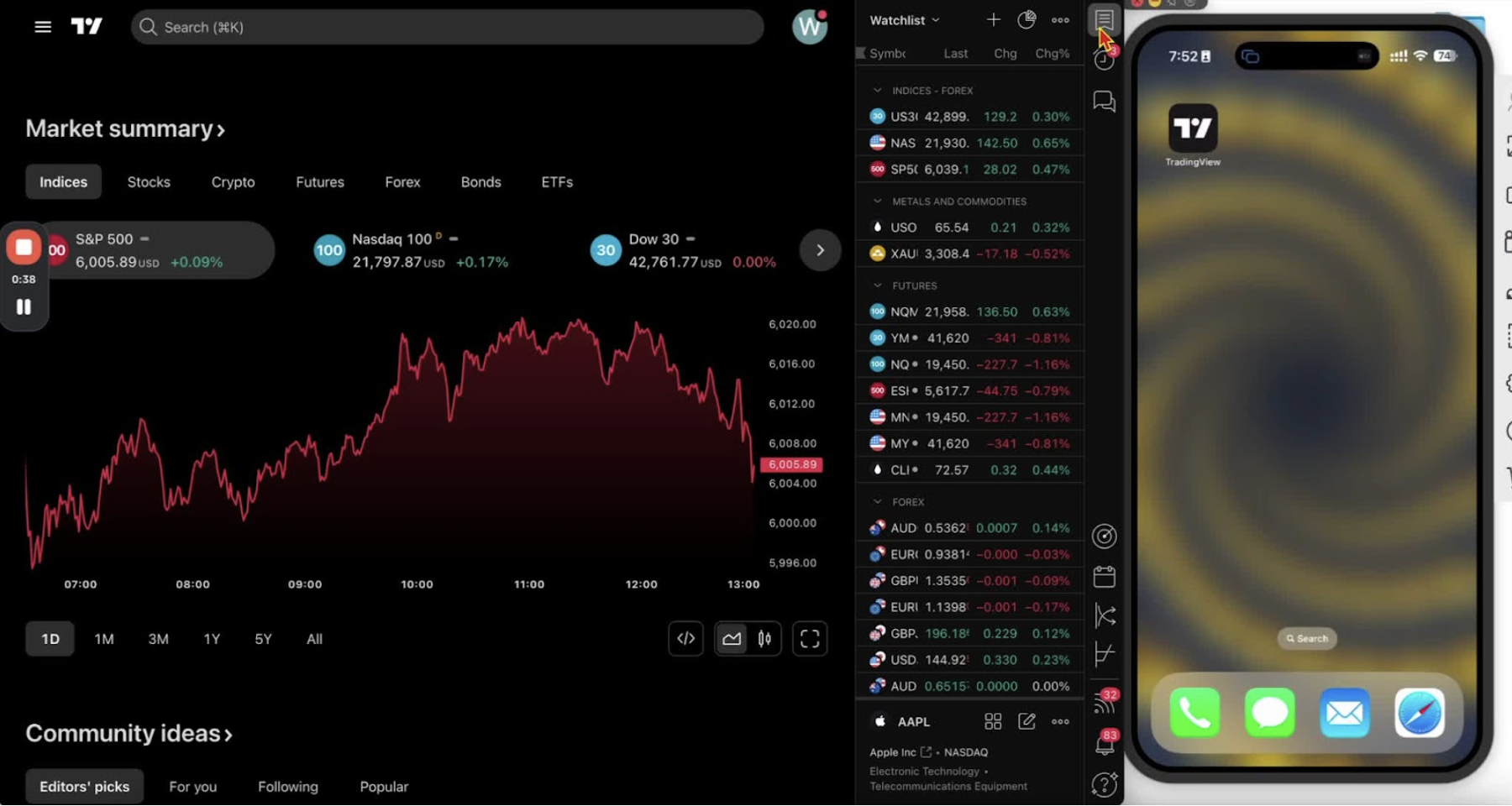
- Go to the TradingView website.
- If the menu is collapsed, click the three lines.
- Click ‘More’, then ‘Downloads’.
Download the Desktop Application 0:40
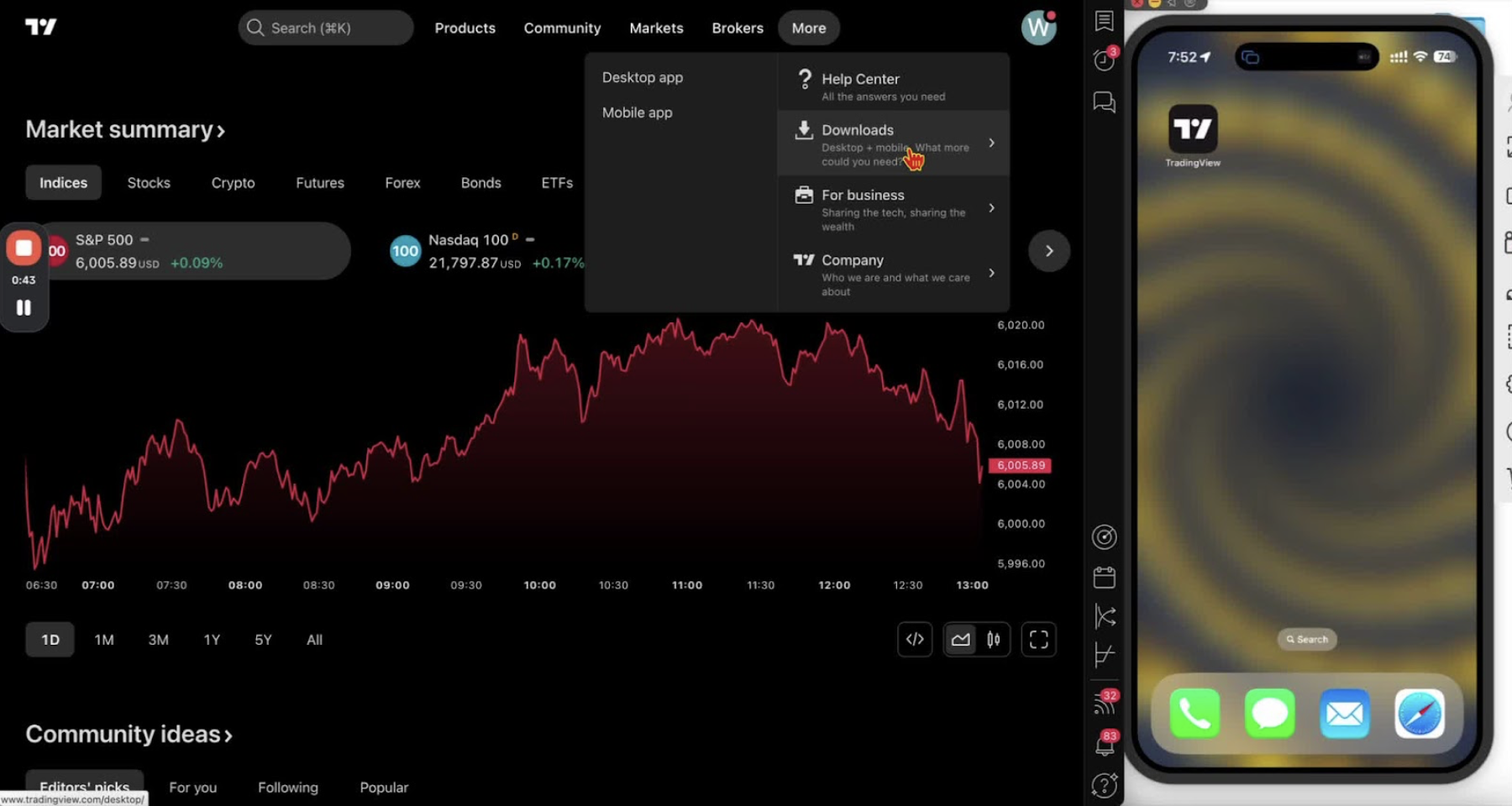
- Click ‘Desktop’.
- Choose the download for your operating system (Windows, Mac, or Linux).
Install the Desktop Application 1:03
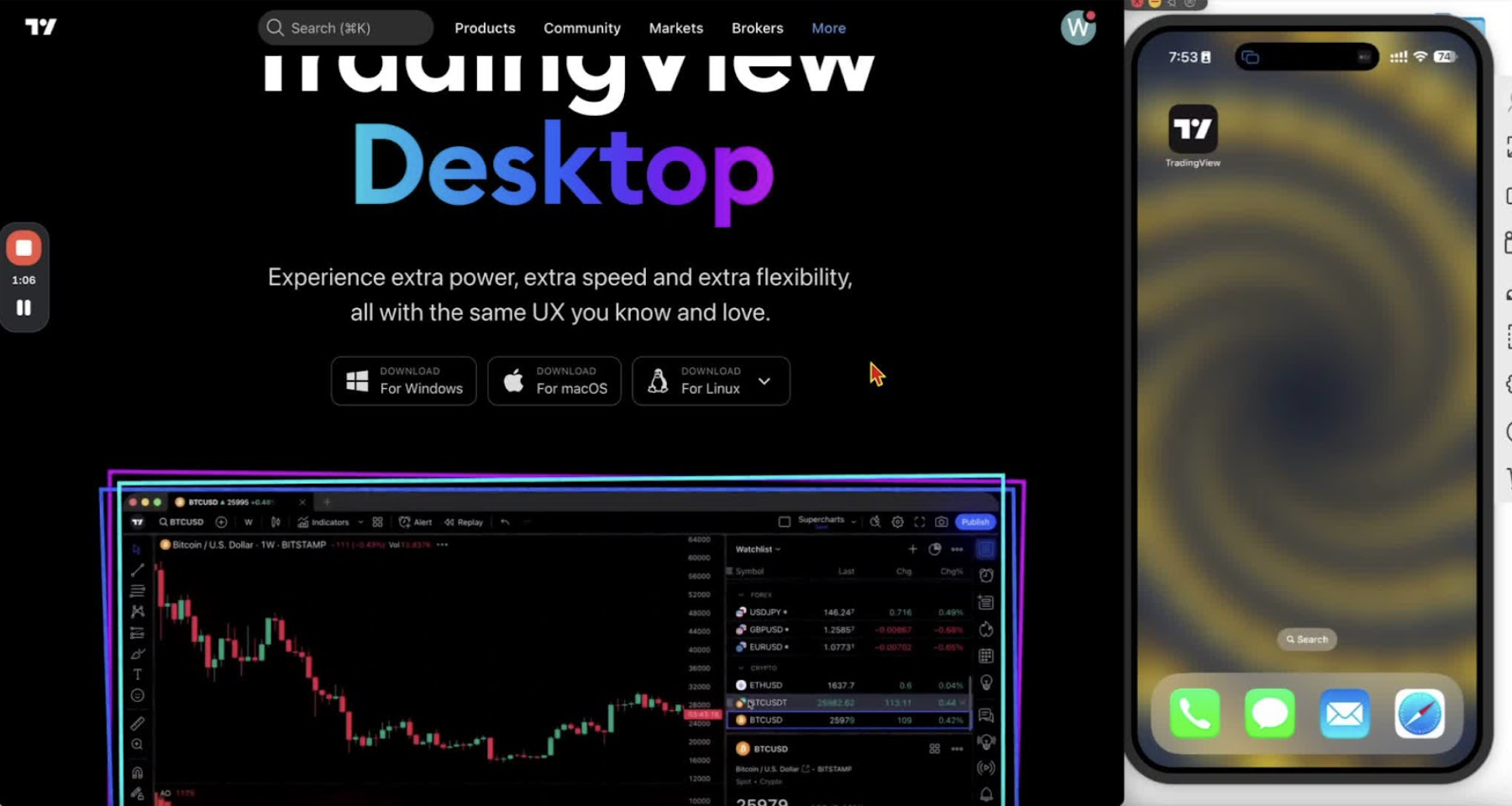
- Open your Downloads folder and run the installer.
- Follow the installation prompts.
Open and Sign In to the Desktop Application 1:22
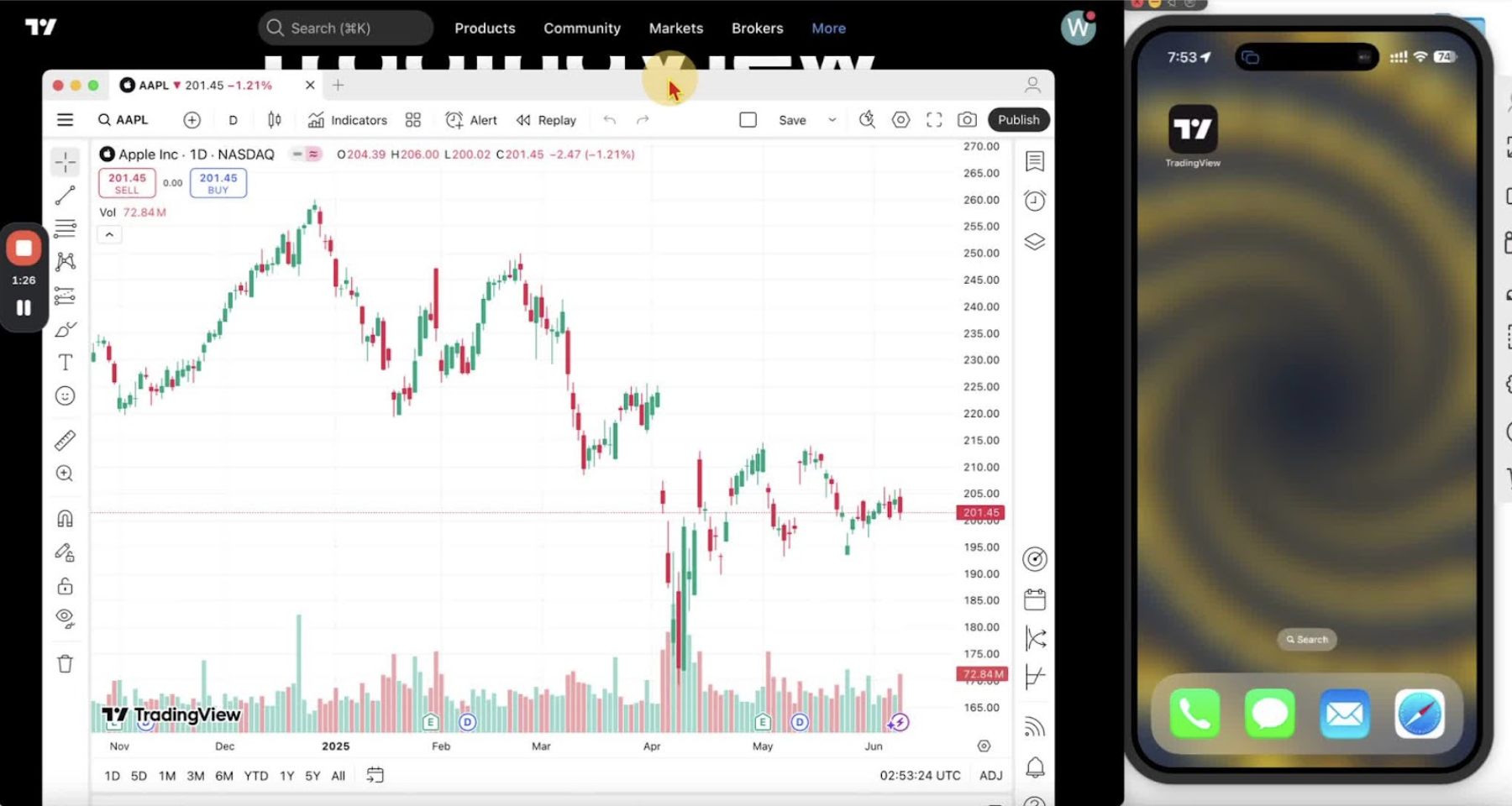
- Open TradingView from your applications folder.
- Click the person icon in the top right corner.
- Choose ‘Sign in with browser’ or enter your credentials.
Download the Mobile Application (iPhone) 2:18
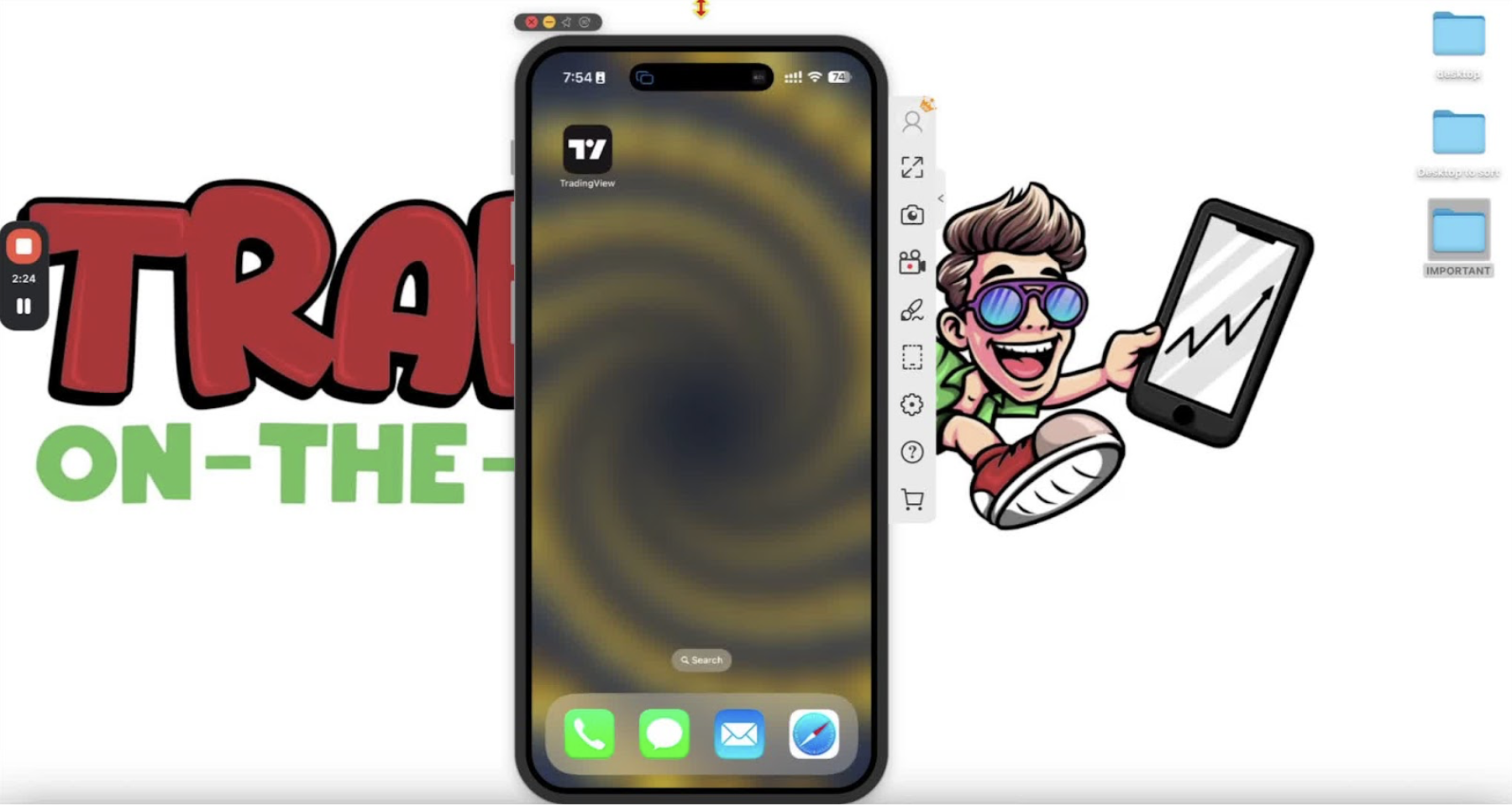
- Open the App Store.
- Search for ‘TradingView’.
- Tap ‘Get’.
Download the Mobile Application (Android) 2:18
- Open the Google Play Store or Samsung Store.
- Search for ‘TradingView’.
- Tap ‘Install’.
Open and Sign In to the Mobile Application 3:03
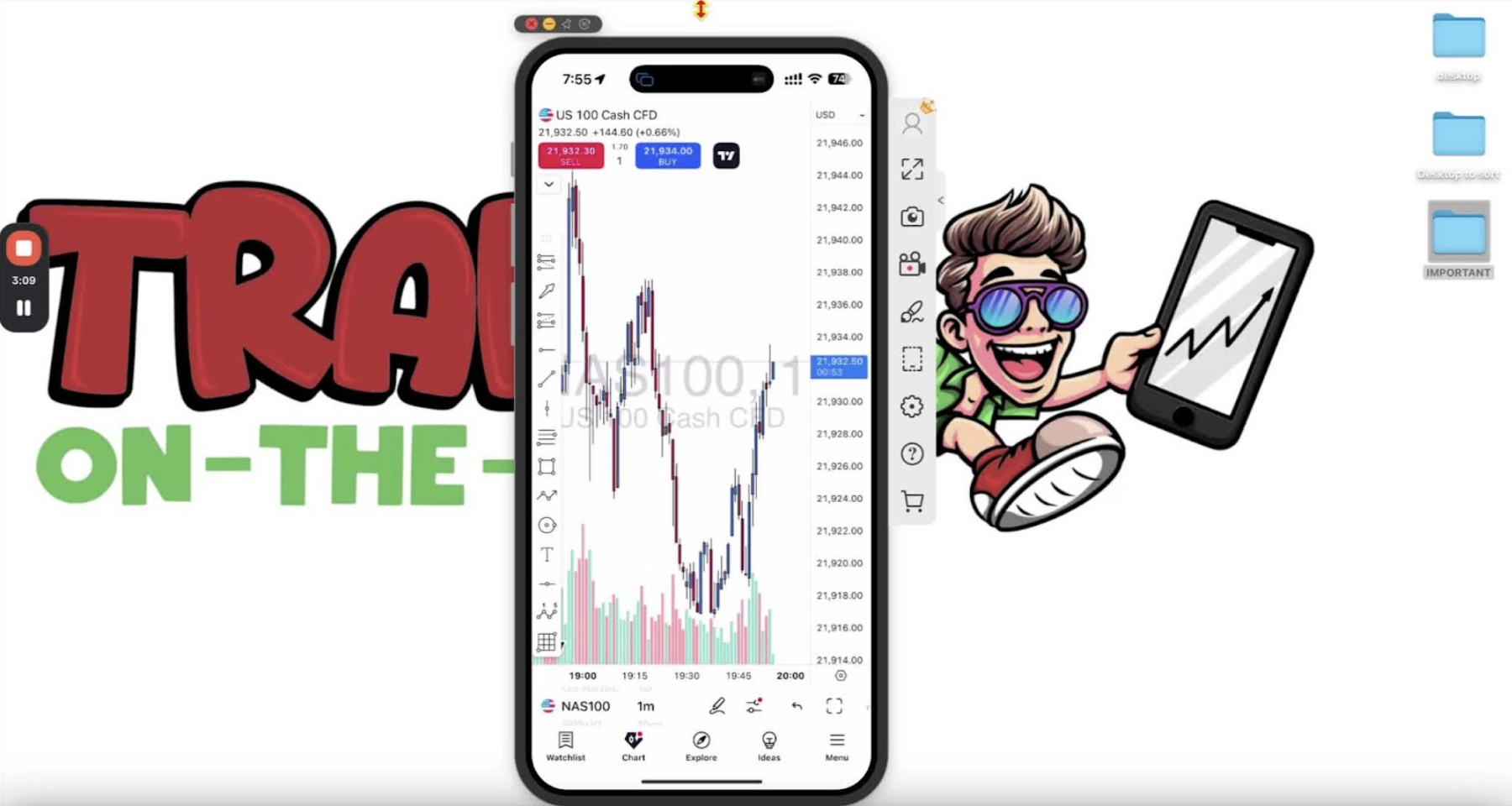
- Open the app.
- Tap the menu in the bottom right corner and select ‘Sign in’.
- Enter your credentials.