Author: totgadmin

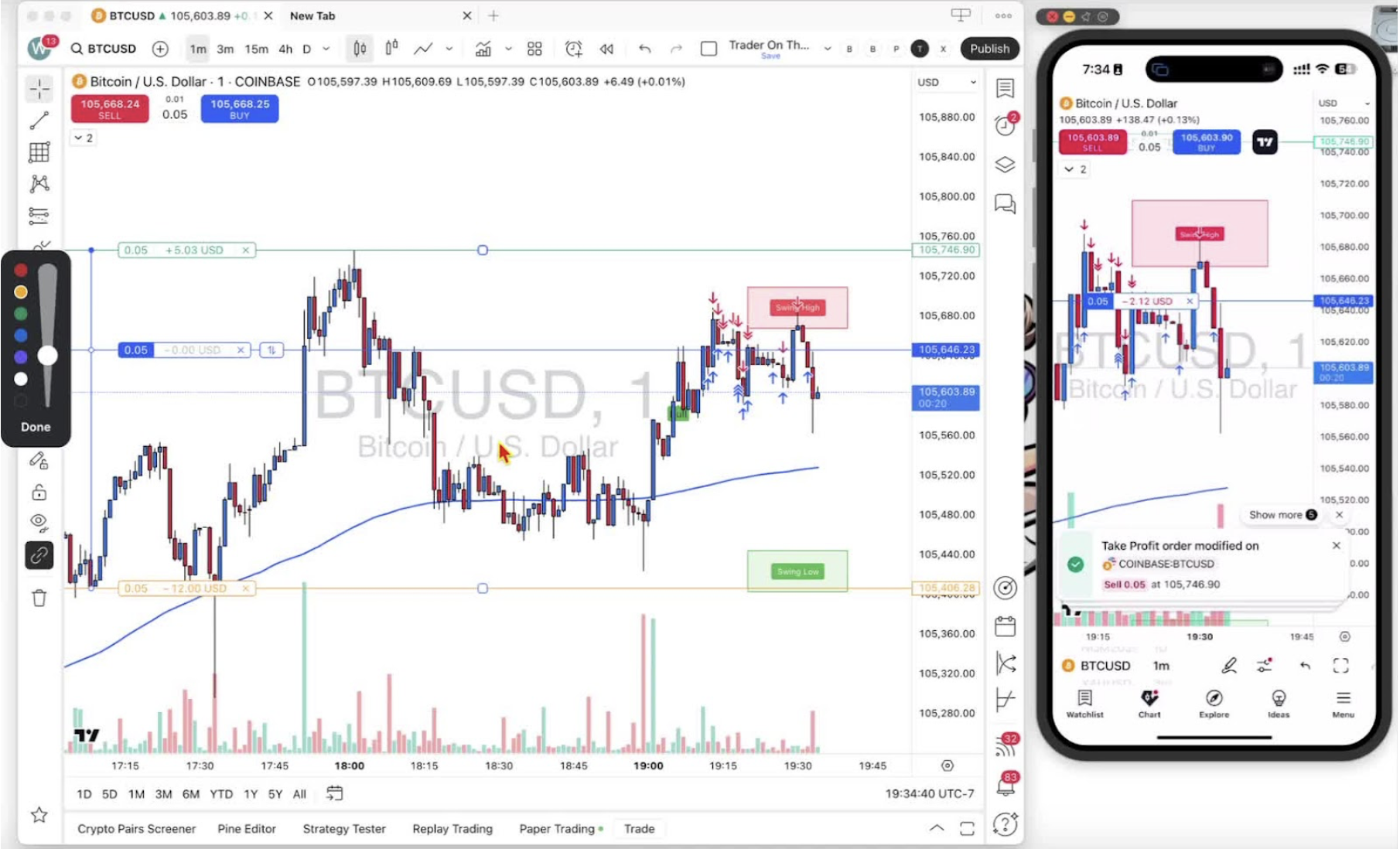
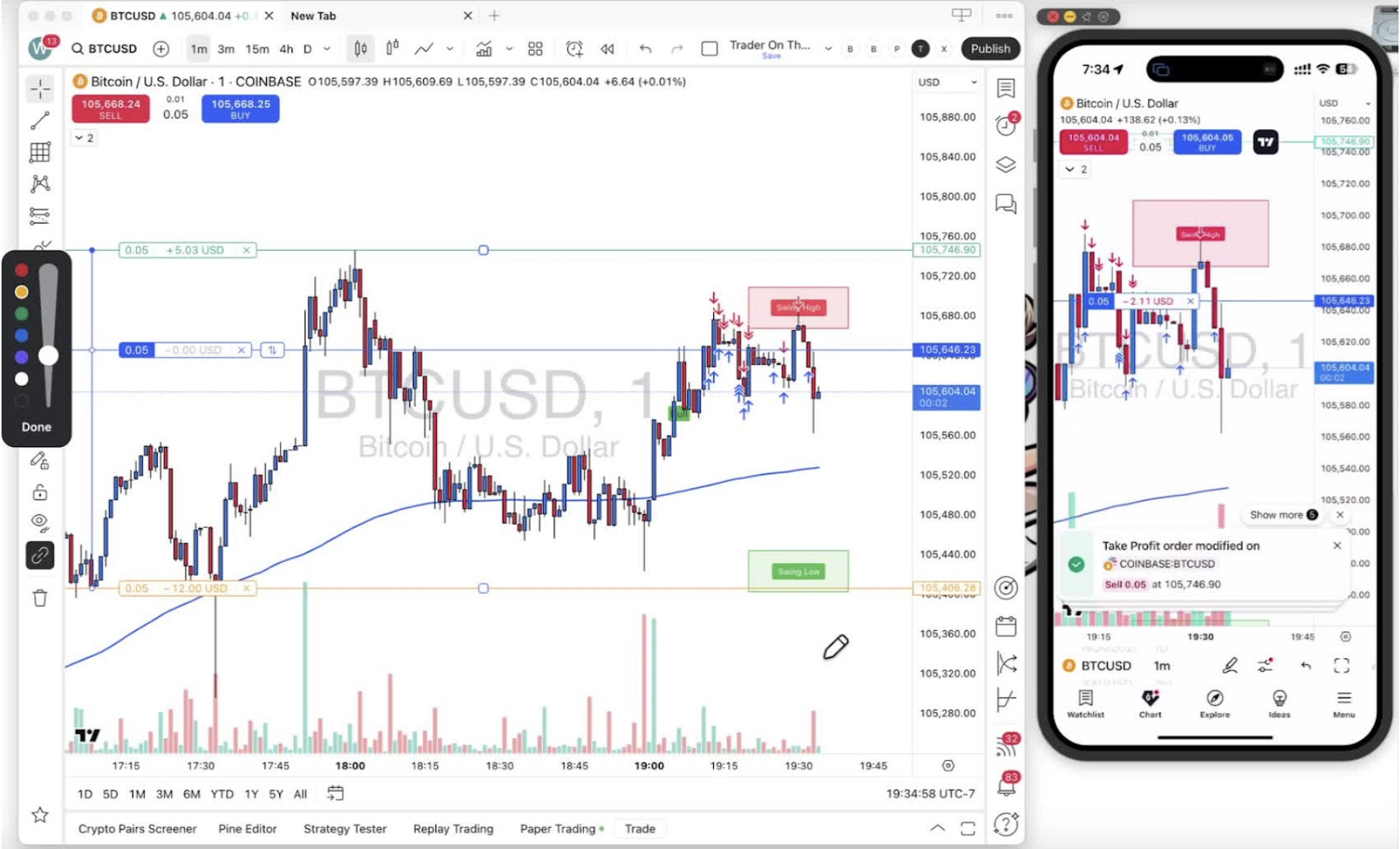
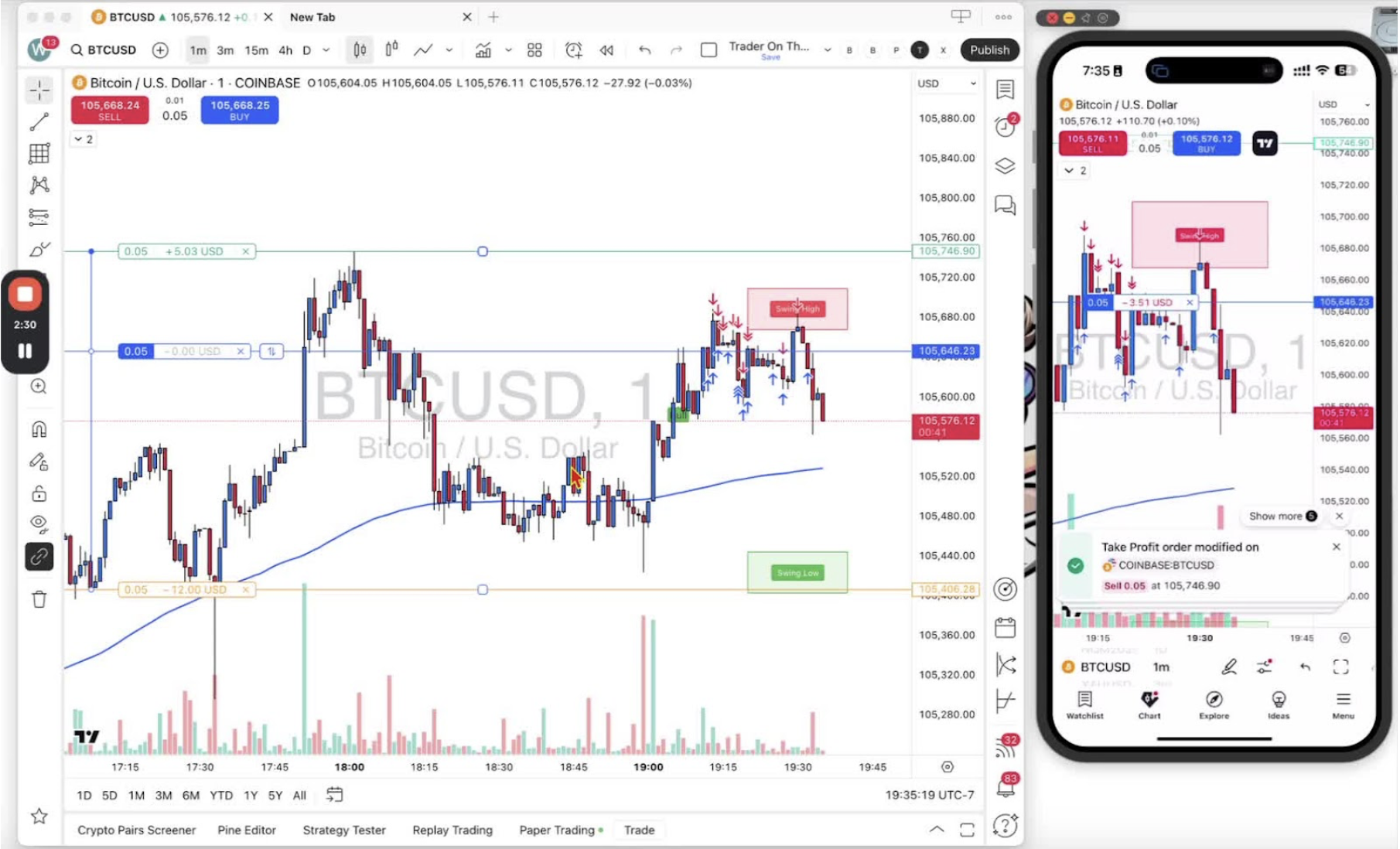
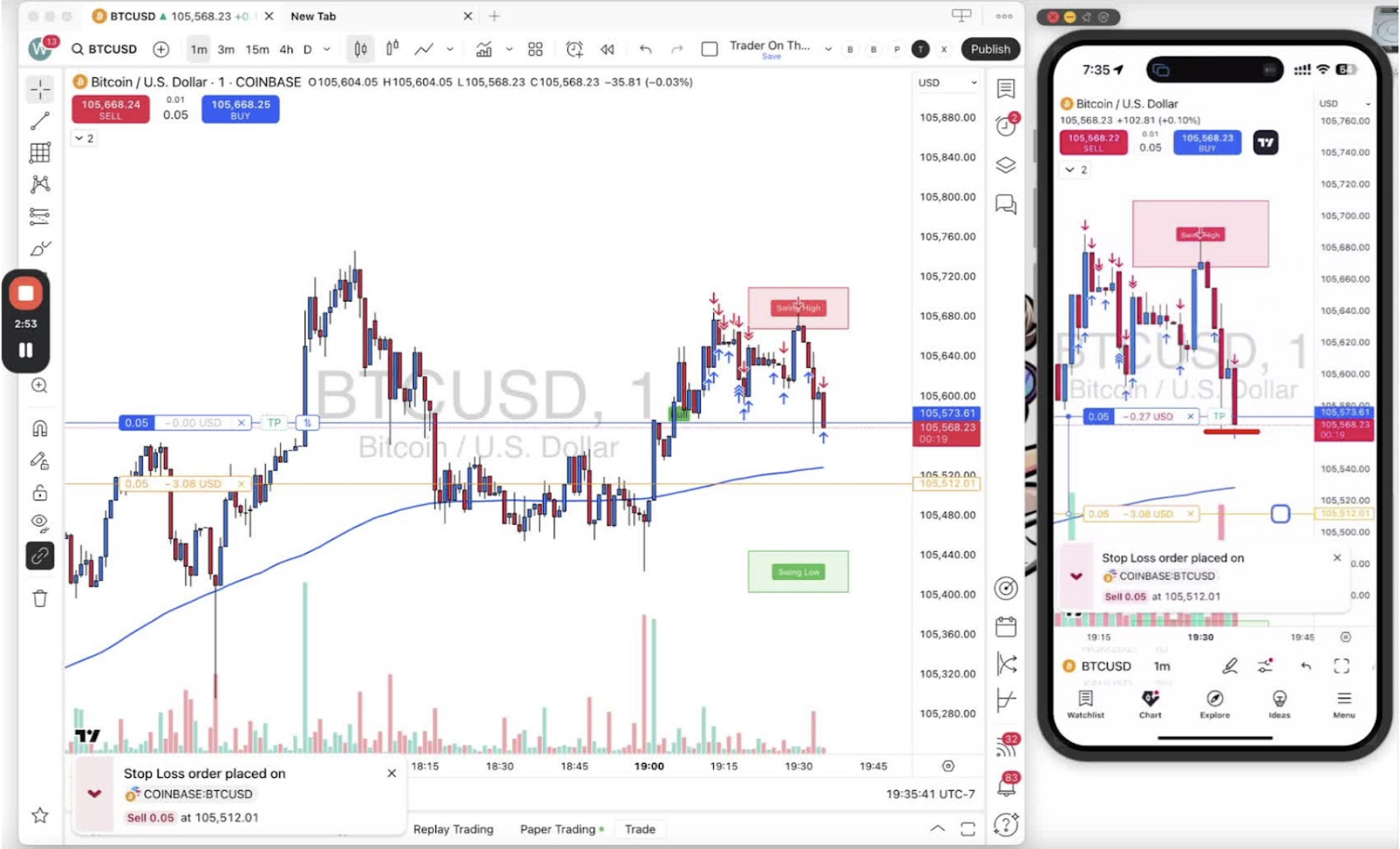
  • Step 19. Guide to Removing Swing High and Swing Low Boxes

    Step 19. Guide to Removing Swing High and Swing Low Boxes

    OBJECTIVE

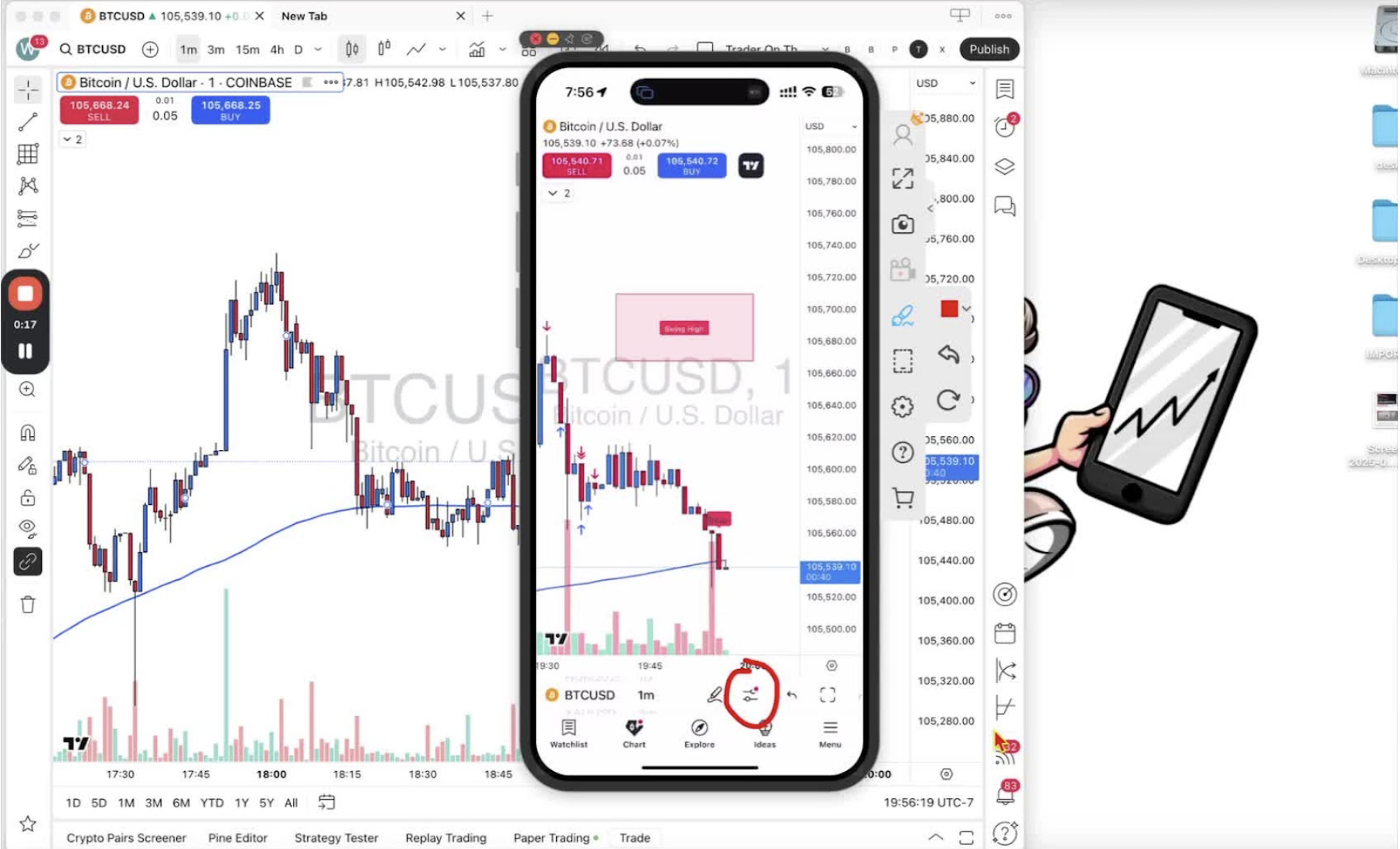
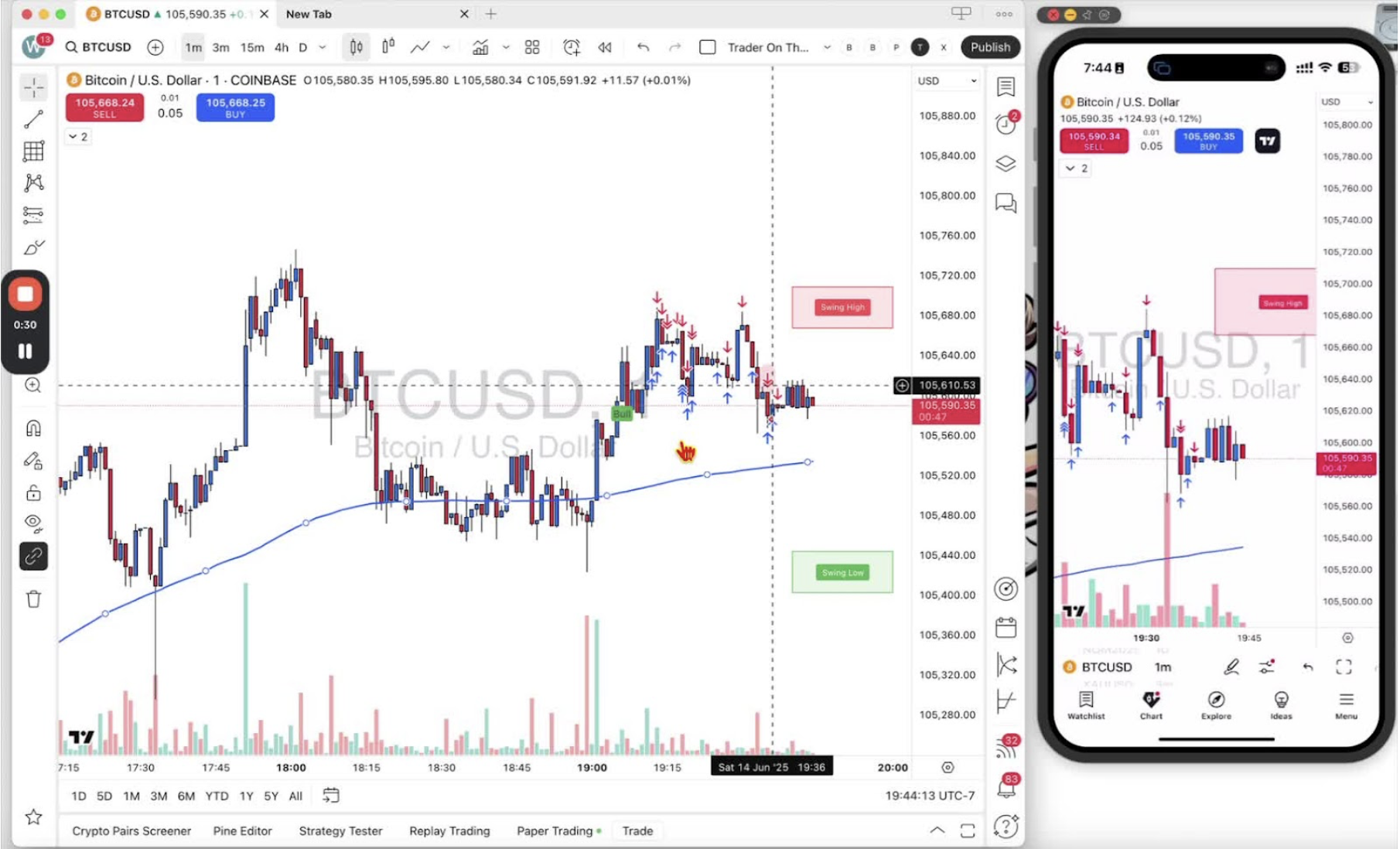
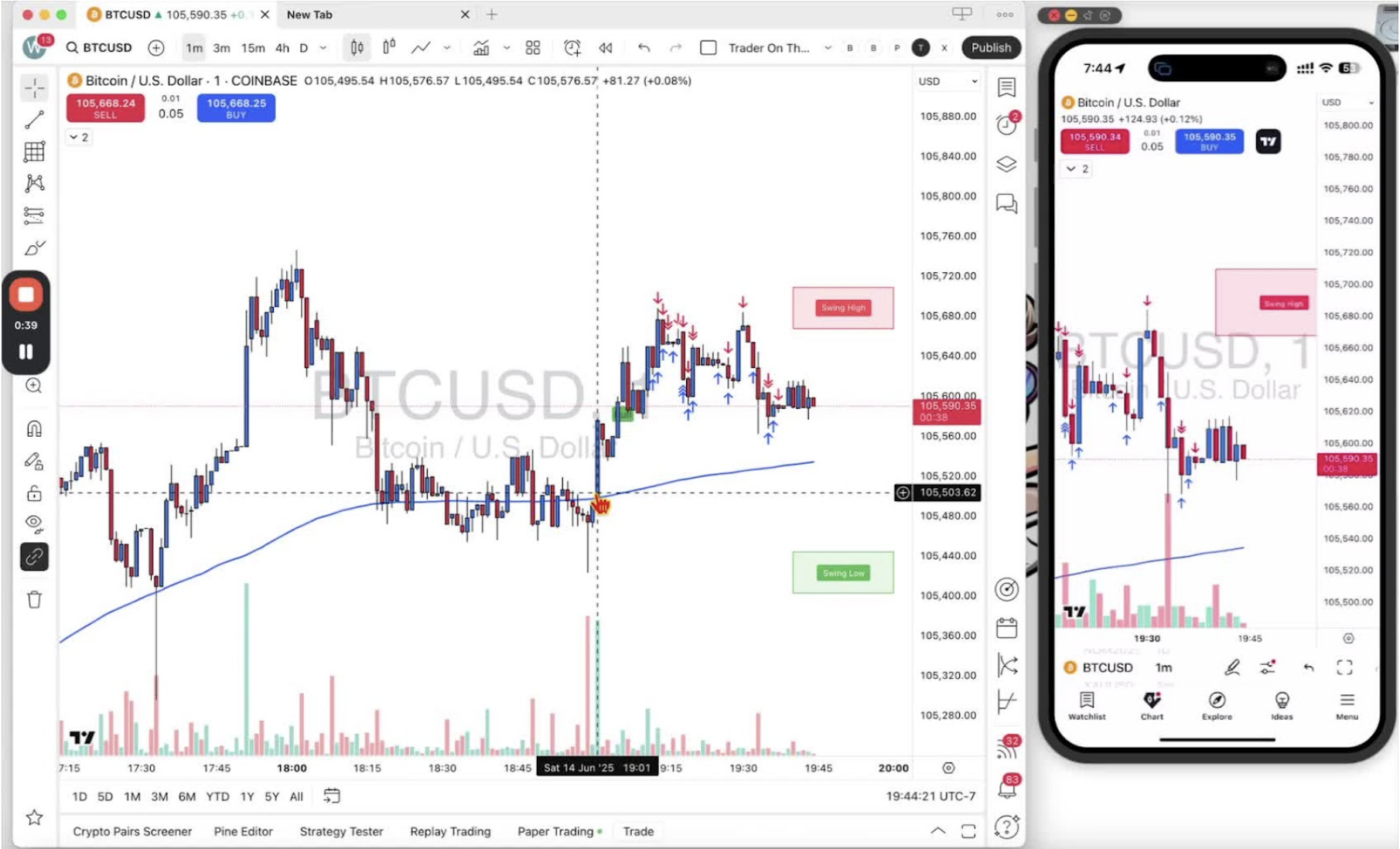
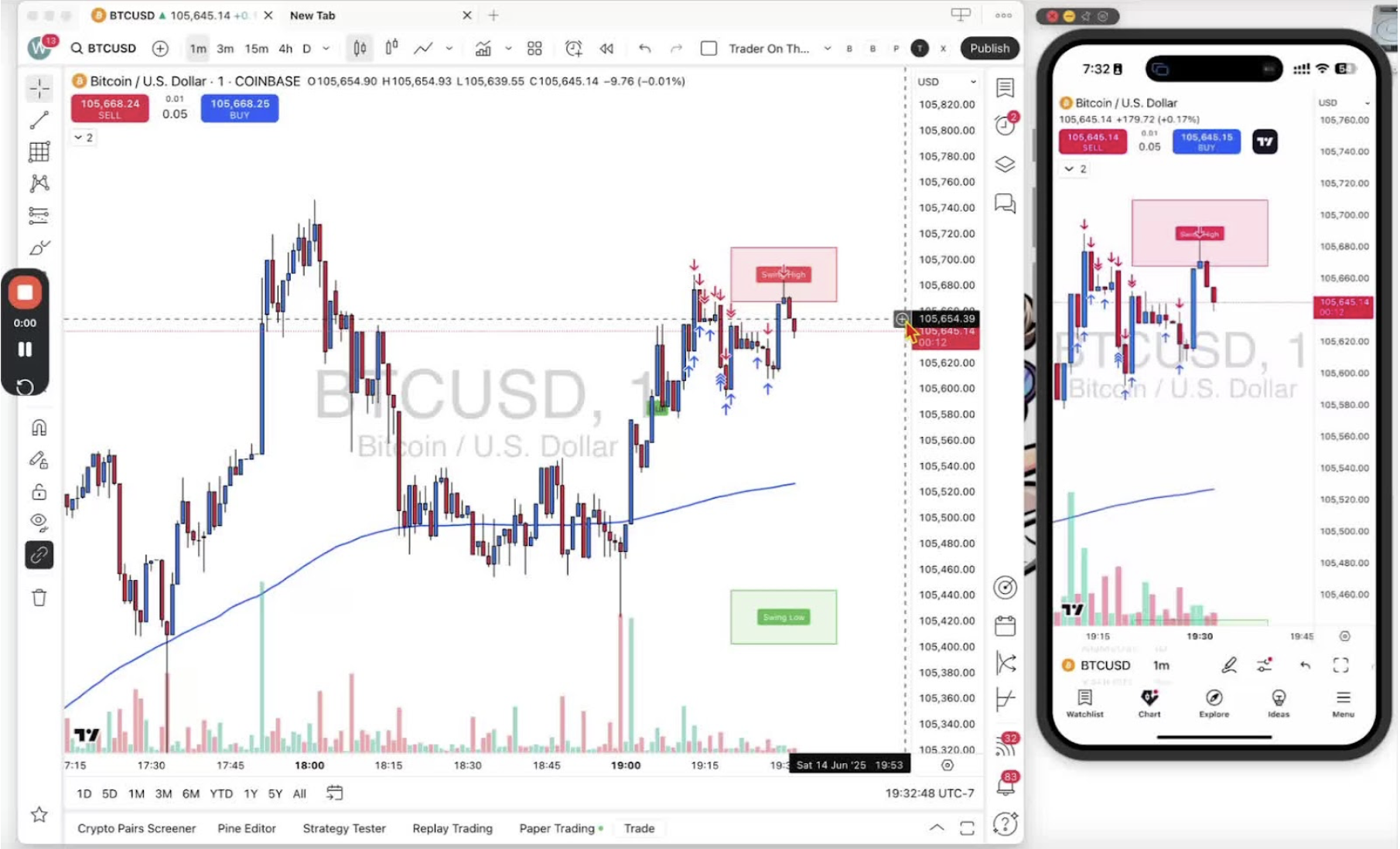
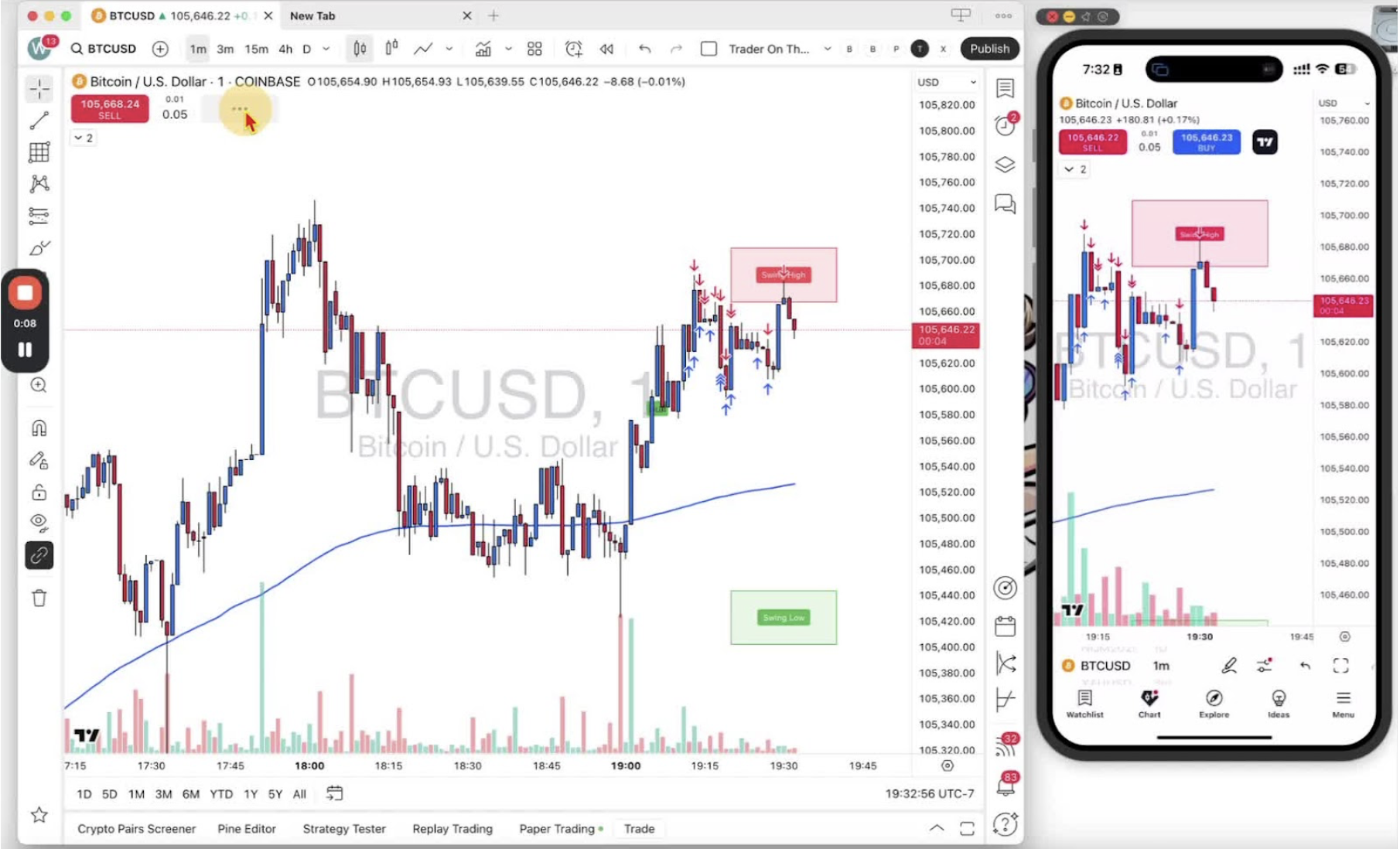
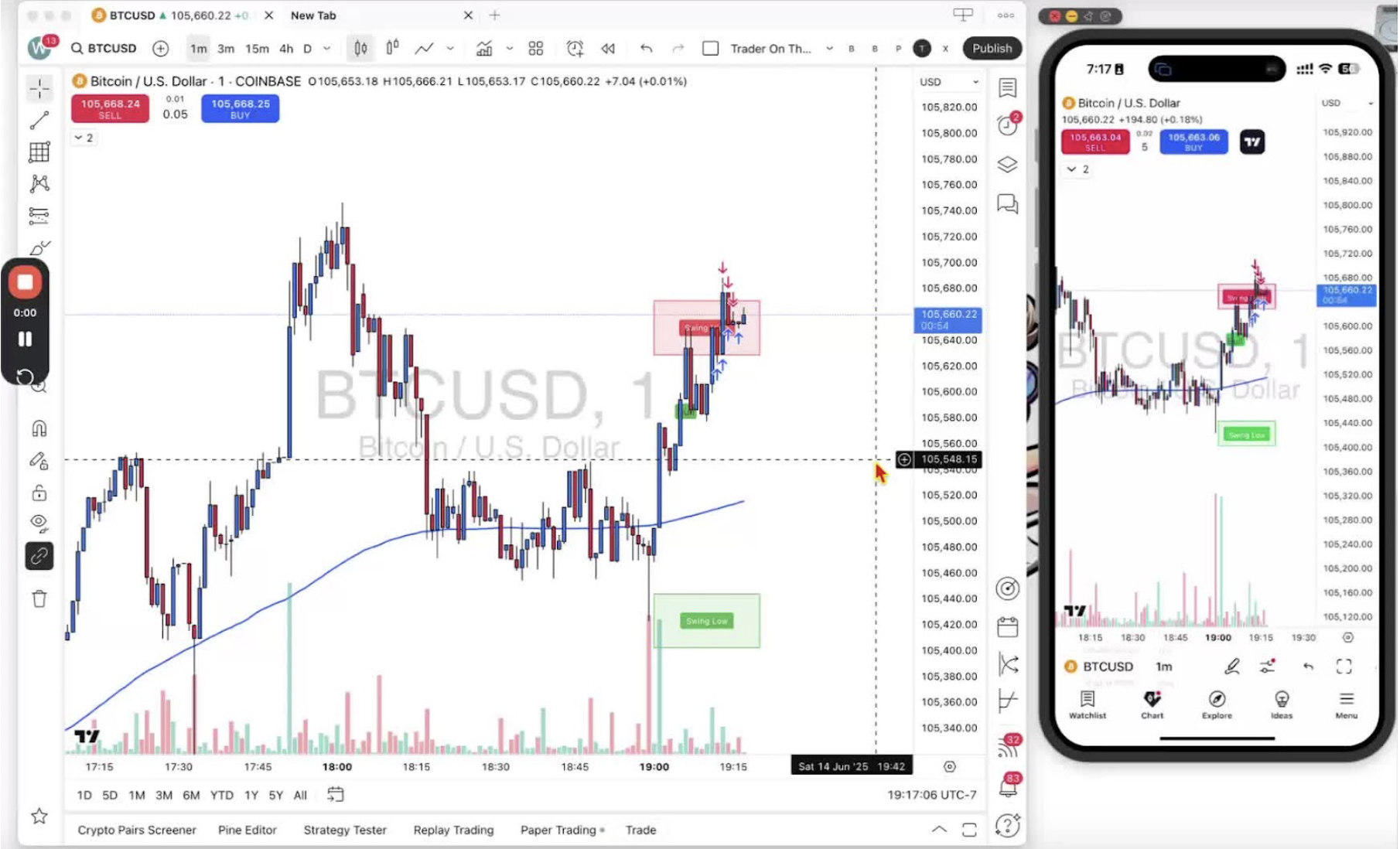
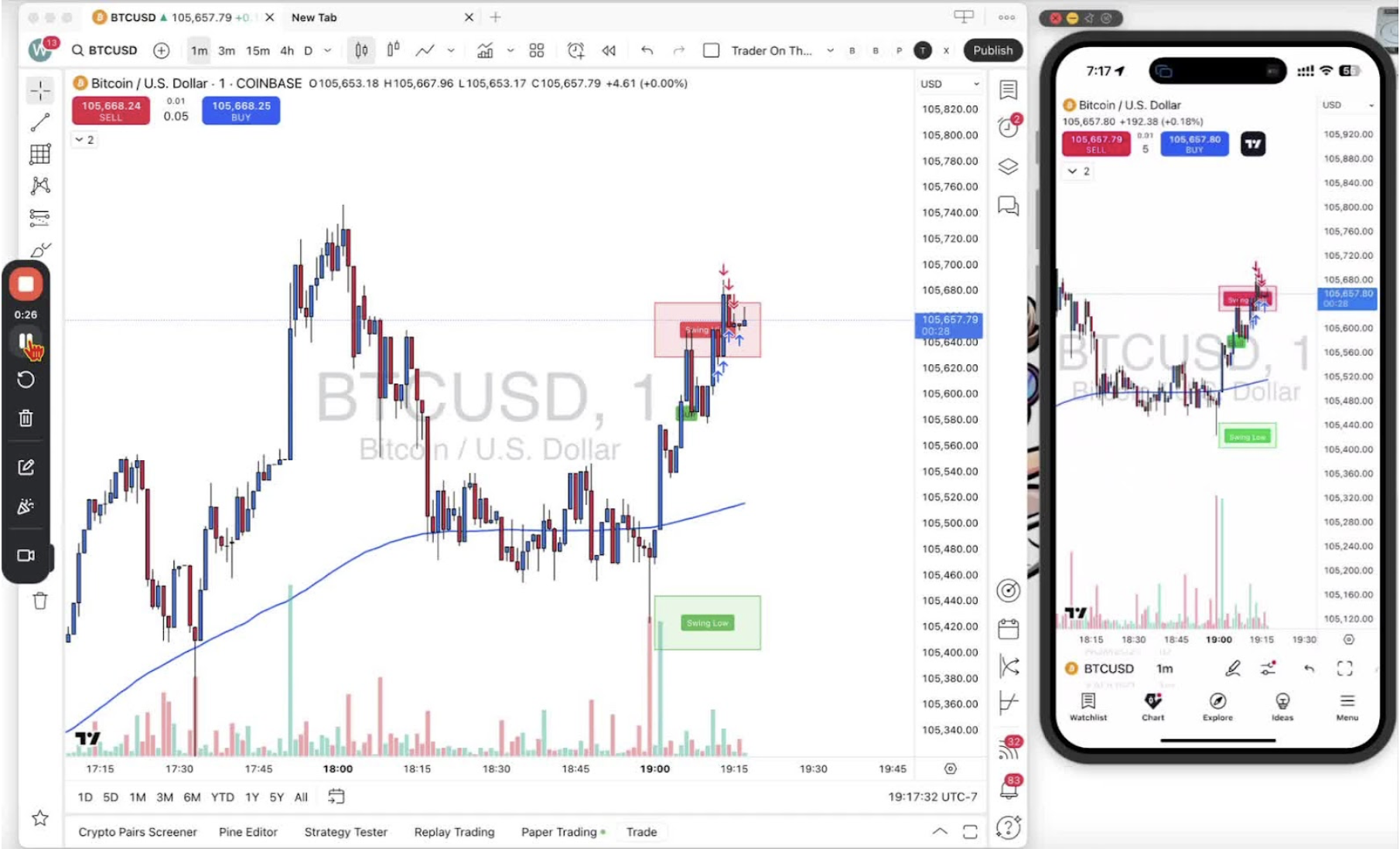
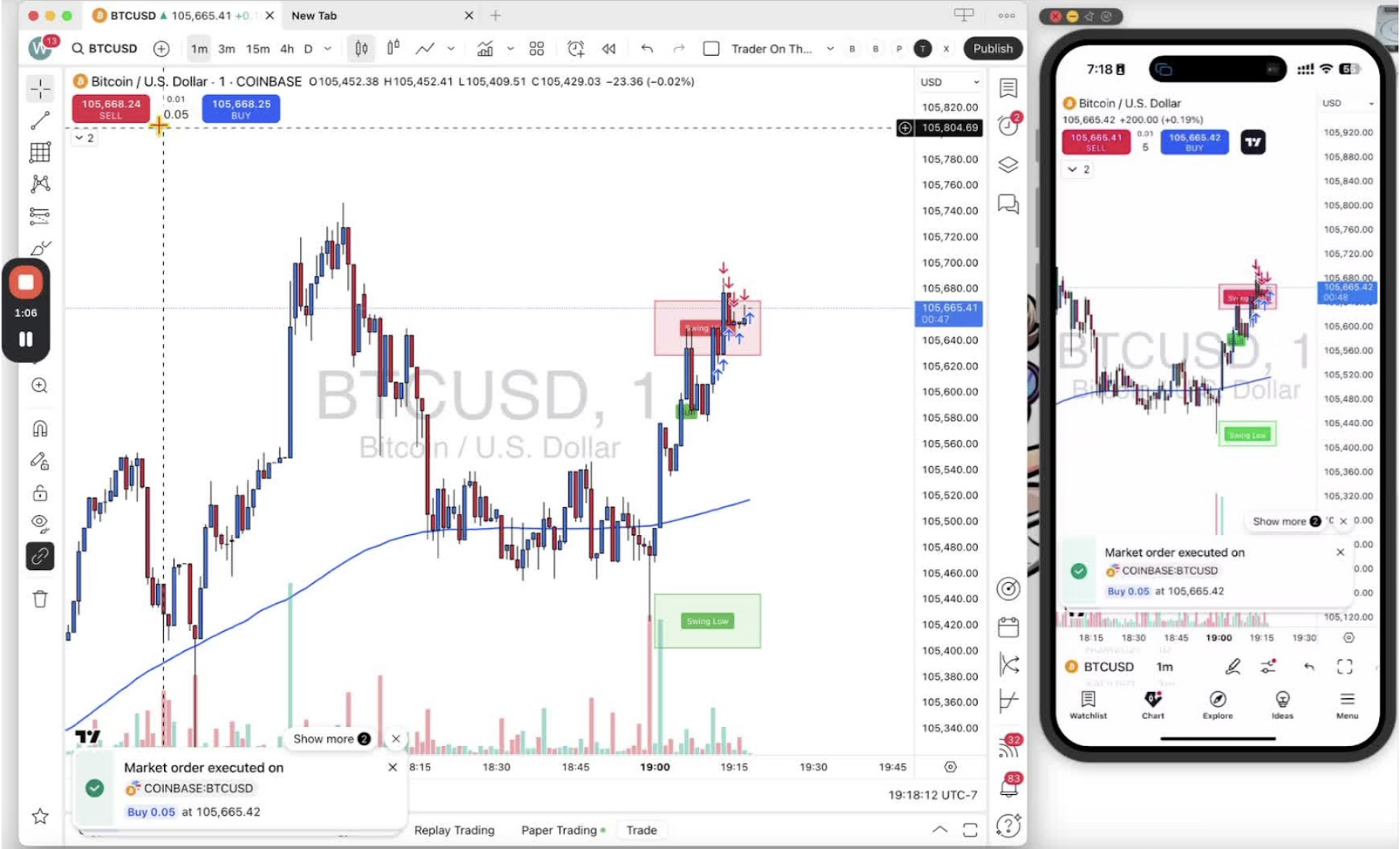
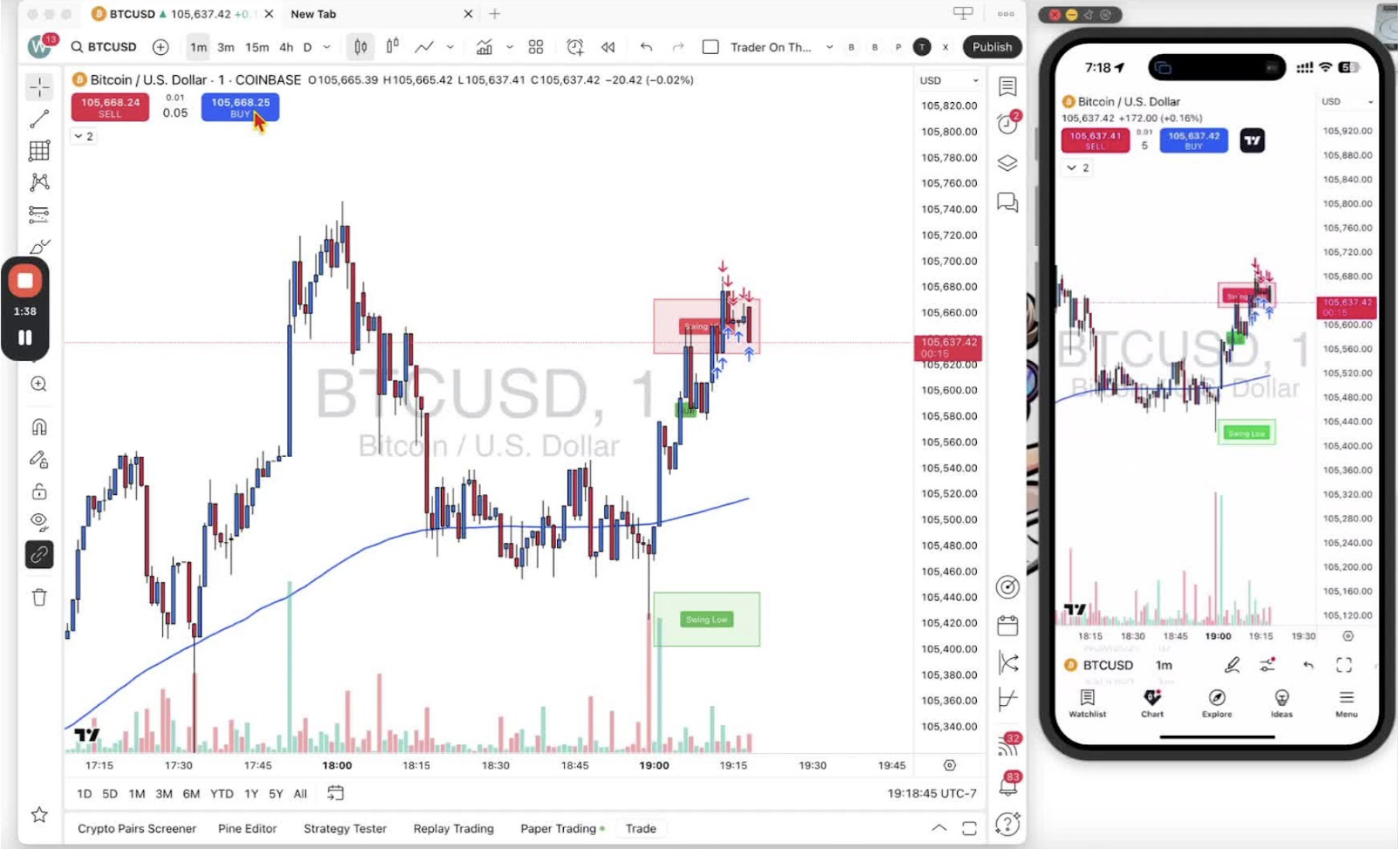
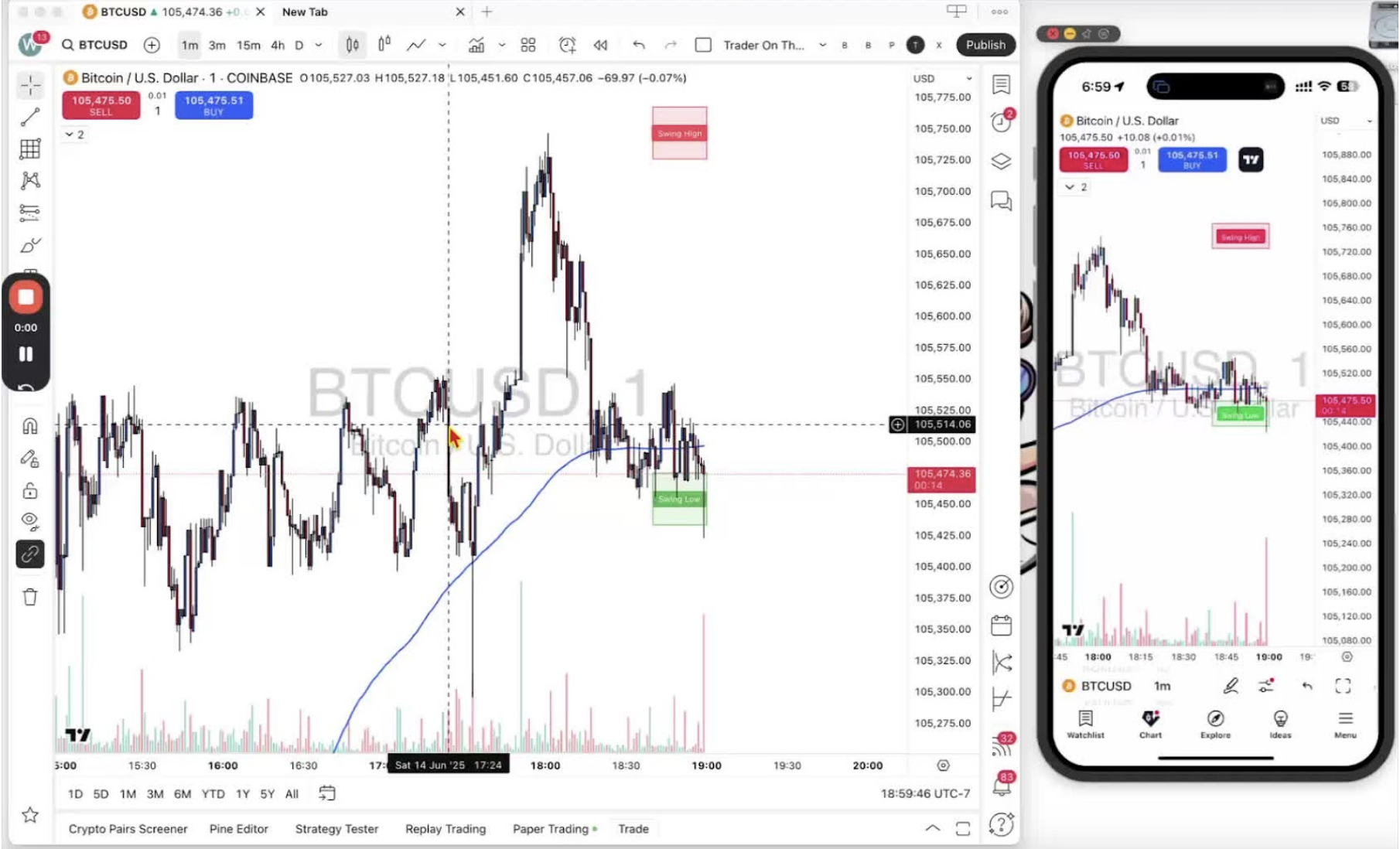
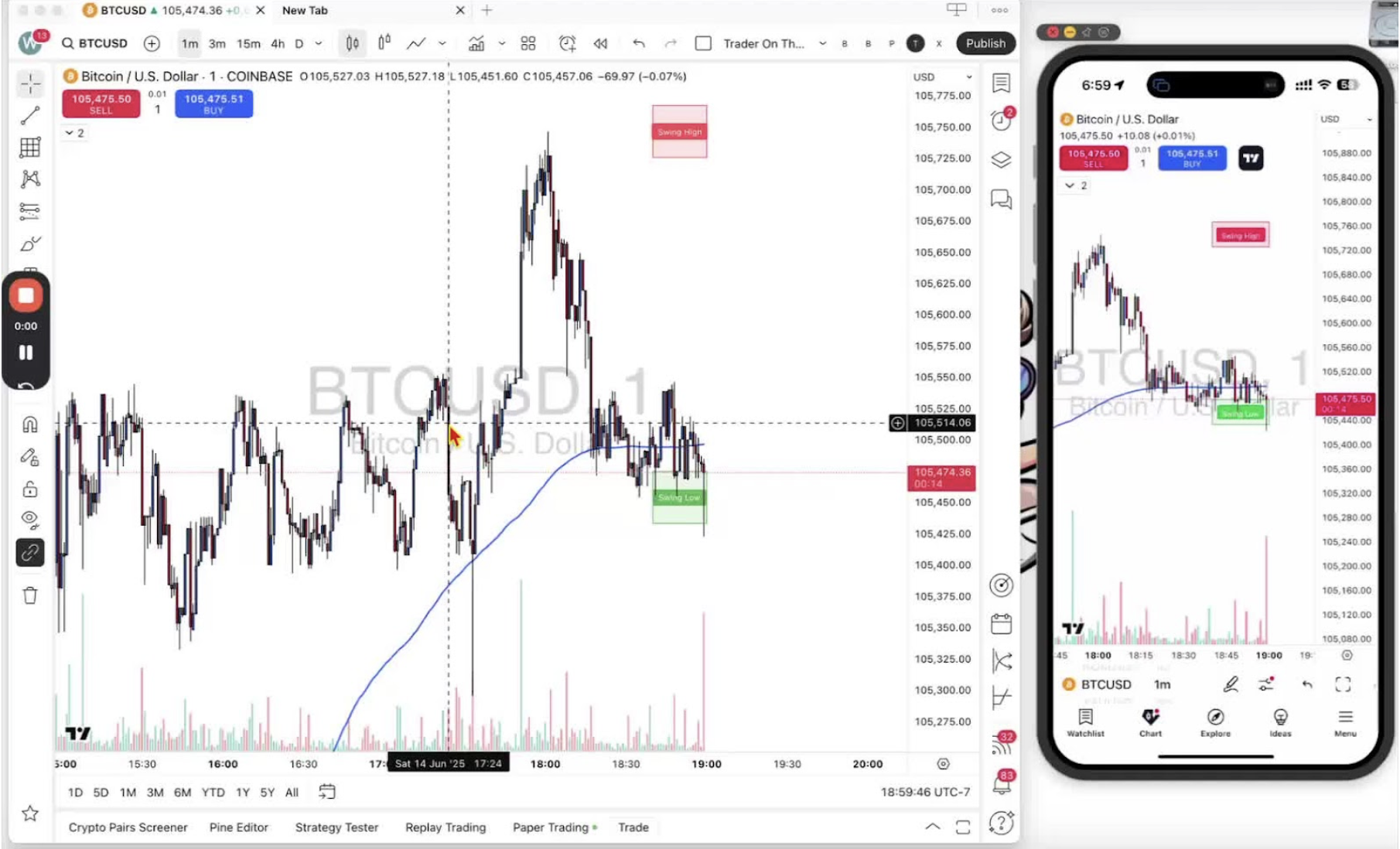
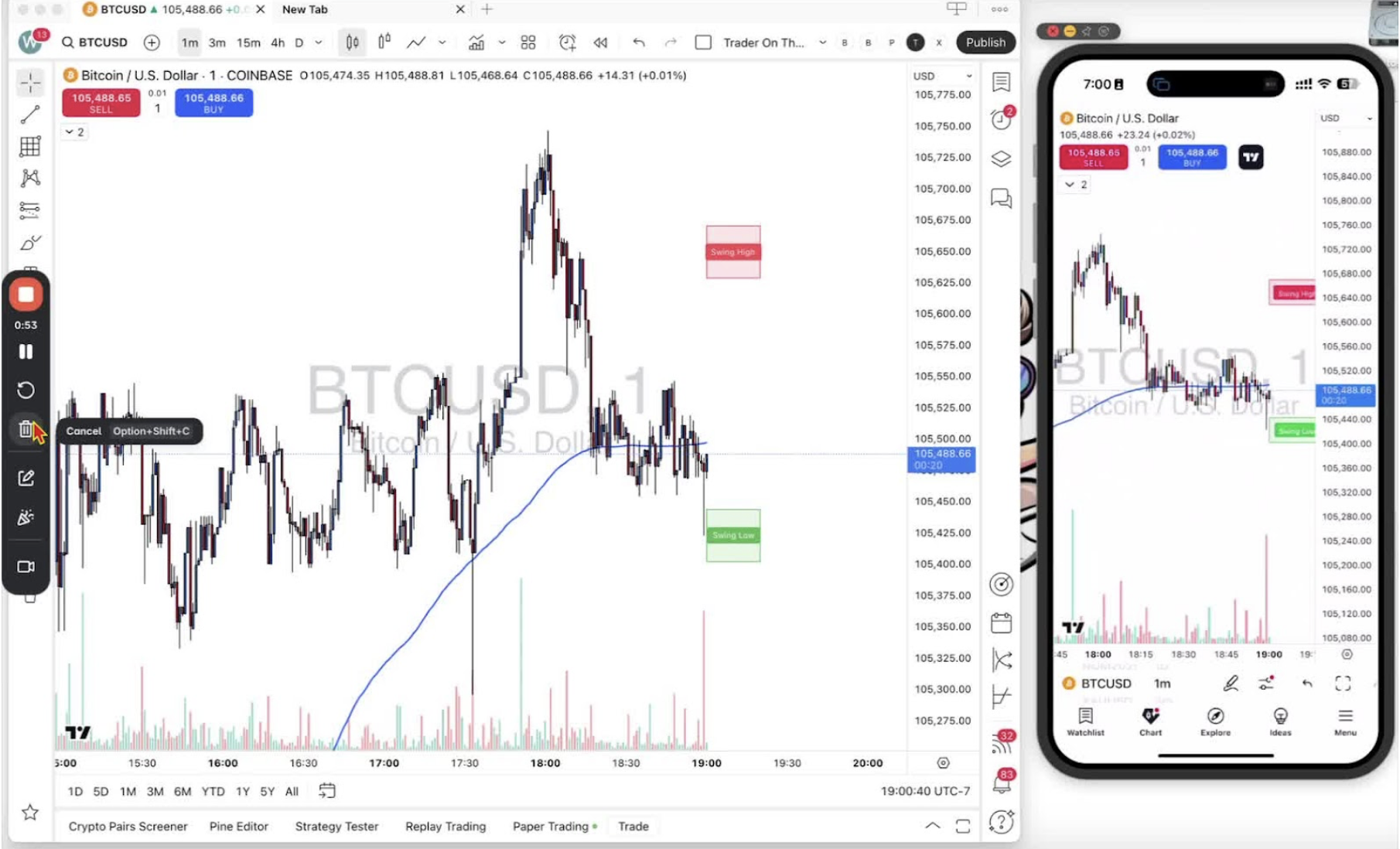
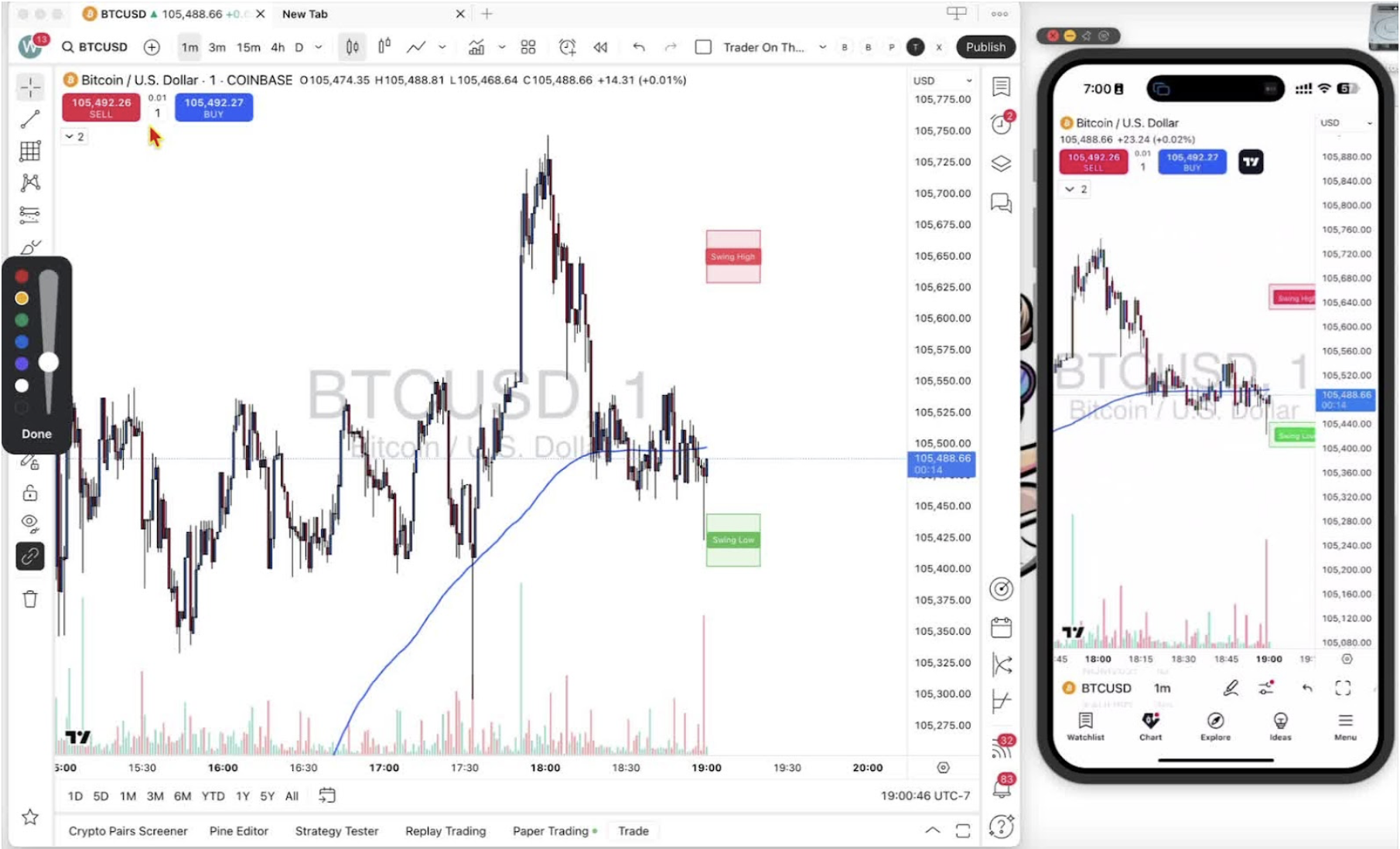
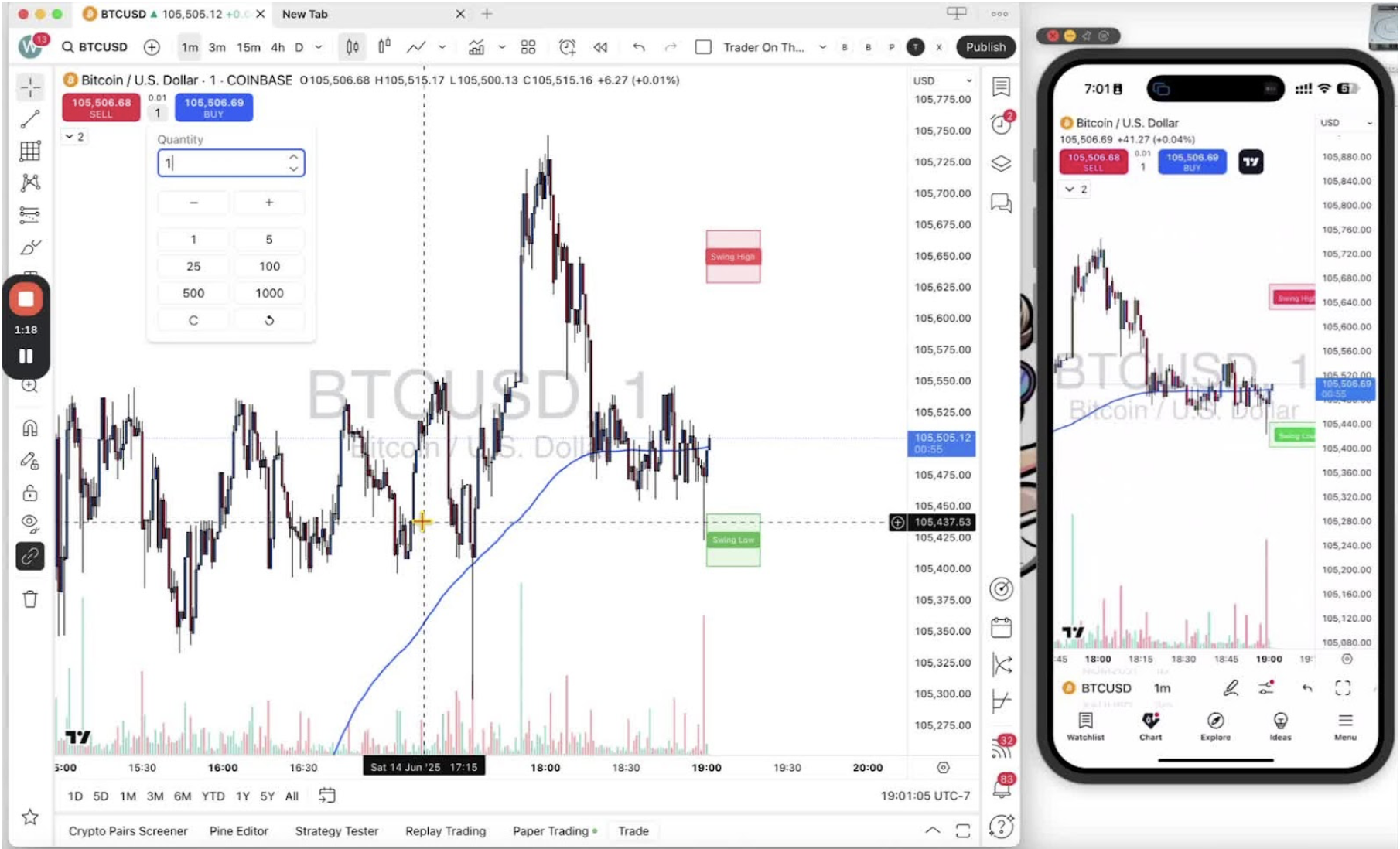
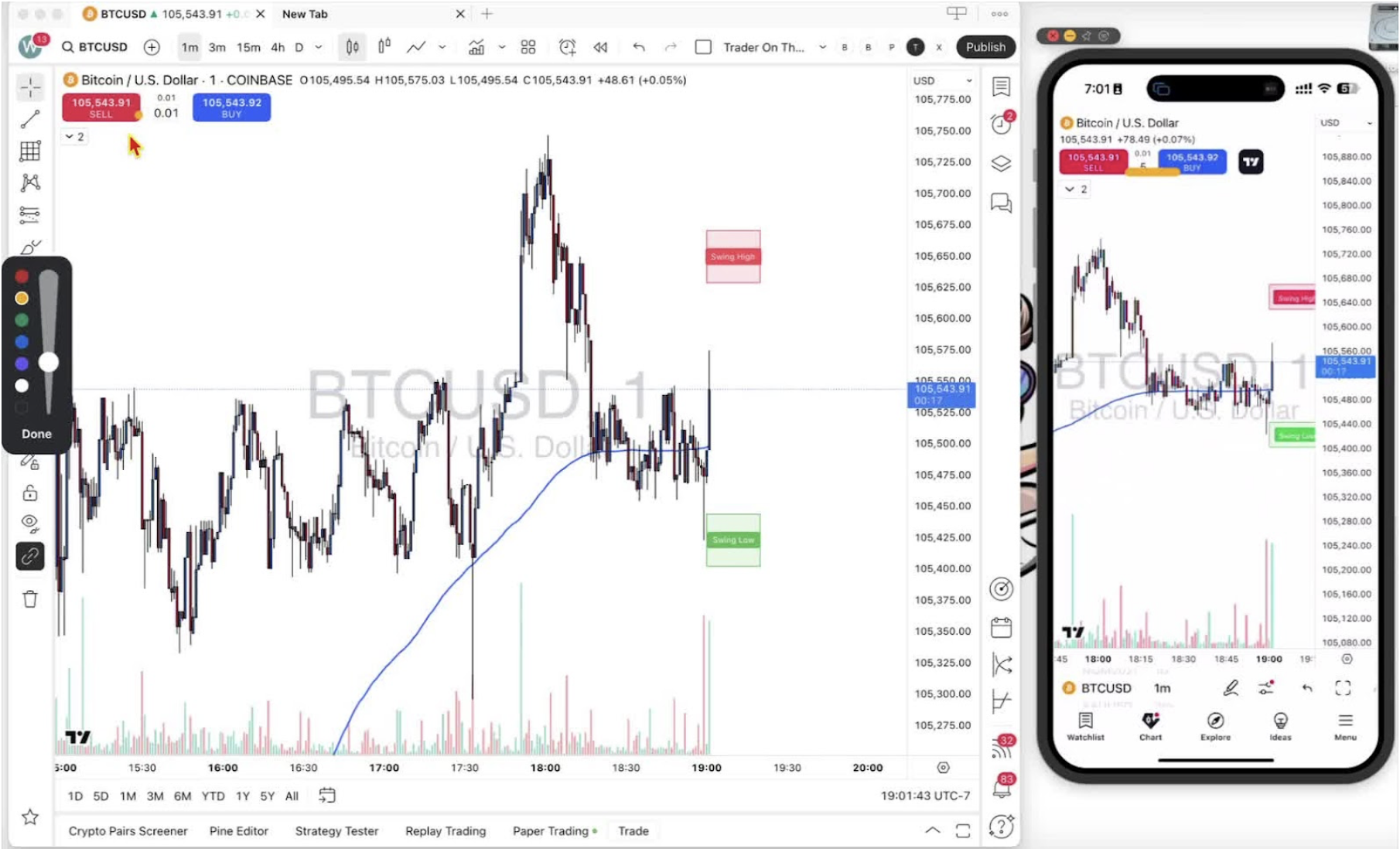
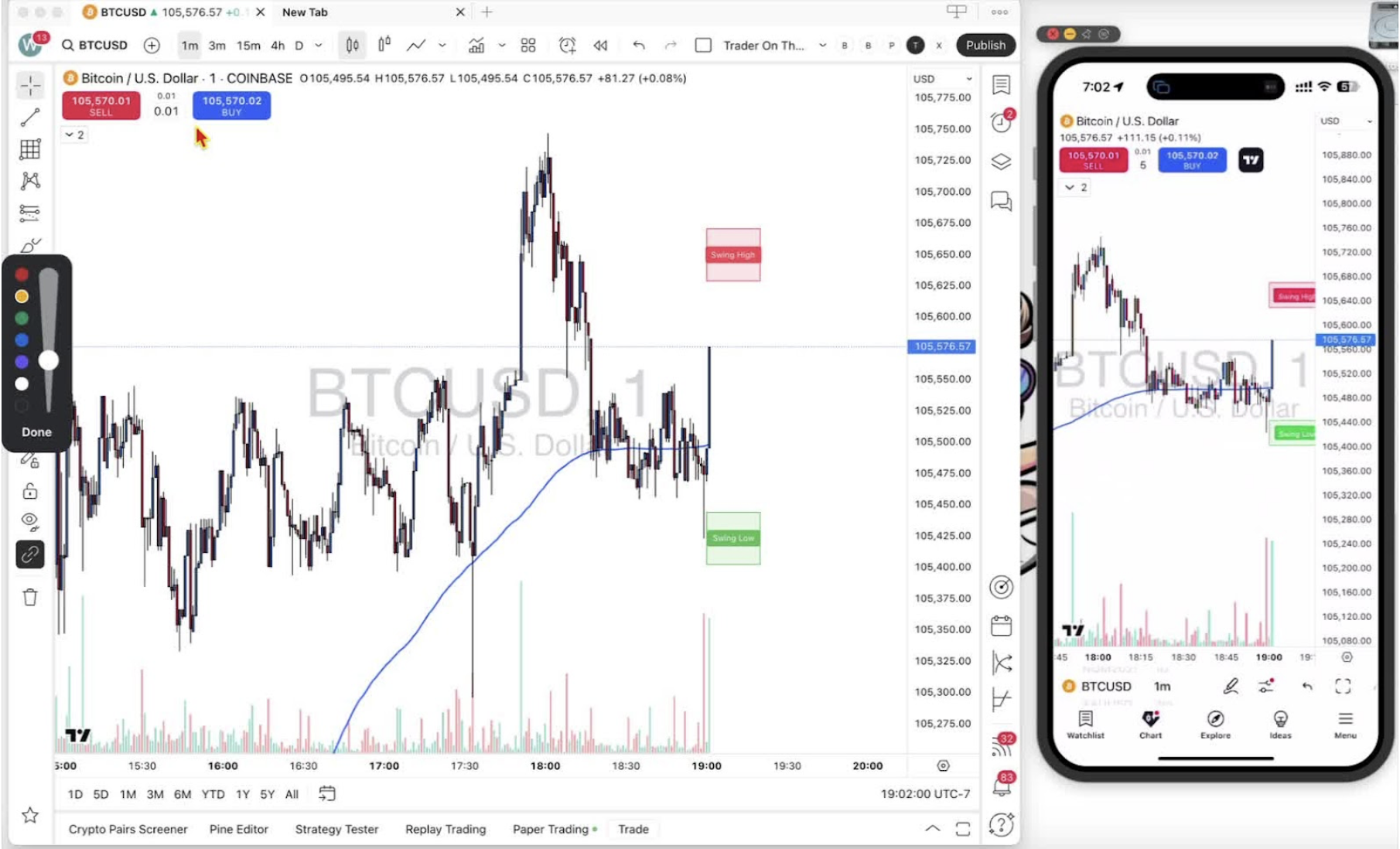
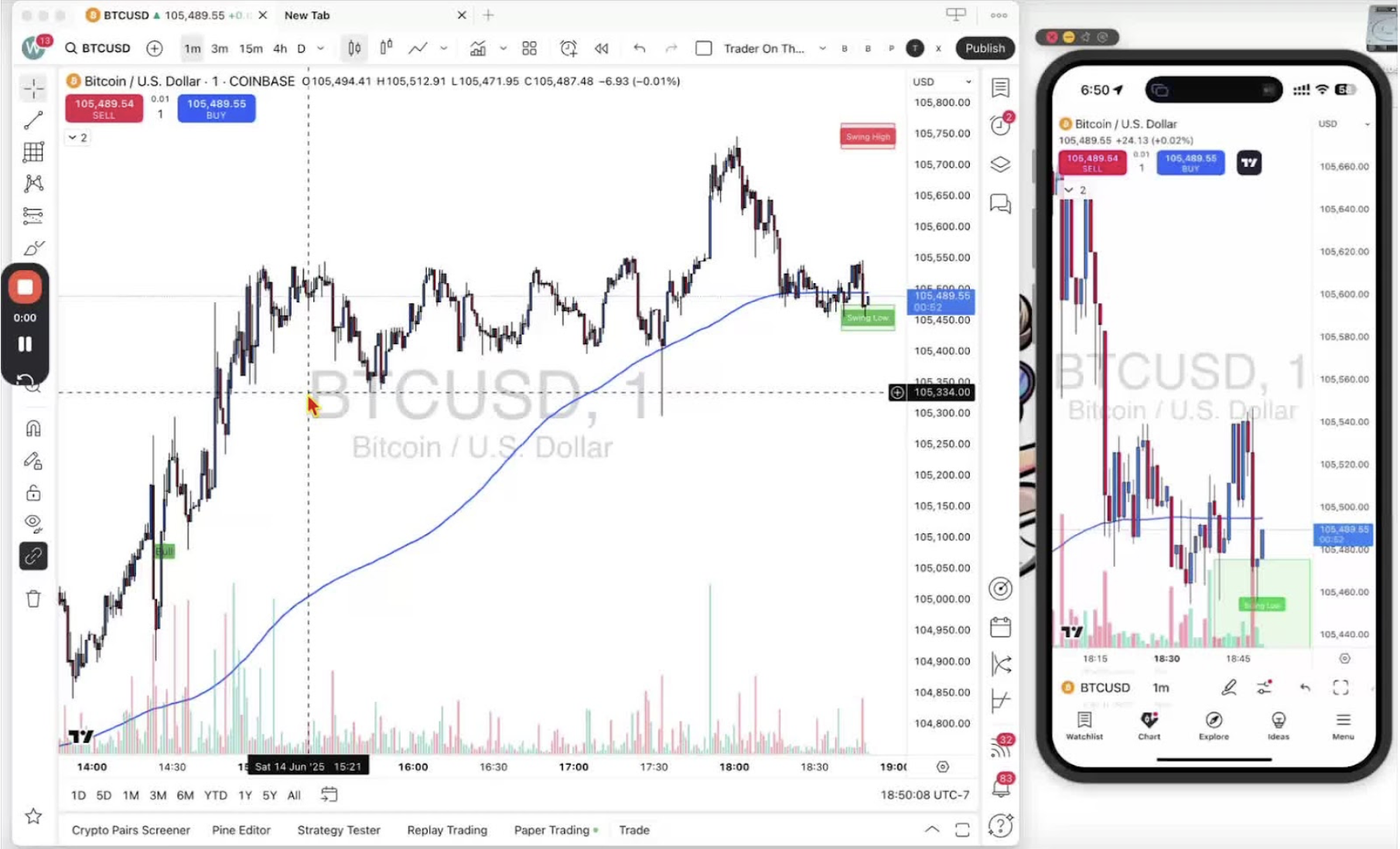
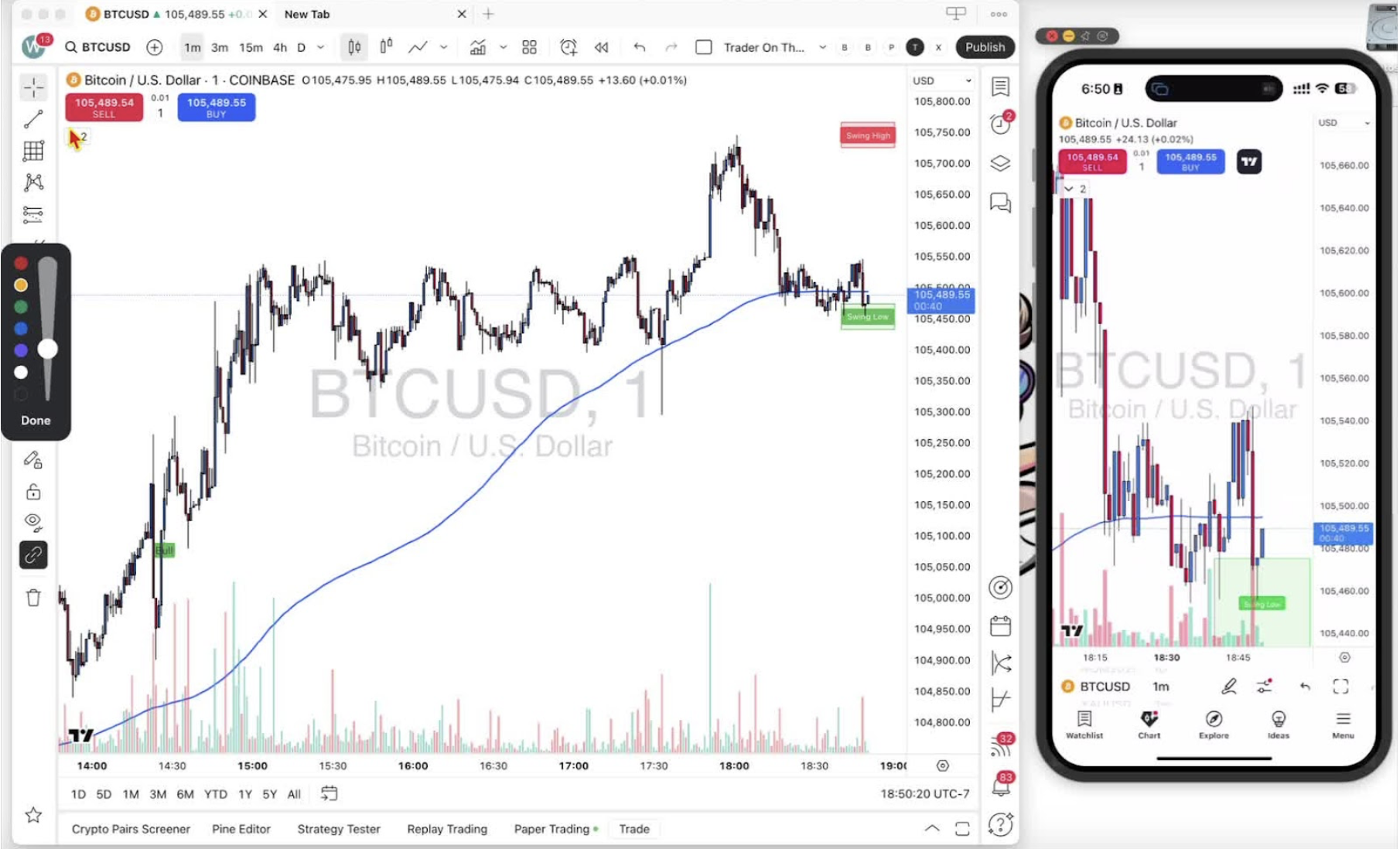
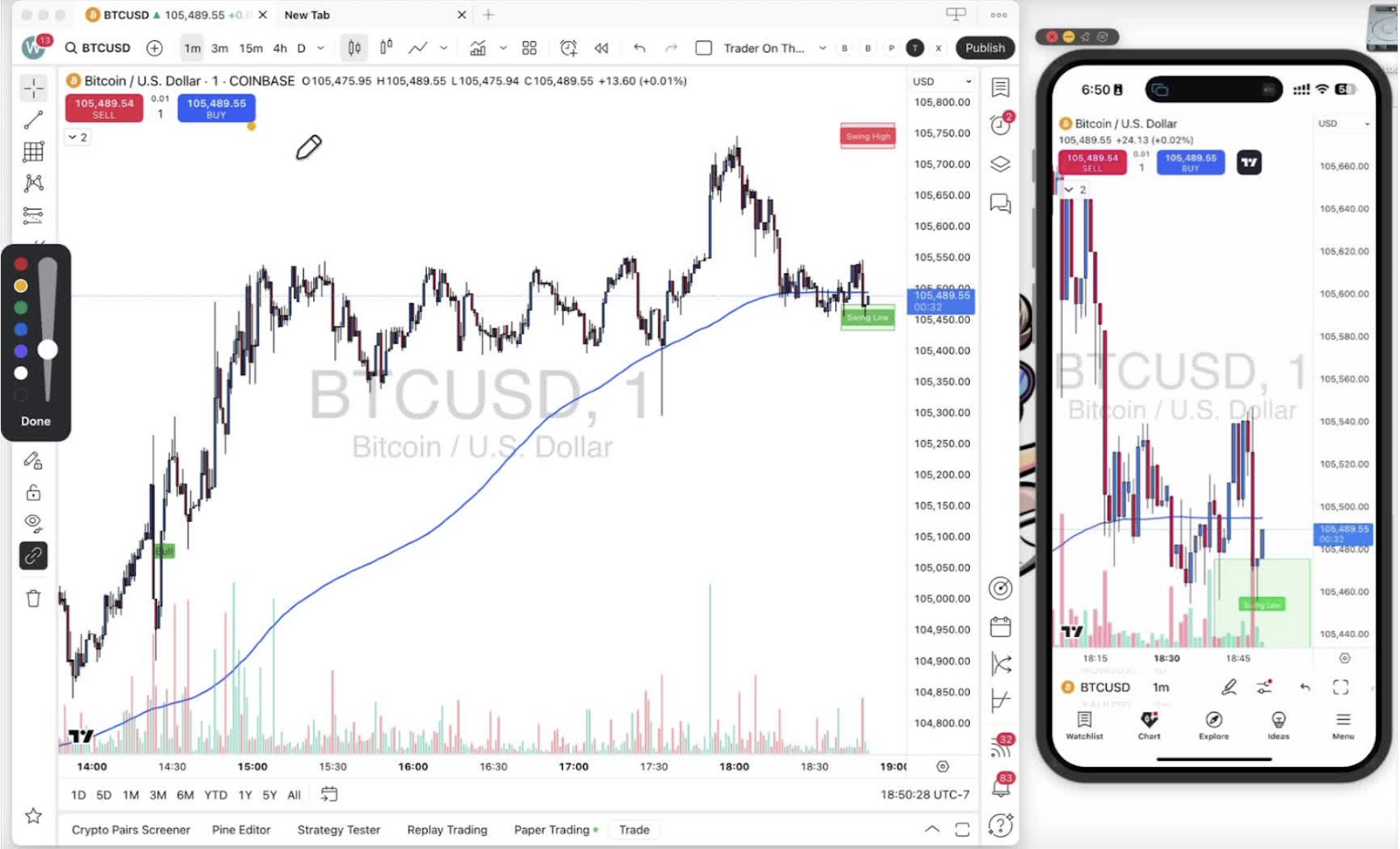
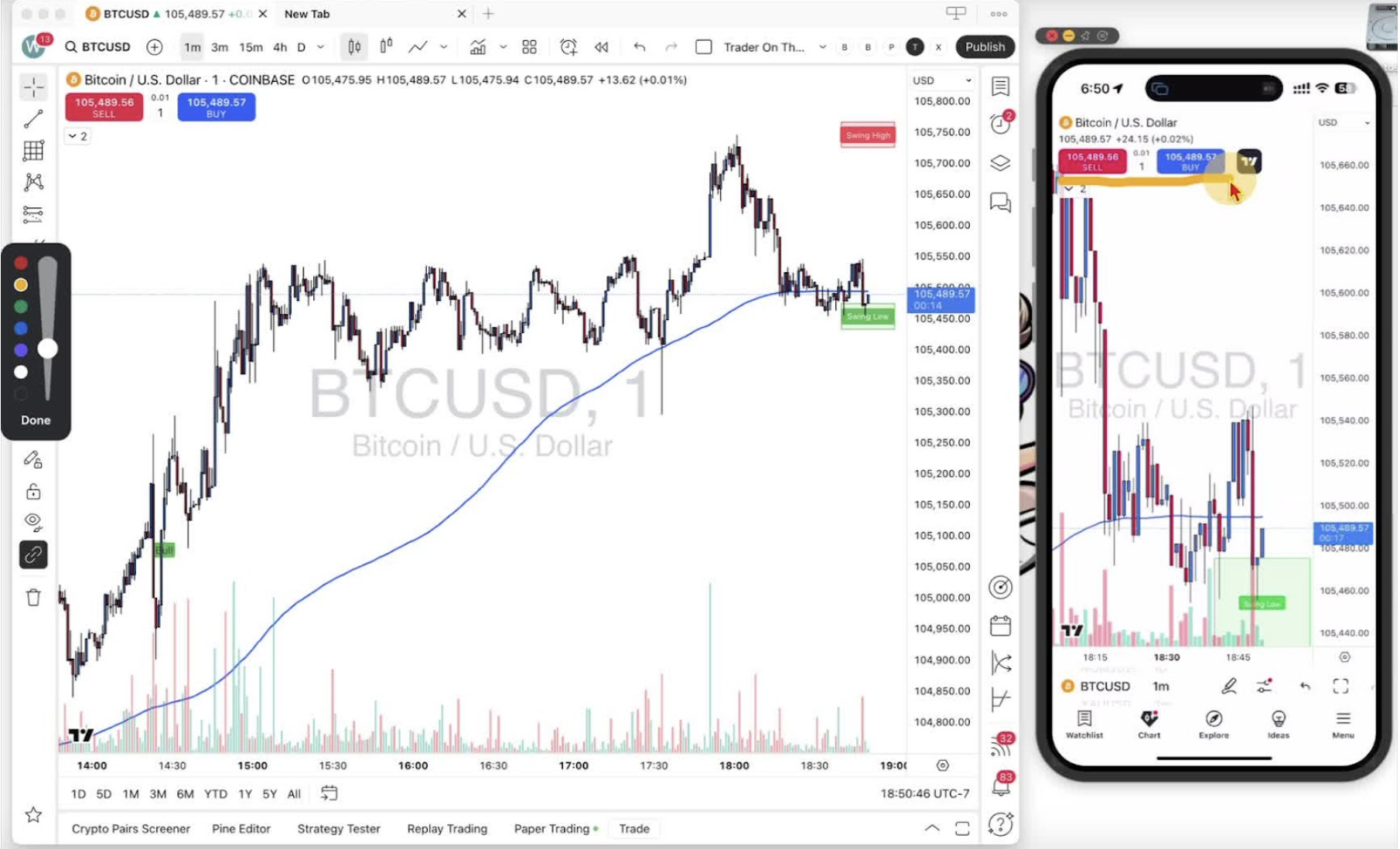
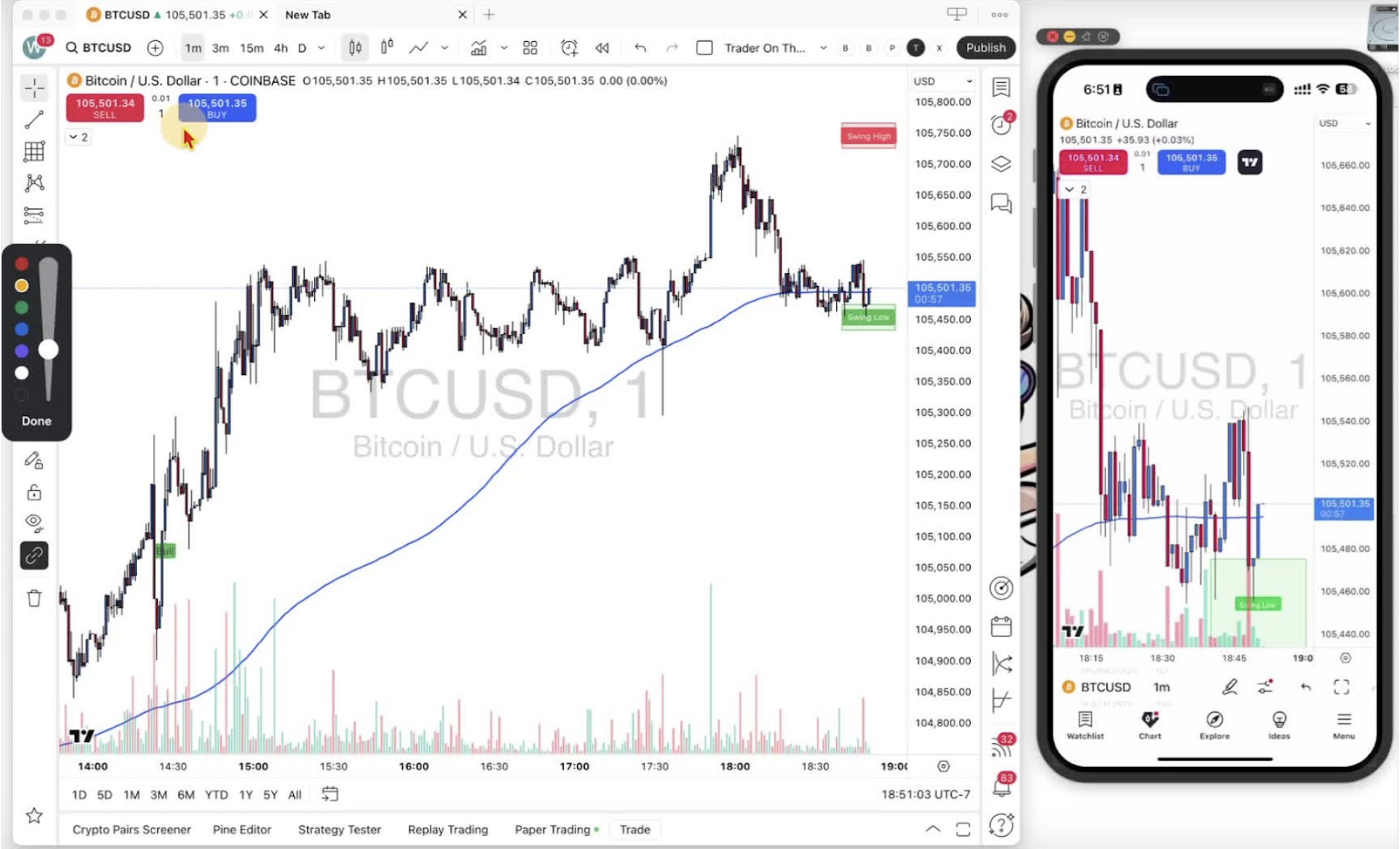
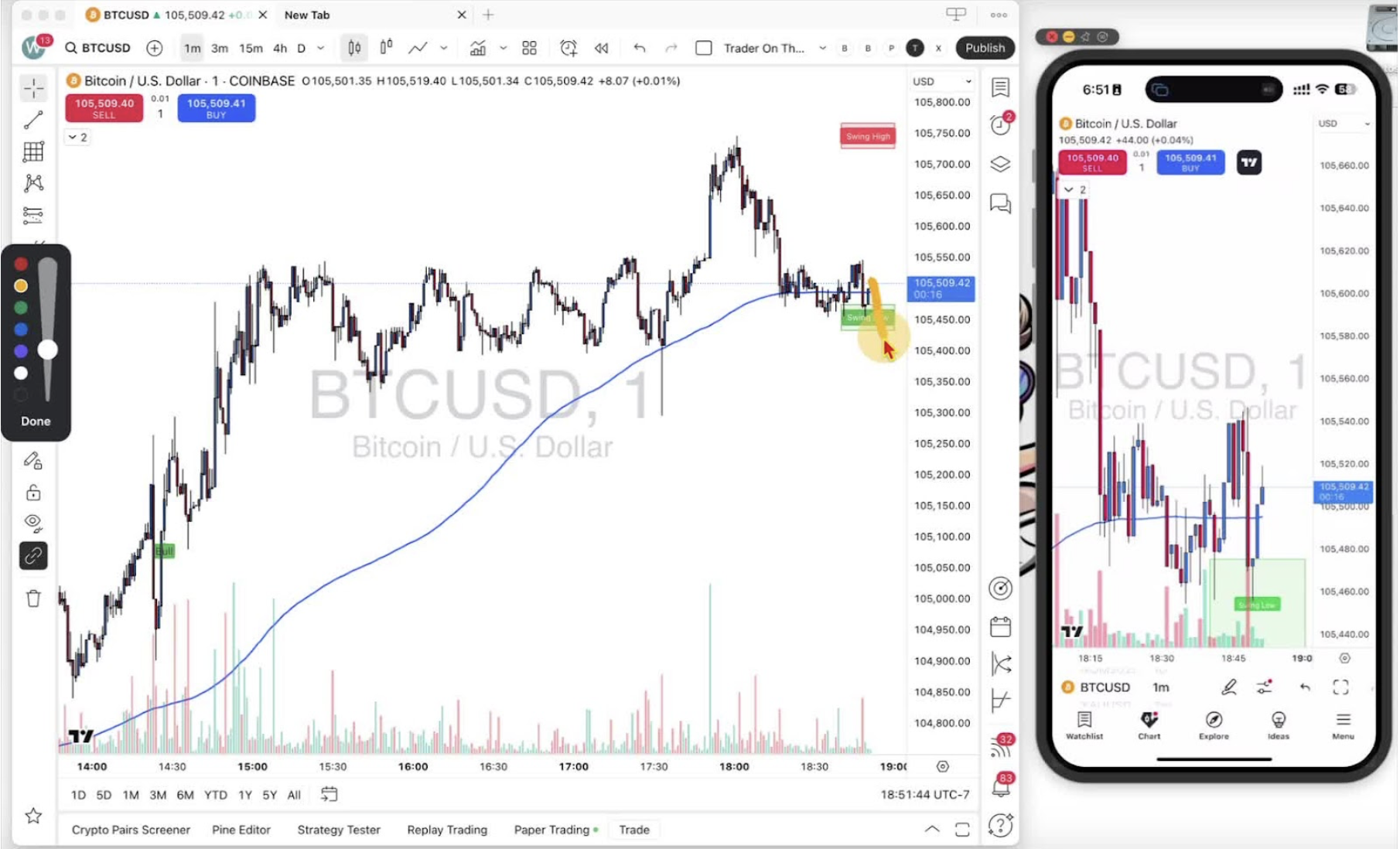
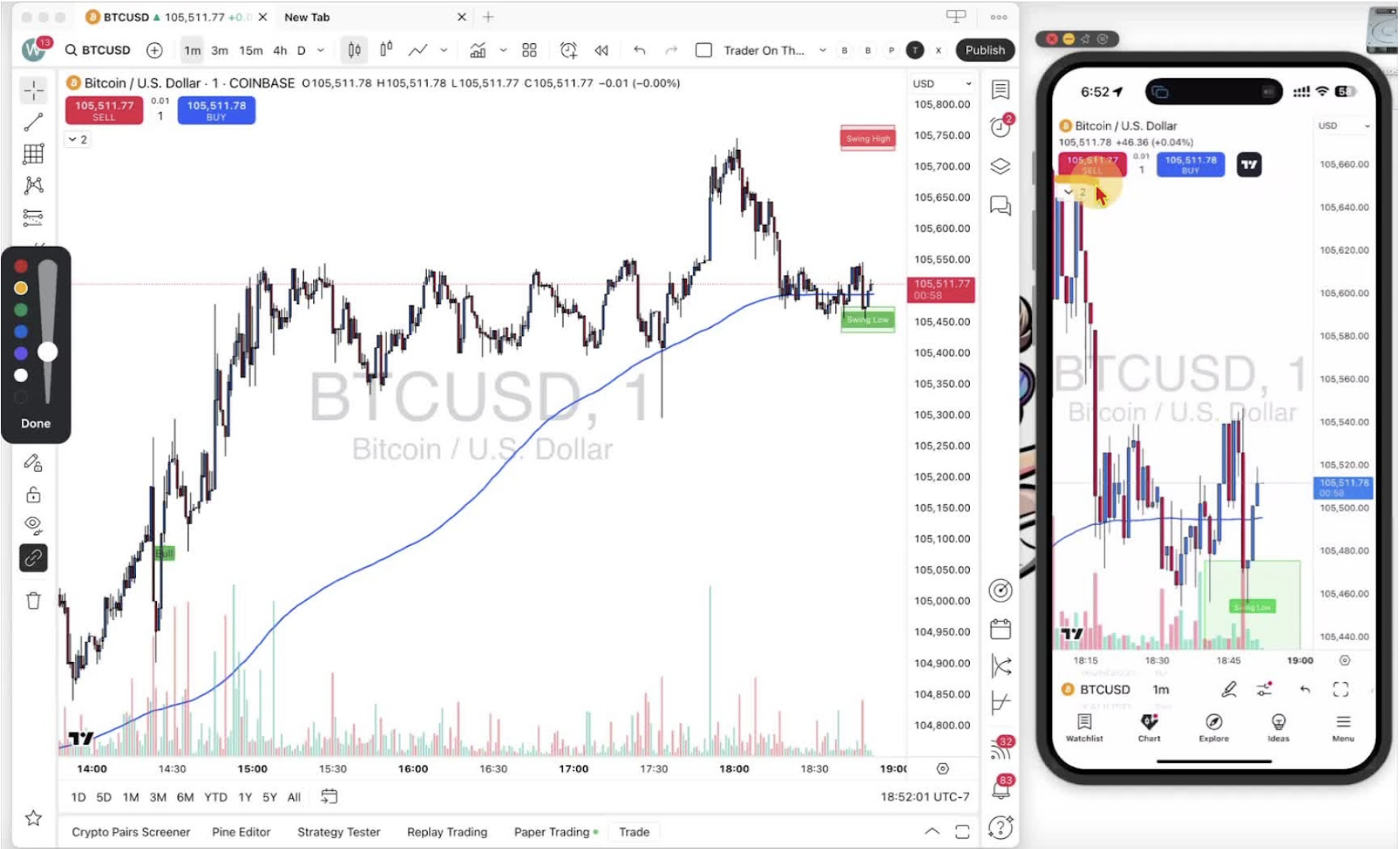
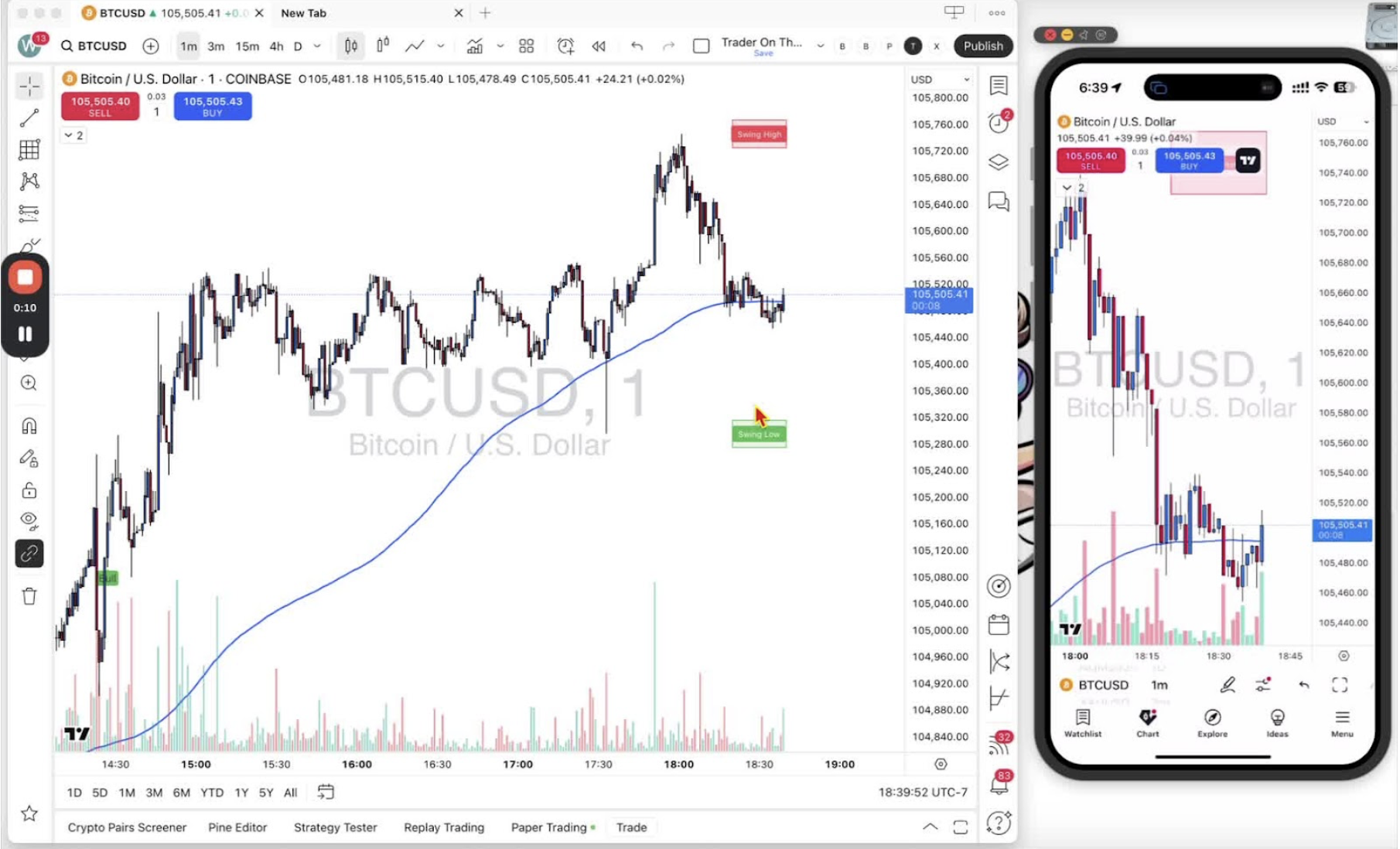
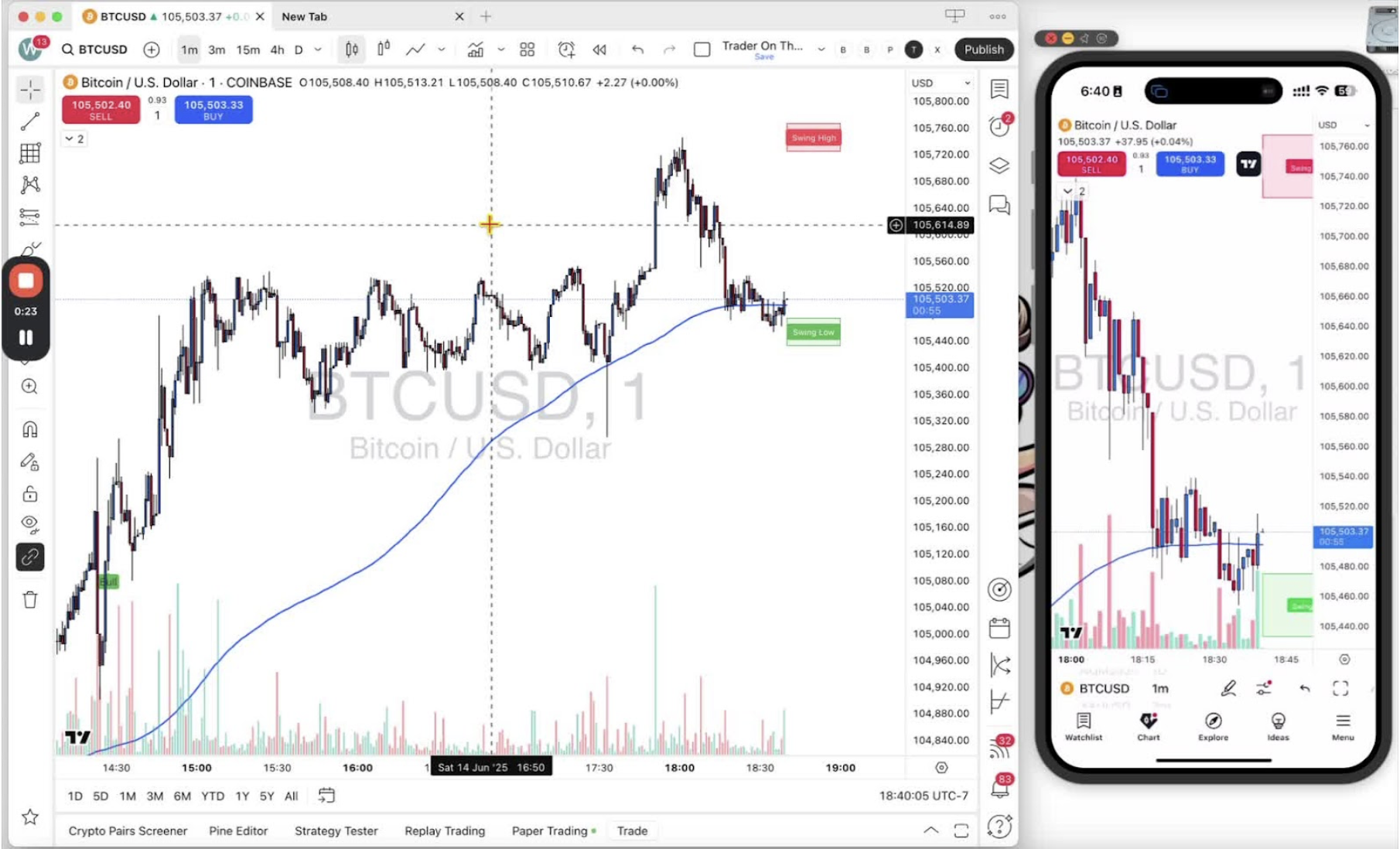
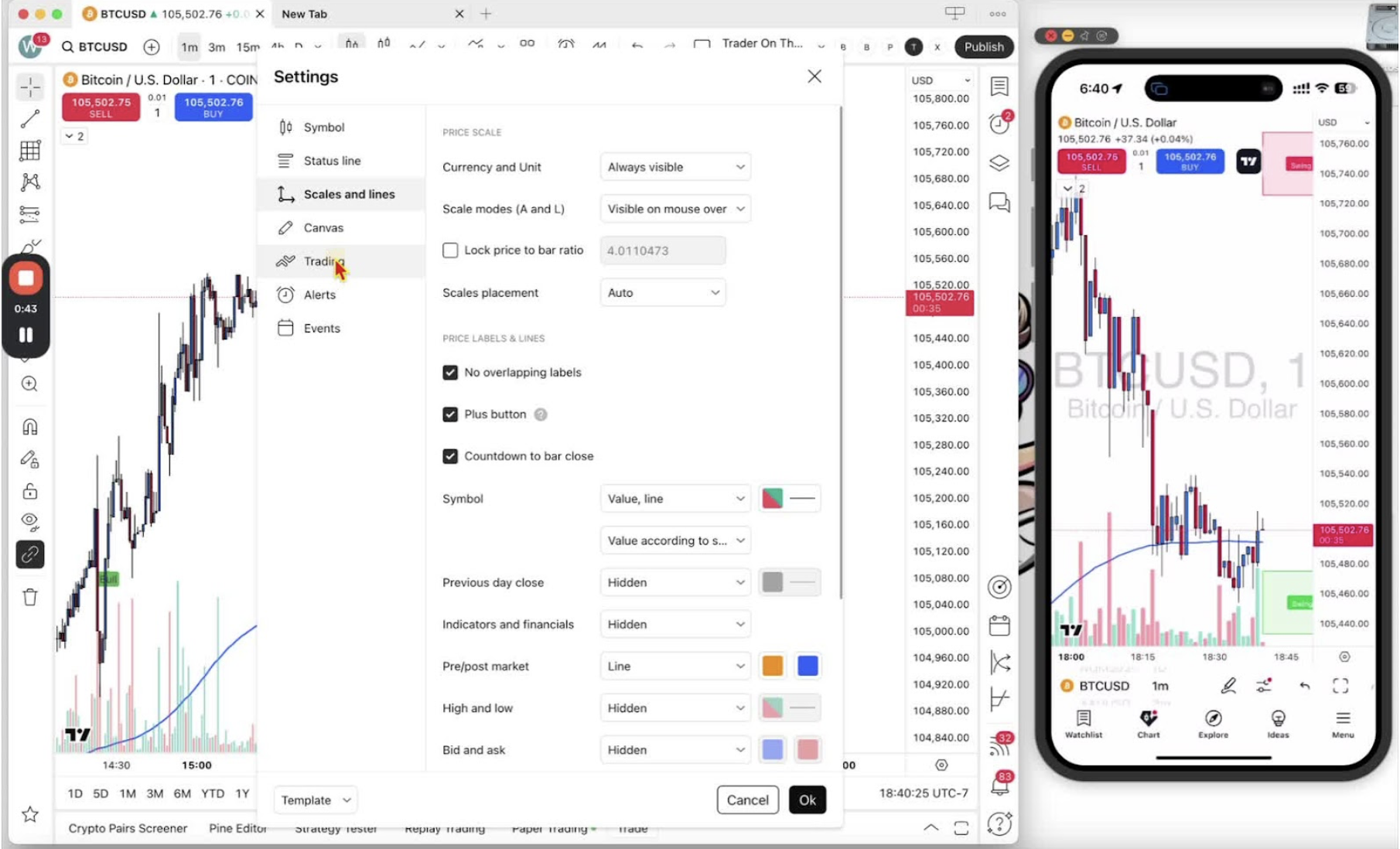
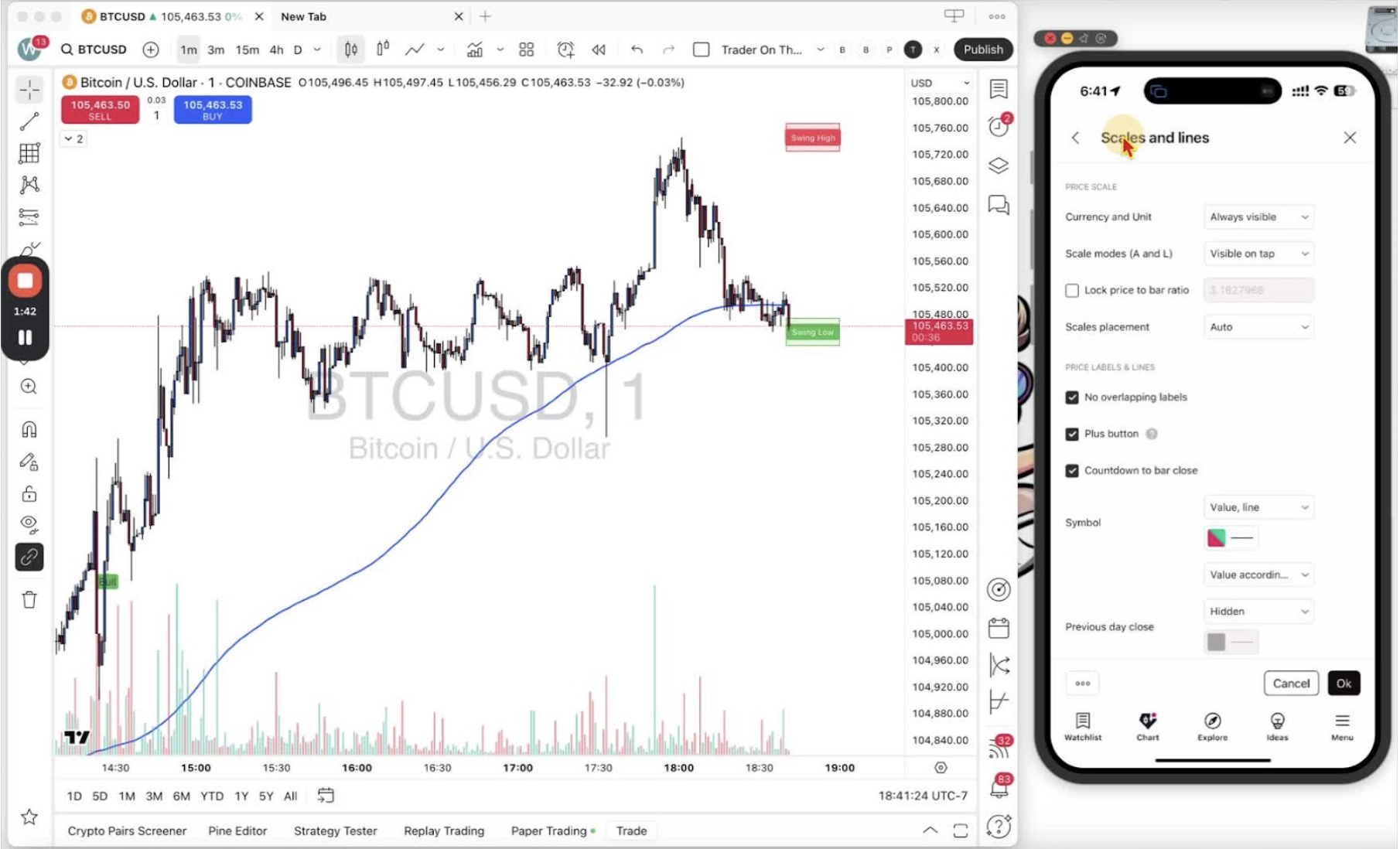
    In this video, I walk you through the simple steps to remove the swing high and swing low boxes on both desktop and mobile platforms. To do this on desktop, click the show indicators legend, access settings, and untick the boxes and paint labels under the style section. For mobile, tap the down arrow under the cell button, select settings, and follow the same process to untick the boxes and paint labels. If you want to bring them back, just repeat the steps and tick the options again. Please take a moment to adjust your settings as needed!

    Access Indicator Settings on Desktop 0:14
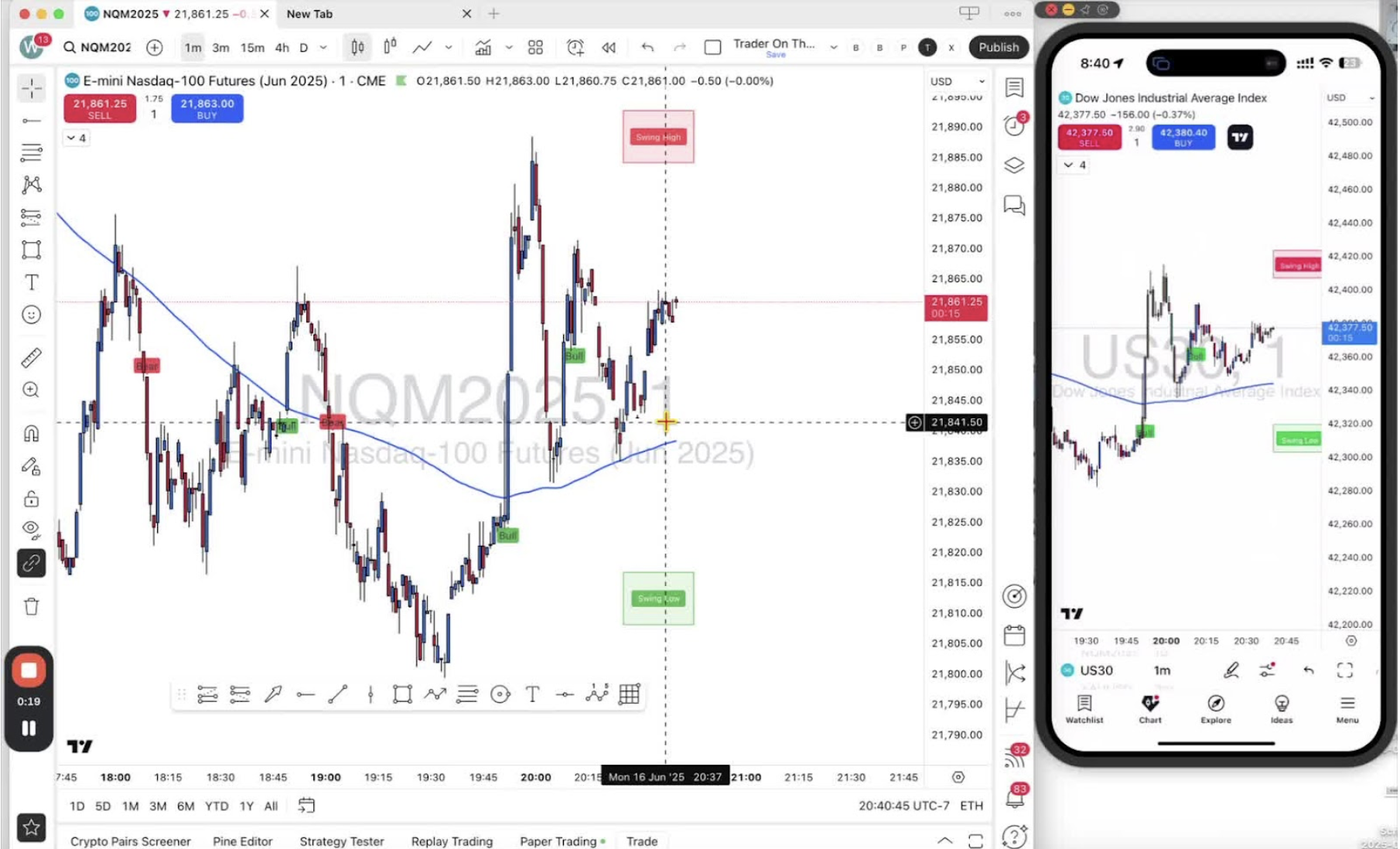
    • Click on the ‘Show Indicators’ legend located under the red sell button.
    • This may appear as a little arrow on your interface.

    Open Indicator List Menu 0:27
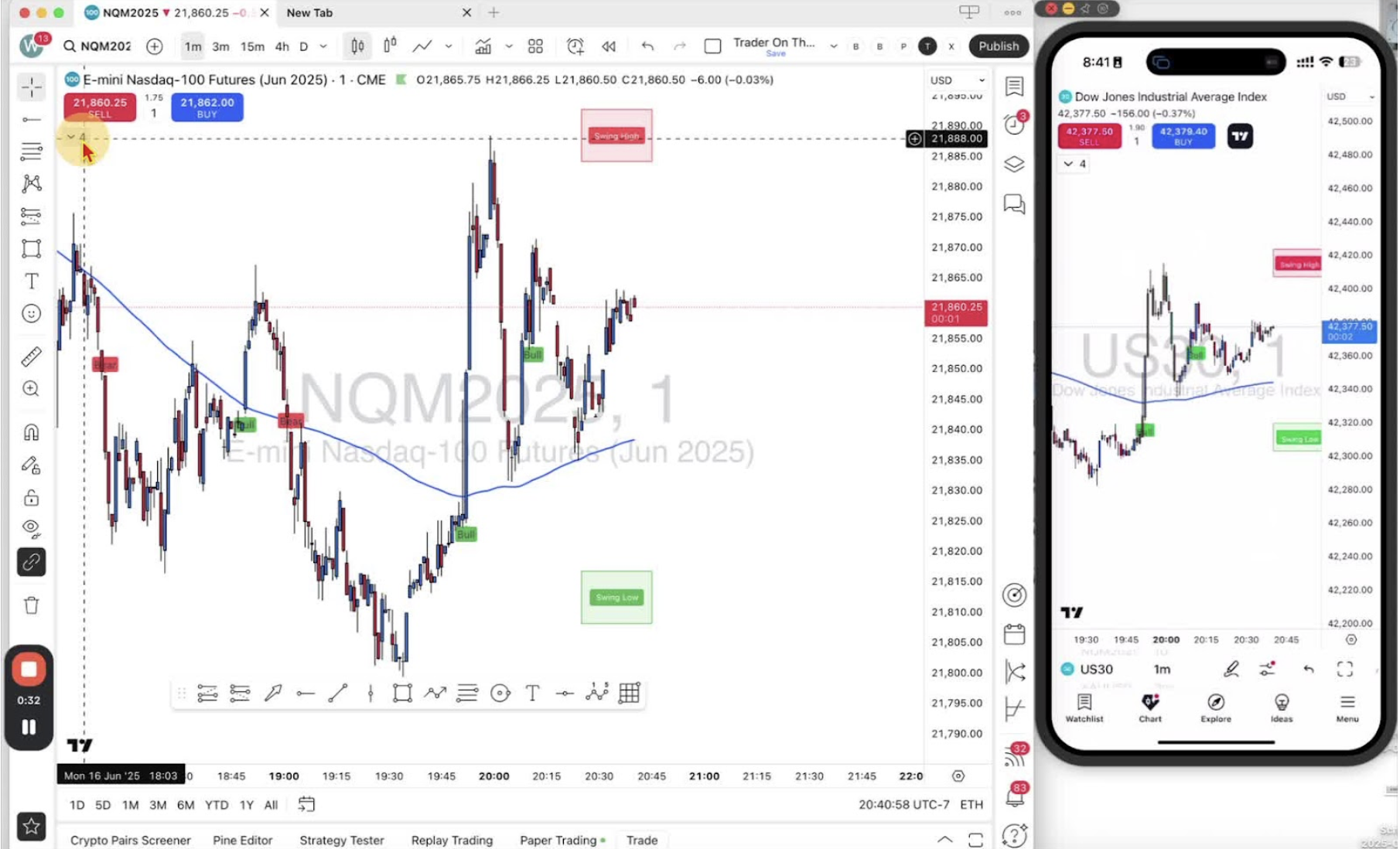
    • Hover over the text to reveal the options.
    • Click on ‘Settings’.

    Navigate to Style Settings 0:40
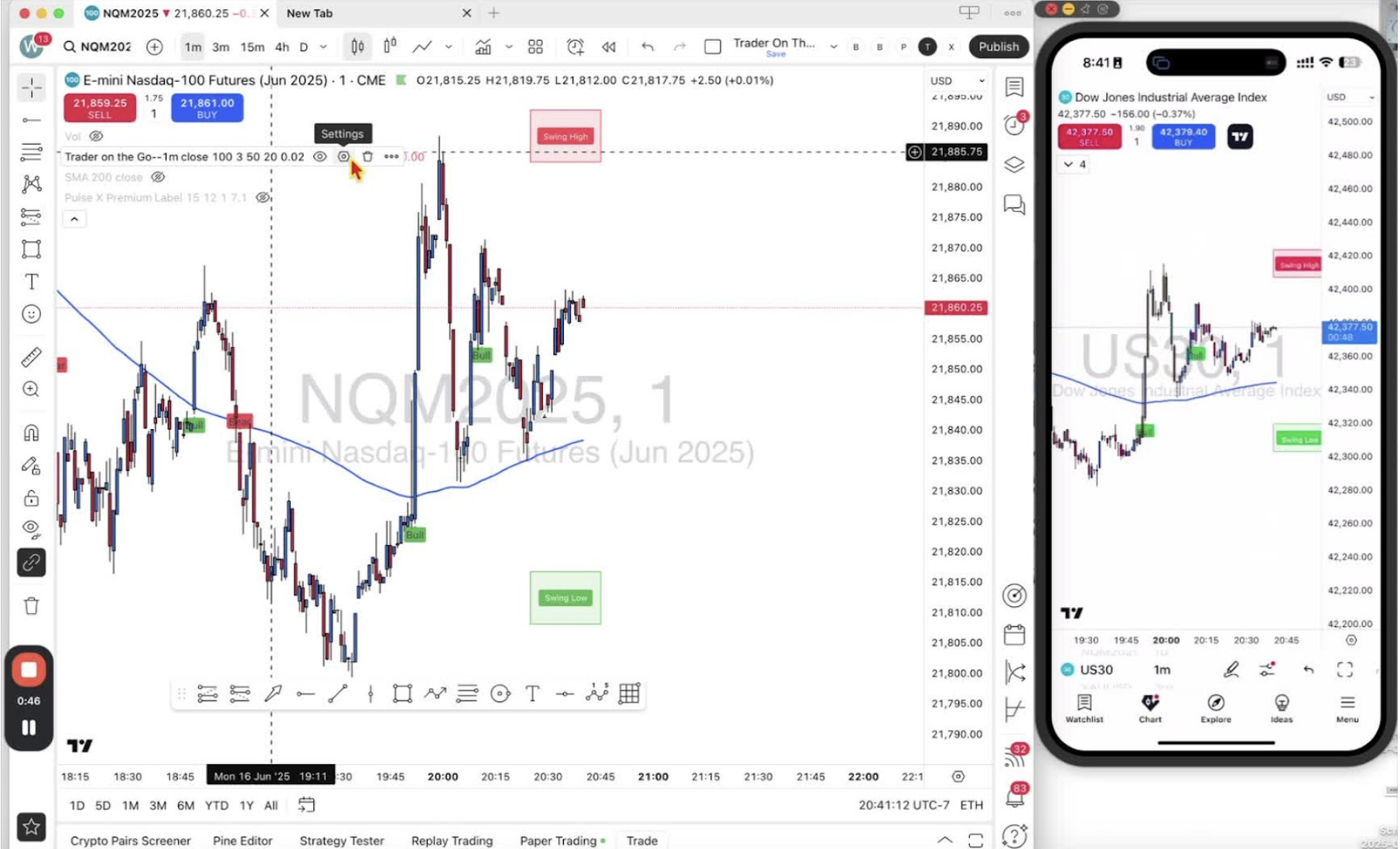
    • In the settings menu, click on ‘Style’.
    • Scroll down to ‘Graphics Objects’

    Remove Swing High and Low Boxes 0:56
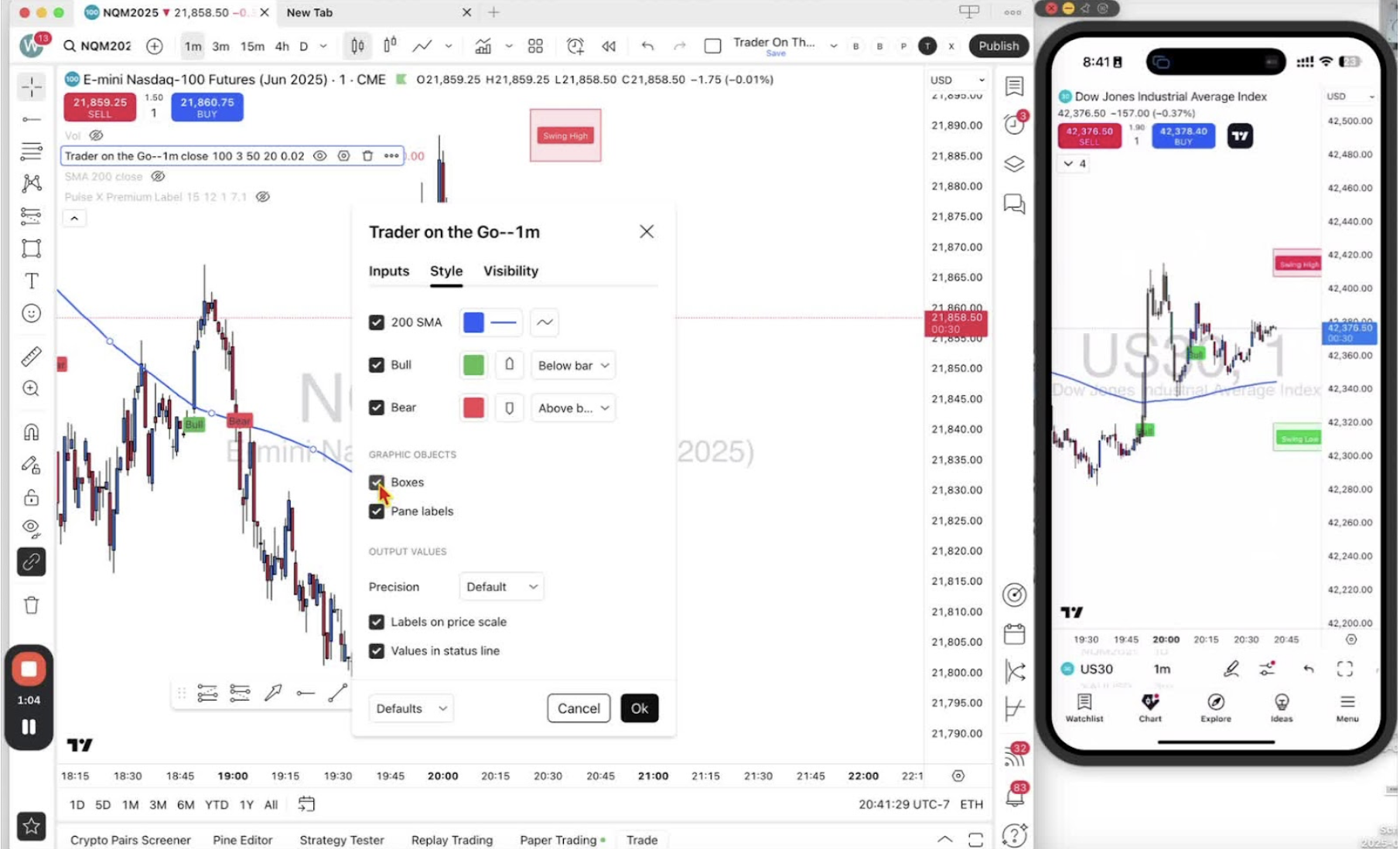
    • Untick ‘Boxes’ to remove the swing high and low boxes.
    • Untick ‘Paint Labels’ if you want to remove the text labels.

    Restore Swing High and Low Boxes (if needed) 1:23
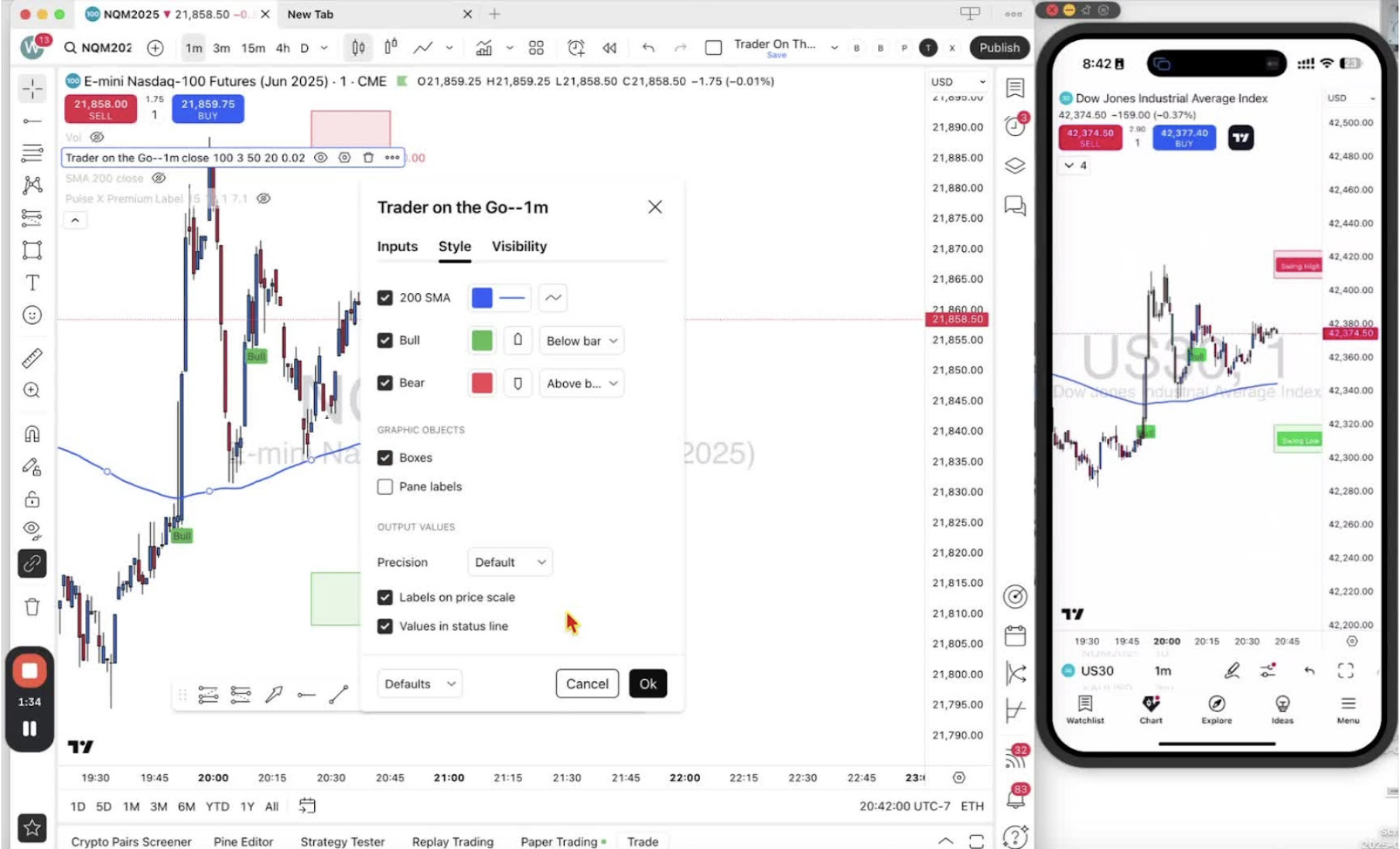
    • To add the boxes back, return to ‘Settings’.
    • Tick ‘Boxes’ and ‘Paint Labels’ as desired.

    Access Indicator Settings on Mobile 1:31
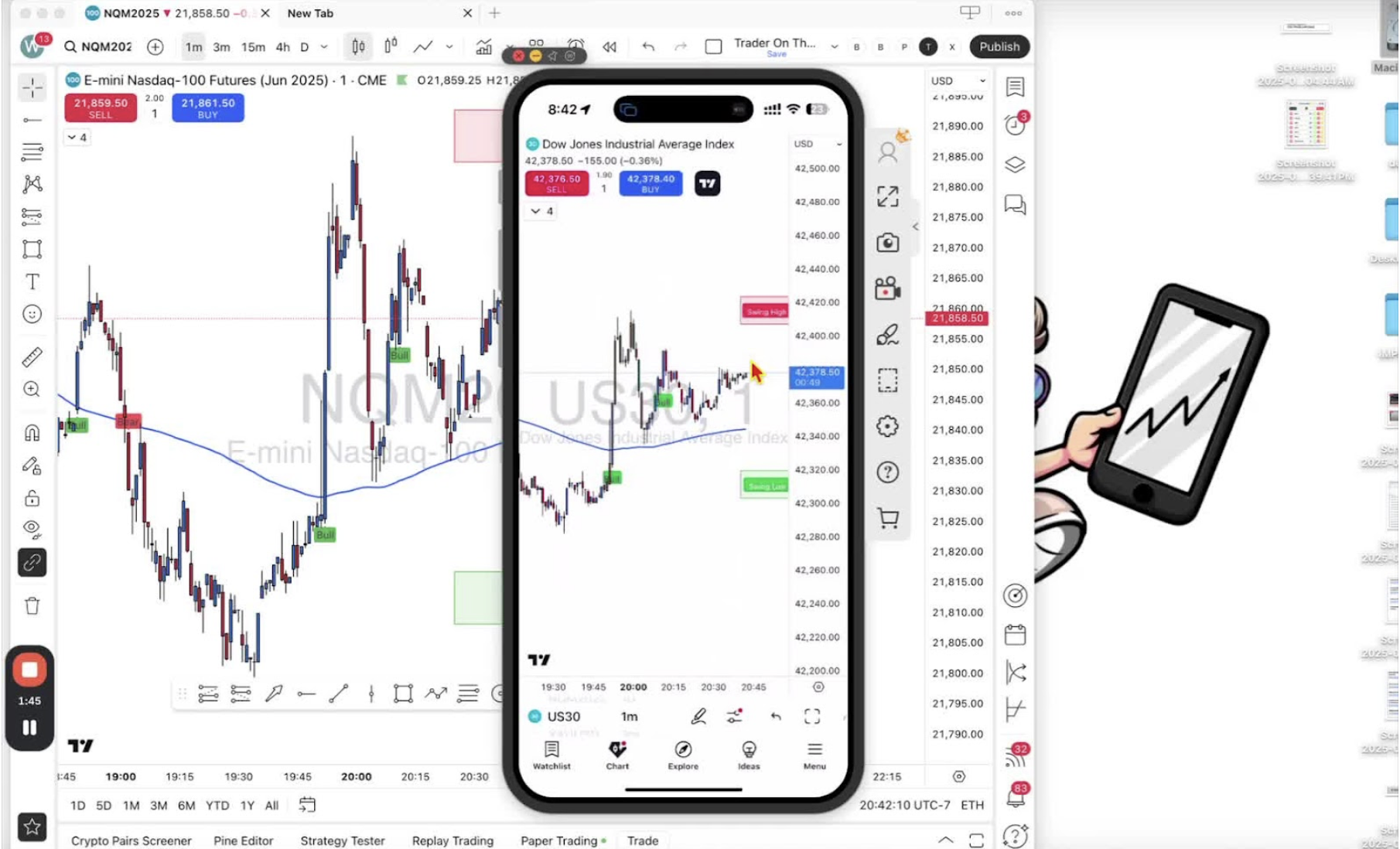
    • Tap the down arrow under the sell button to access the menu.

    Open Mobile Indicator Menu 1:42
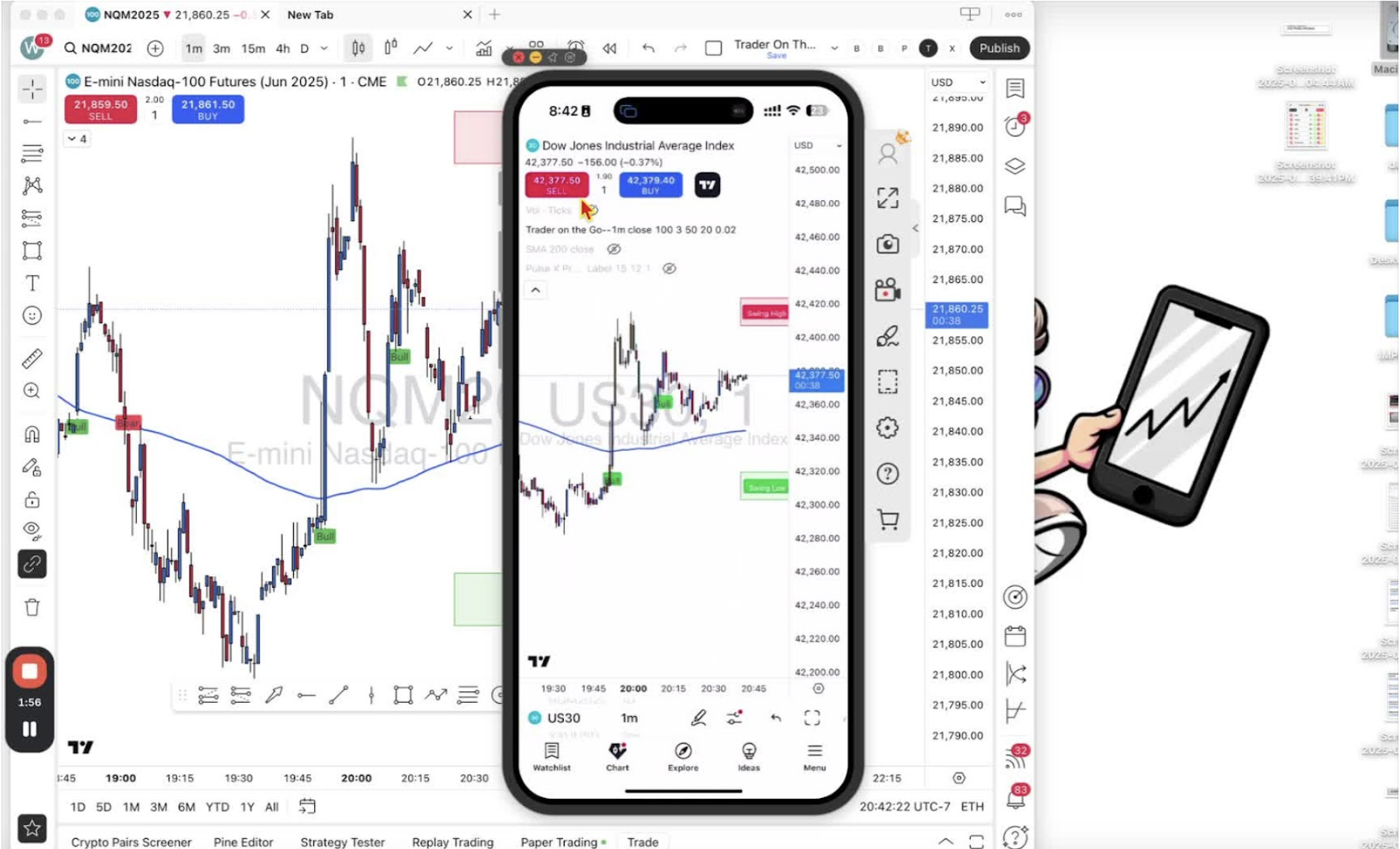
    • Tap on ‘Trader on the Go’ to bring up the menu.

    Navigate to Mobile Settings 1:52

    • Tap on ‘Settings’.

    Adjust Style Settings on Mobile 2:02
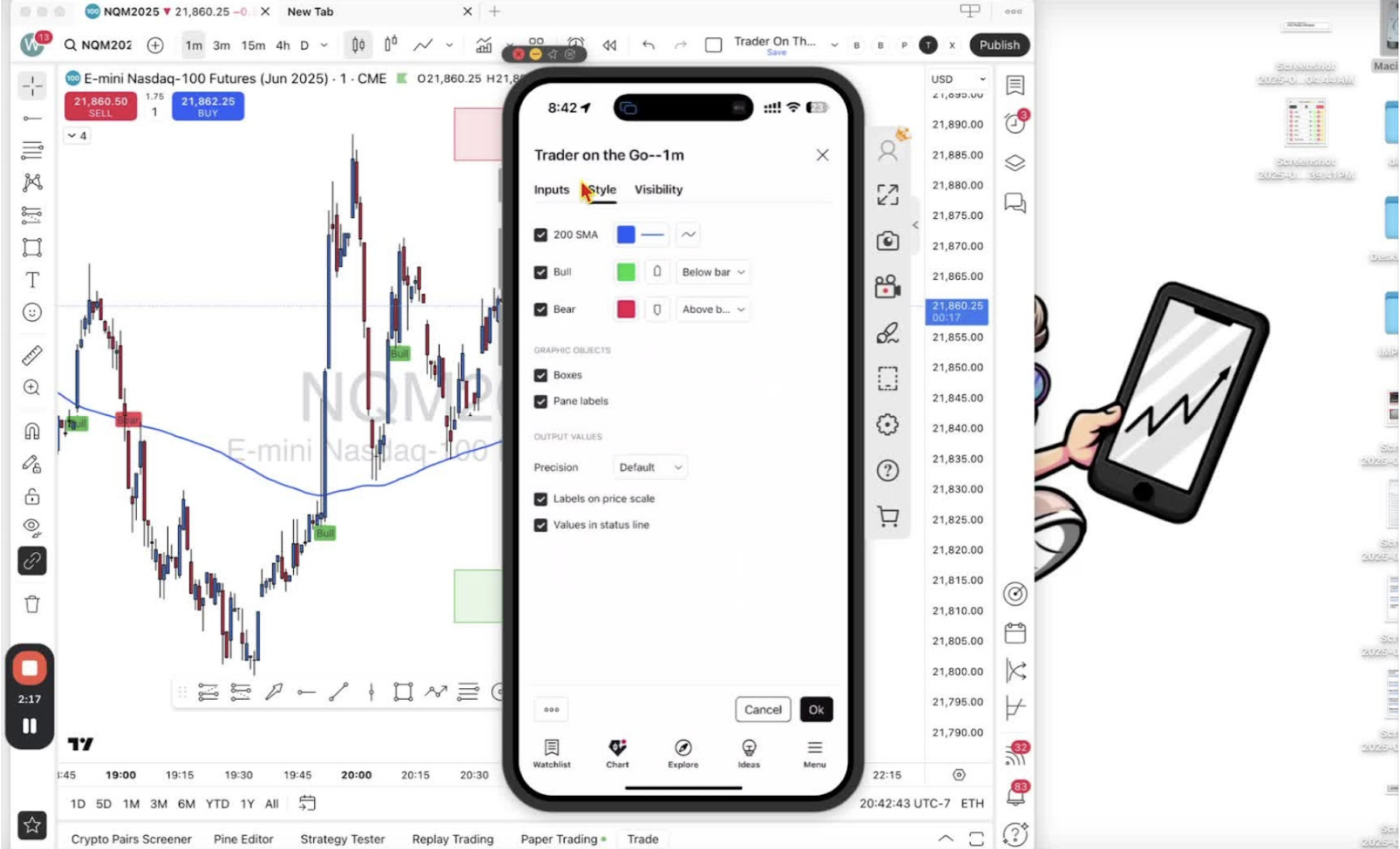
    • Ensure you are on the ‘Style’ tab.
    • Scroll to ‘Graphics Objects’.

    Remove Swing High and Low Boxes on Mobile 2:09
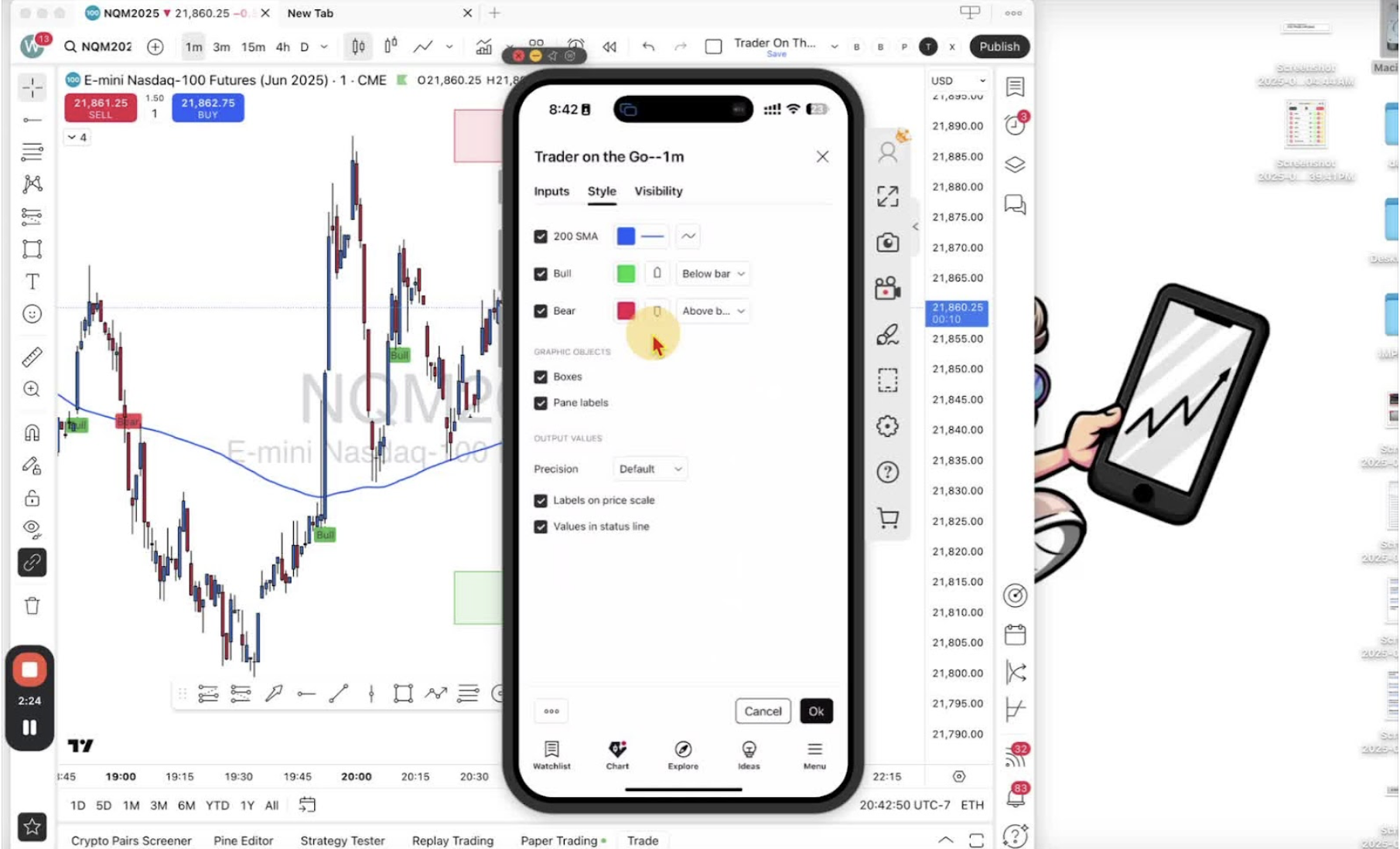
    • Untick ‘Boxes’ and ‘Paint Labels’.

    Restore Swing High and Low Boxes on Mobile (if needed) 2:29
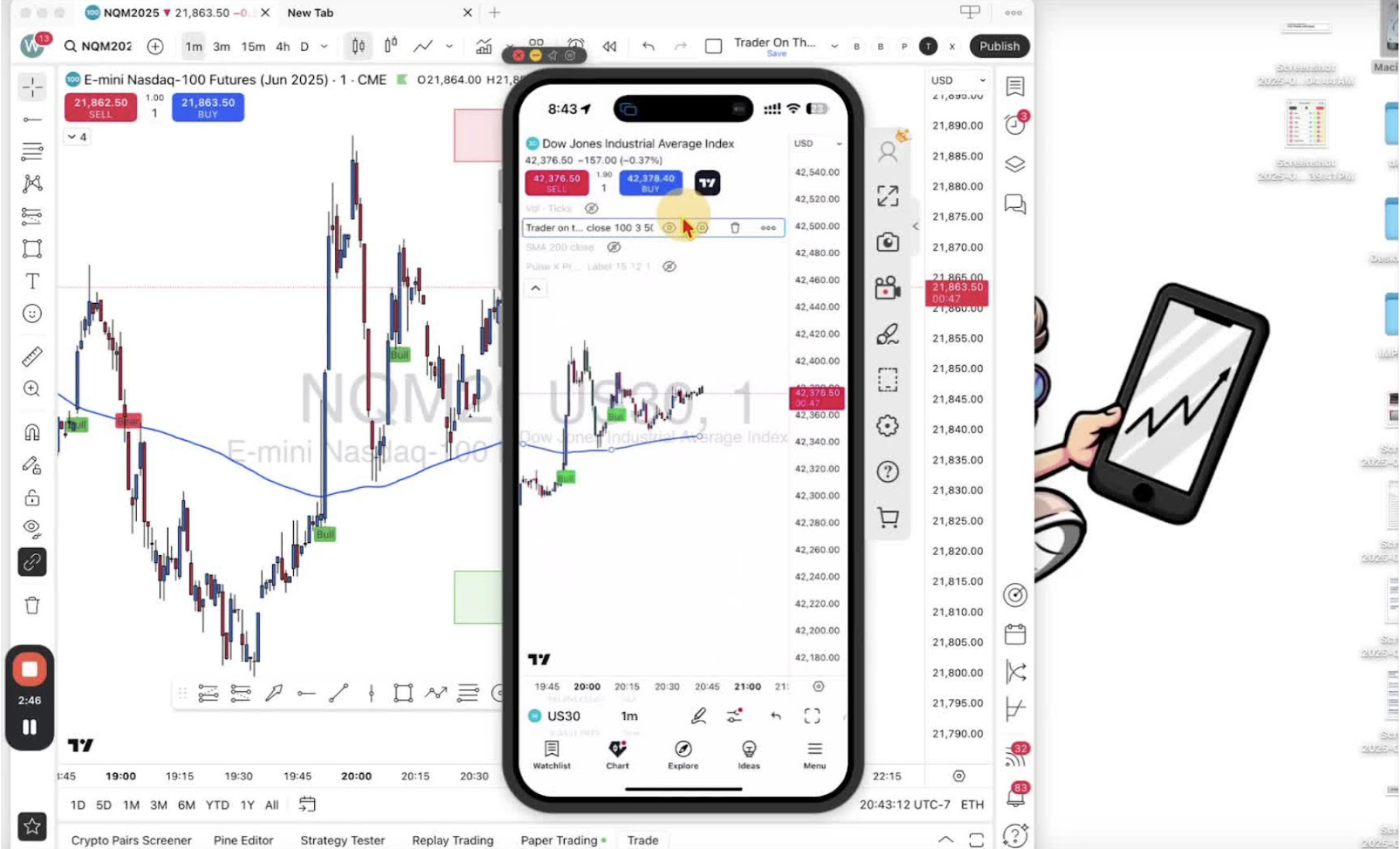
    • Tap on ‘Trader on the Go’ again.
    • Click ‘Settings’ to add back the boxes or labels as desired.

    Conclusion 2:49
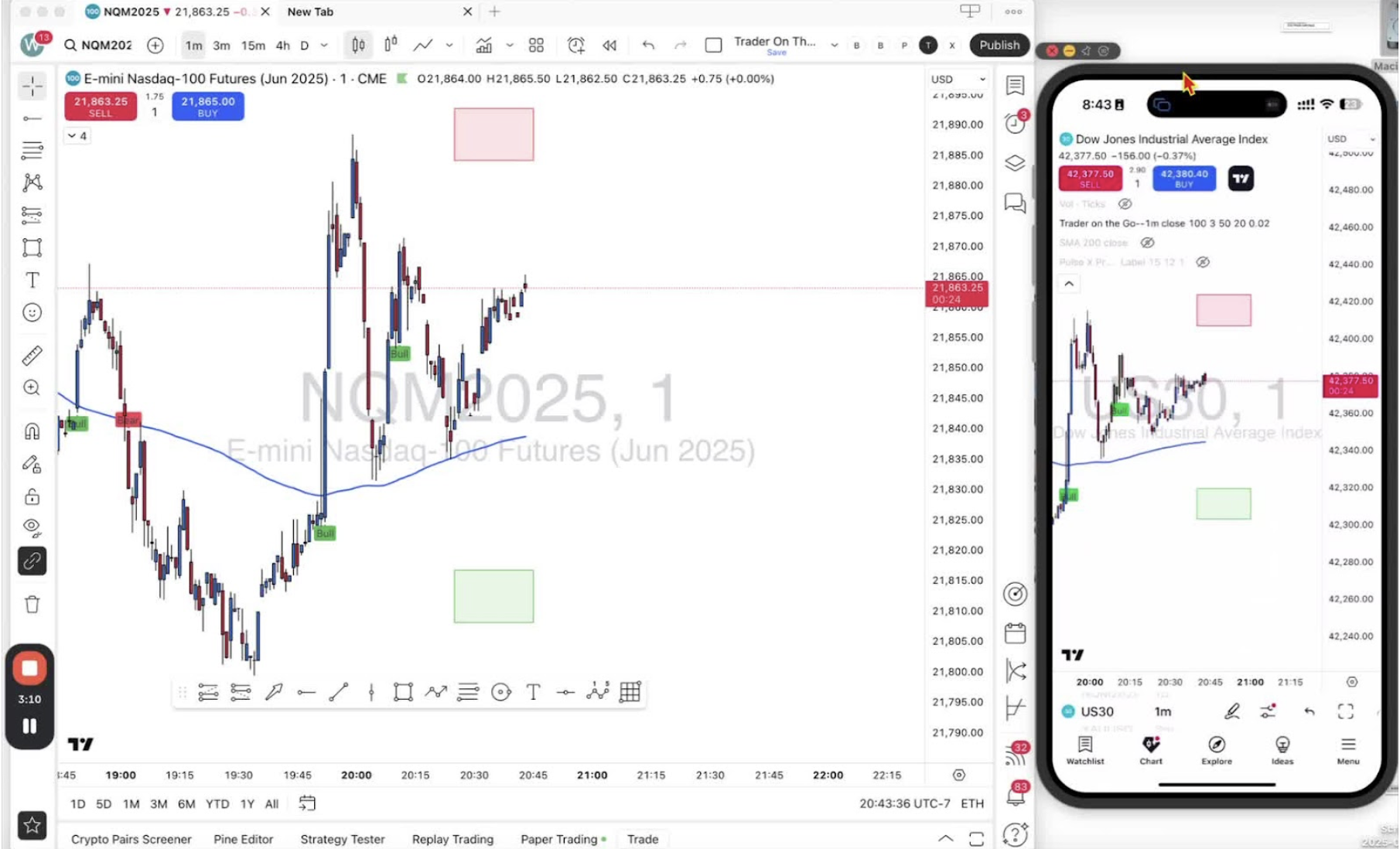
    • You can now easily remove, add, or edit the swing high and swing low boxes on both desktop and mobile.
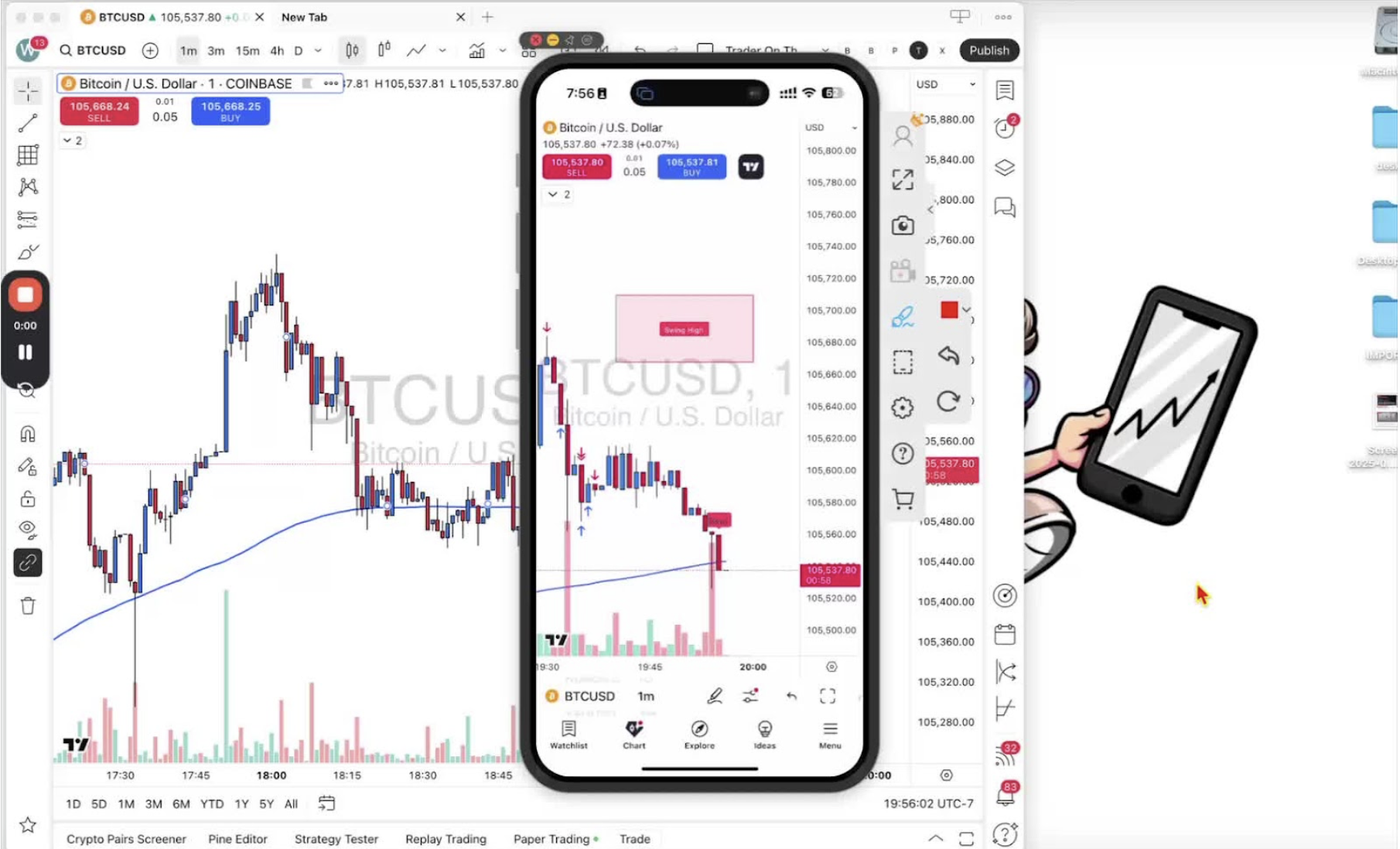
  • Step 18. Setting Alerts on Mobile TradingView Application

    Step 18. Setting Alerts on Mobile TradingView Application

    OBJECTIVE

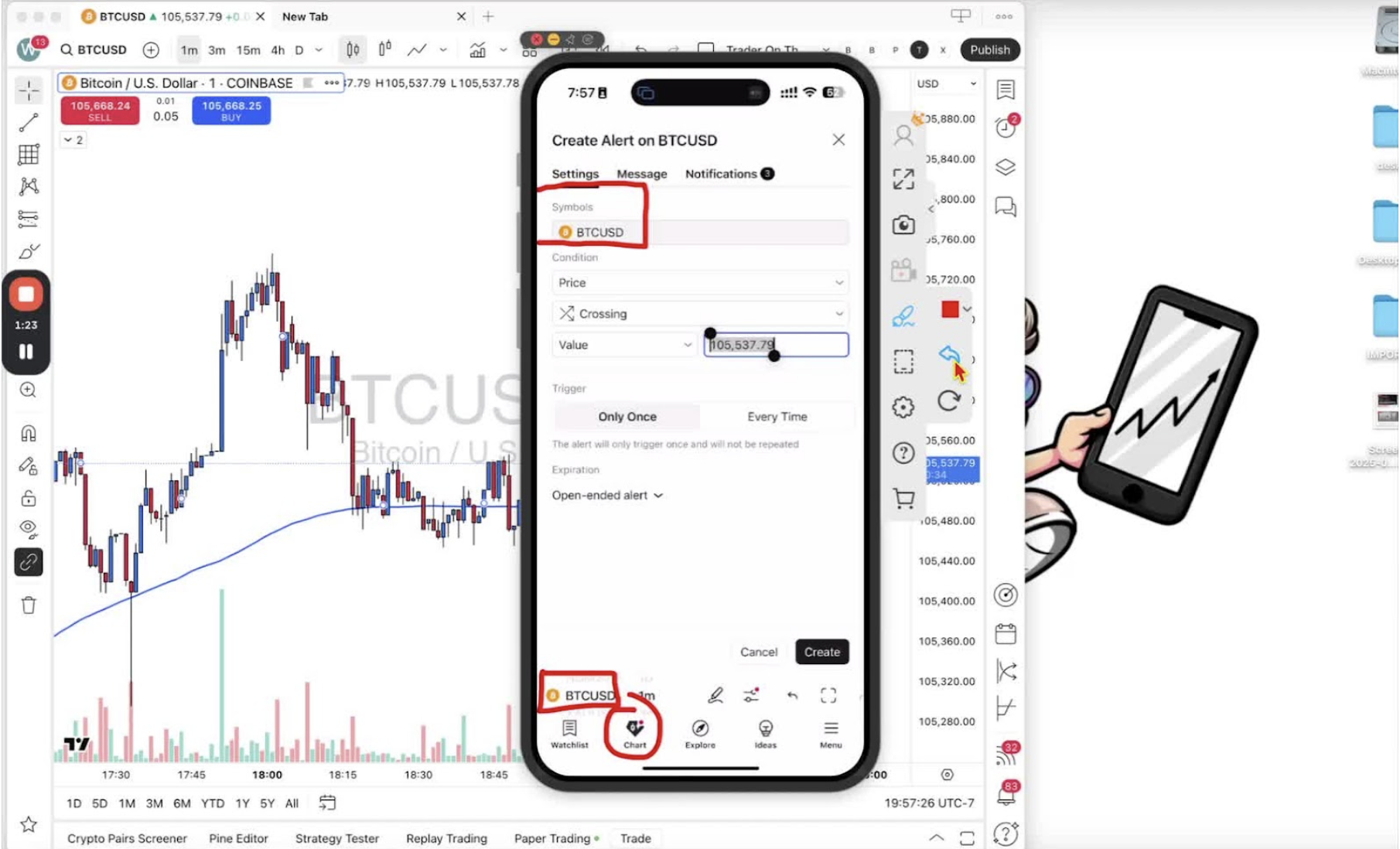
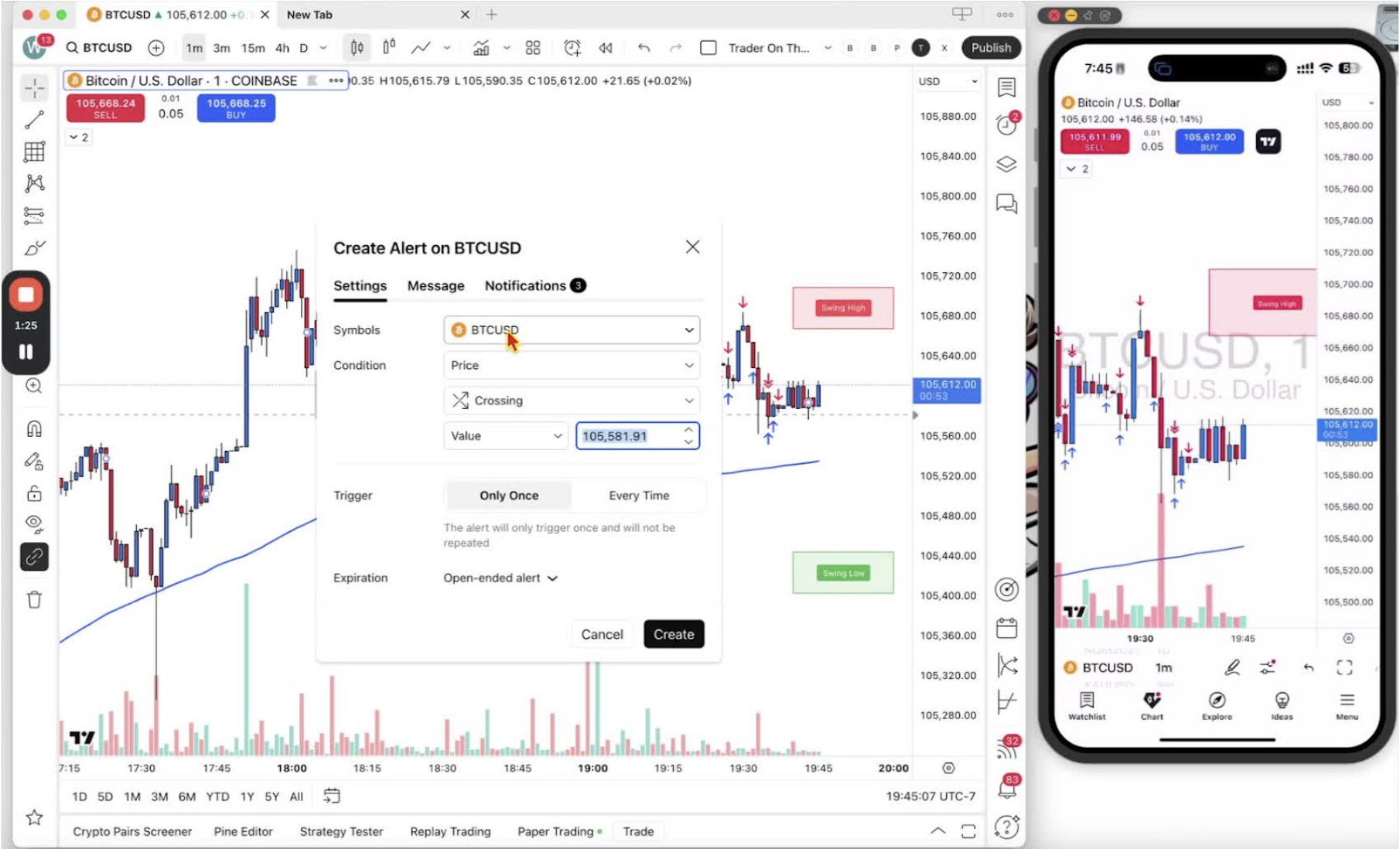
    In this video, I walk you through the process of setting an alert on the mobile TradingView application. I demonstrate how to access the alert feature, select the current symbol, and customize the alert settings, including changing the message to something simple like “TOG alert.” It’s important to remember that alerts sync across devices as long as you’re logged in with the same TradingView ID. I also highlight that you can only set alerts for the current symbol on mobile, so be sure to check that before proceeding. Please follow along and set up your alerts to stay updated on your trades!

    Access the Alert Menu 0:00

    • Open the TradingView mobile app.
    • Tap the classic two lines with two circles icon at the bottom of the screen.

    Select Alerts 0:14

    • From the menu that appears, tap on the ‘Alert’ option.

    Create a New Alert 0:48

    • Tap the alarm clock icon with the plus button to create a new alert.
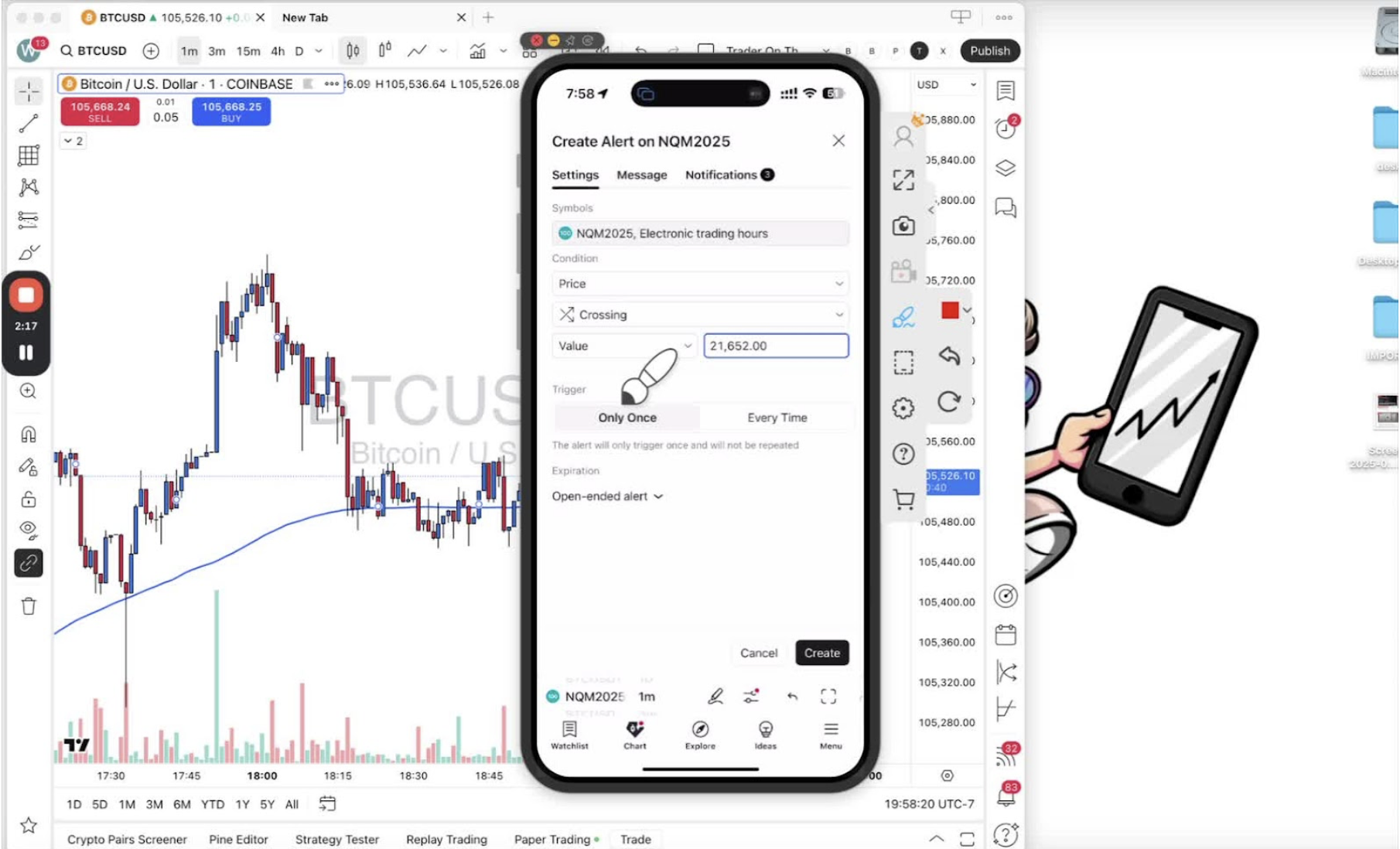
    • Note: You can only set alerts for the current symbol displayed on your chart.

    Confirm the Current Symbol 1:15

    • Ensure you are on the correct symbol (e.g., BTC USD).
    • If you need to change the symbol, exit the alert menu and repeat the process.

    Set Alert Conditions 2:05

    • Change the condition from price to ‘Trader on the Go’.
    • Select the type of alert (e.g., ‘All Alerts’).
    • Set the interval (e.g., 1 minute) to match your chart.

    Create the Alert 2:41

    • Click ‘Create’ to finalize the alert.

    Edit Alert Message 2:51

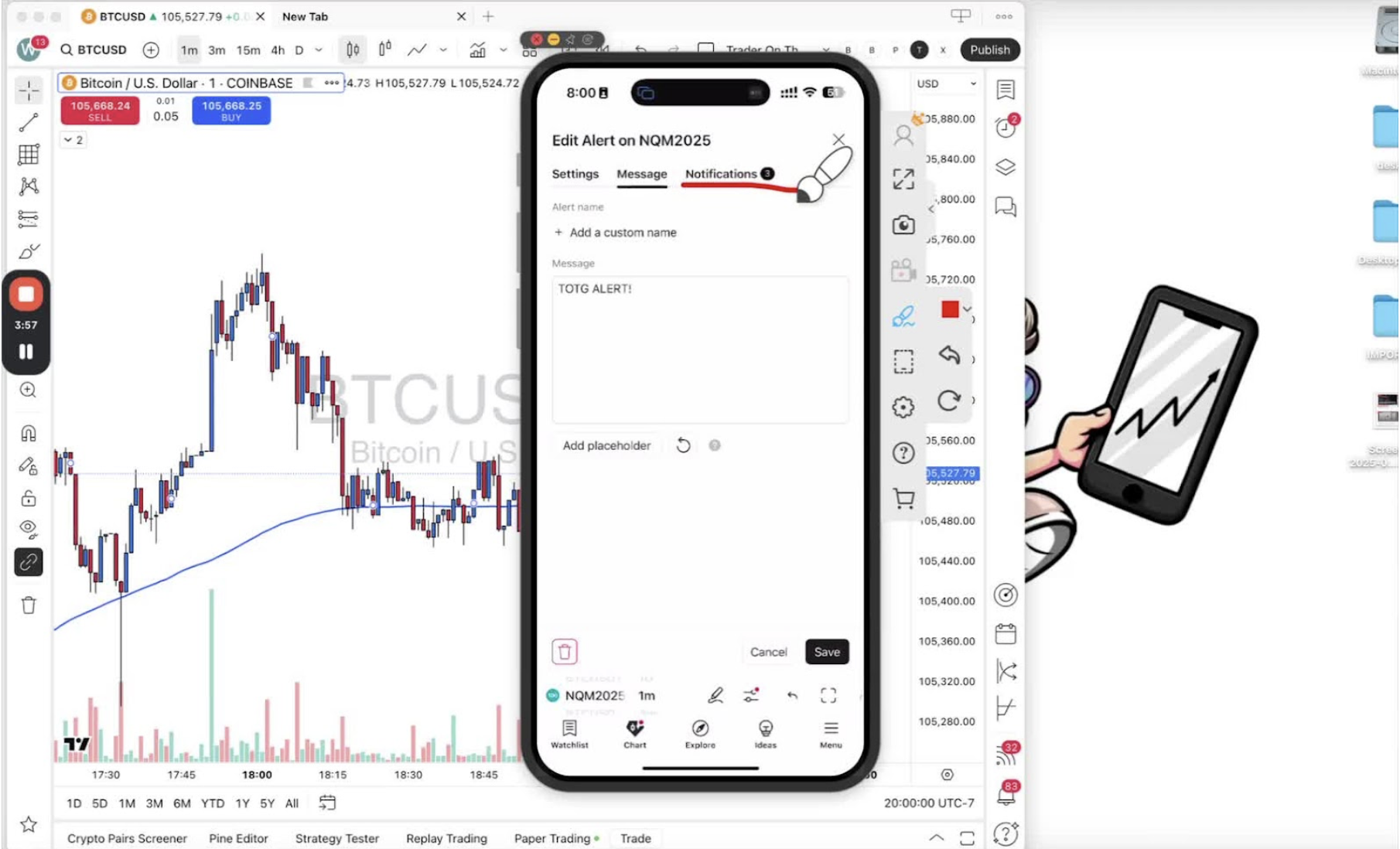
    • If needed, tap on the alert message to edit it.
    • Change the message to something simple (e.g., ‘TOG Alert’).

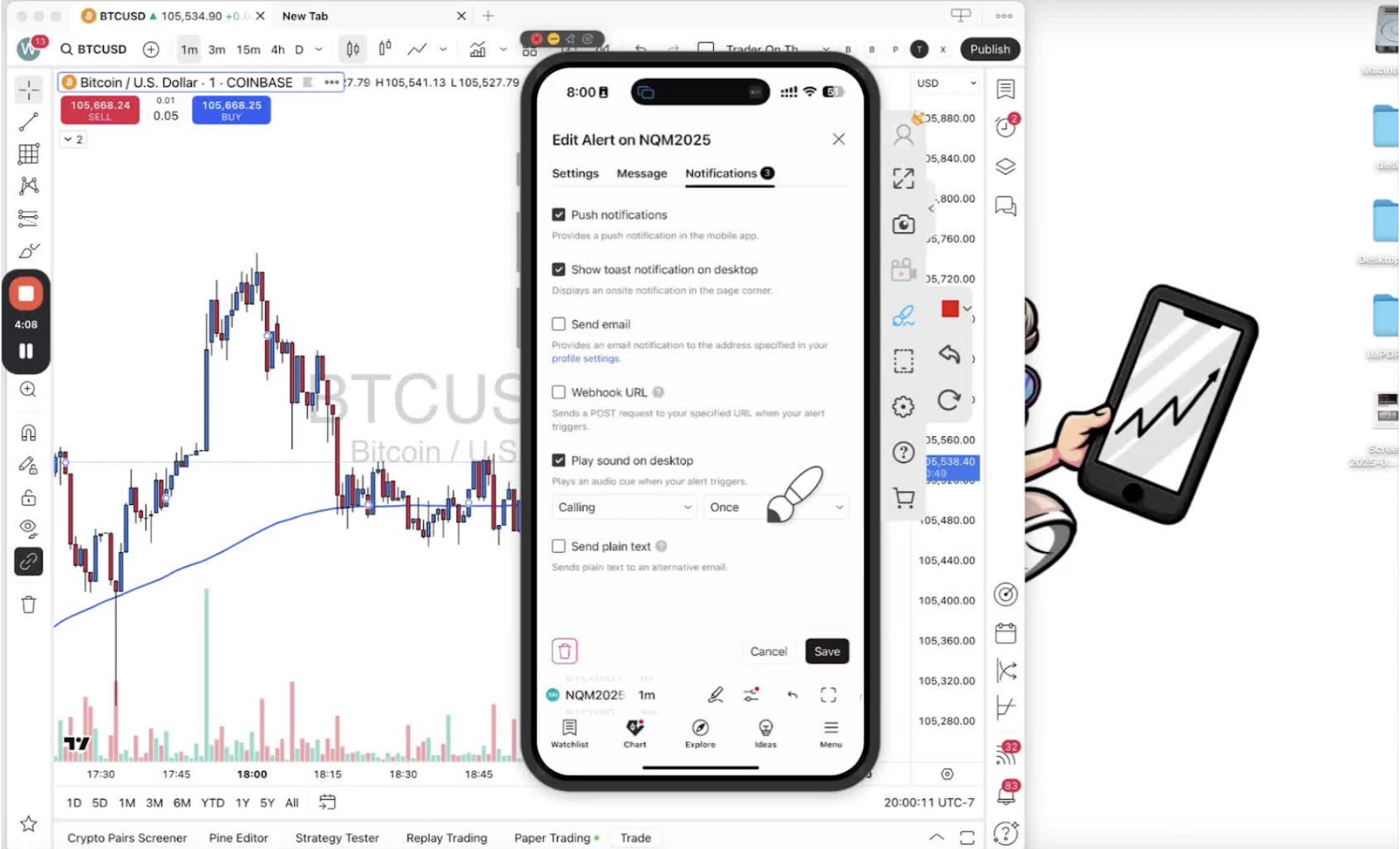
    Configure Notification Settings 3:35

    • Ensure push notifications are enabled.
    • Optionally enable email notifications and sound alerts.

    Save Changes 3:45

    • Click ‘Save’ to apply all changes.

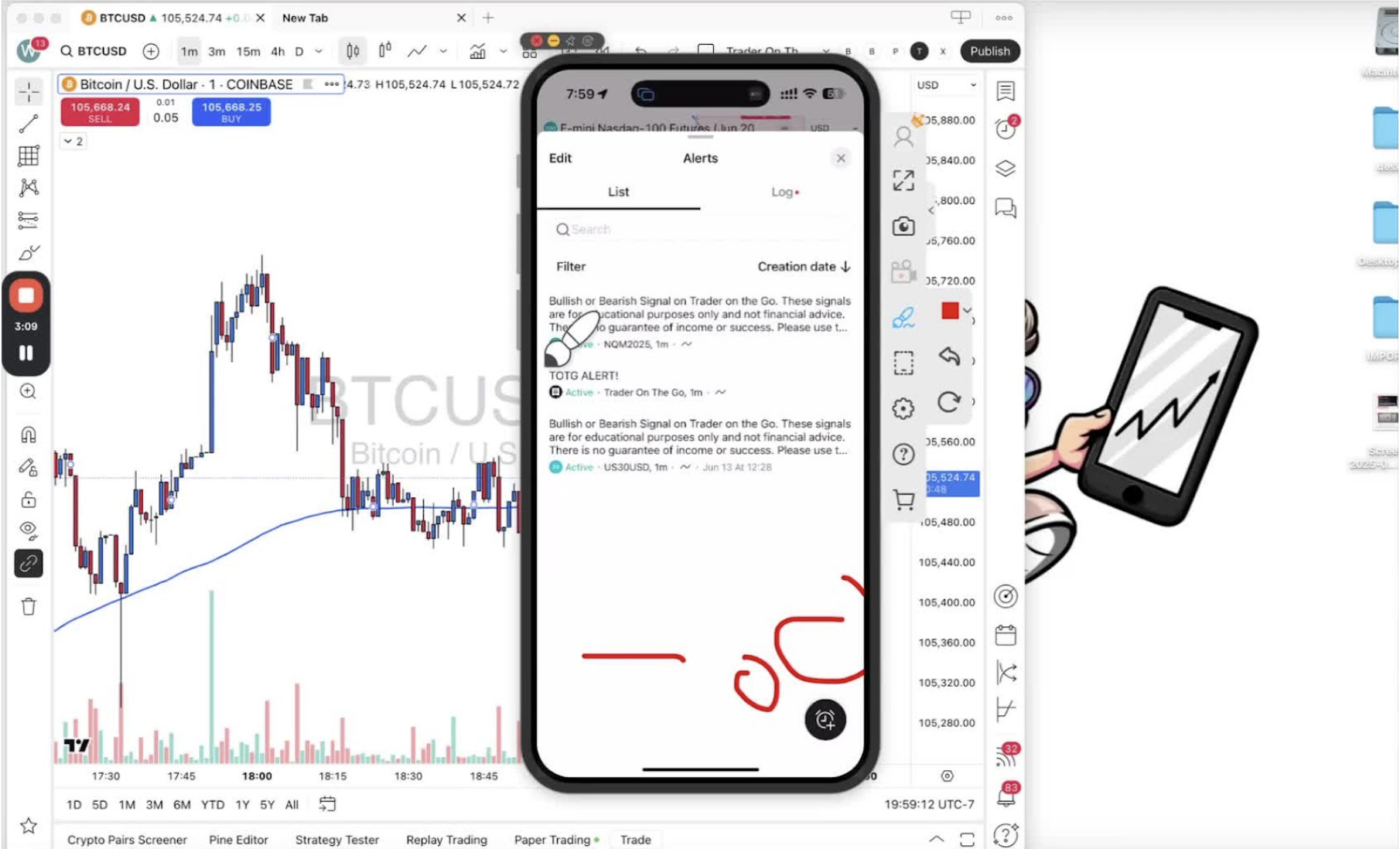
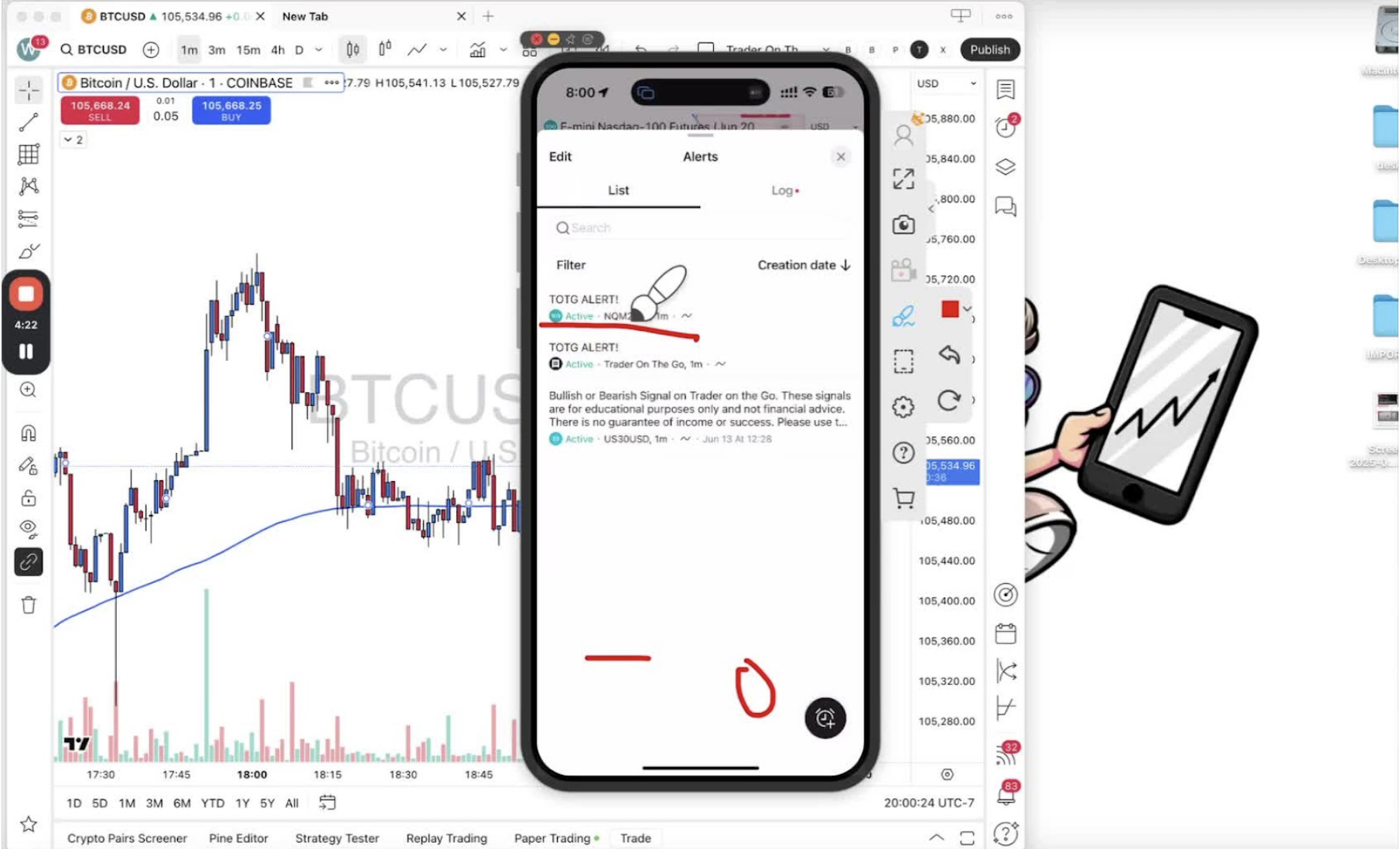
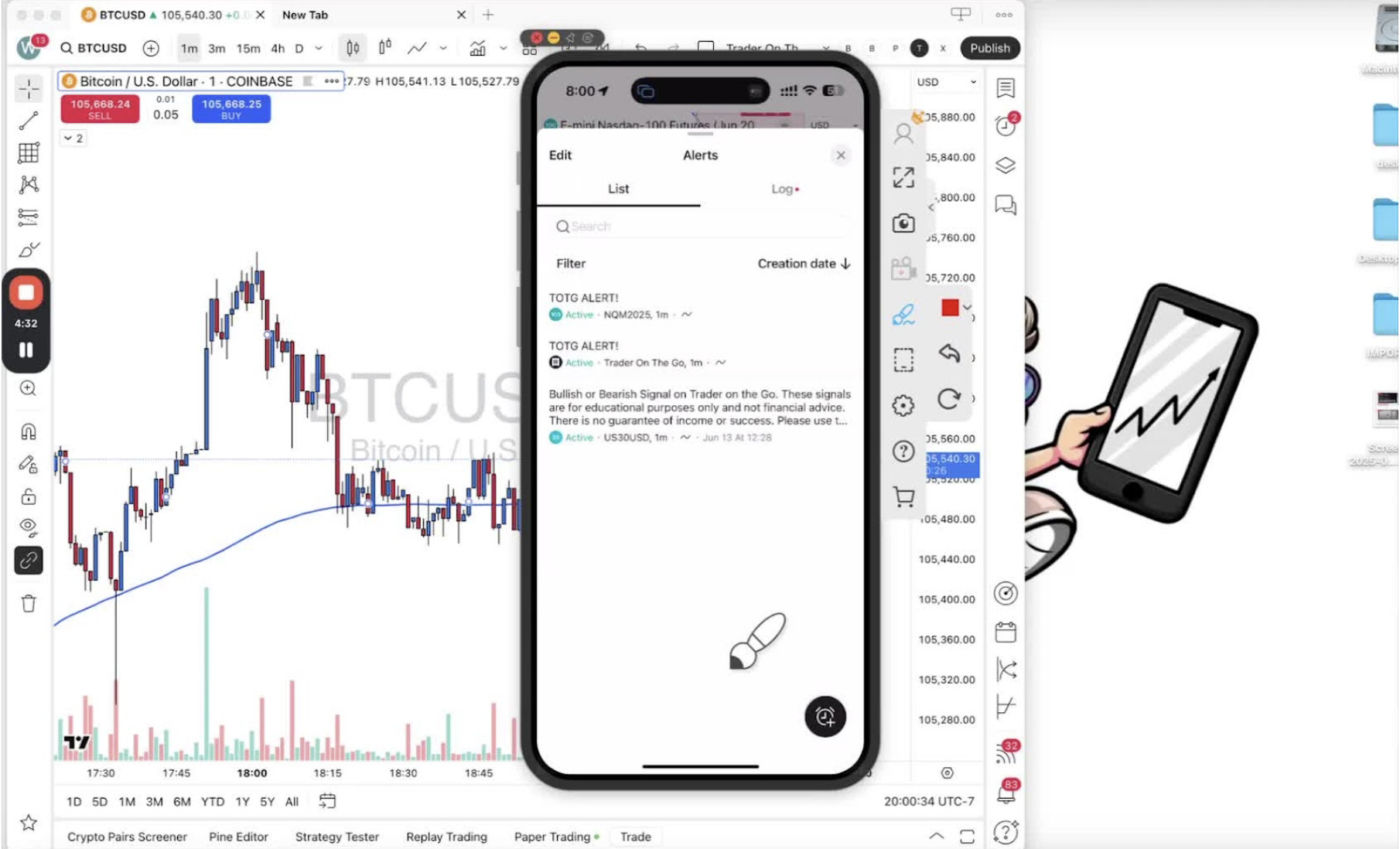
    Verify Alert Setup 3:57

    • Check the alerts menu to confirm your alert is active and correctly named.

    Respond to Alerts 4:07

    • When an alert triggers, it will pop up on your phone.
    • Tap the notification to go directly to the chart and decide on the trade.
  • Step 17. Setting Alerts for Trader on the Go Indicator on TradingView Desktop

    Step 17. Setting Alerts for Trader on the Go Indicator on TradingView Desktop

    OBJECTIVE

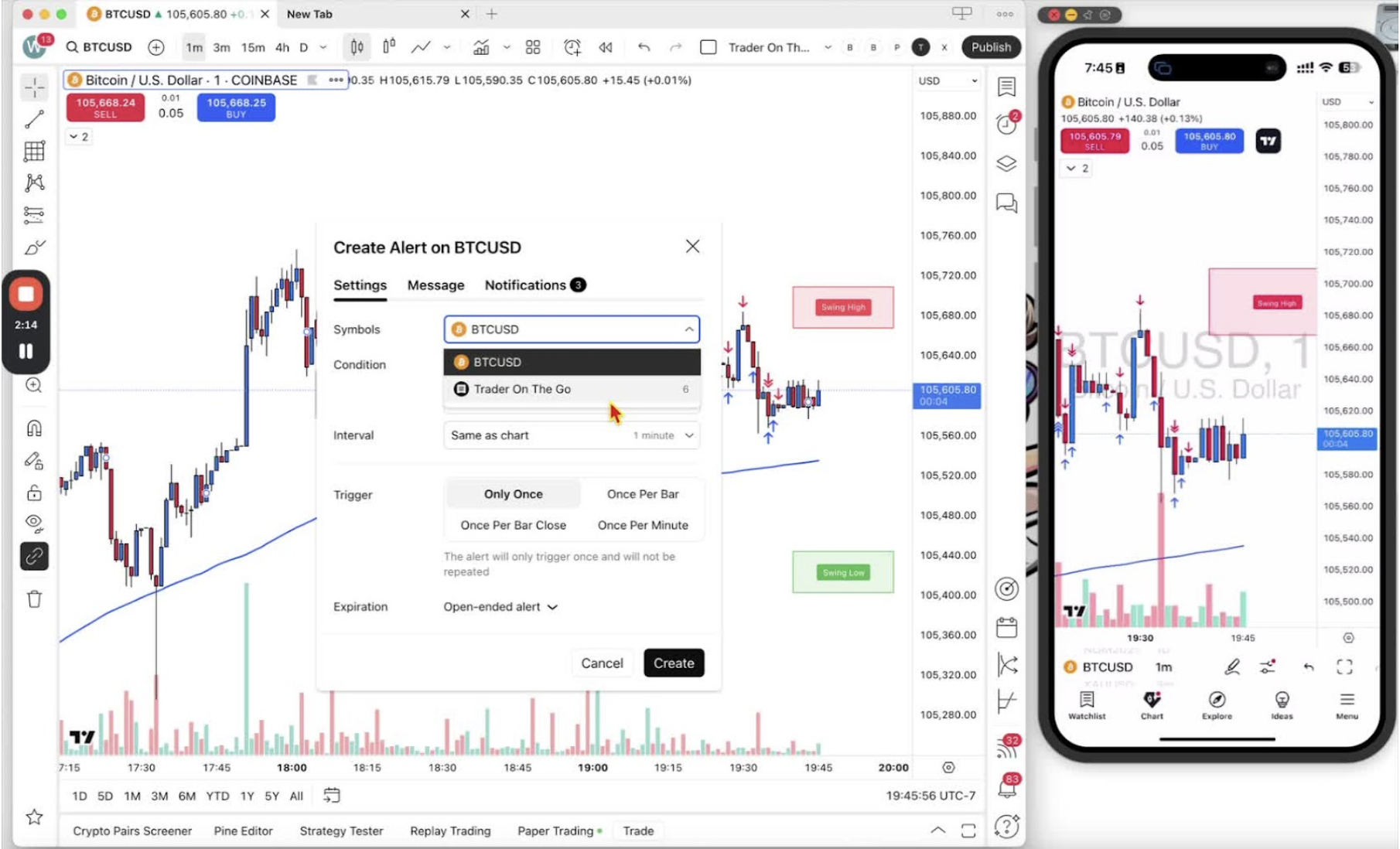
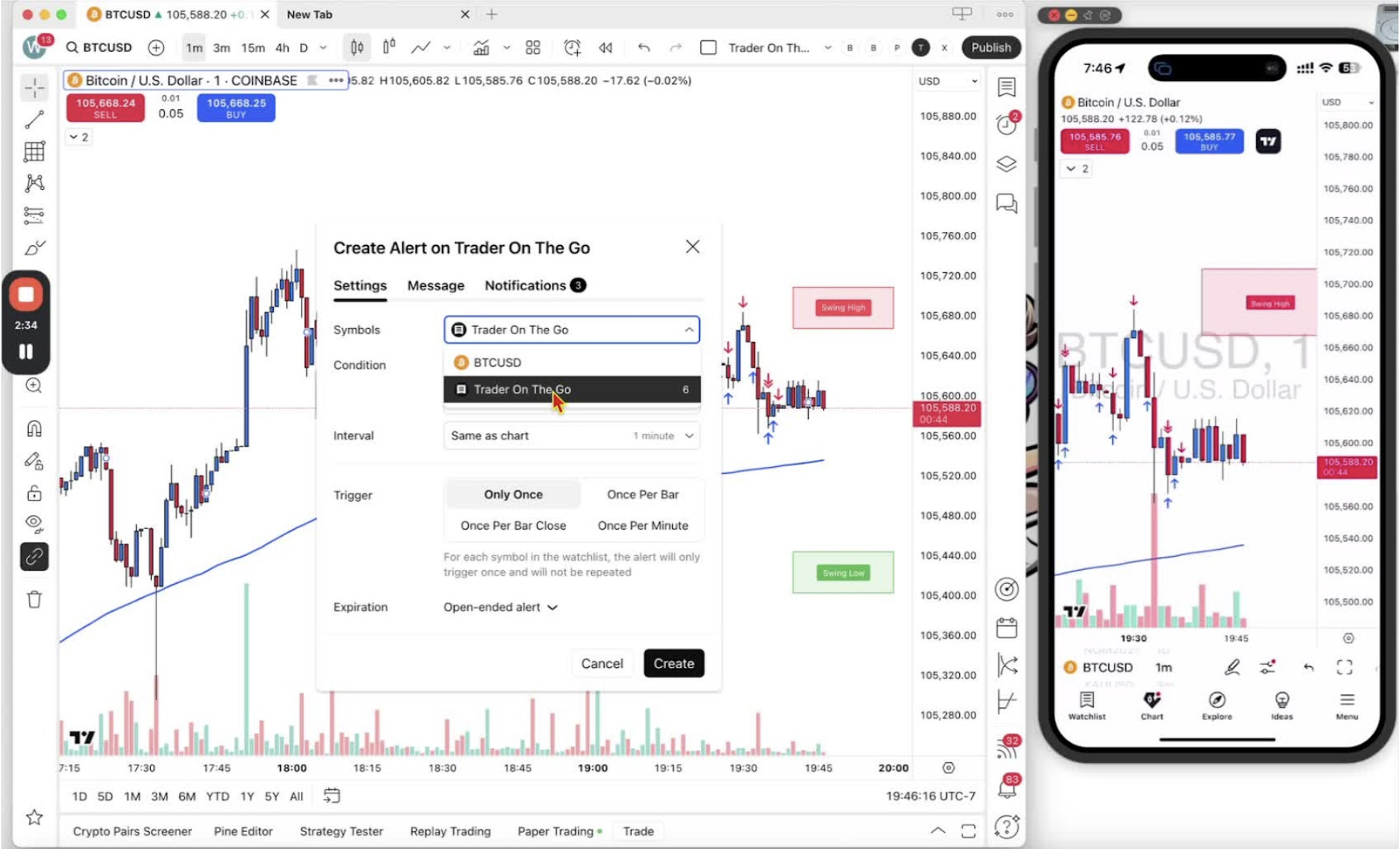
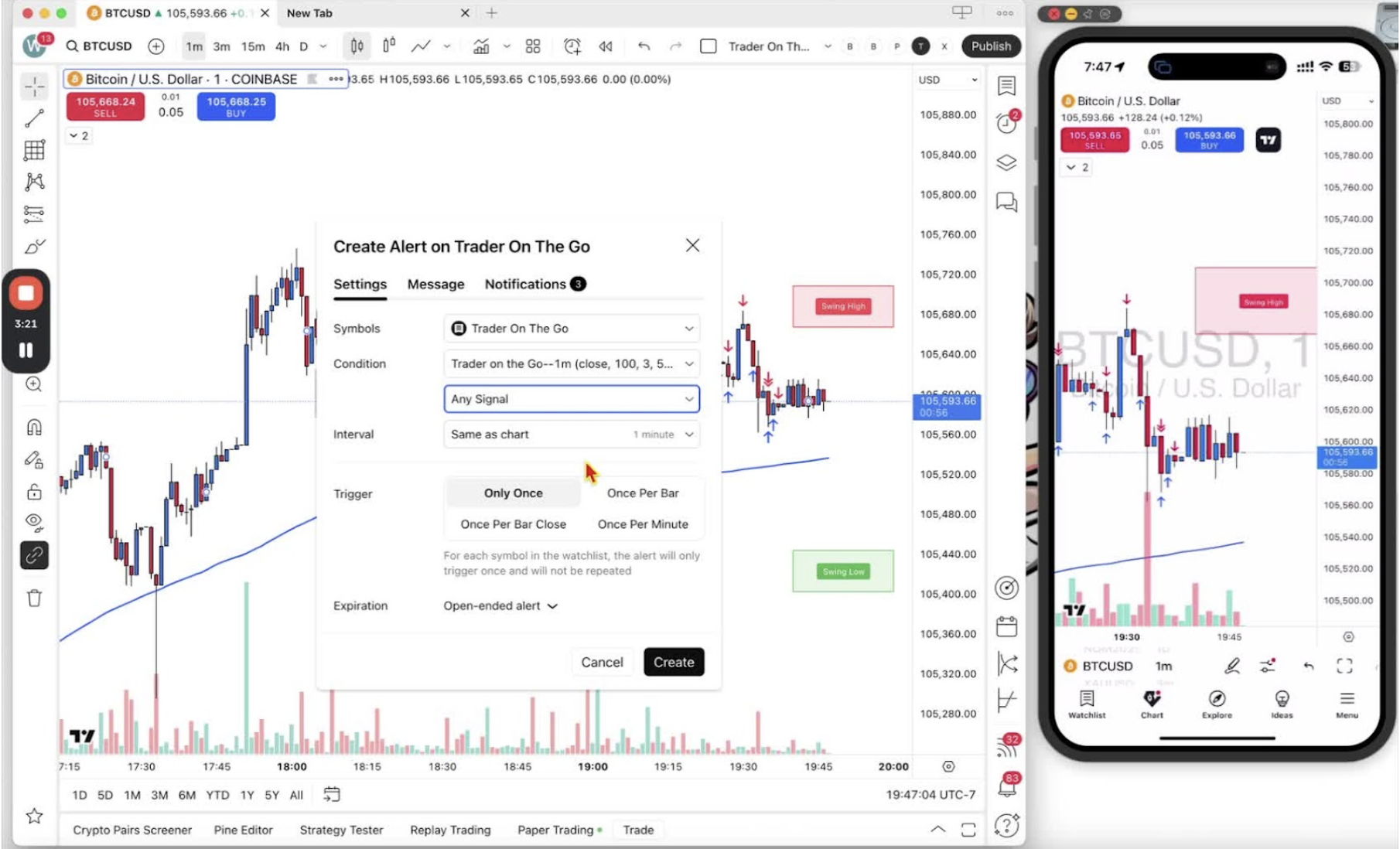
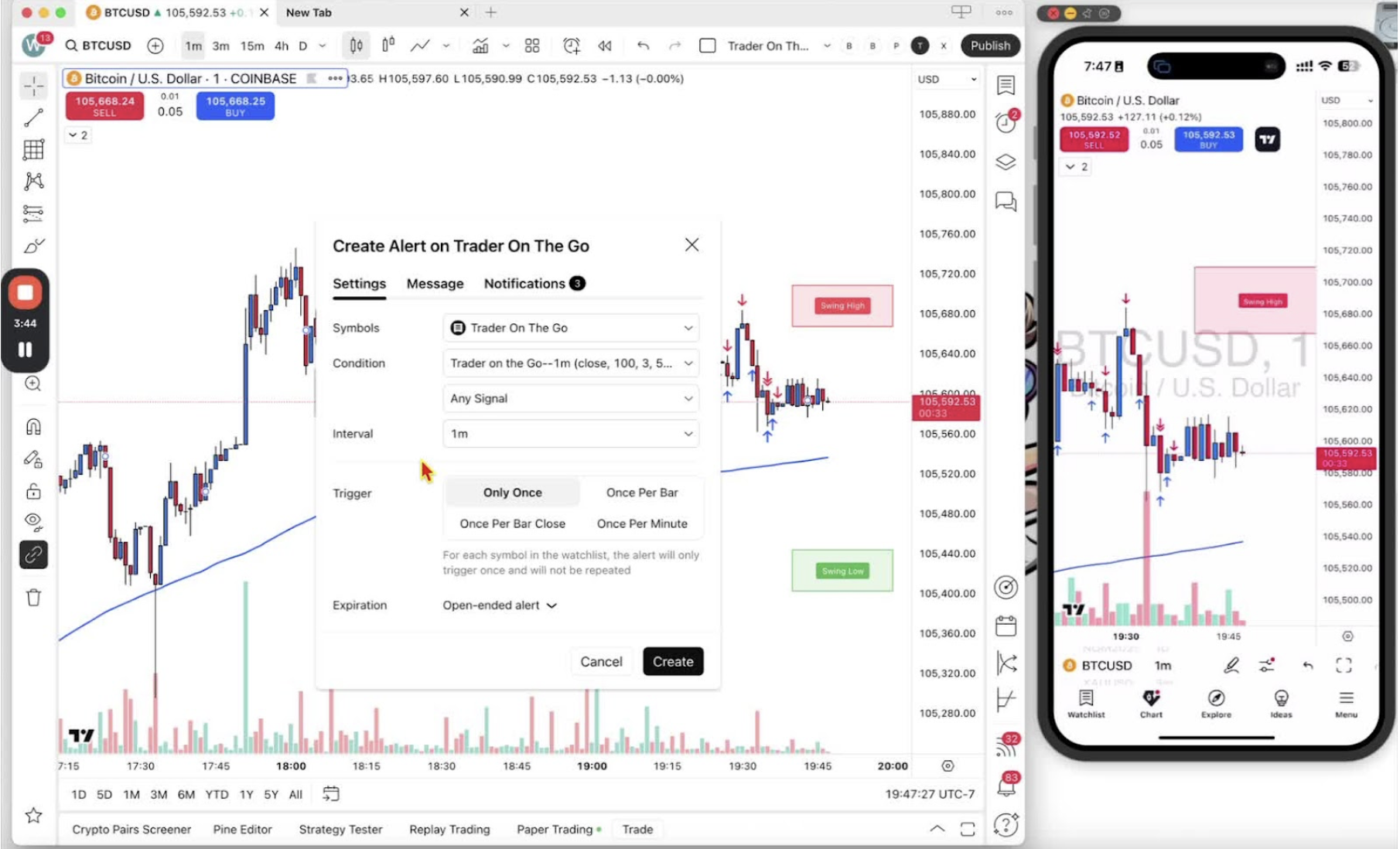
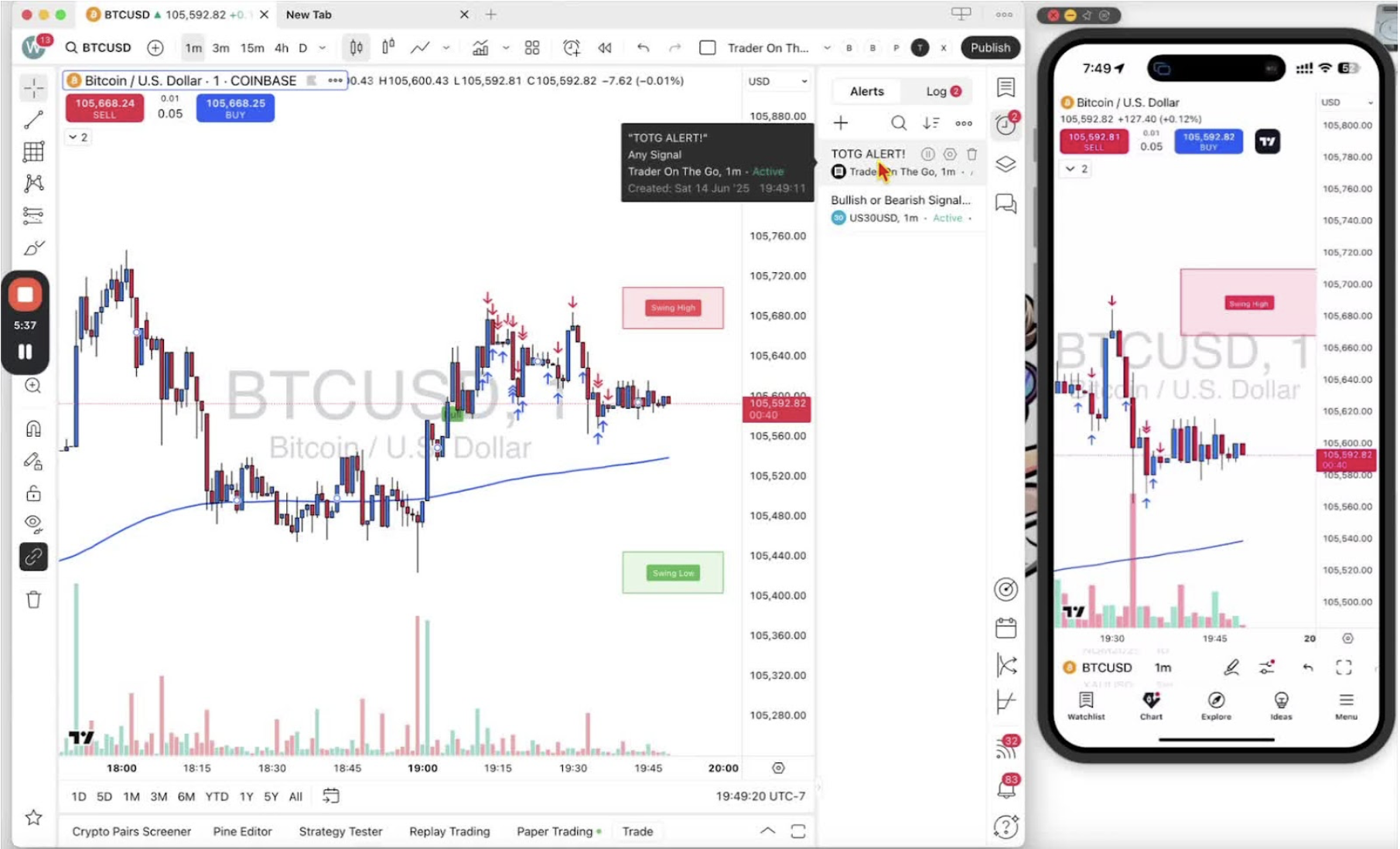
    In this video, I walk you through how to set an alert for the Trader on the Go indicator on TradingView, both on desktop and mobile. I emphasize the importance of having your favorite forex and futures pairs added to your watchlist for effective trading. I demonstrate the steps to create an alert, including selecting the right conditions and ensuring you receive notifications at the right time. I also recommend customizing the alert message to clearly indicate whether it’s a buy or sell signal. Please make sure to follow along and set up your alerts to enhance your trading experience.

    Introduction to Setting Alerts 0:00

    • Welcome traders to the training session.
    • Purpose: Learn how to set alerts for the Trader on the Go indicator on TradingView for both desktop and mobile.
    • Note: Setting up a watch list with favorite pairs (forex and futures) is beneficial.

    Accessing the Alert Setup on Desktop 0:28

    • Start on the TradingView desktop application.
    • Ensure the Trader on the Go indicator is visible on the chart.

    Creating an Alert 0:36

    • Right-click on the bull alert or the blue line on the chart.
    • Select ‘Add Alert’ from the menu.

    Configuring the Alert Conditions 1:08

    • Confirm the alert is set for the correct symbol (e.g., BTC/USD).
    • Change the condition to ‘Trader on the Go – 1 Minute’ to ensure alerts are based on this indicator.

    Utilizing the Watch List 1:48

    • If you have a watch list, select it to receive alerts for all pairs of interest.

    Setting Alert Type 2:08

    • Set the alert type to ‘Any Signal’ to receive all alerts regardless of their position relative to the blue line.

    Choosing the Time Interval 2:45

    • Ensure the interval is set to ‘1 Minute’ to match the trading timeframe.

    Alert Trigger Settings 3:07

    • Set the alert to trigger ‘Once per bar close’ to avoid false alerts from unclosed candles.

    Customizing Alert Message 4:10

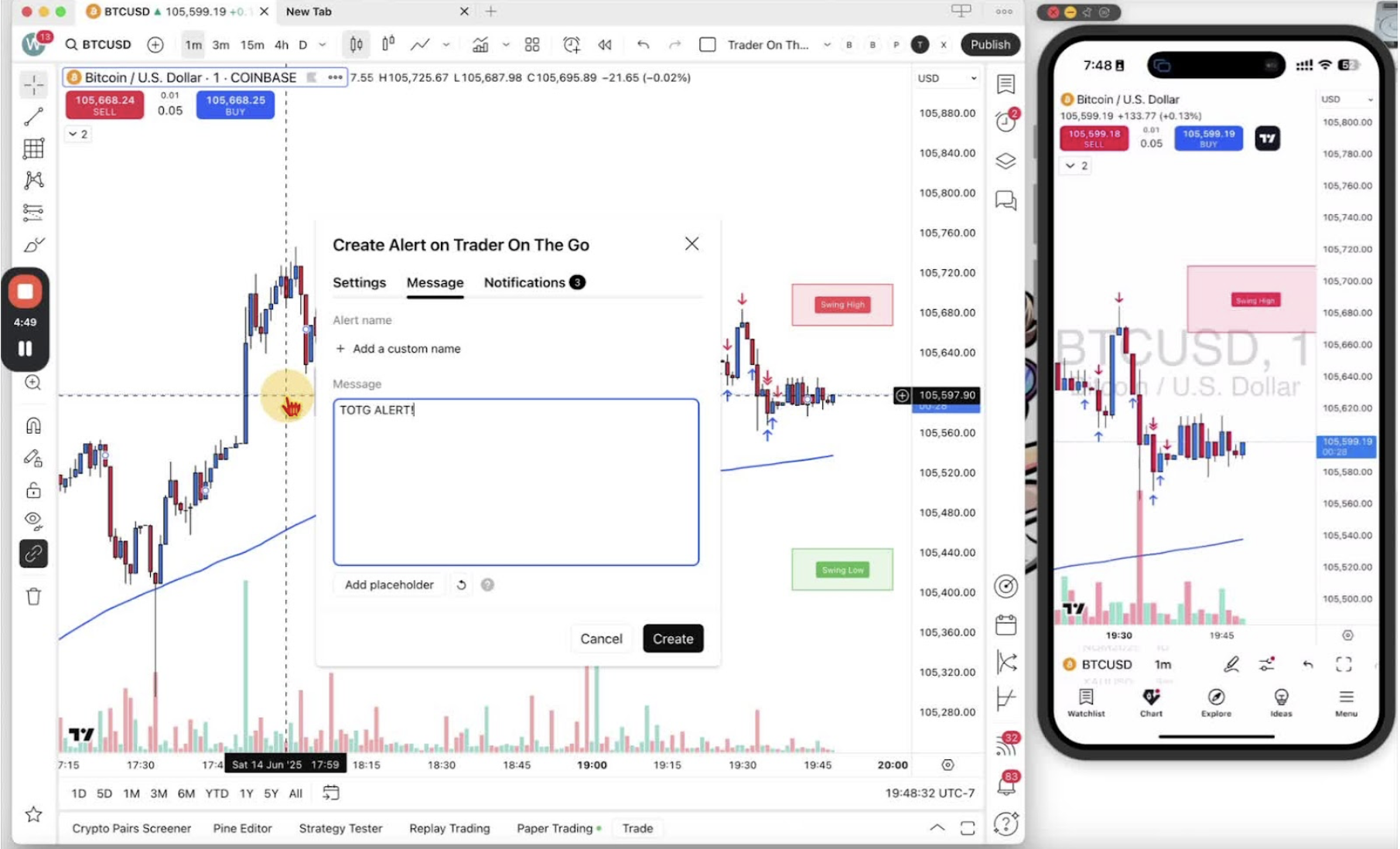
    • Change the alert message to ‘TOTG alert’ for easy identification.

    Configuring Notification Settings 4:30

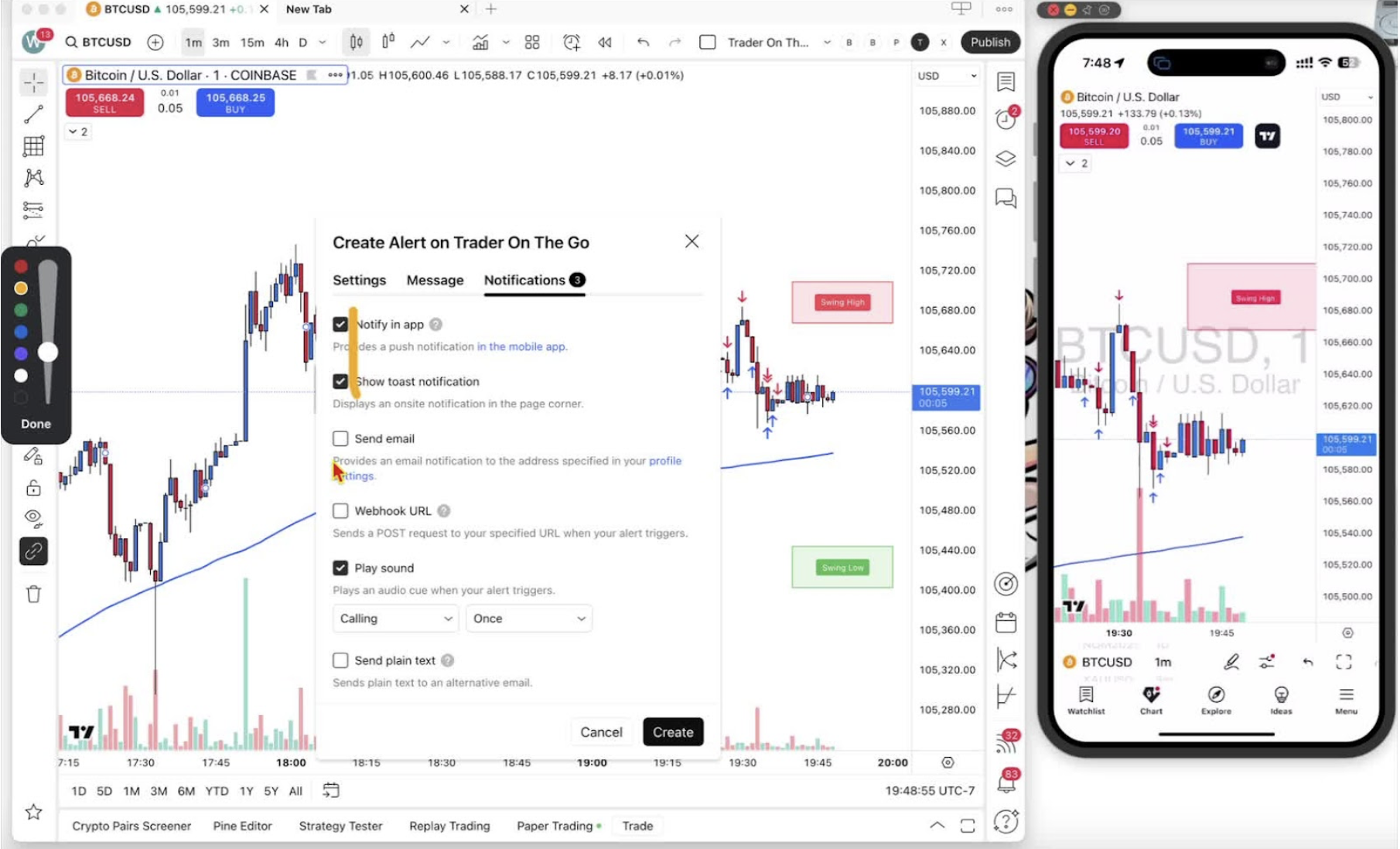
    • Ensure notifications are set to:
    • Notify in app
    • Show toast notification
    • Send email (optional)
    • Play sound (recommended) to alert you.

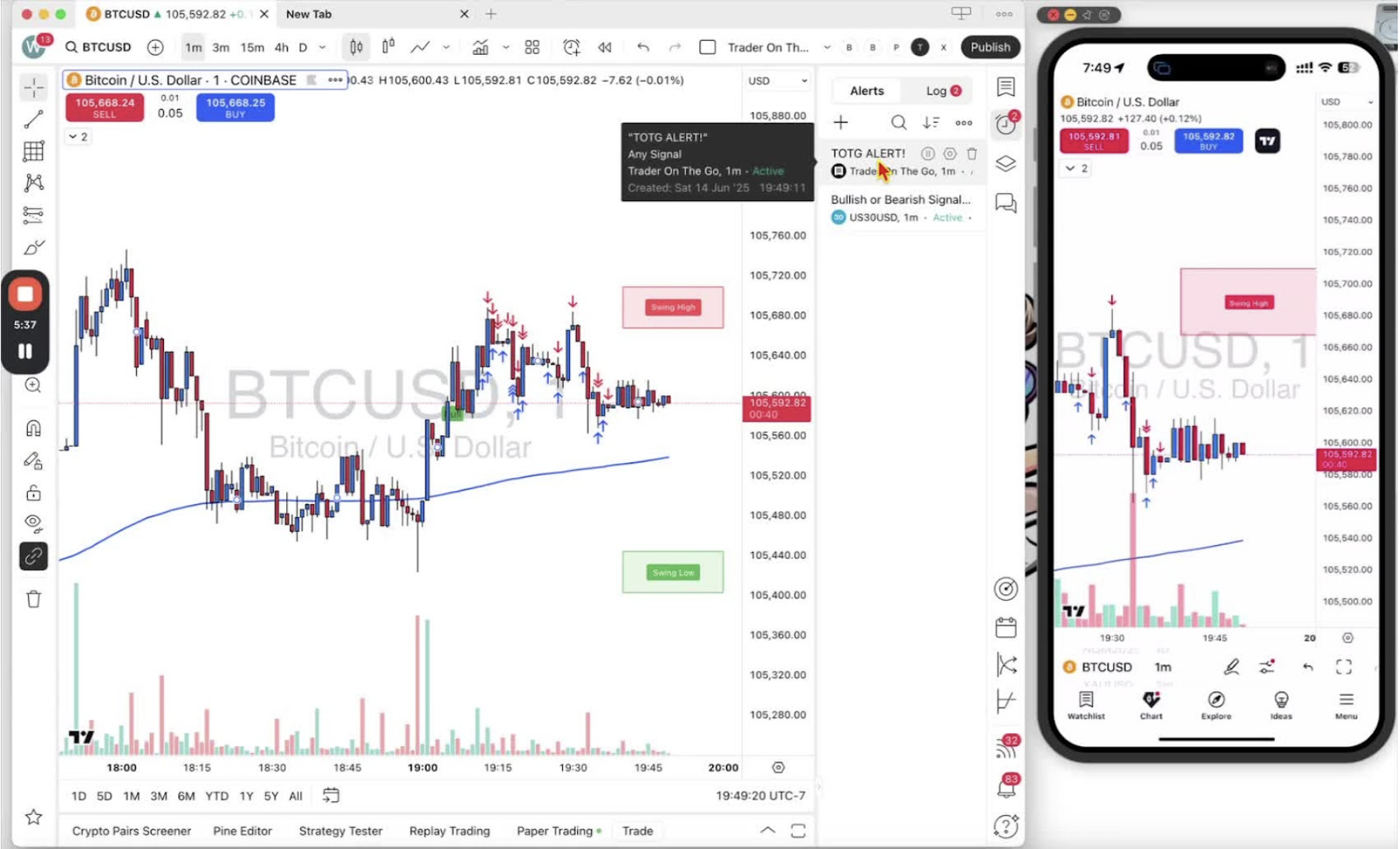
    Finalizing the Alert 4:53

    • Click ‘Create’ to finalize the alert.
    • Verify the alert appears in the alert clock on the platform.

    Next Steps 4:53

    • Note that mobile alert setup will be covered in the next video.
  • Step 16. How to Set a Take Profit in Trading

    Step 16. How to Set a Take Profit in Trading

    OBJECTIVE

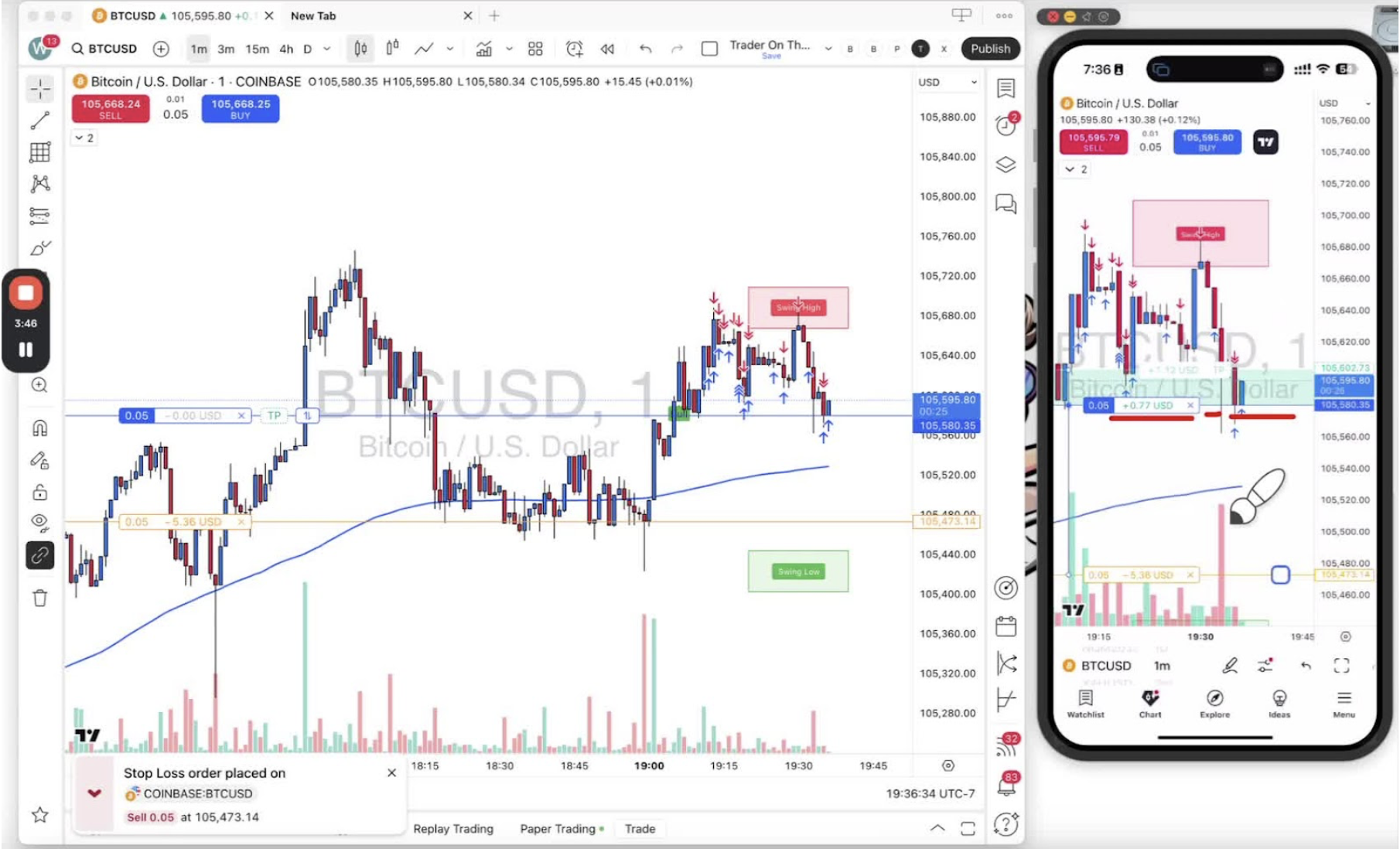
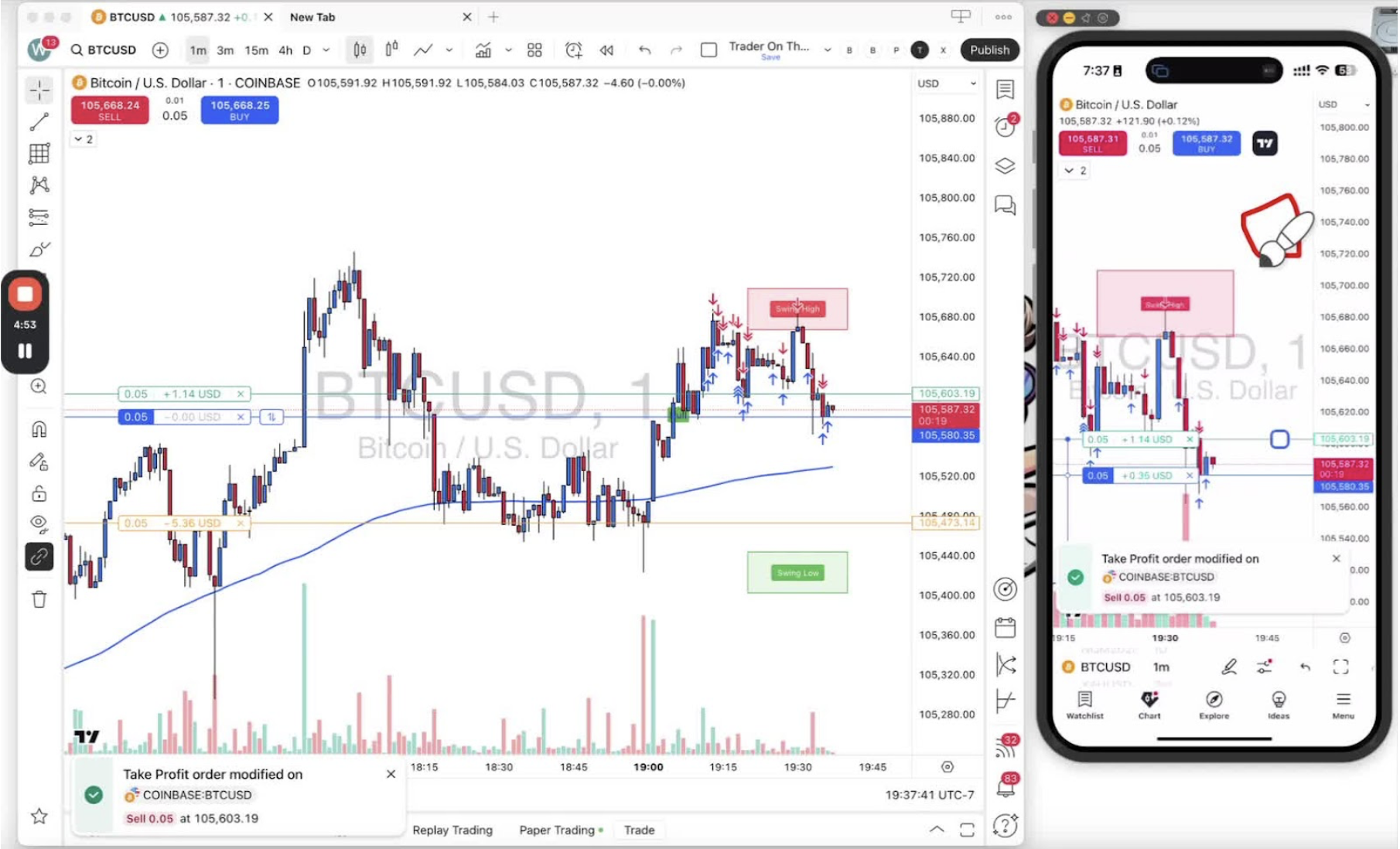
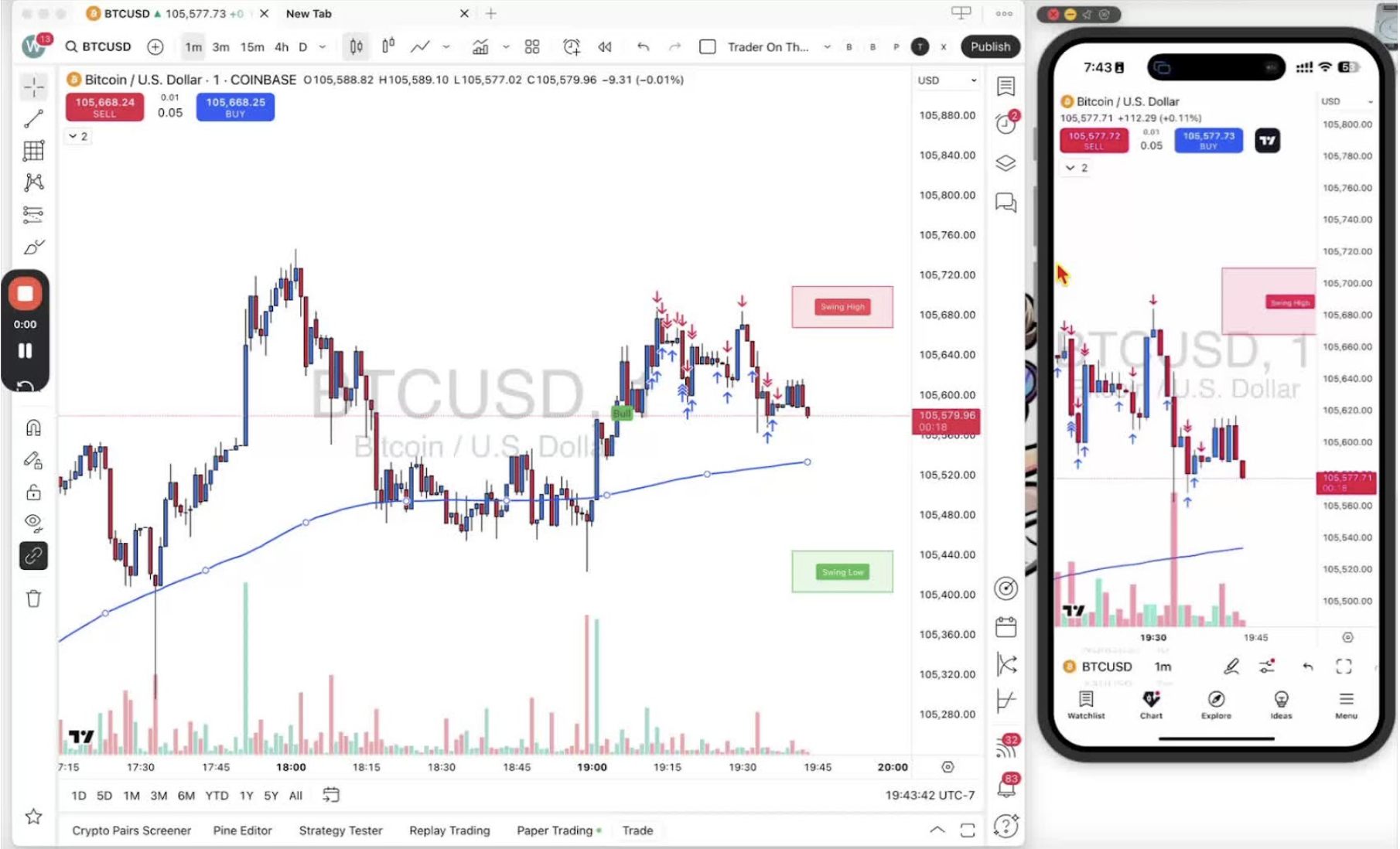
    In this video, I walk you through the process of setting a take profit (TP) in your trades, both on desktop and mobile. I demonstrate how to click and drag the TP line to your desired profit level, ensuring you can set it up easily alongside your stop loss (SL). I also highlight the importance of having a take profit in place, as it allows you to manage your trades without constantly monitoring them. Remember, once the price hits your TP, you’ll receive a notification about your profit, which in this example is plus $5.03. I encourage you to practice setting your TP and SL to enhance your trading strategy.

    Introduction to Take Profit 0:00

    • Overview of the video topic: Setting a take profit in trading.
    • Importance of take profit in managing trades.

    Setting Up a Trade on Desktop 0:06

    • Begin by entering a trade on the desktop platform.
    • Ensure a stop loss is already set.

    Adding a Take Profit on Desktop 0:19

    • Locate the TP (Take Profit) button on the trading interface.
    • Click and drag the TP line to set your desired take profit level.

    Adjusting Take Profit Position 0:49

    • If you click off the chart, the red square indicating the TP will disappear.
    • Click on your position to bring back the TP indicator.

    Understanding Take Profit Functionality 1:32

    • Explanation of how take profit works: it automatically closes the trade when the price hits the target.
    • Example of potential profit from the trade.

    Benefits of Using Take Profit 1:48

    • Allows traders to set trades and walk away without constant monitoring.
    • Provides a clear measurement of risk versus reward.

    Setting Take Profit on Mobile 2:04

    • Instructions for exiting the trade and setting up a new trade on mobile.

    Adjusting Take Profit on Mobile 2:24

    • Demonstration of tapping and dragging the TP on the mobile interface.

    Final Adjustments and Confirmation 3:12

    • Confirming the take profit position by letting go of the drag.
    • Explanation of how to bring back the TP indicator if it disappears.

    Conclusion 4:07

    • Recap of how to add and adjust a take profit on both desktop and mobile.
    • Encouragement to apply the knowledge in future trades.
  • Step 15. How to Set and Manage a Stop-Loss in Trading

    Step 15. How to Set and Manage a Stop-Loss in Trading

    OBJECTIVE

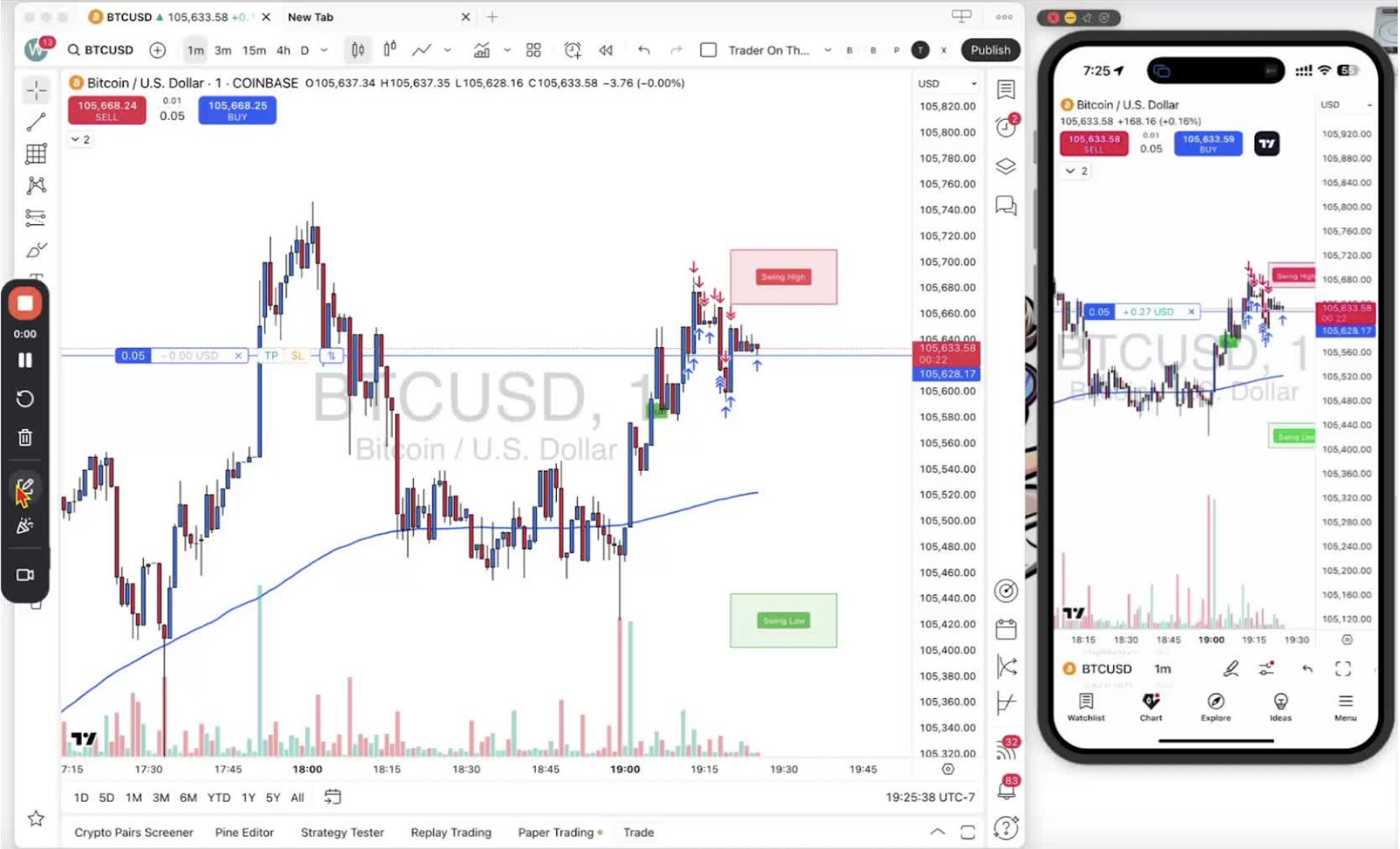
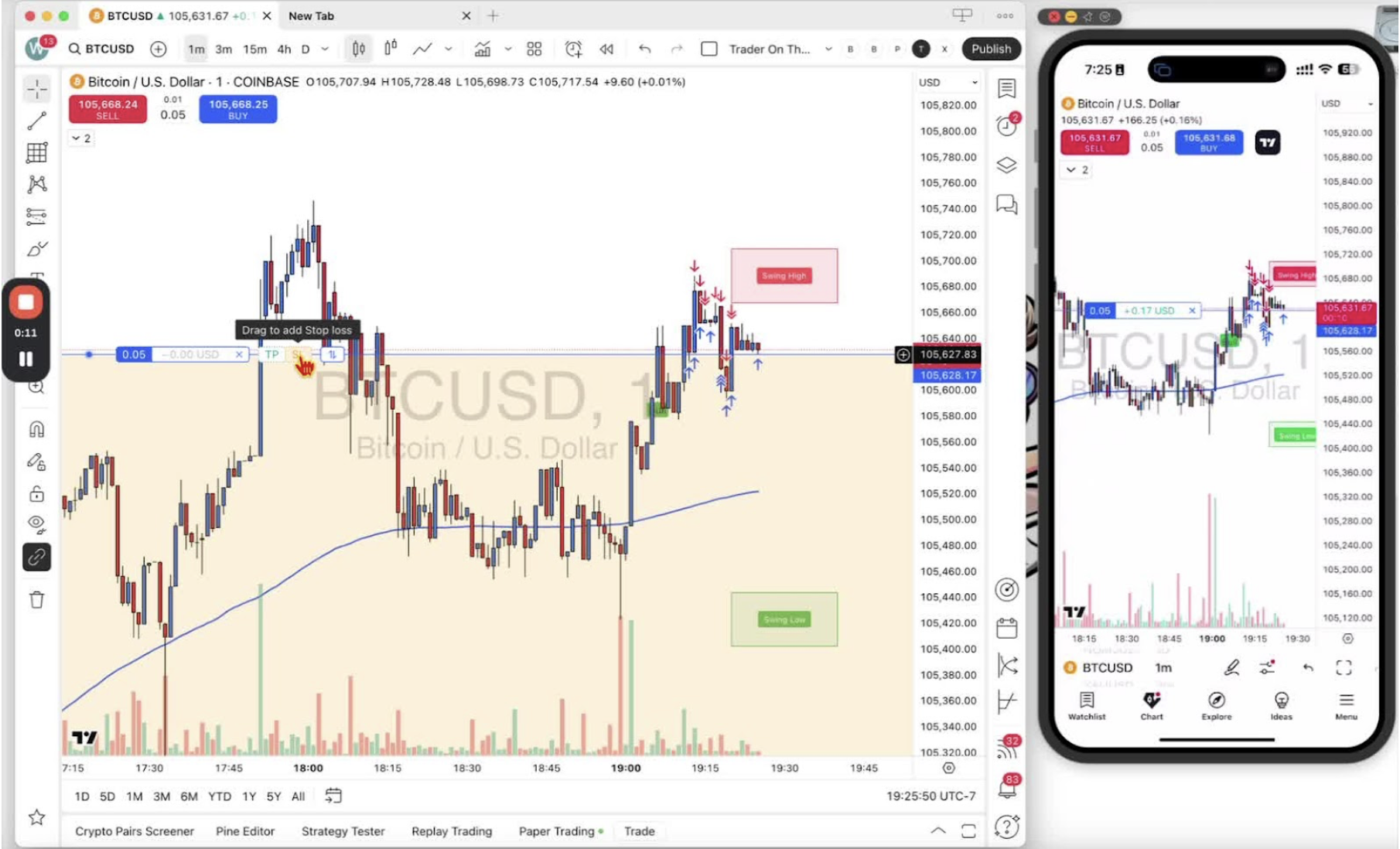
    In this video, I walk you through how to set a stop-loss while trading, both on desktop and mobile. I demonstrate how to drag and drop the stop-loss to manage your risk effectively, showing examples of how to adjust it based on your comfort level with potential losses. I also explain how to move the stop-loss into profit once your trade is performing well. Remember, if you want to remove your stop-loss entirely, just click the X button. Make sure to practice these steps to enhance your trading strategy!
    Introduction to Stop-Loss 0:00

    • Overview of the video topic: setting a stop-loss.
    • Mention of being in an active trading position.

    Setting a Stop-Loss on Desktop 0:12

    • Locate the stop-loss (SL) tool on your trading platform.
    • Hover over your position and click to access the stop-loss settings.

    Adjusting the Stop-Loss Risk 0:31

    • Click and hold the stop-loss line to drag it.
    • Observe the risk amount displayed on the left side of the cursor.
    • Decide on a comfortable risk level for your trade.

    Moving the Stop-Loss to Protect Your Position 1:30

    • If the price moves in your favor, drag the stop-loss up to reduce risk.
    • If the price exceeds your entry point, adjust the stop-loss into profit.

    Setting a Stop-Loss on Mobile 2:07

    • Tap on your position size to access the stop-loss option.
    • Hold and drag the stop-loss square to your desired risk level.

    Modifying the Stop-Loss on Mobile 2:58

    • Adjust the stop-loss by dragging the square to change the risk amount.
    • Confirm the modification by releasing your finger.

    Moving Stop-Loss into Profit on Mobile 3:38

    • Tap the current stop-loss amount to access the adjustment square.
    • Drag the square to set the stop-loss into profit.

    Removing the Stop-Loss 4:06

    • To remove the stop-loss, click the X button on desktop or tap the X on mobile.

    Conclusion 4:48

    • Recap of how to set, adjust, and remove a stop-loss in trading.
  • Step 14. Executing Buy and Sell Positions on Paper Trading Account

    Step 14. Executing Buy and Sell Positions on Paper Trading Account

    OBJECTIVE

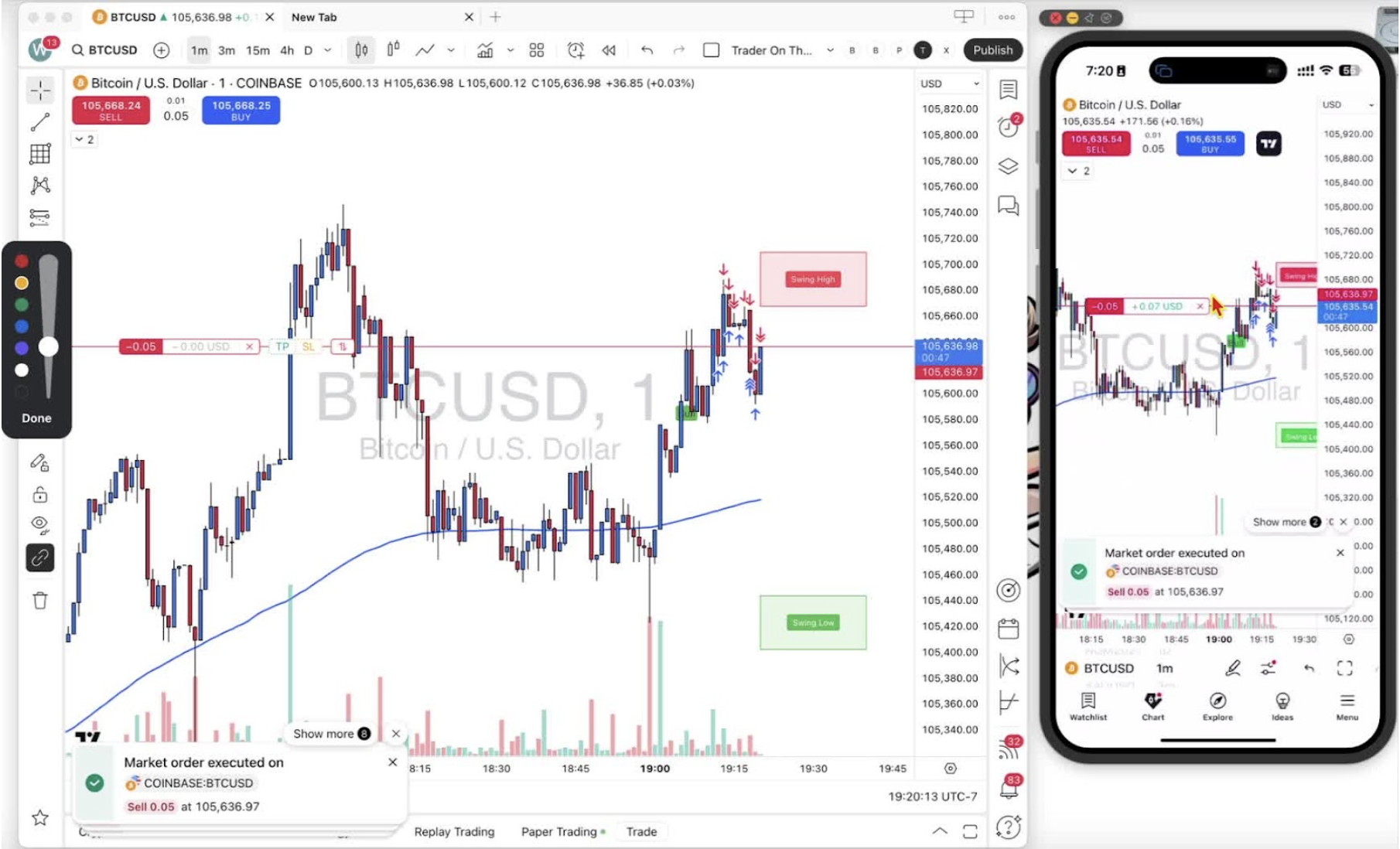
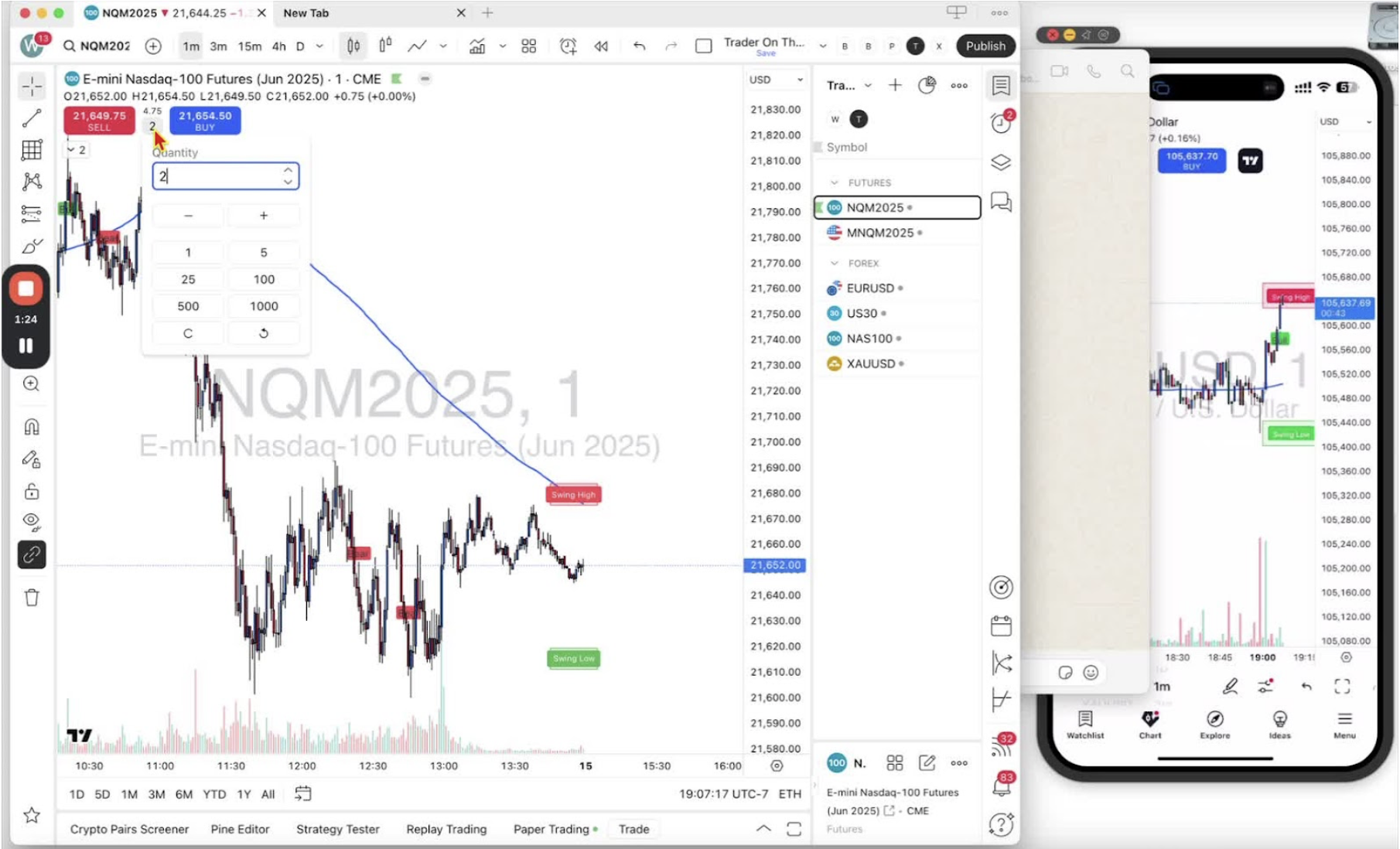
    In this training video, I walk you through how to execute a buy long position or a sell short position on your paper trading account, both on desktop and mobile. I emphasize the importance of checking your position sizing before executing trades, which I demonstrate by clicking the appropriate buttons. You’ll see how to manage your trades, including how to close them using the X button. I encourage you to practice these steps to become comfortable with the trading platform. Please make sure to adjust your position sizing correctly before placing any trades.
    Ensure Correct Position Sizing 0:00

    • Start by checking your position sizing tool.
    • Make sure the size is correct and adjust if necessary.

    Execute a Sell Position on Mobile 0:22

    • Click the ‘Sell’ button on your mobile app.
    • Observe the floating Profit & Loss (P&L) displayed on the screen.

    Close the Sell Position 0:59

    • Click the ‘X’ button next to the P&L to close the trade.

    Execute a Buy Position on Mobile 1:26

    • Click the ‘Buy’ button on your mobile app.
    • Ensure you want the price to go up past a certain line.

    Close the Buy Position 2:01

    • Click the ‘X’ button to exit the buy trade.

    Adjust Position Sizing for Buy on Mobile 2:01

    • If needed, tap the position sizing at the top to open the sizing box.
    • Change the quantity to the desired amount (e.g., 0.05).
    • Tap outside the box to close it.

    Execute a Buy Position Again 2:17

    • Tap the ‘Buy’ button again to go long.

    Execute a Sell Position Again 2:38

    • Click the ‘Sell’ button to go short.
    • Use the ‘X’ button to close the trade.

    Summary of Executing Trades 2:38

    • This process applies to both desktop and mobile versions of TradingView.
    • Ensure you are on your paper trading account for practice.
  • Step 13. Understanding Position Sizing in Forex vs. Futures

    Step 13. Understanding Position Sizing in Forex vs. Futures

    OBJECTIVE

    In this video, I explain the differences in position sizing between forex and futures trading. In forex, you can start with a minimum of 0.01 lots and scale up based on your comfort level and account balance. However, in futures, you can only trade in whole contracts, with no decimals allowed, which means you must trade in multiples of one. I encourage you to explore your relevant forex or futures pairs and start with the lowest available size to get a feel for your trading strategy.

    Introduction to Position Sizing 0:00

    • Overview of the video topic: Difference between position sizing in Forex and Futures.
    • Importance of understanding position sizing for traders.

    Position Sizing in Forex 0:00

    • Forex allows the use of decimals in position sizing.
    • Minimum position size starts at 0.01.
    • Traders can scale up from 0.01 to higher amounts based on broker limits and account funds.
    • Recommended approach: Start with 0.01 in a paper trading account to test and gain comfort.

    Experimenting with Forex Position Sizes 0:38

    • Gradually increase position sizes (e.g., 0.02, 0.03) to find comfort levels.
    • Focus on balancing risk with available funds in the paper trading account.

    Position Sizing in Futures 0:54

    • In Futures, position sizing is limited to whole numbers (multiples of one).
    • No decimals are allowed in contract sizing

    Understanding Futures Contracts 1:09

    • Explanation of contract types: NQM and MNQ.
    • Distinction between mini contracts (higher leverage) and micro contracts.

    Conclusion and Recommendations 1:32

    • Simplest way to explore position sizing is to start with the lowest available size in either Forex or Futures.
    • Encourage traders to familiarize themselves with their specific Forex or Futures pairs.
  • Step 12. Guide to Changing Position Sizing in Trading

    Step 12. Guide to Changing Position Sizing in Trading

    OBJECTIVE

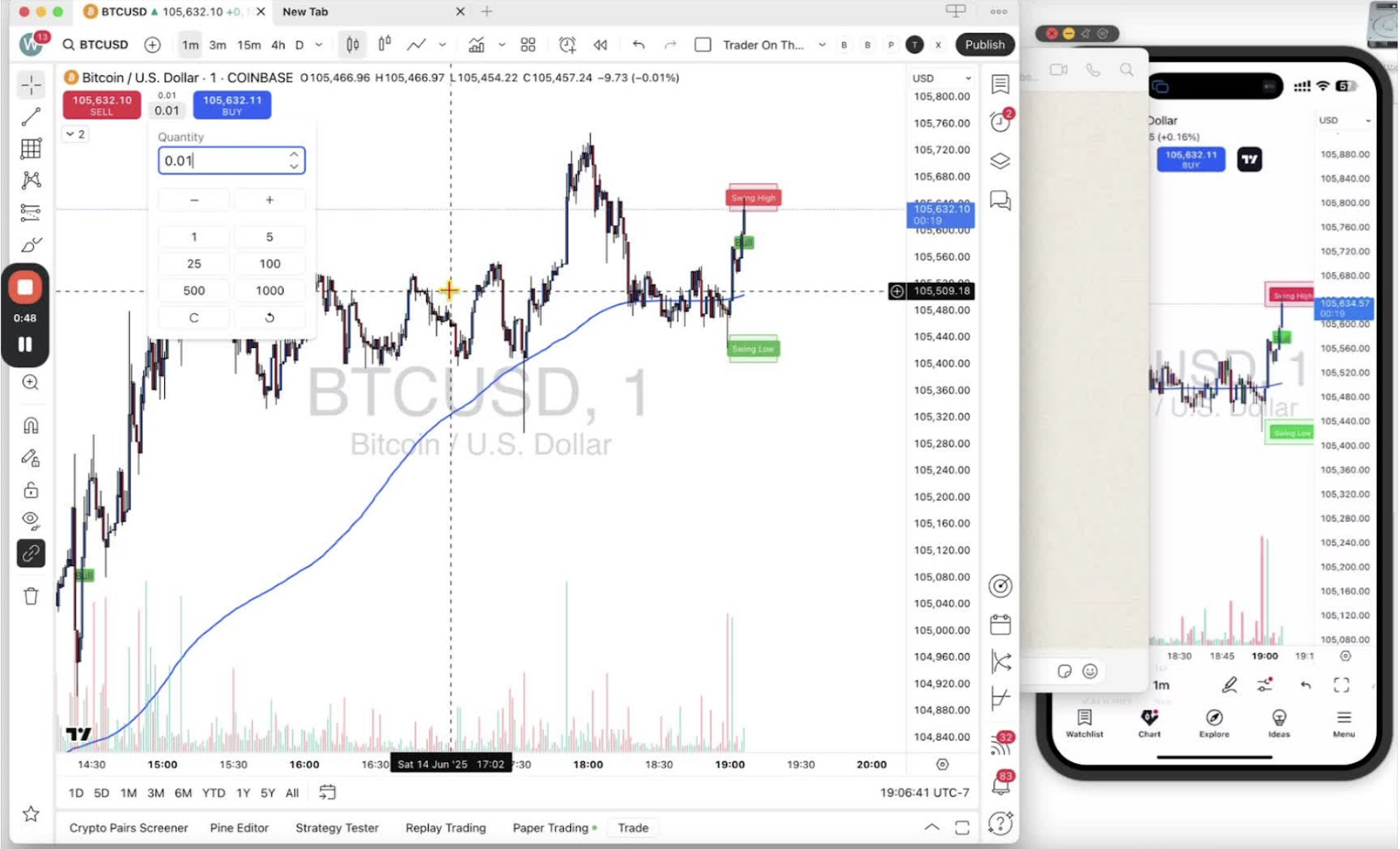
    In this video, I walk you through how to change your position sizing before executing a trade, both on desktop and mobile. I explain that your position size reflects the amount of risk you’re willing to take on a trade, especially in terms of leverage. I demonstrate where to find the position size box and how to adjust it, using a 4x pair as an example. I encourage you to experiment with different position sizes in your paper trading account to better understand your risk. Remember, this is all for educational purposes and not financial advice.
    Introduction to Position Sizing 0:00

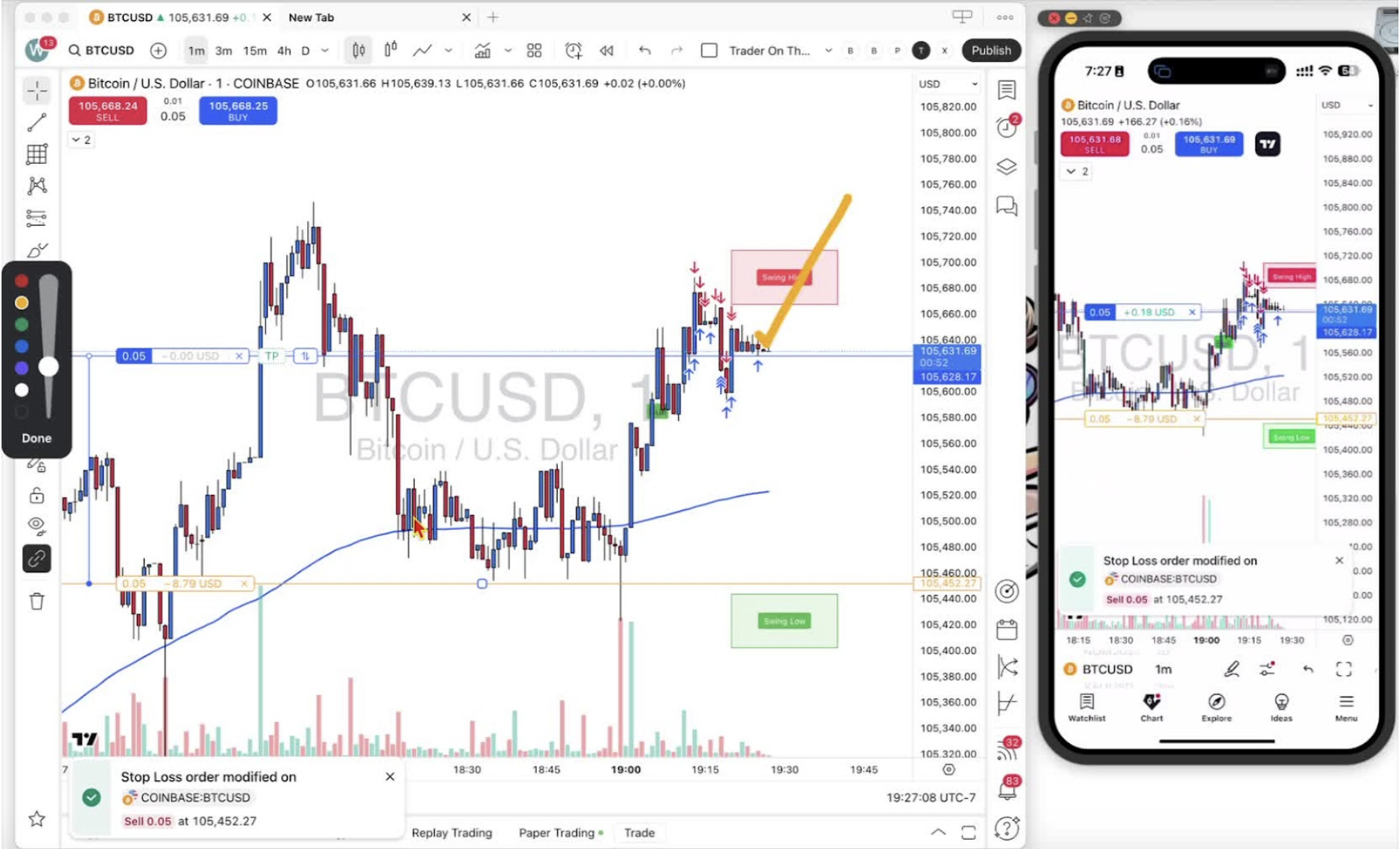
    • Overview of the video topic: changing position sizing before executing a trade.
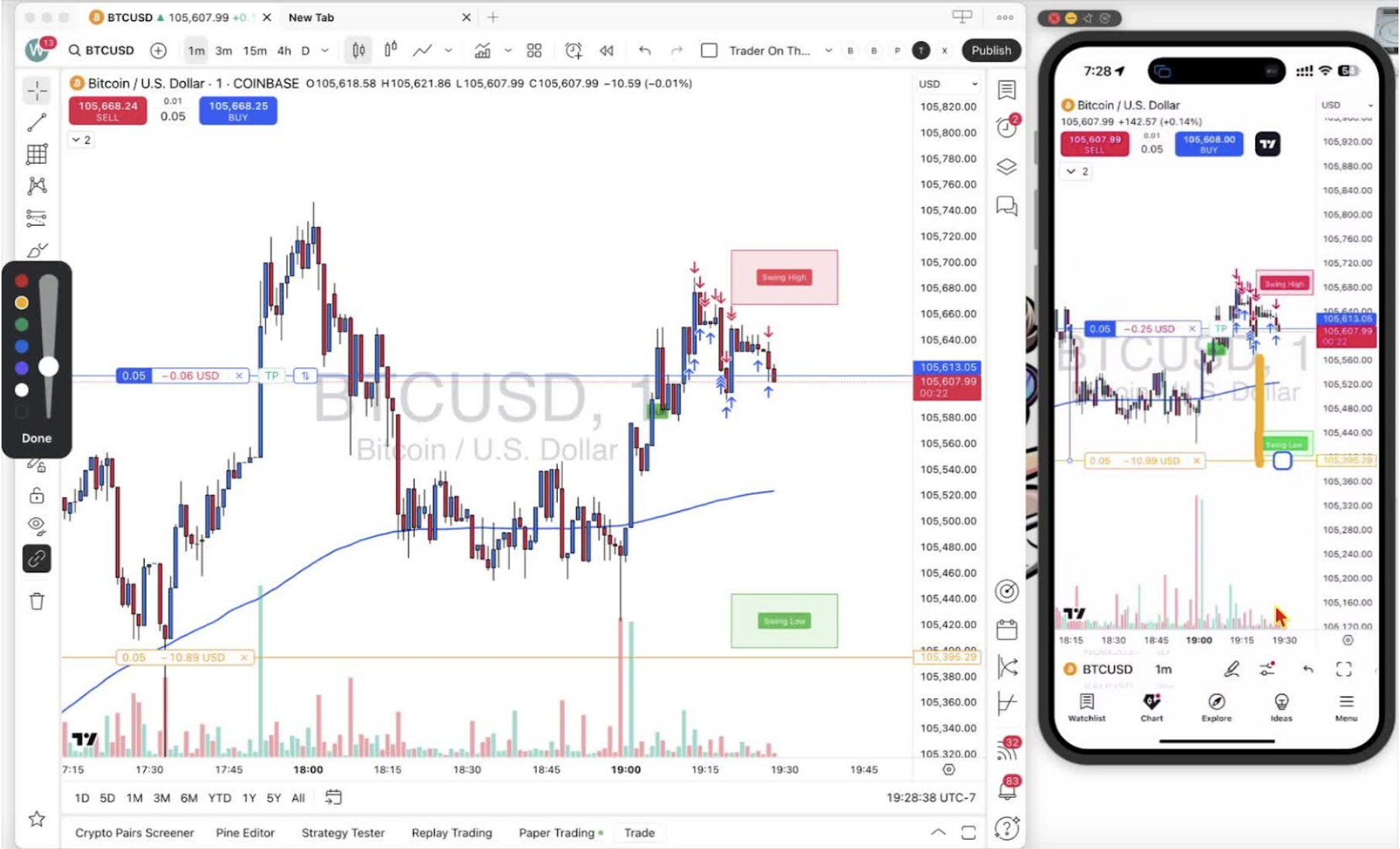
    • Importance of understanding position sizing in relation to risk management.

    Understanding Position Size 0:15

    • Definition of position size: the amount of risk taken on a trade.
    • Explanation of leverage and its impact on funds in a paper trading account.
    • Emphasis on using a paper trading account for educational purposes.

    Locating the Position Size Box 0:41

    • Description of where to find the position size box on desktop and mobile:
    • On desktop: located between the blue ‘buy long’ and red ‘sell short’ buttons.
    • On mobile: same location for convenience.

    Changing Position Size on Desktop 0:47

    • Demonstration of changing position size on a desktop:
    • Example of changing quantity to 0.01 on a 4x pair.
    • Visual confirmation of changes in the position size box.

    Changing Position Size on Mobile 1:02

    • Demonstration of changing position size on mobile:
    • Tapping on the position size box to bring up the keypad.
    • Ability to experiment with different position sizes.

    Importance of Prior Steps 1:36

    • Reminder to complete initial steps before executing a trade to ensure the position size box is available.

    Conclusion 1:52

    • Summary of the video content.
    • Encouragement to practice changing position sizes in a paper trading account.
  • Step 11. Understanding Trading Execution Buttons on Desktop and Mobile

    Step 11. Understanding Trading Execution Buttons on Desktop and Mobile

    OBJECTIVE

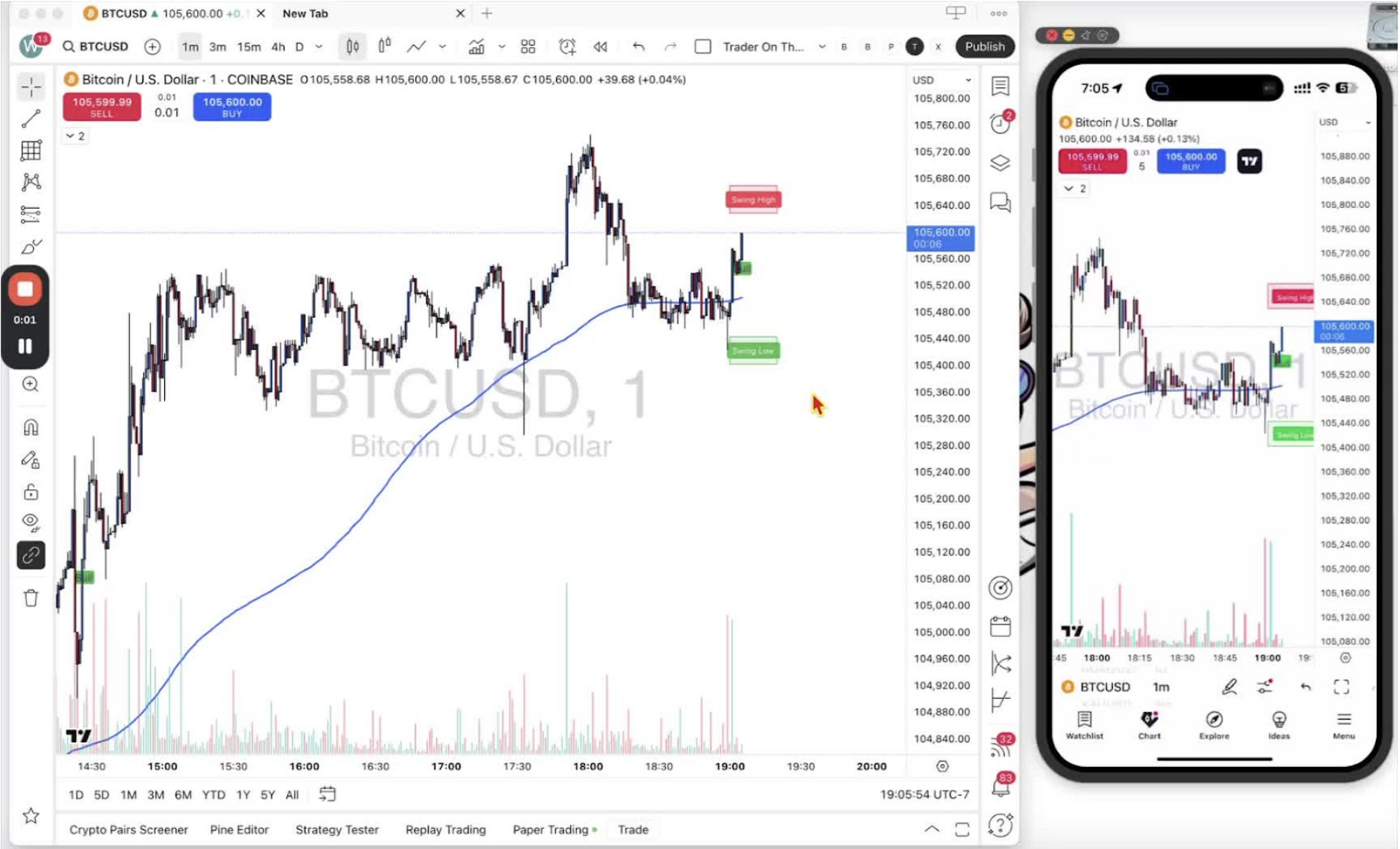
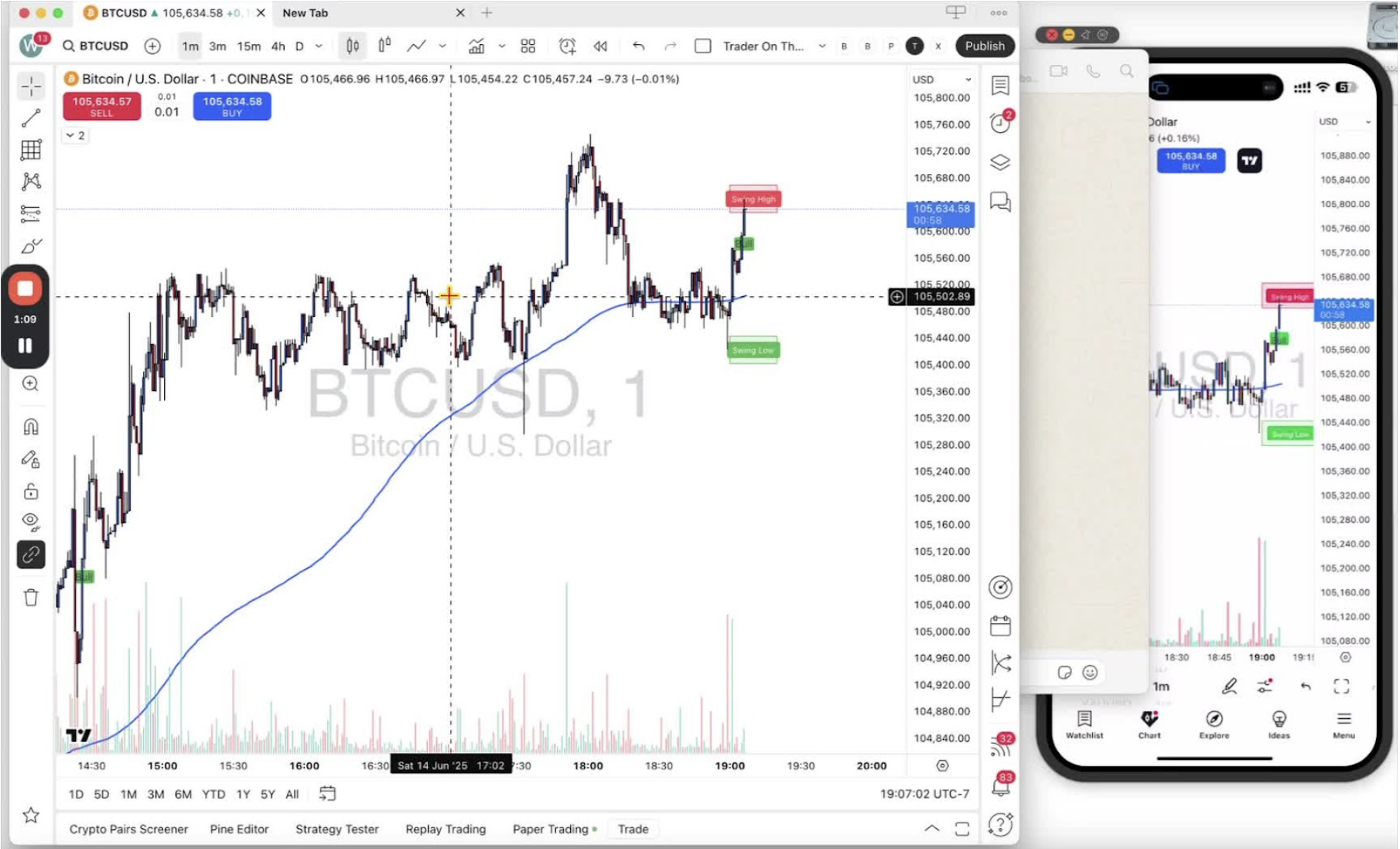
    In this video, I walk you through the trading execution buttons on both desktop and mobile platforms, focusing on the buy and sell buttons located in the top left-hand corner. I explain how clicking the blue buy button enters a long position, indicating a bullish bias, while the red sell button enters a short position, reflecting a bearish outlook. I also emphasize the importance of checking your settings to ensure these buttons are visible before executing trades. If you haven’t done so already, please refer to the previous training for guidance on adjusting your settings. Let’s get comfortable with these tools to enhance our trading experience!

    Introduction to Trading Execution Buttons 0:00

    • Overview of the purpose of the Loom video: to explain trading execution buttons on both desktop and mobile platforms.
    • Emphasis on the importance of understanding these buttons for effective trading.

    Locating the Trading Buttons on Desktop 0:09

    • The trading execution buttons (buy and sell) are located in the top left-hand corner of the desktop interface.
    • If buttons are not visible, refer to previous training for settings adjustments to ensure they appear.

    Locating the Trading Buttons on Mobile 0:17

    • The mobile app has the same layout for trading execution buttons: blue buy and red sell buttons in the top left-hand corner.

    Executing a Buy Position 0:30

    • Clicking the blue buy button enters a long position (buy position).
    • Explanation of what a long position means in trading.

    Executing a Sell Position 0:43

    • Clicking the red sell button enters a short position (sell position).
    • Explanation of what a short position means and the expectation of price movement.

    Impact on Profit and Loss (P&L) 1:11

    • Clarification on how entering a sell position can potentially increase profit (P) and decrease loss (L).
    • Importance of understanding market bias when executing trades.

    Conclusion and Recap 1:22

    • Summary of the key points discussed regarding the trading execution buttons on both platforms.
    • Encouragement to practice using these buttons for better trading execution.
  • Step 10. Essential First Steps Before Executing Trades

    Step 10. Essential First Steps Before Executing Trades

    OBJECTIVE​​​​​

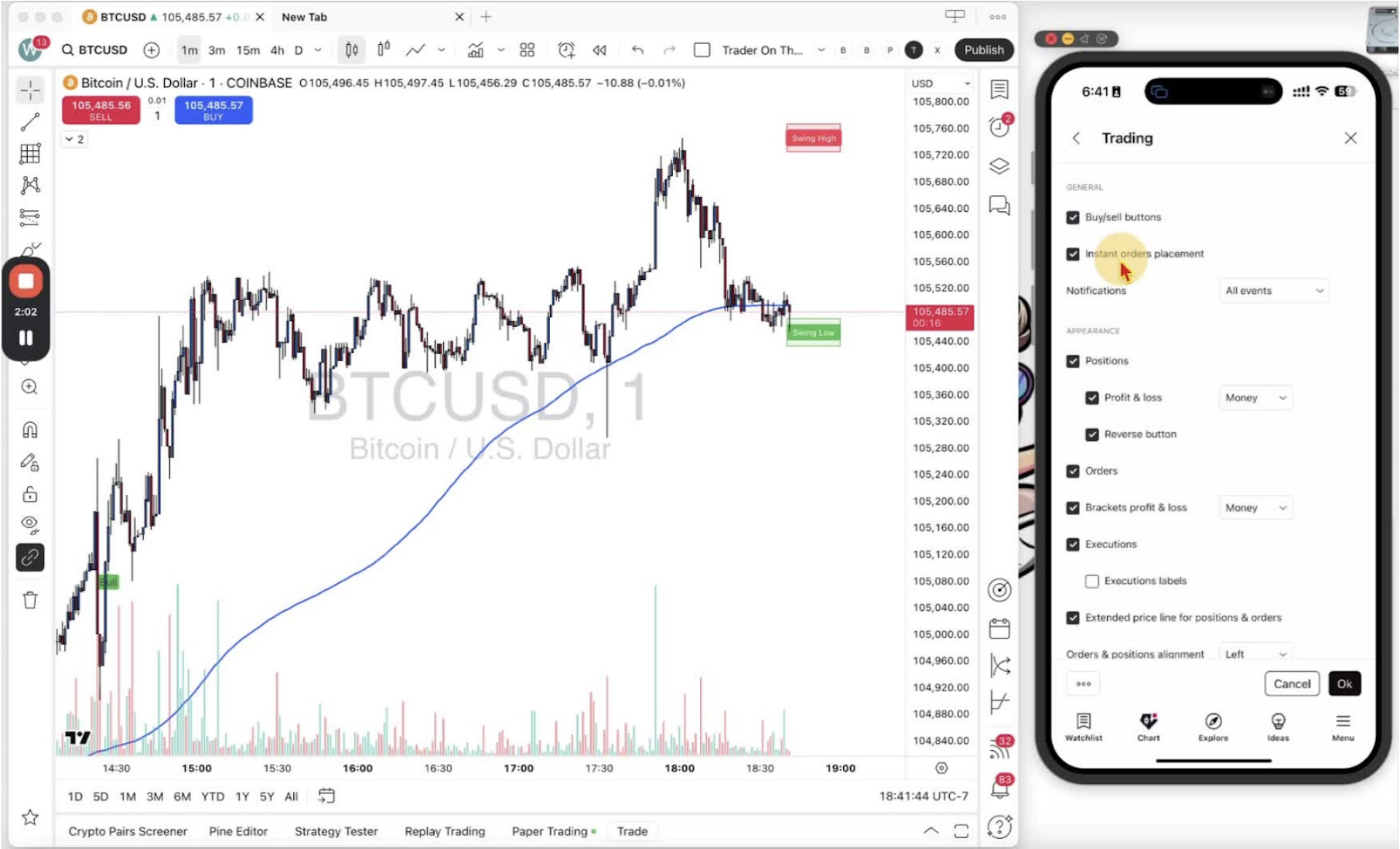
    In this video, I walk you through the crucial first step you need to take before executing any trade on the desktop app. I demonstrate how to access the settings by right-clicking and navigating to the trading section, ensuring that your buy and sell buttons are activated and that instant order placement is enabled. This setup is essential for a smooth trading experience. I also cover how to adjust these settings on the mobile app, guiding you through the process step-by-step. Please make sure to follow these instructions carefully to optimize your trading setup.

    Access Settings on Desktop 0:11

    • Open the desktop app and navigate to your chart.
    • Right-click your mouse to open the settings menu.

    Navigate to Trading Settings on Desktop 0:24

    • In the settings menu, find and select ‘Trading’.
    • Ensure that the buy and sell buttons are enabled (they should be automatically on).

    Enable Instant Orders Placement on Desktop 0:44

    • Look for the option to enable ‘Instant Orders Placement’.
    • Click the checkbox to activate it, which will display a box indicating it’s enabled.

    Confirm Settings on Desktop 1:20

    • Click ‘OK’ to save your settings.
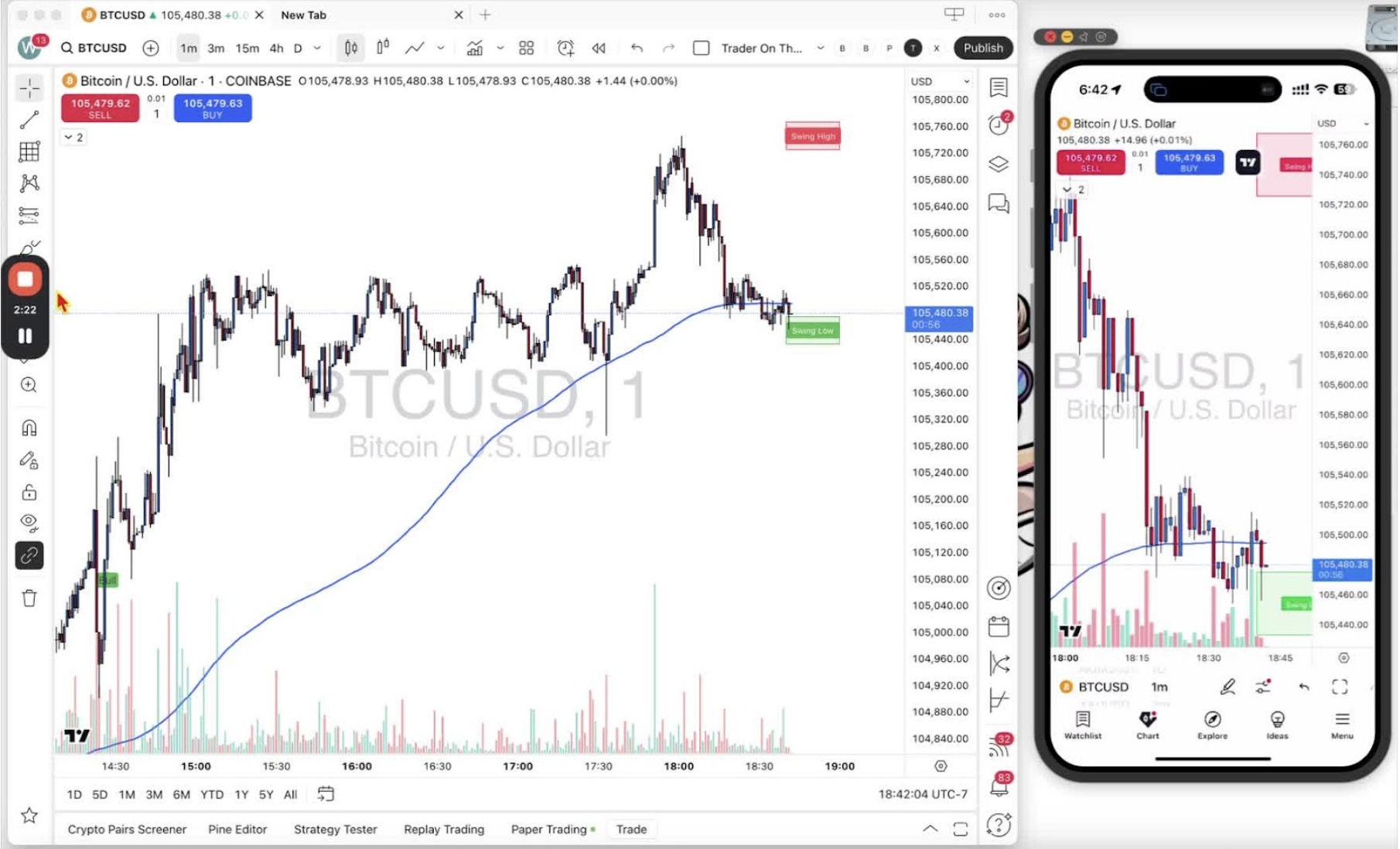
    • You should now see your buy and sell buttons along with the quantity box and spread information.

    Access Settings on Mobile 1:43

    • Open the mobile app and locate the settings icon (a hexagon).
    • Tap on the hexagon to access settings.

    Navigate to Trading Settings on Mobile 1:43

    • Click on ‘More Settings’.
    • If you’re in a different area, use the back button to return to the main settings menu.

    Enable Buy/Sell Buttons and Instant Orders on Mobile 2:03

    • Select ‘Trading’ from the settings menu.
    • Ensure that both buy and sell buttons are enabled (with a tick).
    • Enable ‘Instant Orders Placement’ by ticking the checkbox.

    Confirm Settings on Mobile 2:23

    • Click ‘OK’ in the bottom right corner to save your settings.
    • You should now see your buy and sell buttons along with the quantity box and spread information.