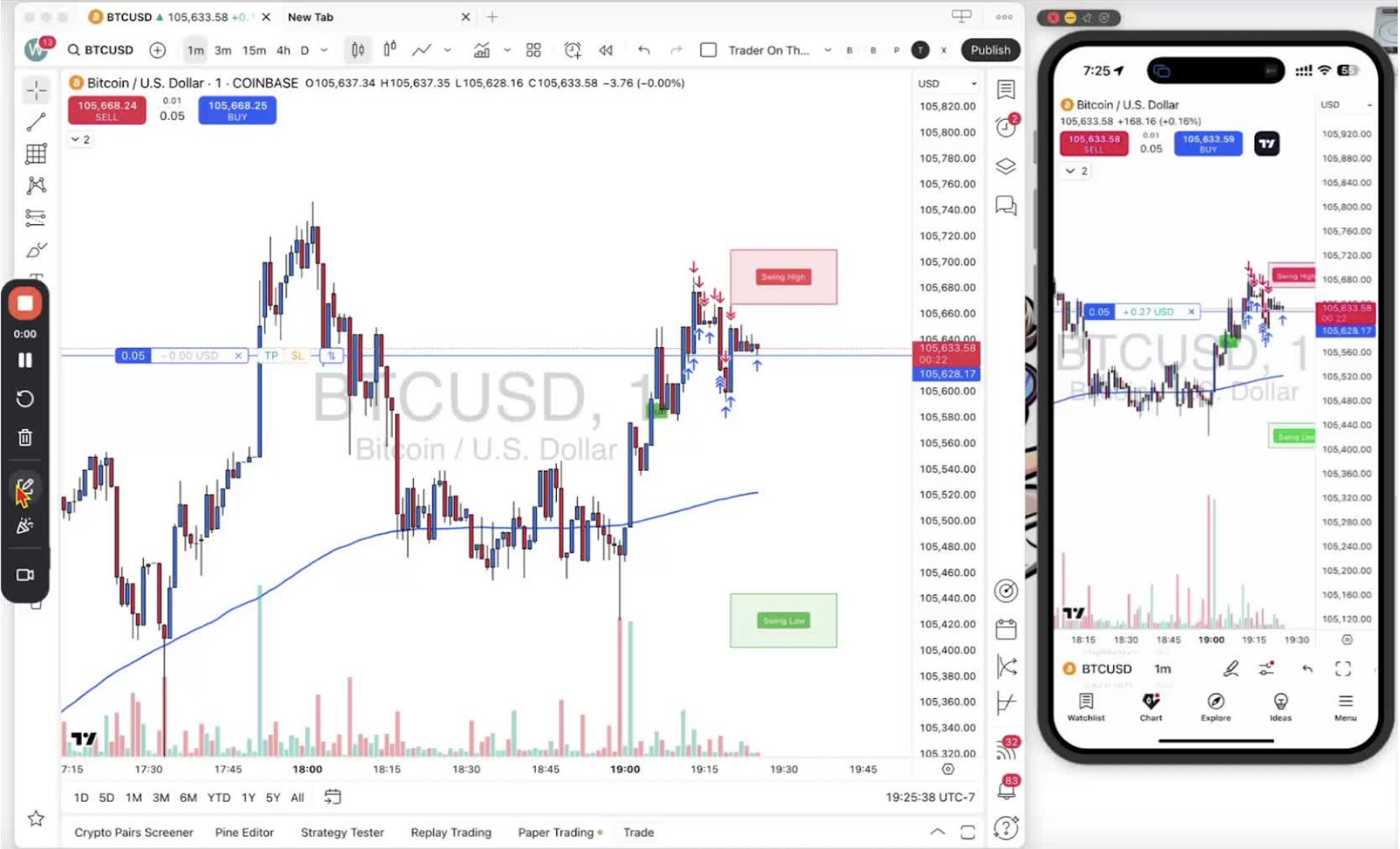
Set a stop-loss on an open trade, drag it to the risk you accept, move it into profit as the trade works, and remove it if needed. Desktop first, then mobile.
Setting a Stop-Loss on Desktop 0:12
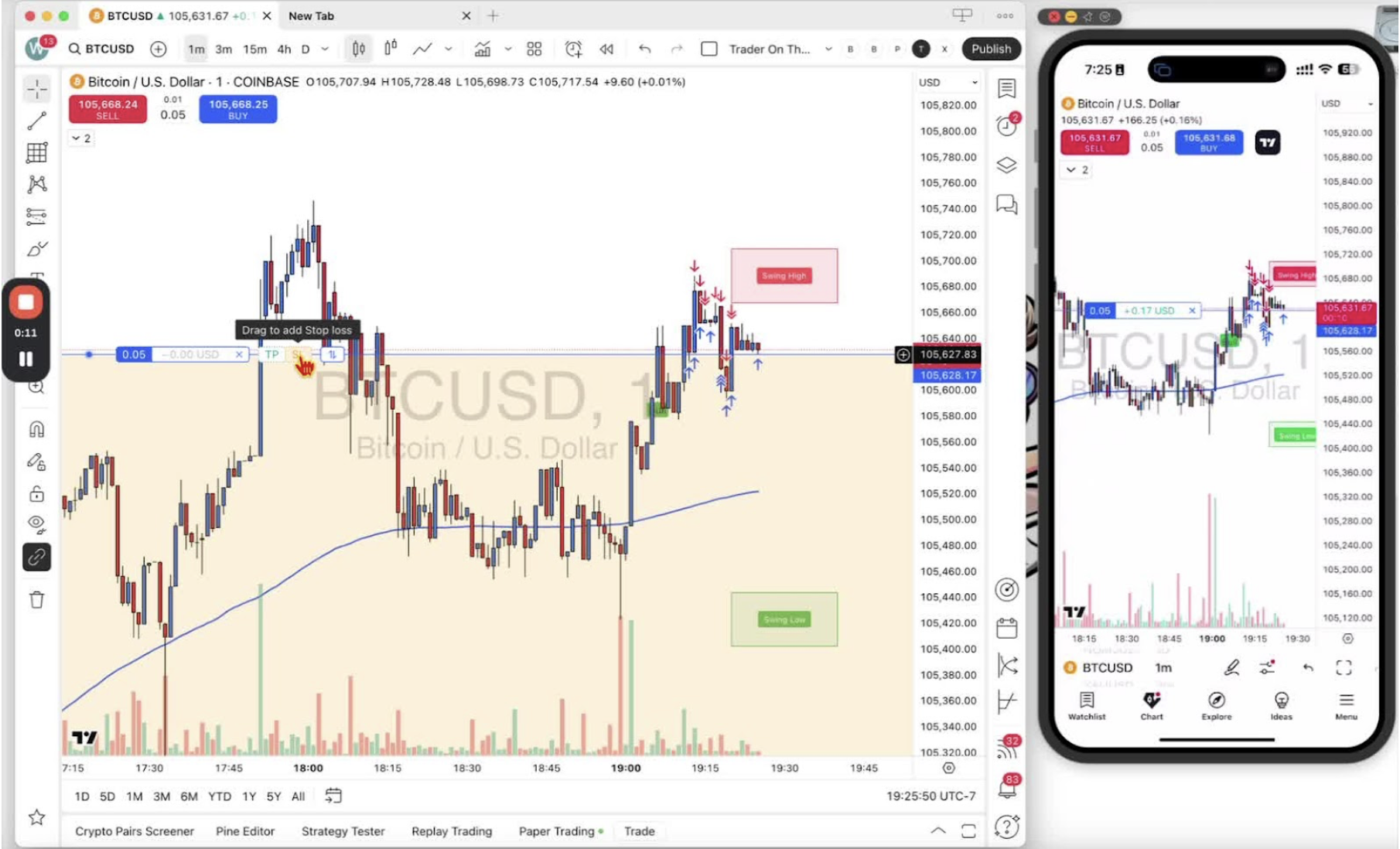
- Hover over your open position and click the stop-loss (SL) tool.
Adjusting the Stop-Loss Risk 0:31
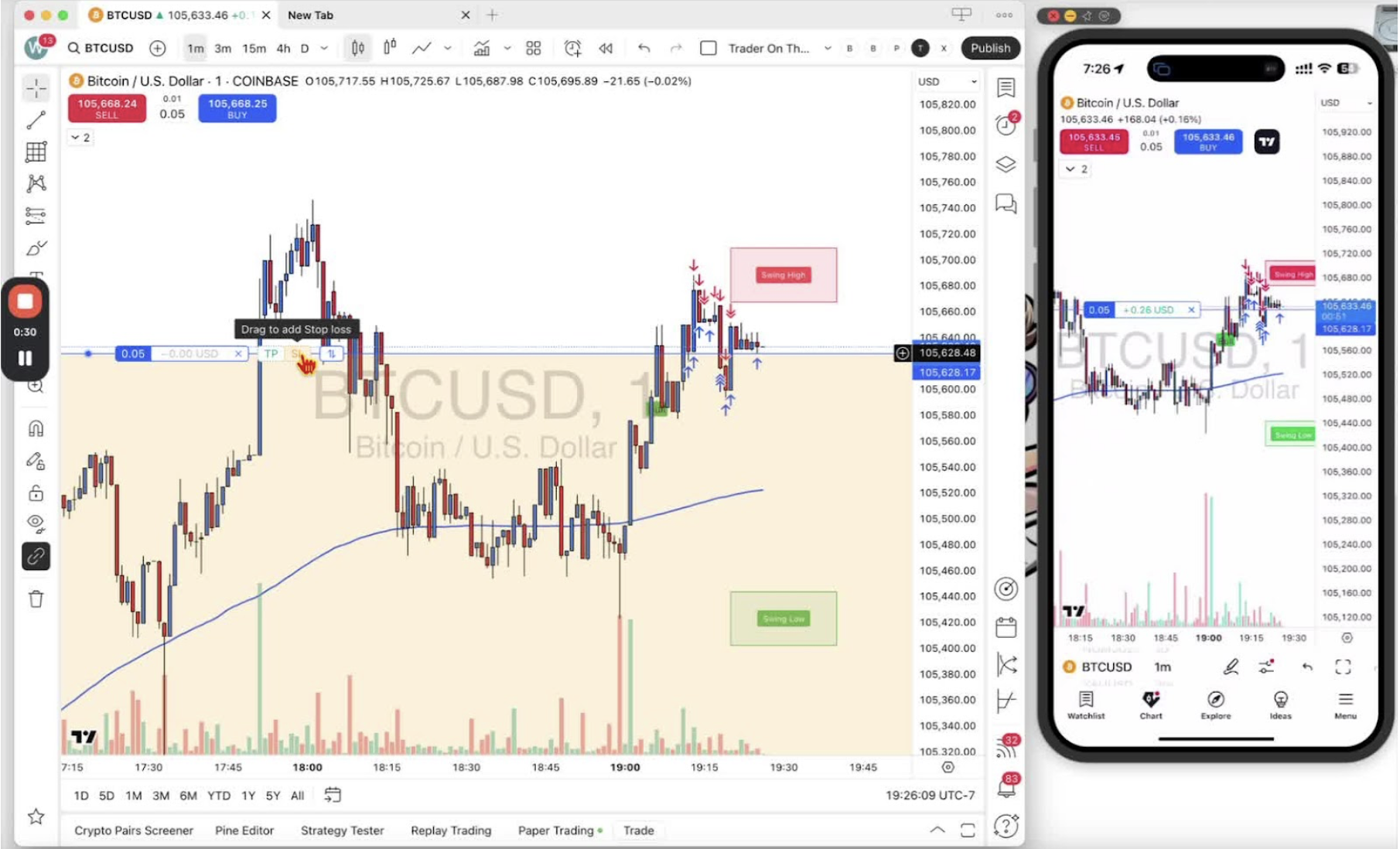
- Click and hold the stop-loss line to drag it.
- The risk amount shows to the left of the cursor.
- Set it at the loss you are willing to take.
Moving the Stop-Loss to Protect Your Position 1:30
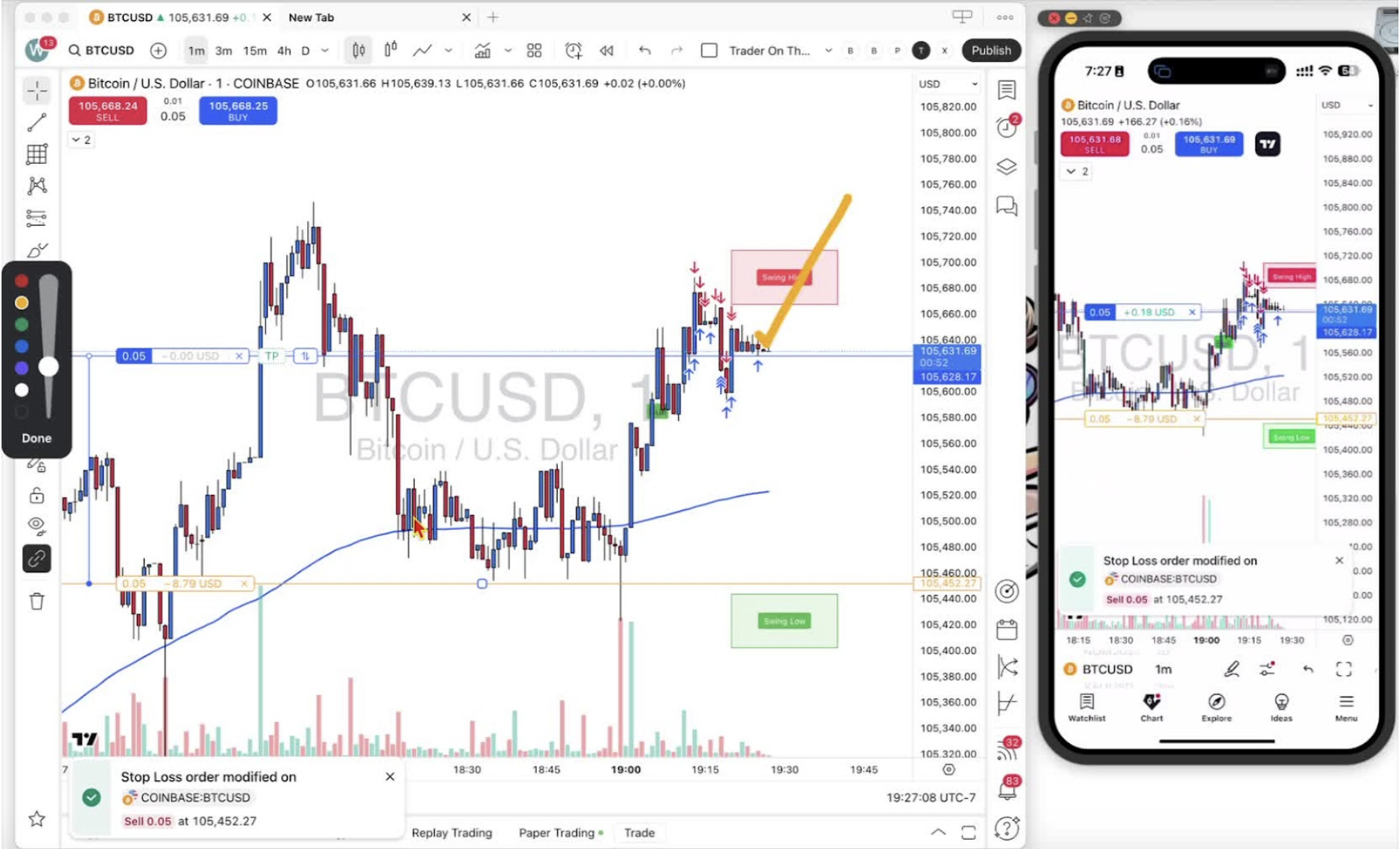
- If price moves in your favor, drag the stop-loss up to cut risk.
- Once price is past your entry, move the stop-loss into profit.
Setting a Stop-Loss on Mobile 2:07
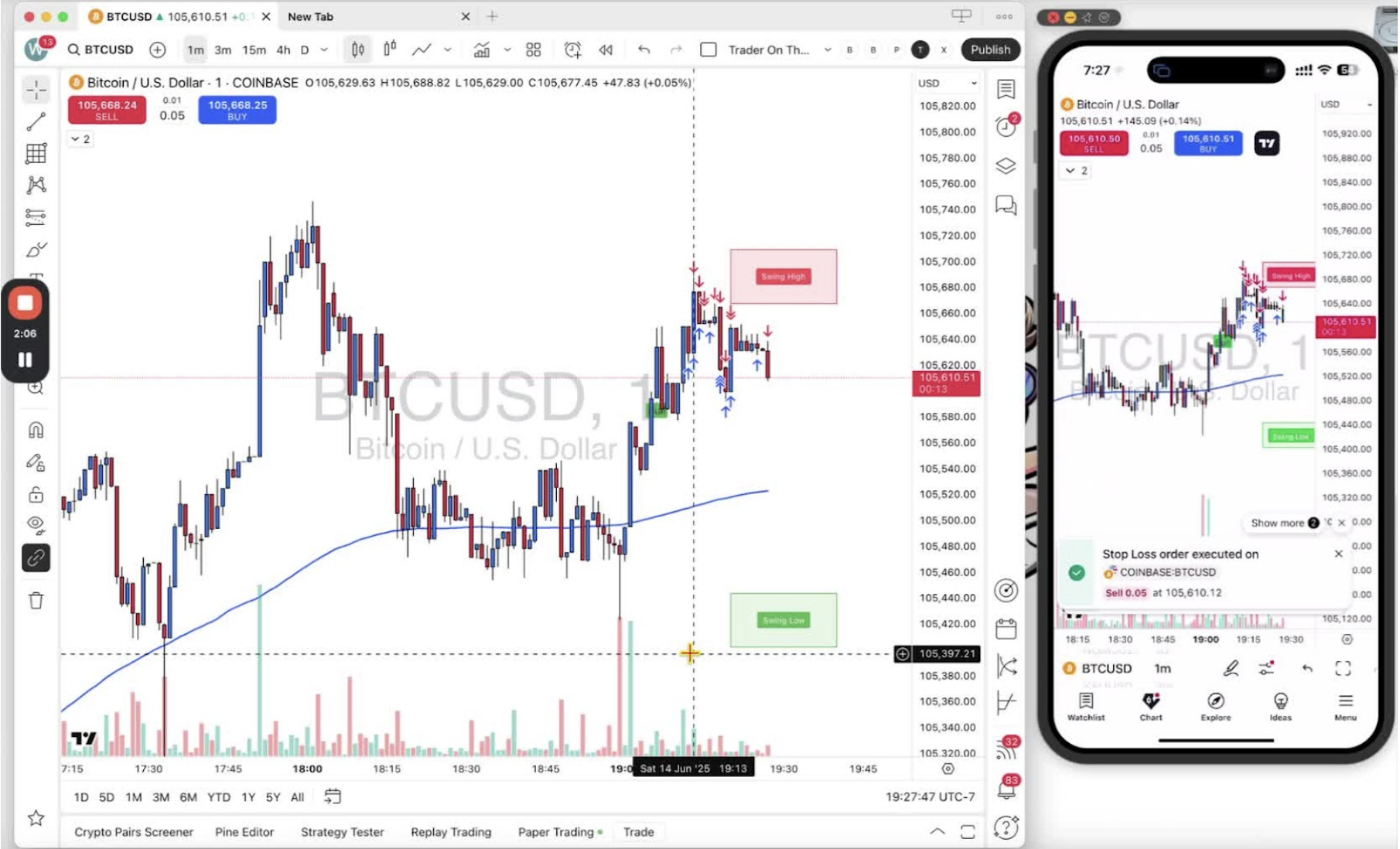
- Tap your position size to open the stop-loss option.
- Hold and drag the stop-loss square to your risk level.
Modifying the Stop-Loss on Mobile 2:58
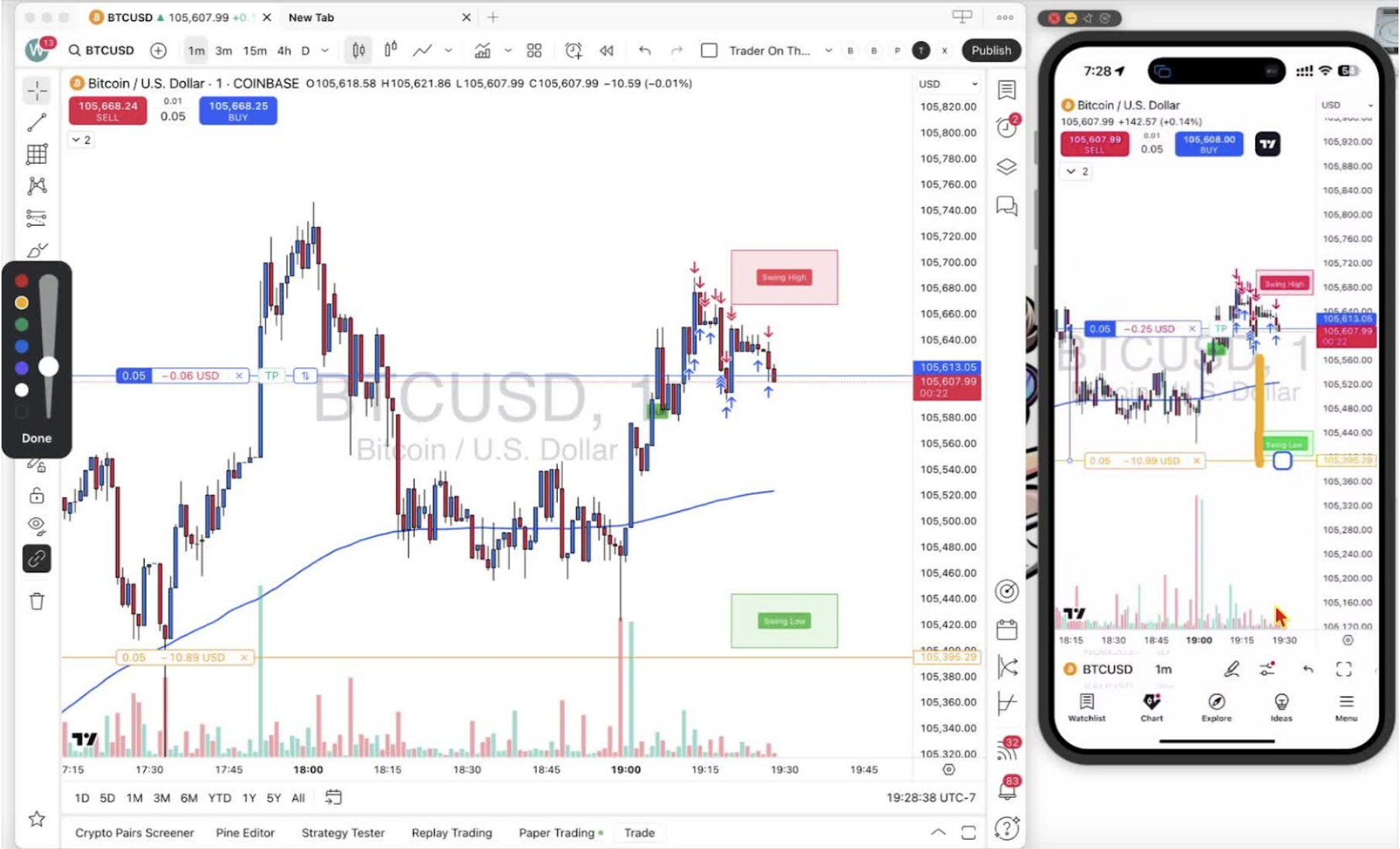
- Drag the square to change the risk amount.
- Release to confirm.
Moving Stop-Loss into Profit on Mobile 3:38
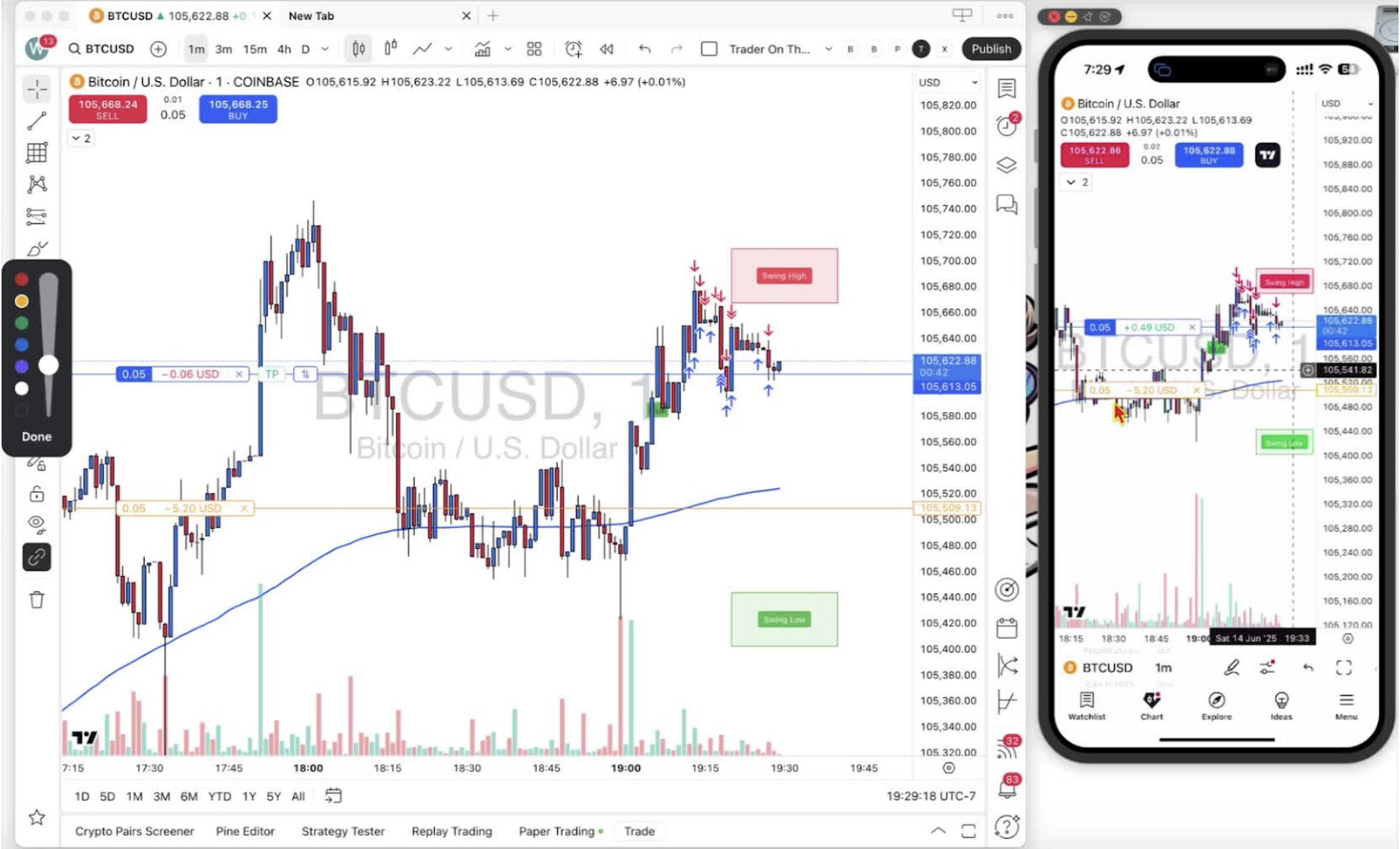
- Tap the current stop-loss amount to get the square.
- Drag it into profit.
Removing the Stop-Loss 4:06
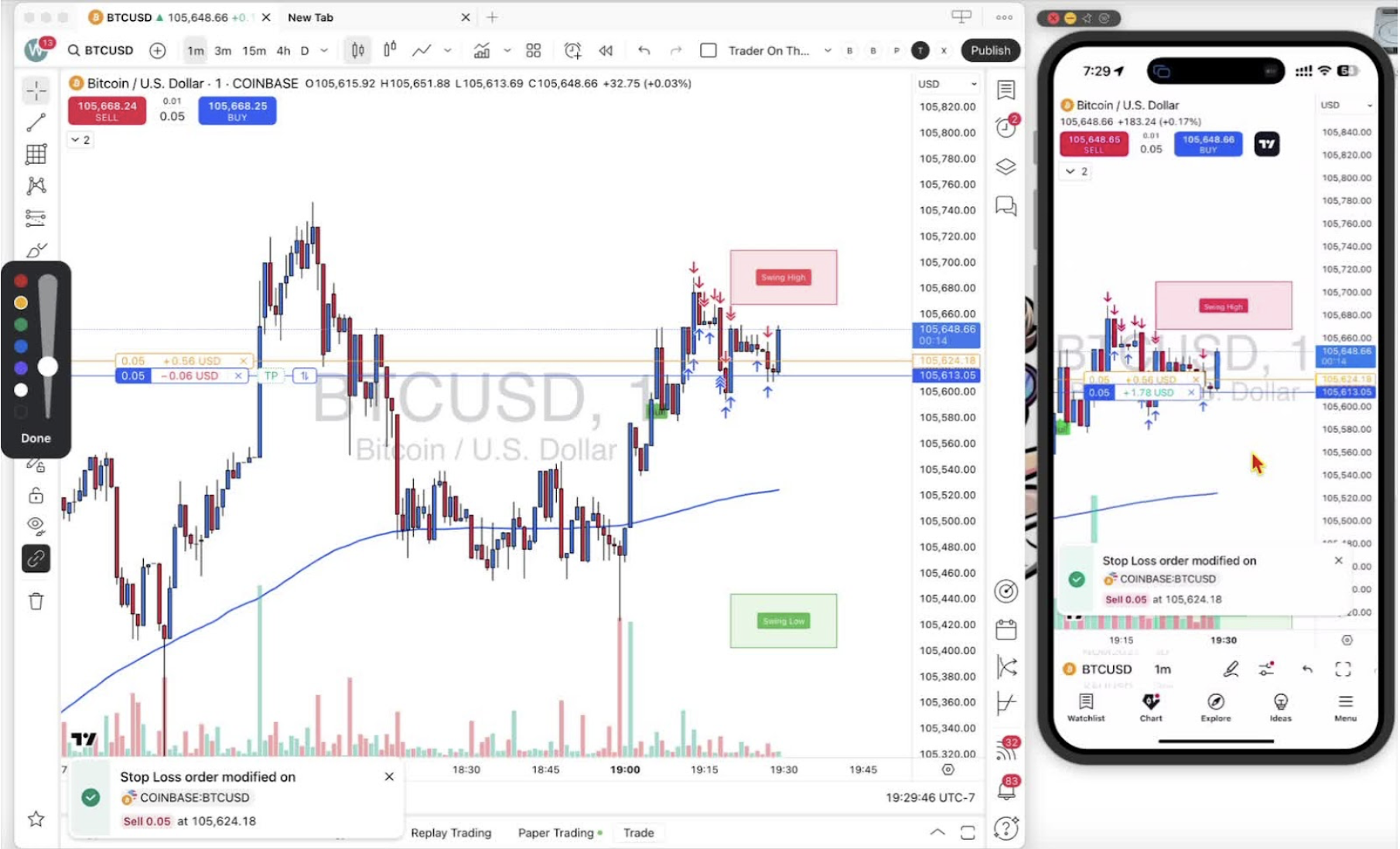
- Click the X on desktop or tap the X on mobile to remove the stop-loss.