Set an alert for the Trader on the Go indicator in the TradingView mobile app. On mobile you can only set an alert for the symbol currently on the chart. Alerts sync across devices when you are logged in with the same TradingView ID.
Access the Alert Menu 0:00
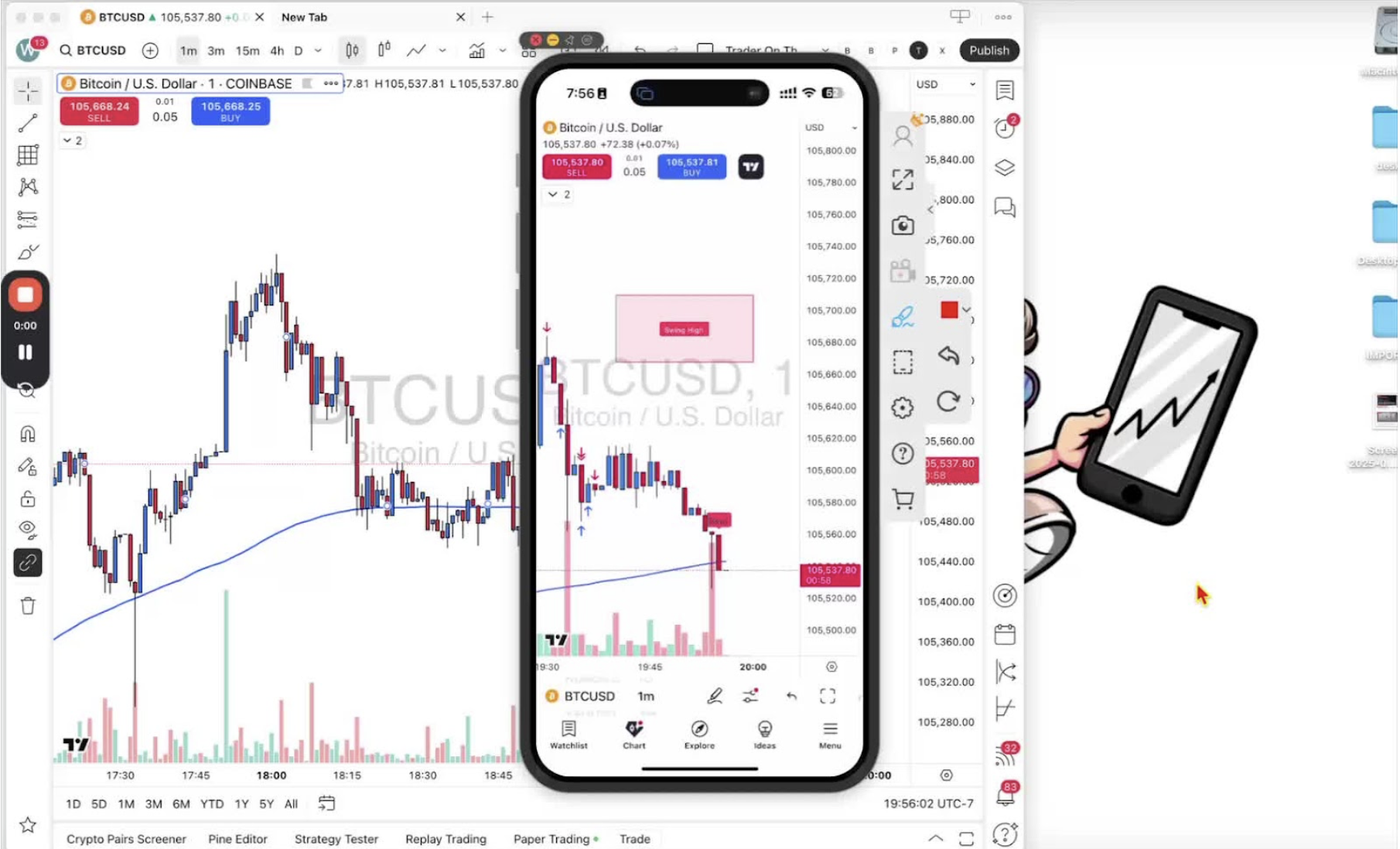
- Open the mobile app.
- Tap the two-lines-with-two-circles icon at the bottom.
Select Alerts 0:14
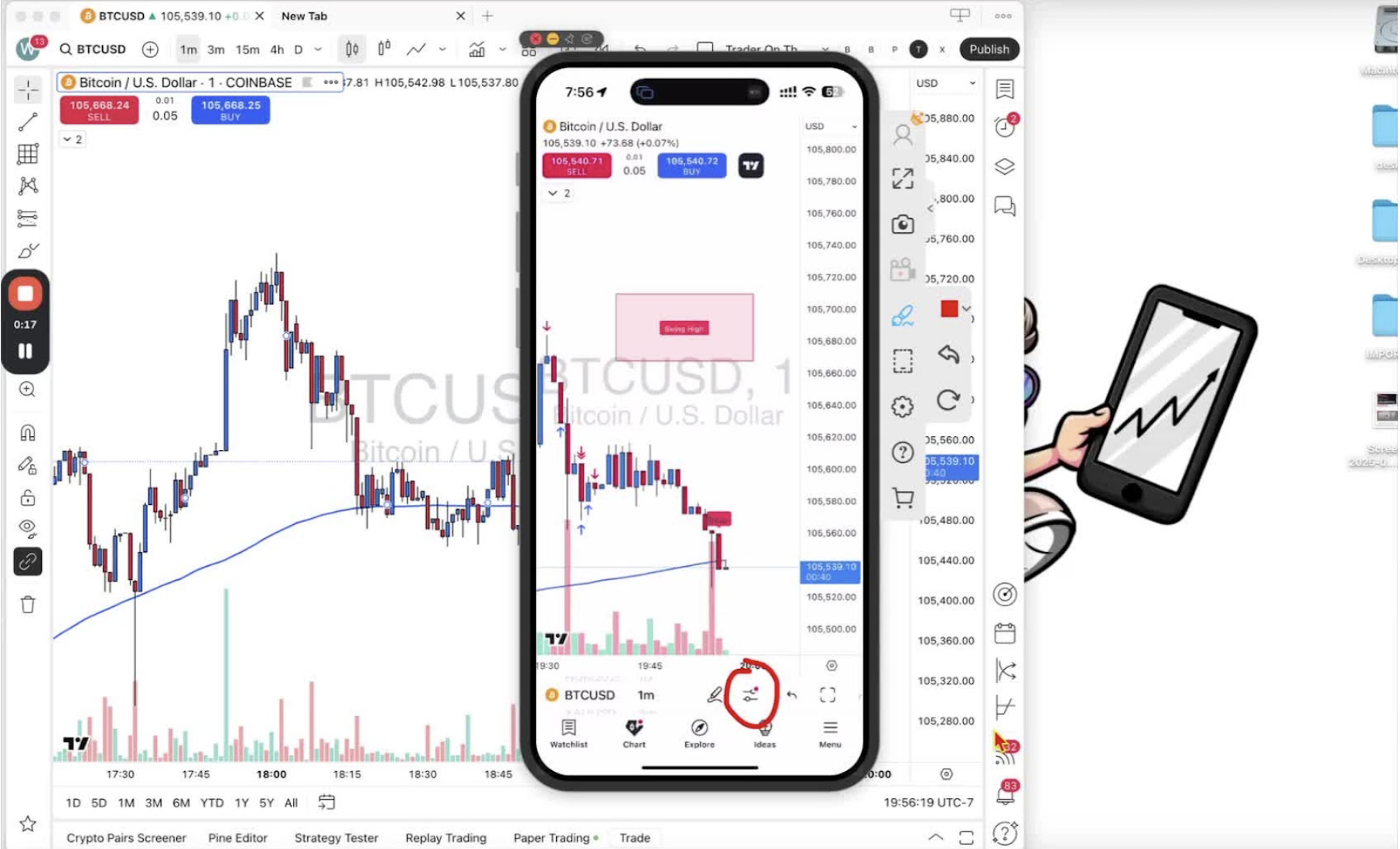
- Tap ‘Alert’.
Create a New Alert 0:48

- Tap the alarm clock icon with the plus sign.
- Only the current chart symbol can be selected.
Confirm the Current Symbol 1:15
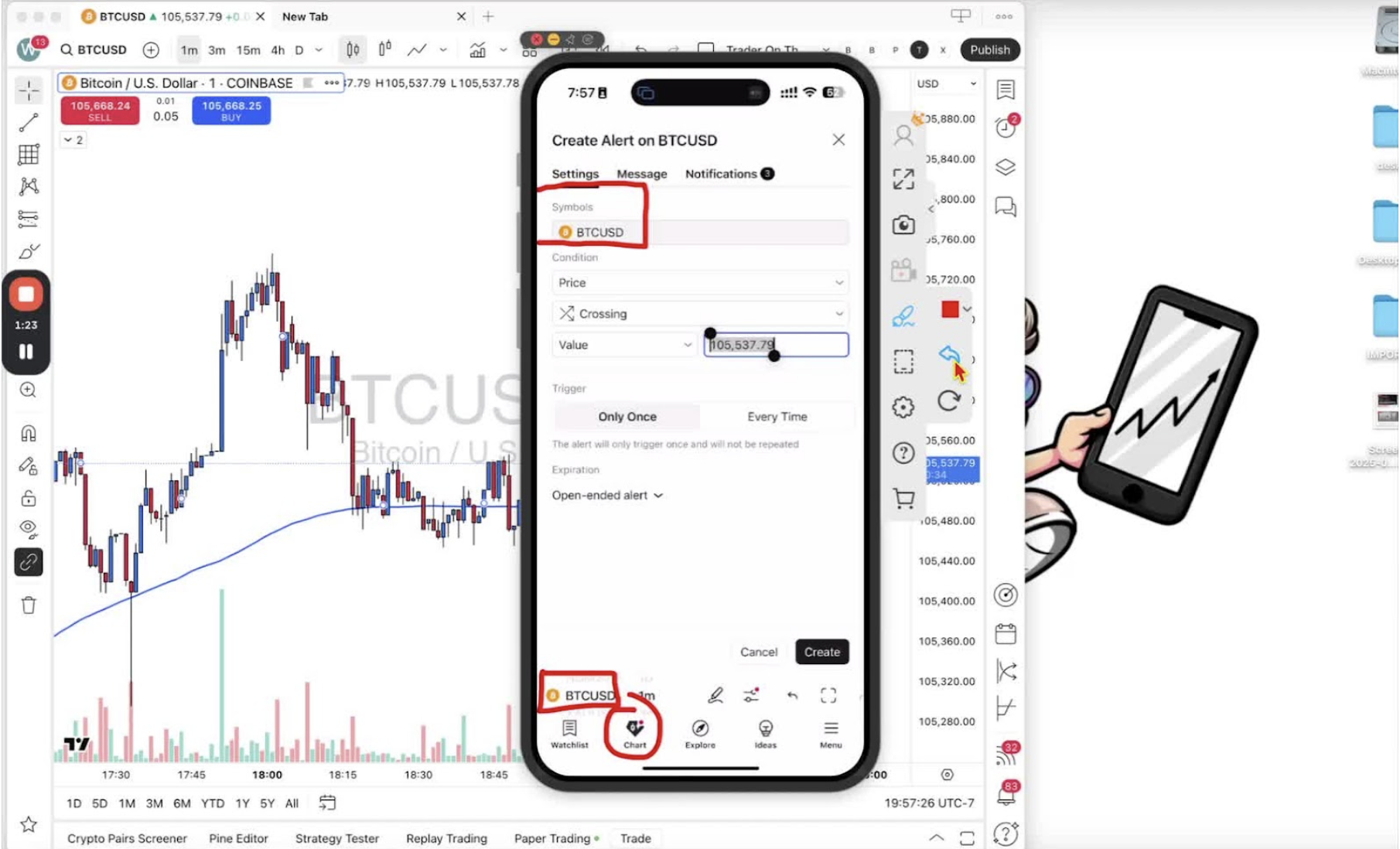
- Check you are on the right symbol (for example BTC USD).
- To change it, leave the alert menu, switch symbol, and start again.
Set Alert Conditions 2:05
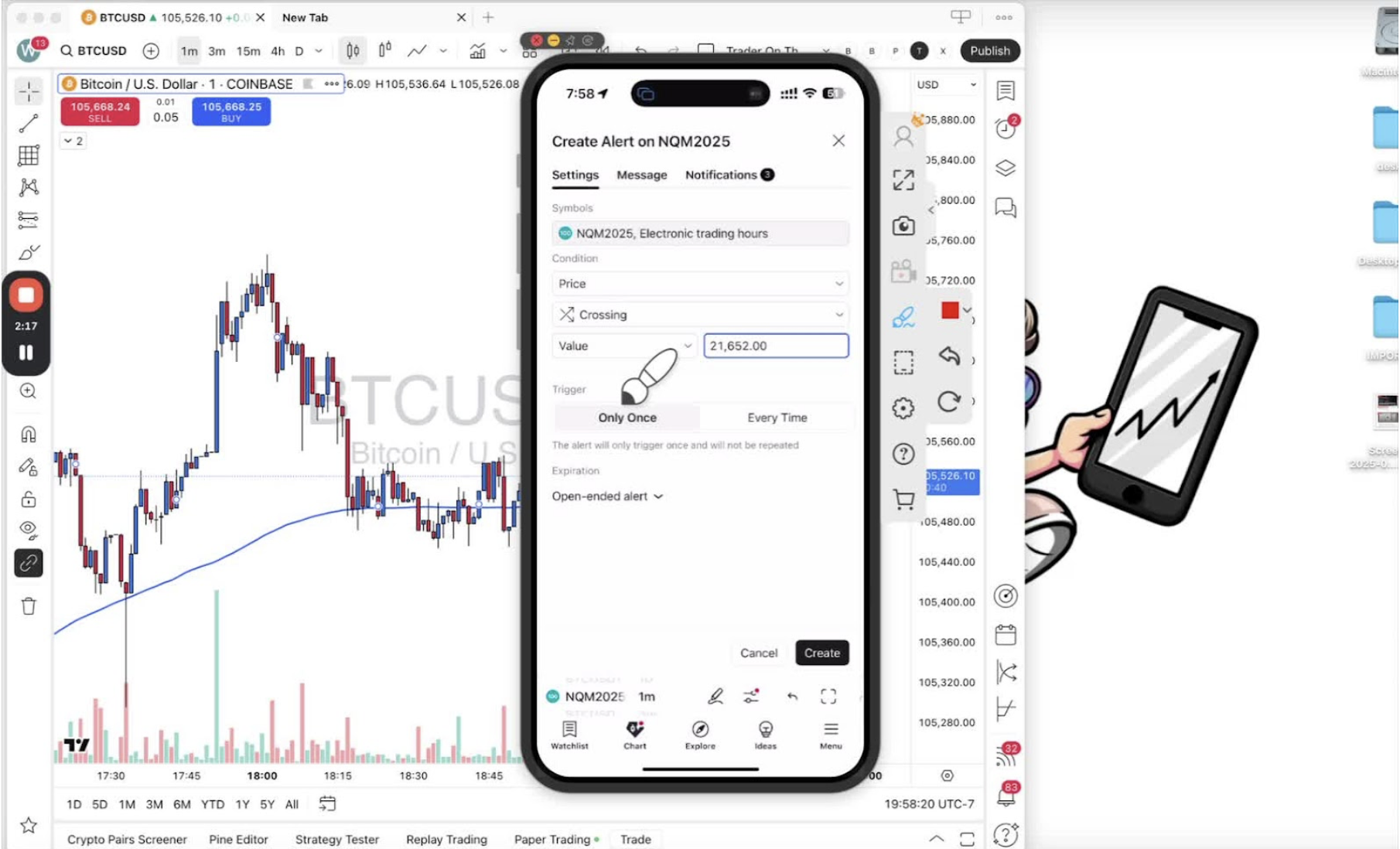
- Change the condition from price to ‘Trader on the Go’.
- Choose the alert type (for example ‘All Alerts’).
- Set the interval to 1 minute to match the chart.
Create the Alert 2:41

- Tap ‘Create’.
Edit Alert Message 2:51
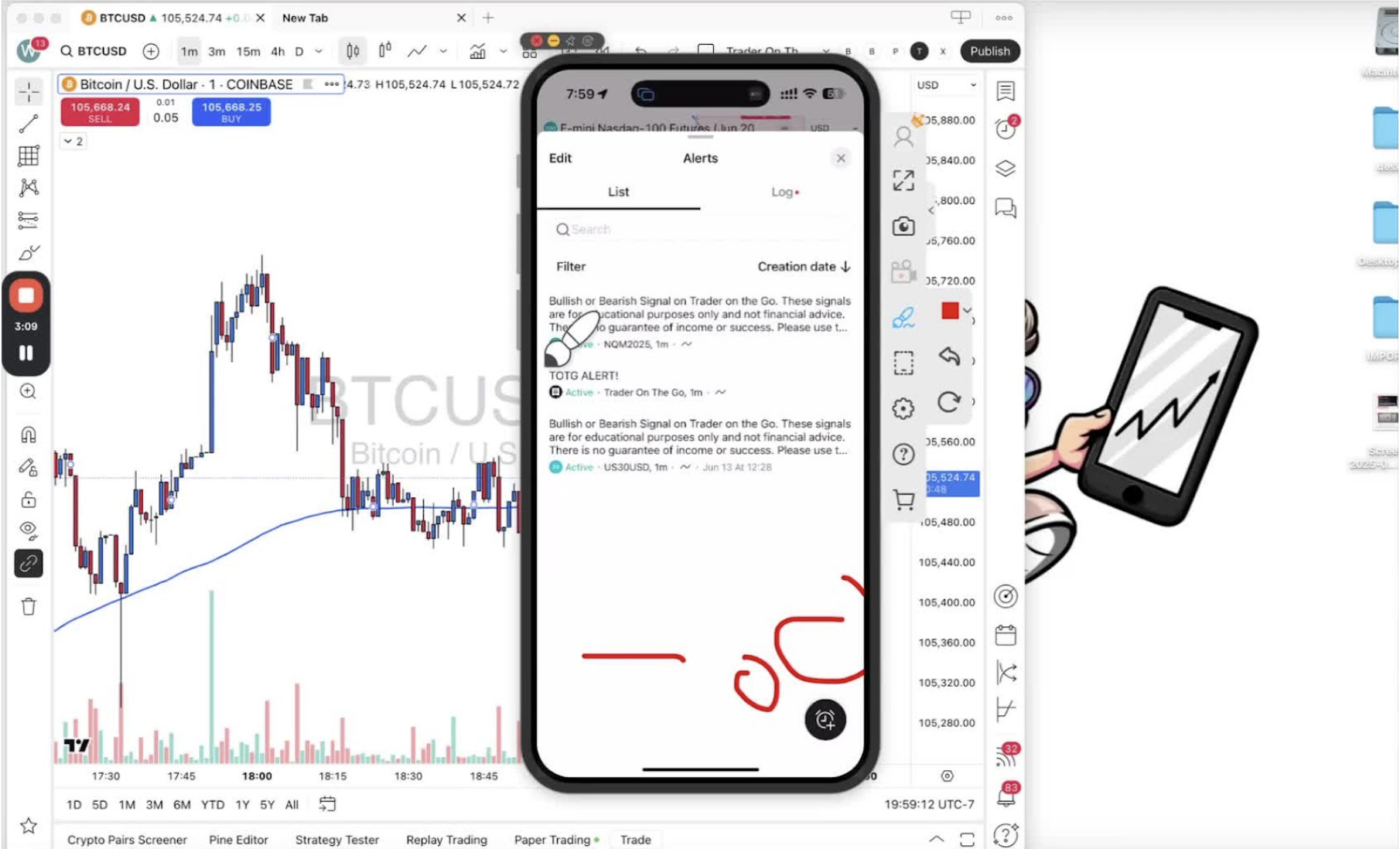
- Tap the alert message to edit it.
- Change it to something short (for example ‘TOG Alert’).
Configure Notification Settings 3:35
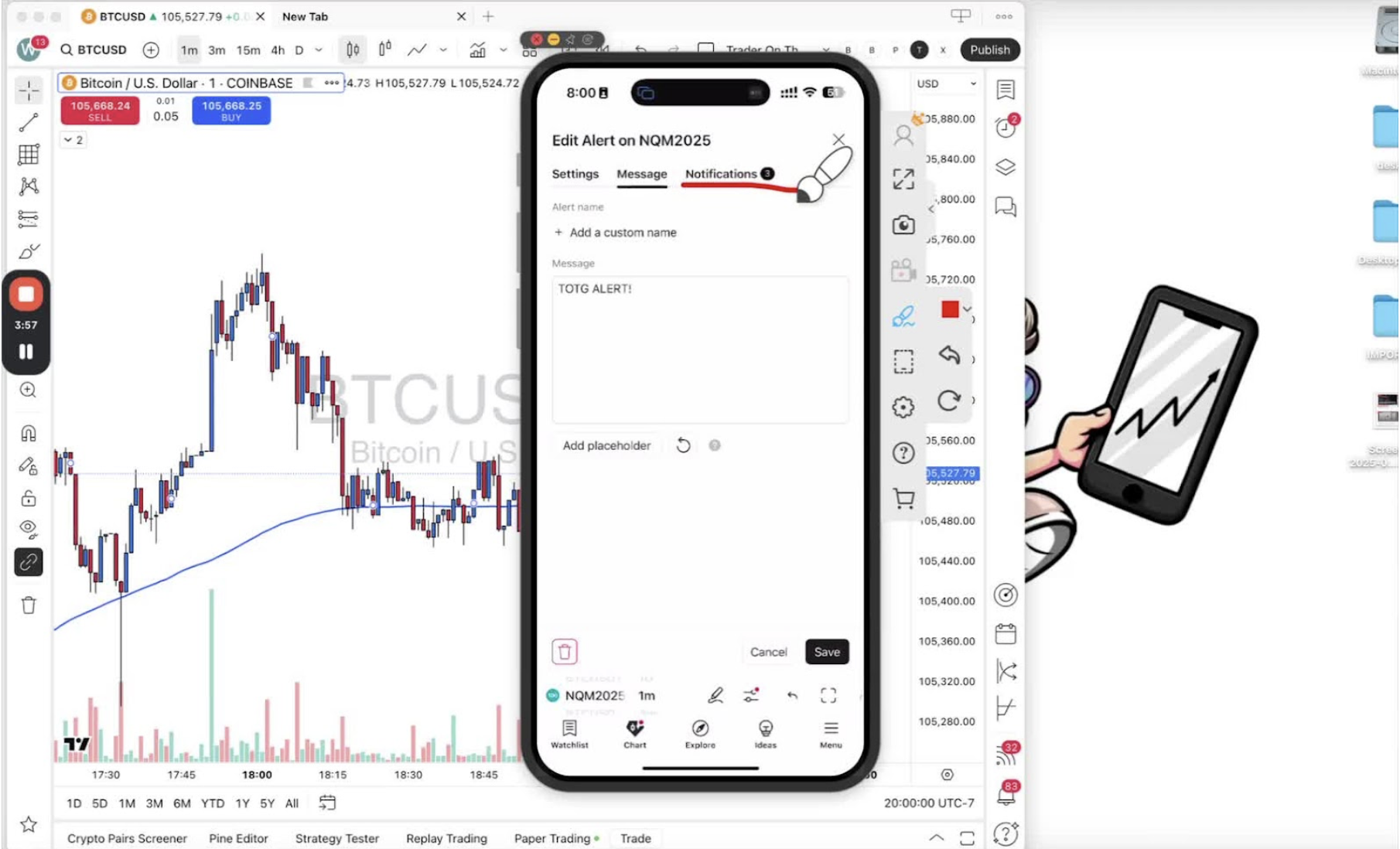
- Turn on push notifications.
- Email and sound are optional.
Save Changes 3:45
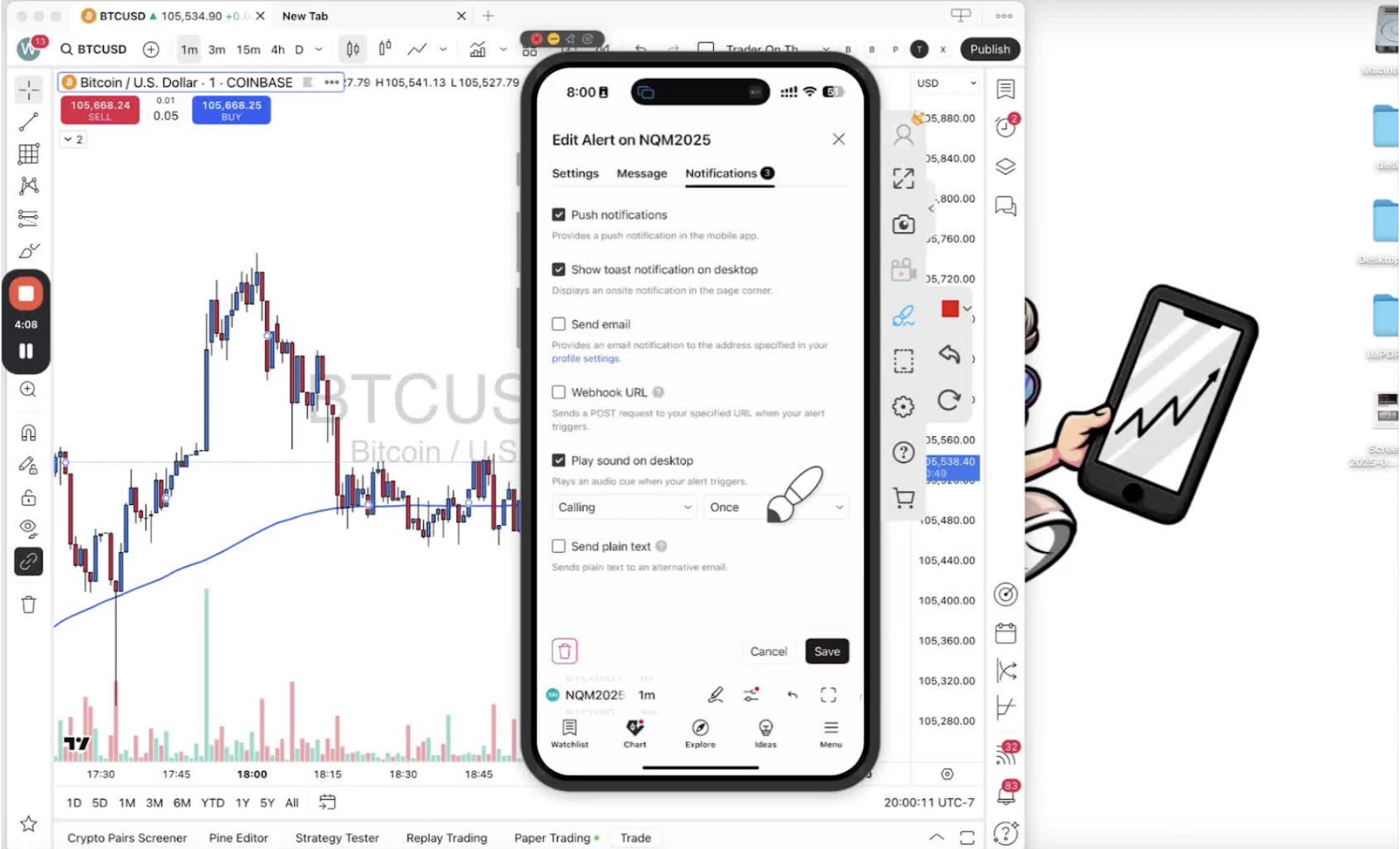
- Tap ‘Save’.
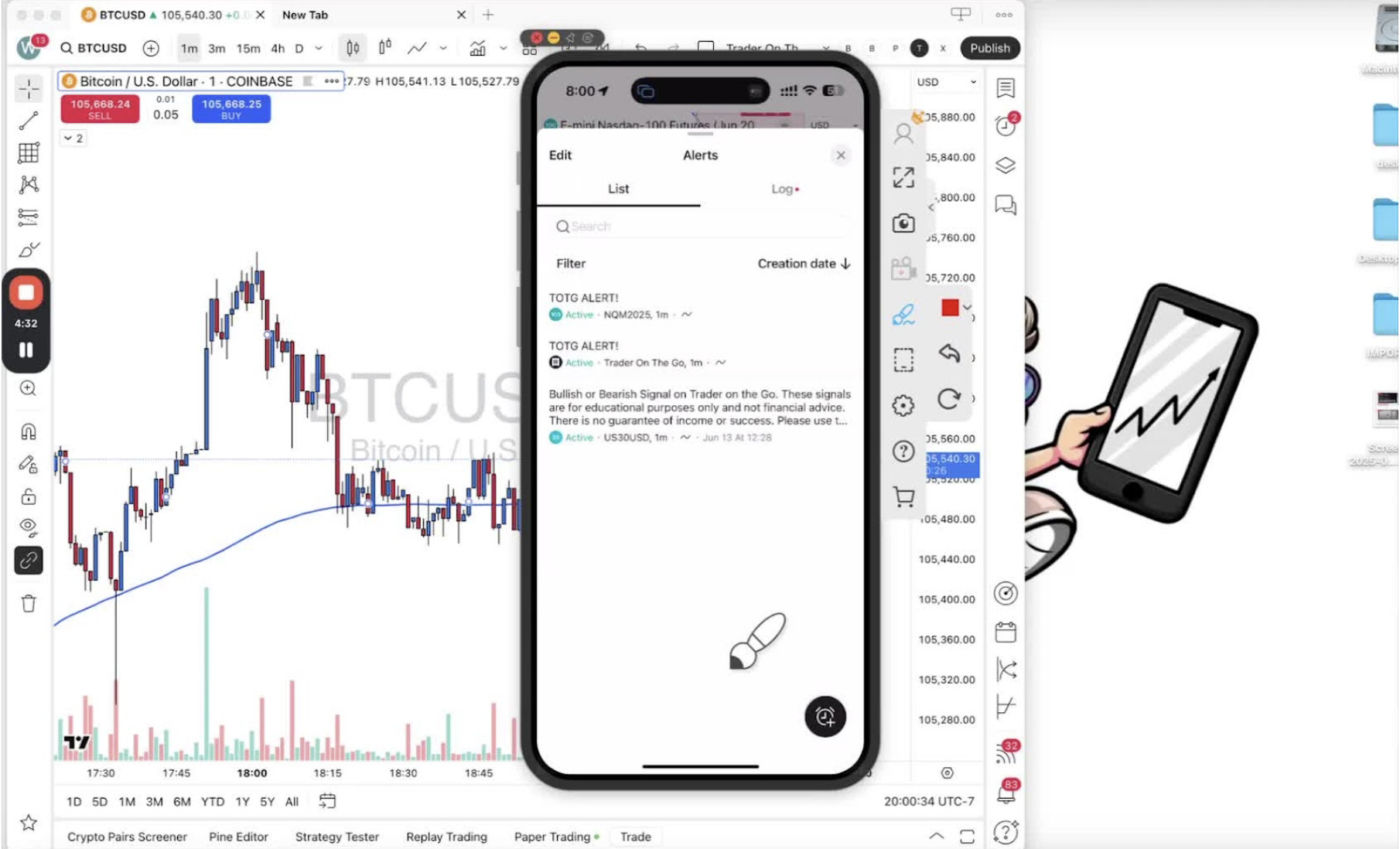
Verify Alert Setup 3:57
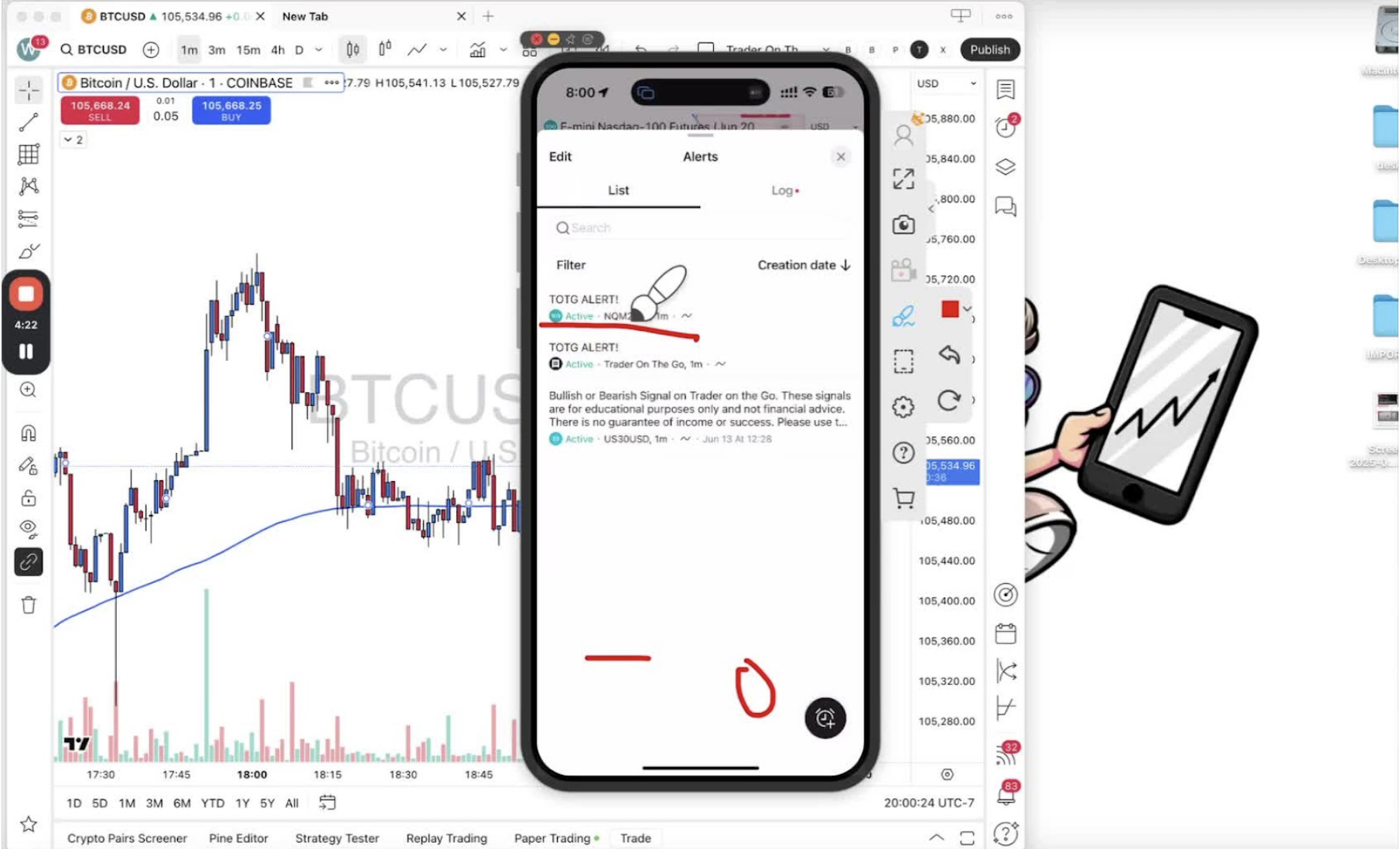
- Open the alerts menu and check the alert is active and named correctly.
Respond to Alerts 4:07
- When an alert fires, it pops up on your phone.
- Tap it to open the chart and decide on the trade.