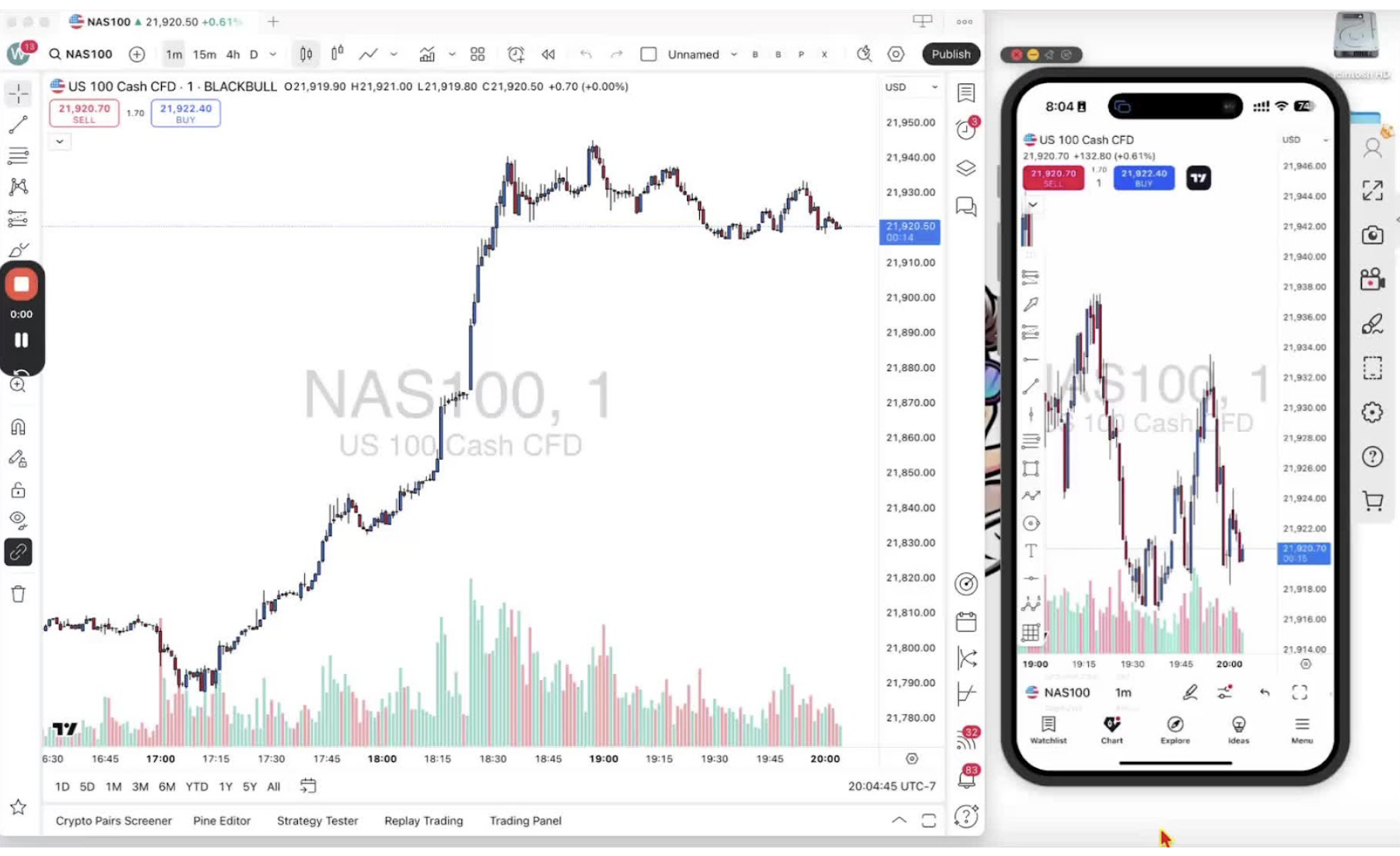
You need your TradingView ID to access invite-only indicators. Send it to the indicator owner and they add you. Here is where to find it on desktop and mobile.
Finding TradingView ID on Desktop 0:36
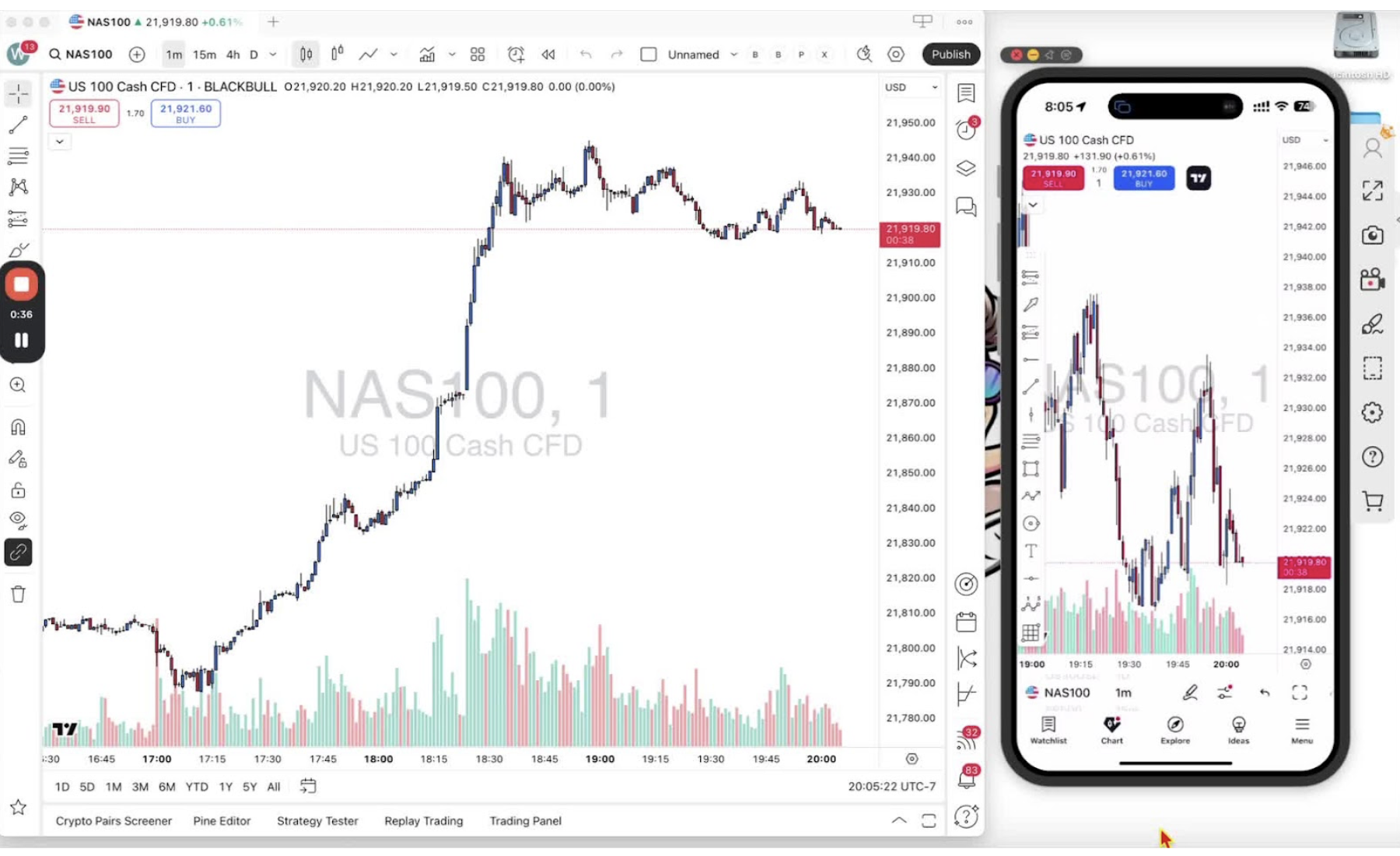
- Open the TradingView desktop app or web app.
- Find the symbol with a letter in it. The letter is the first character of your ID.
- Hover over it to see your ID (for example ‘Wagis Crypto’).
- Click it to see it in full.
Accessing Profile for TradingView ID 1:01
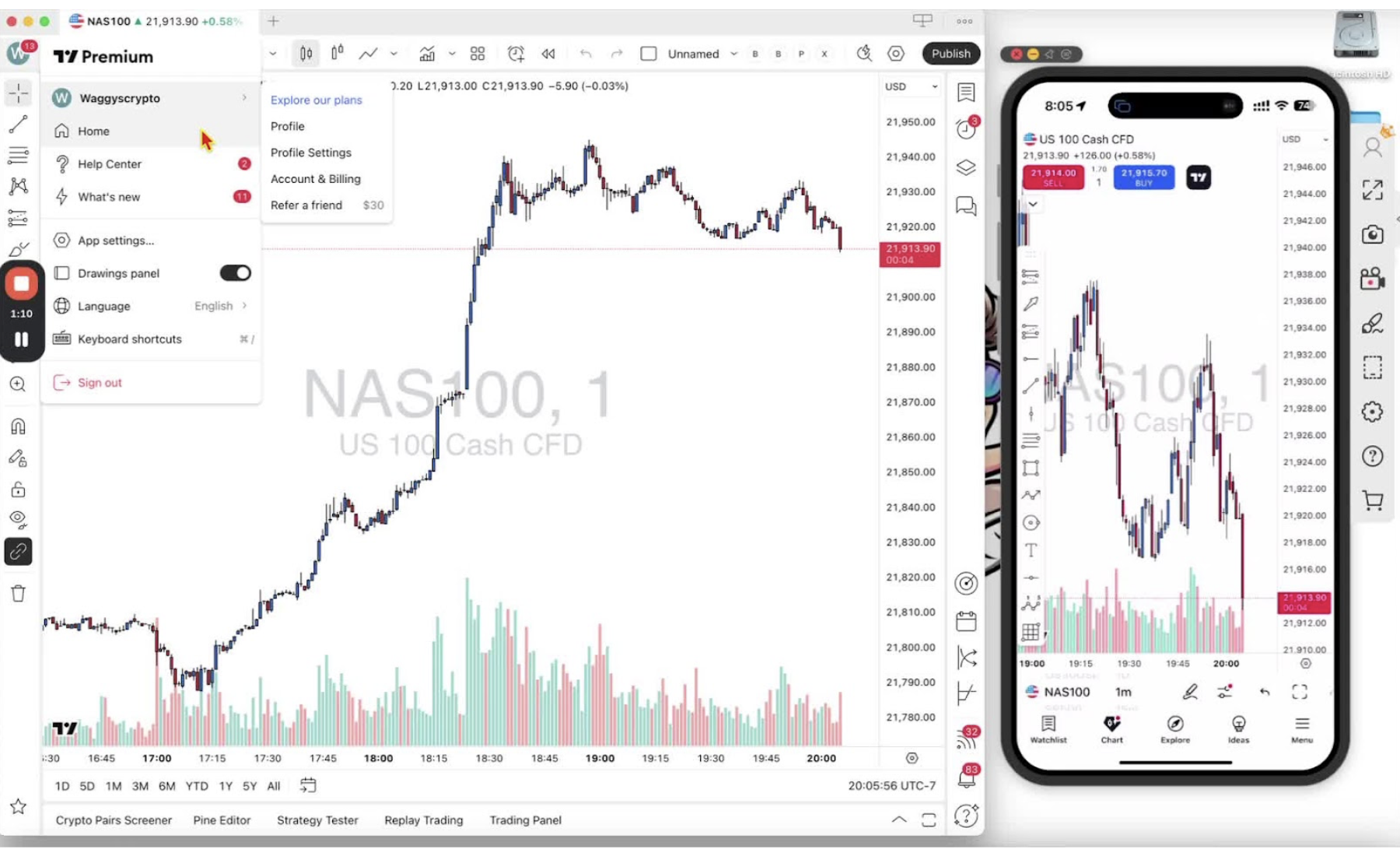
- Hover over your name and select ‘Profile’.
- Your TradingView ID is shown on this page.
- Highlight and copy it to send to the indicator owner.
Finding TradingView ID on Mobile 1:30
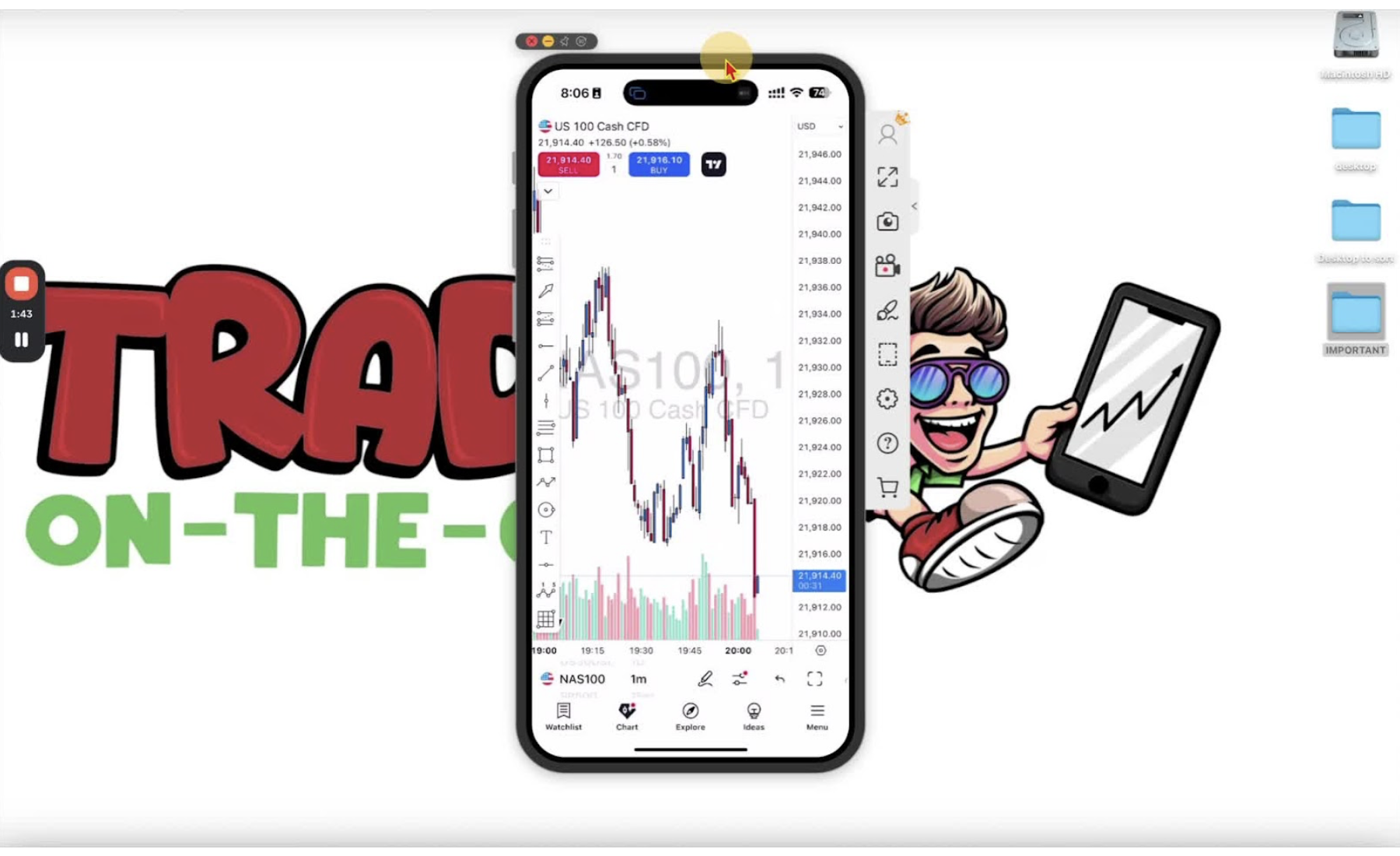
- Open the TradingView mobile app.
- Tap the menu button in the bottom right.
- Your TradingView ID is shown at the top.
Viewing and Editing TradingView ID on Mobile 1:39
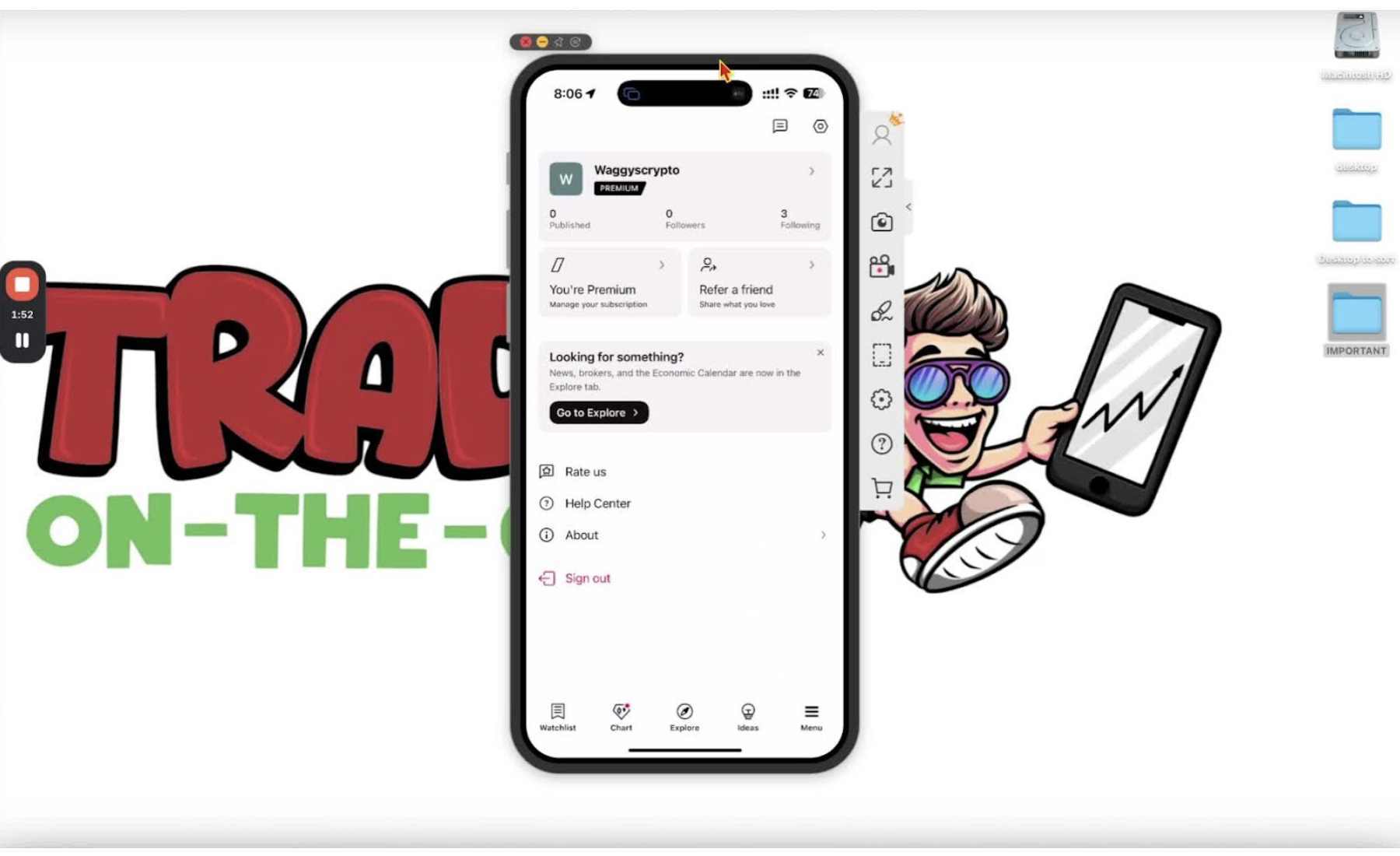
- Tap your ID to see it in full.
- Tap the pencil icon to edit it.
- Press and hold to copy it.