Set a take profit (TP) on an open trade alongside the stop loss. When price reaches the TP, the trade closes on its own and you get a notification with the result (in the example, +$5.03).
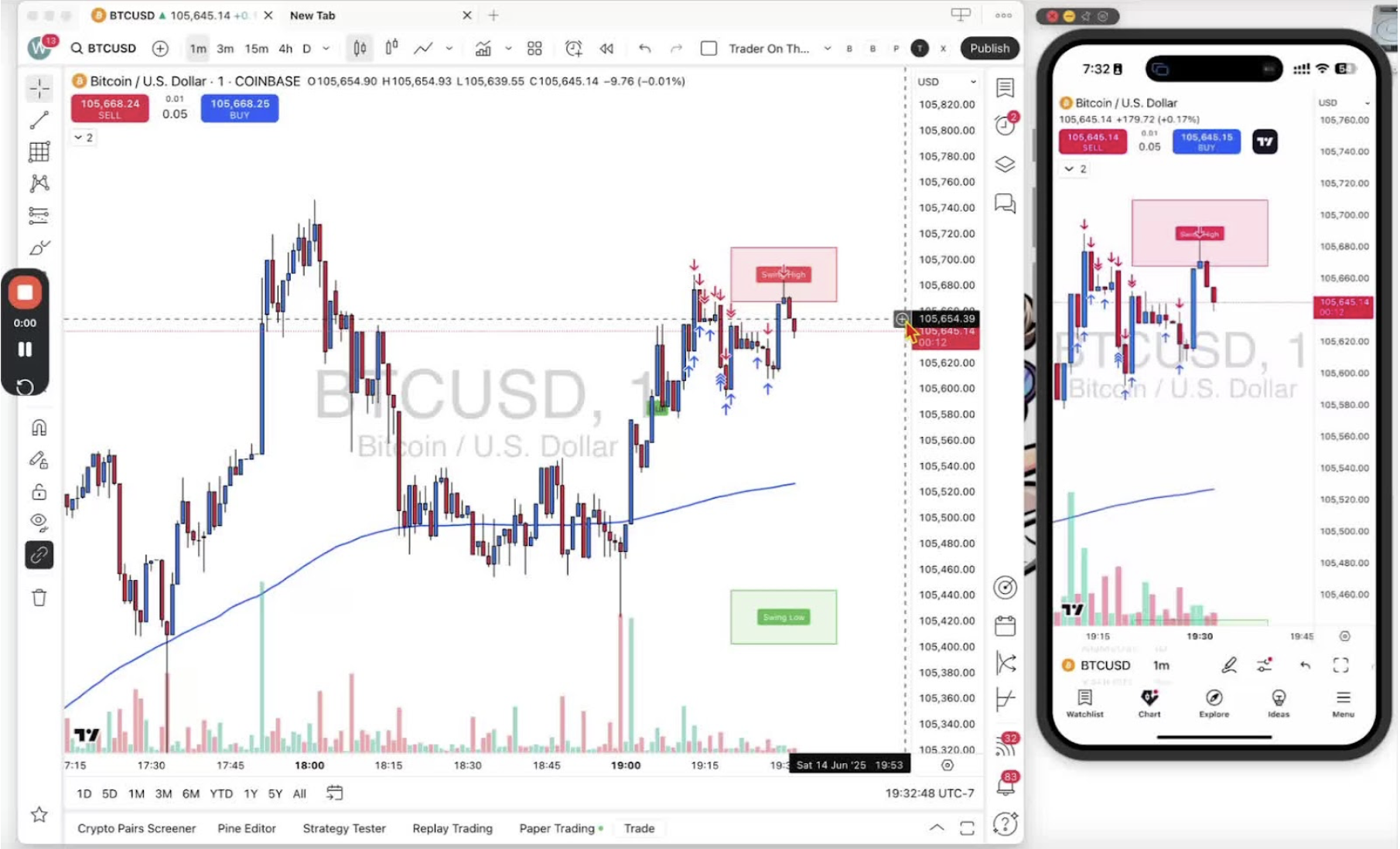
Setting Up a Trade on Desktop 0:06
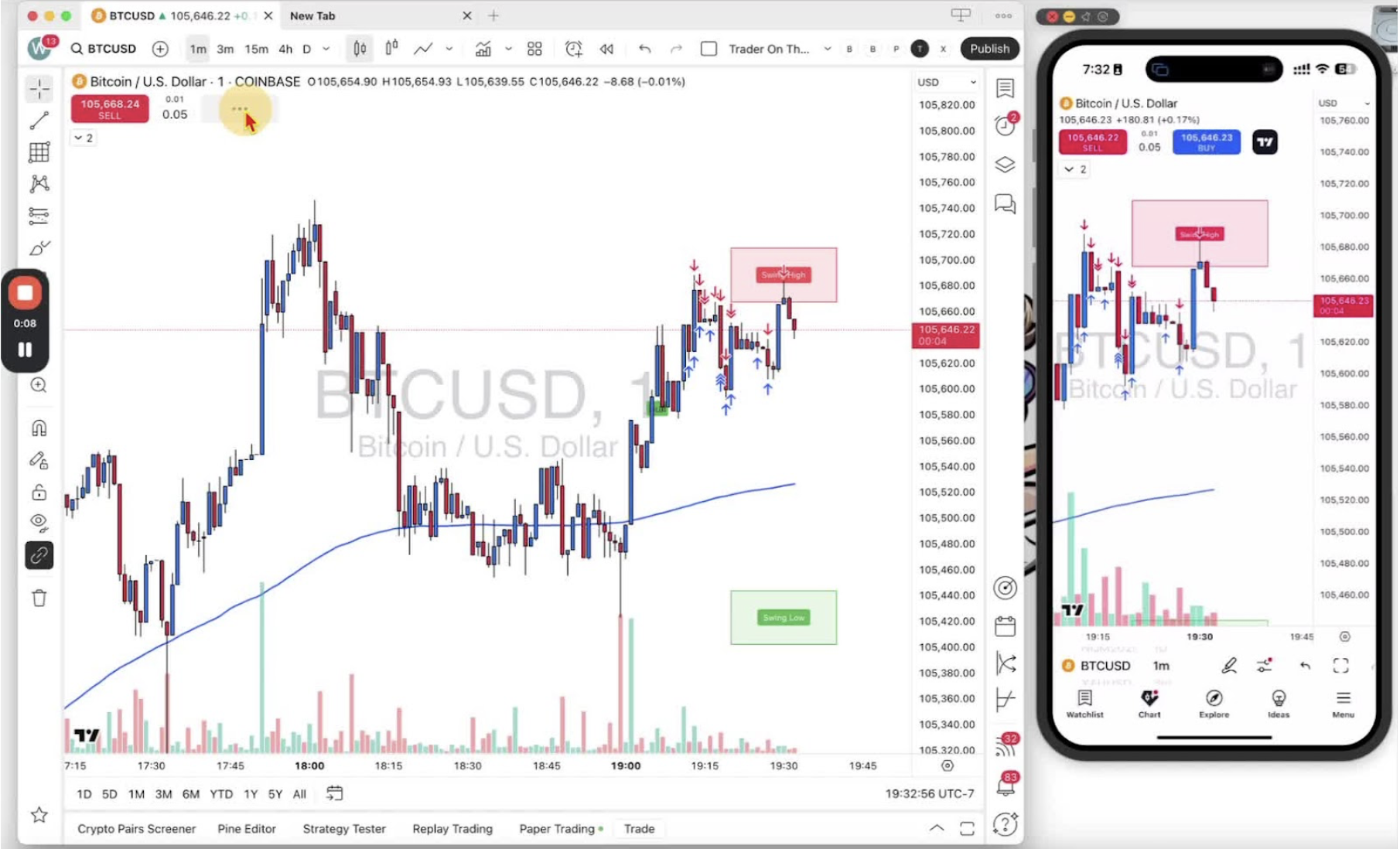
- Enter a trade on desktop.
- Set a stop loss first (Step 15).
Adding a Take Profit on Desktop 0:19
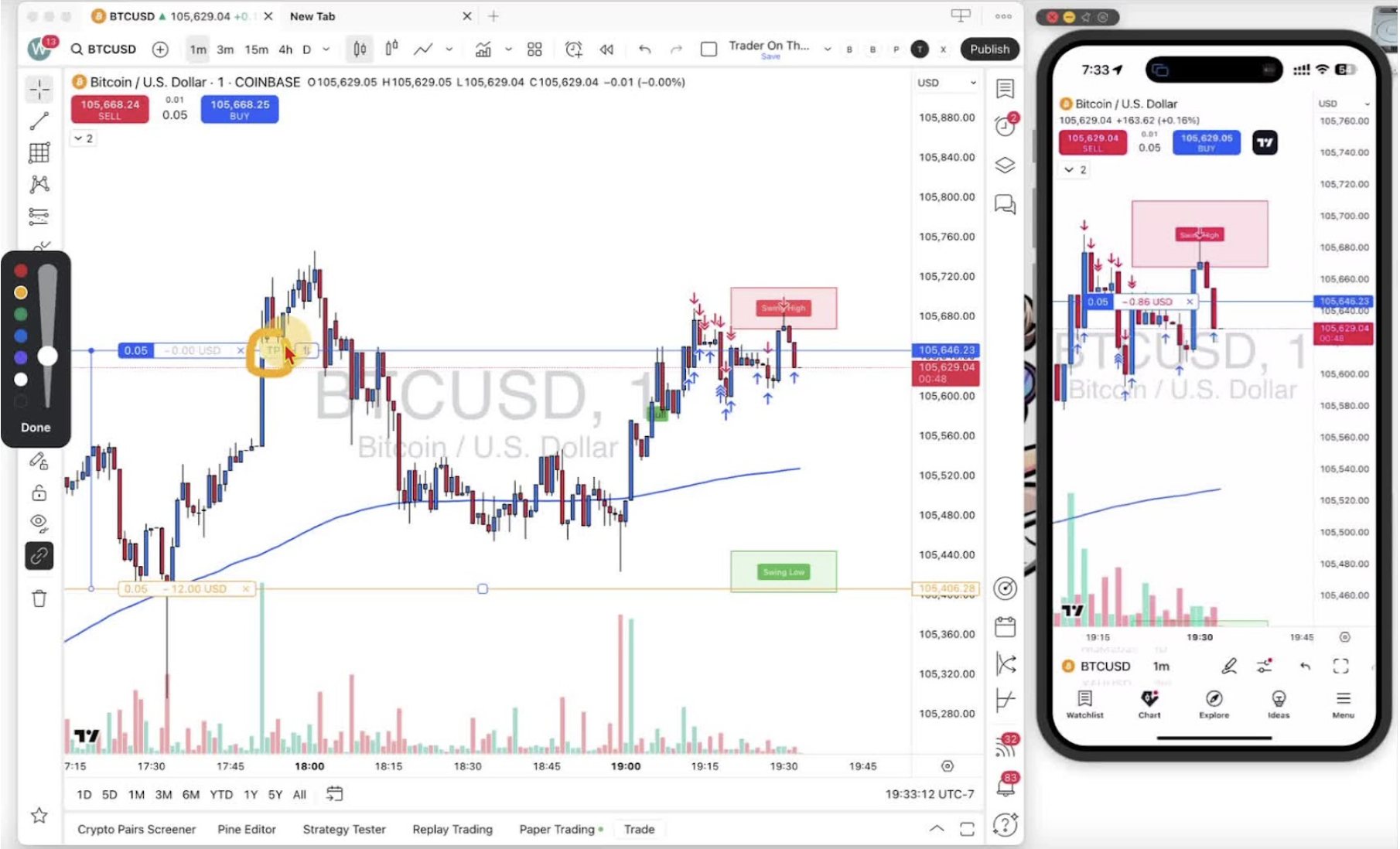
- Find the TP (Take Profit) button on the trading interface.
- Click and drag the TP line to your profit level.
Adjusting Take Profit Position 0:49
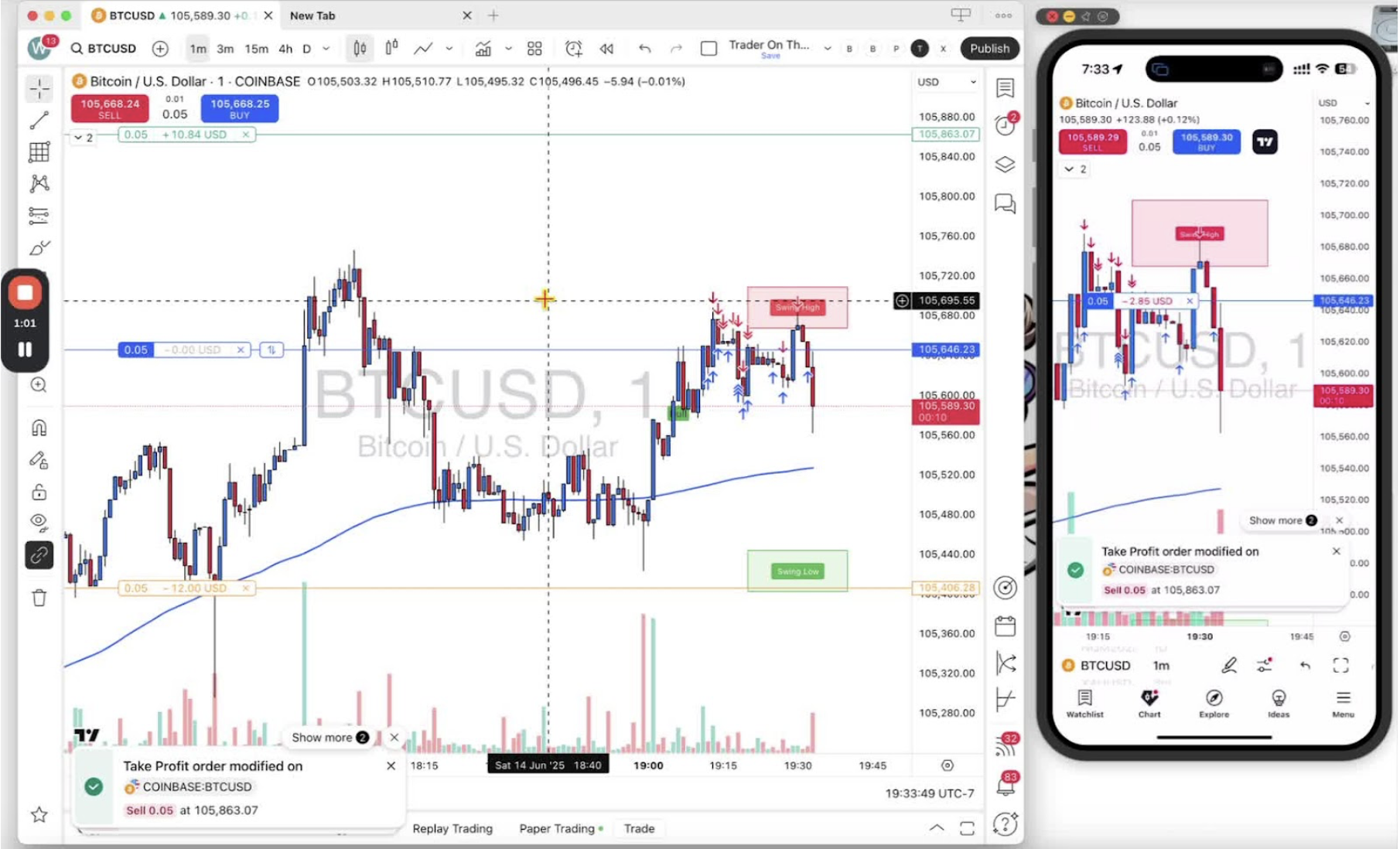
- If you click off the chart, the red TP square disappears.
- Click your position to bring it back.
Understanding Take Profit Functionality 1:32
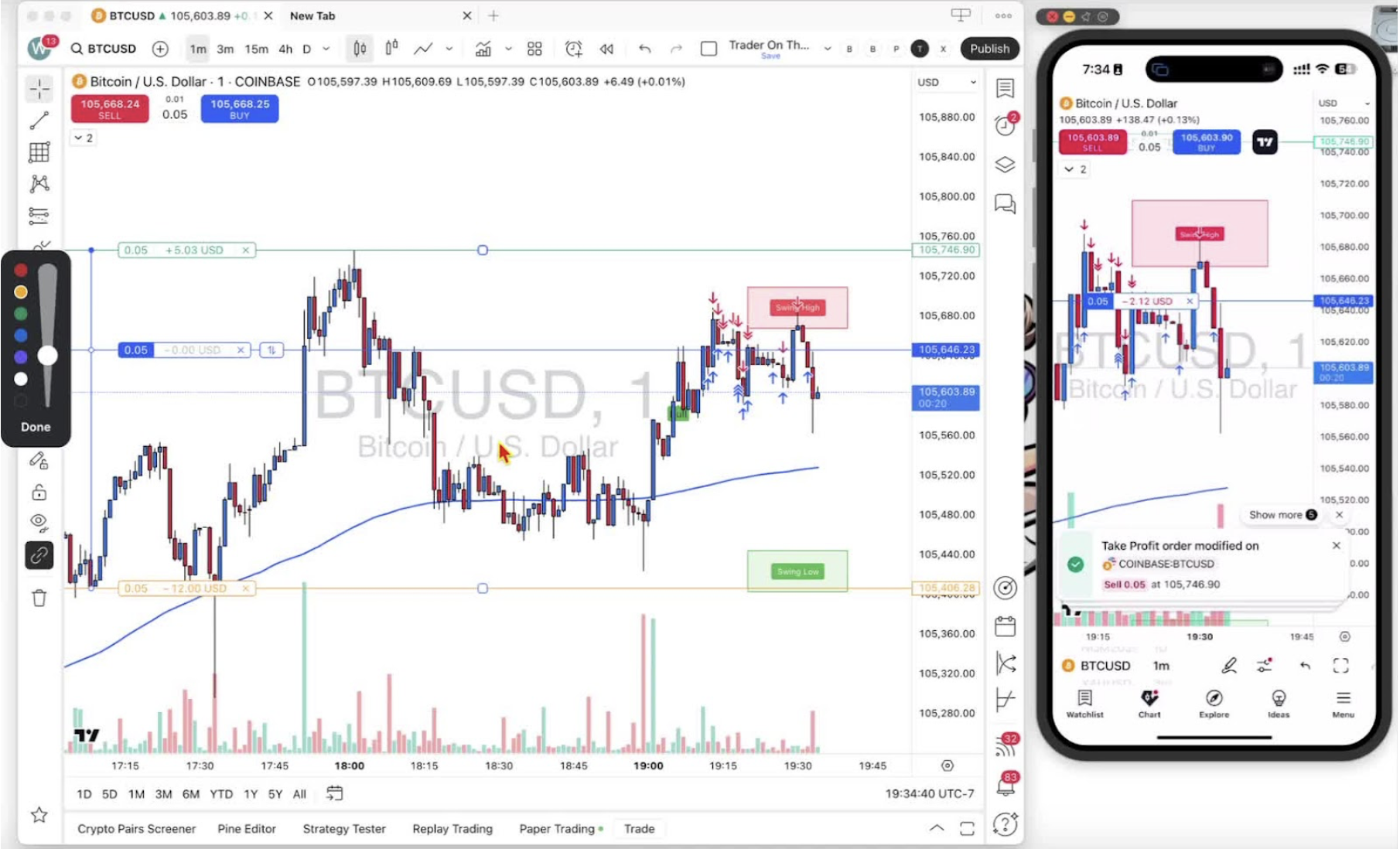
- The trade closes automatically when price hits the TP.
Benefits of Using Take Profit 1:48
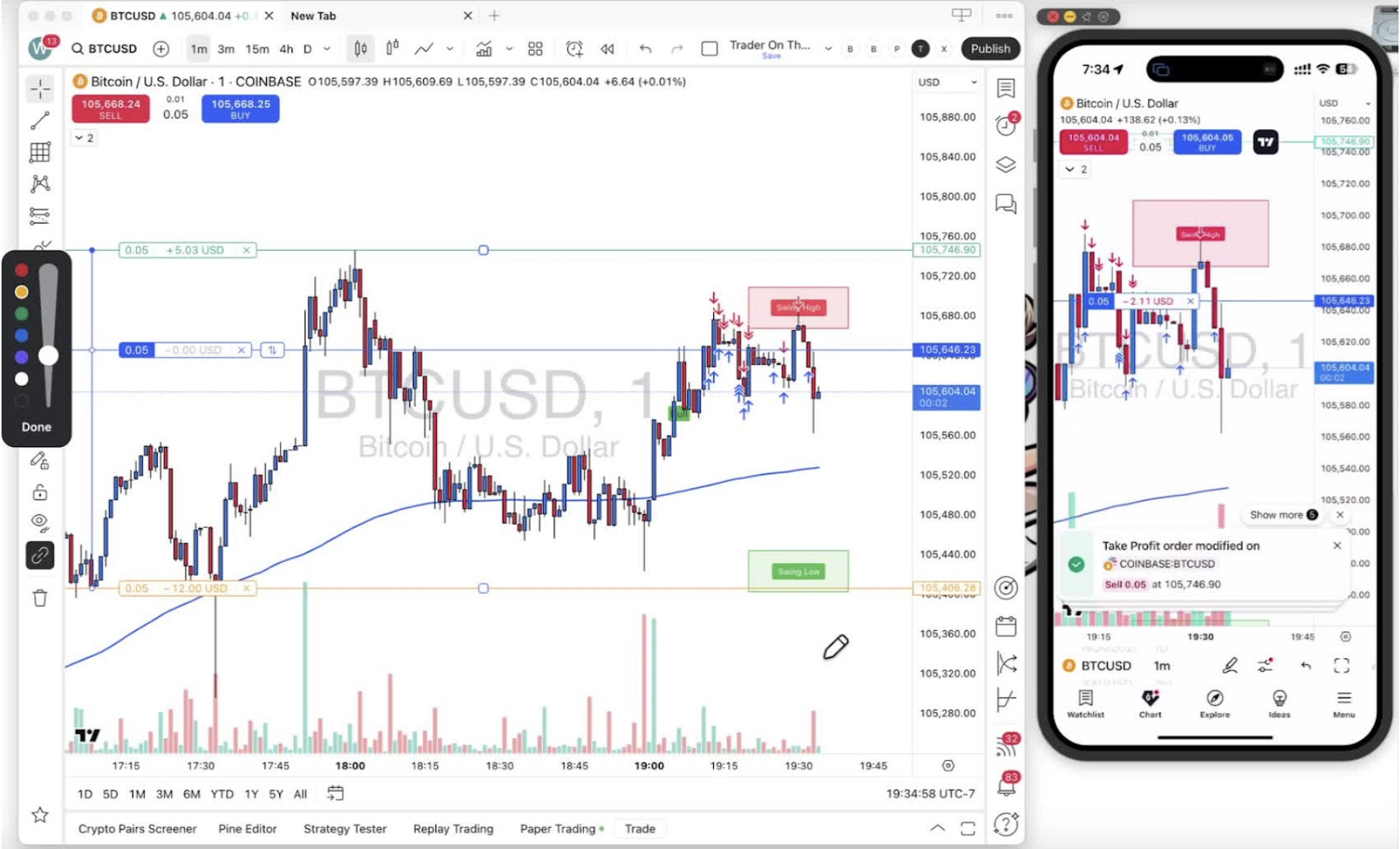
- You can set the trade and step away.
- TP against SL gives you a clear risk-to-reward.
Setting Take Profit on Mobile 2:04
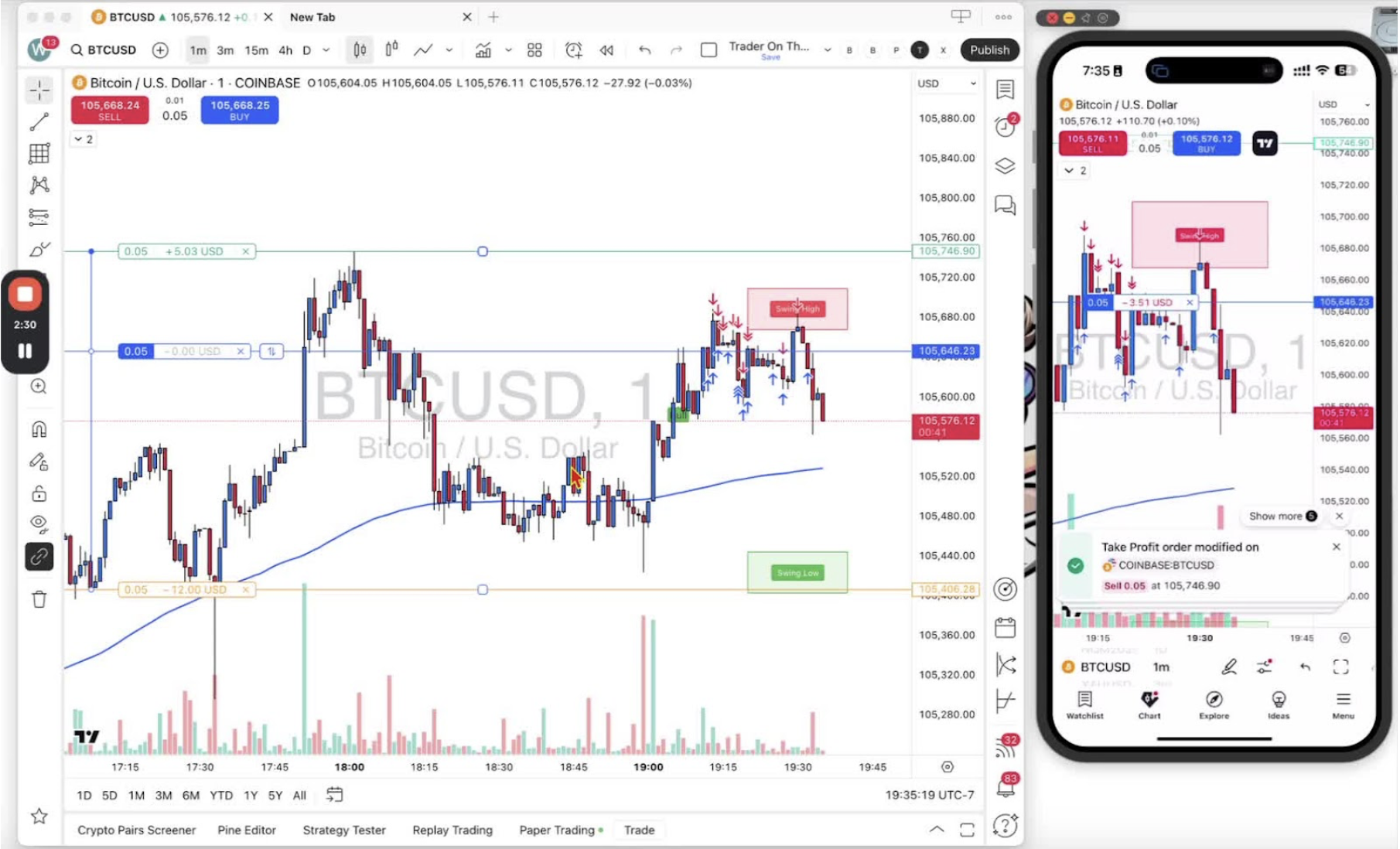
- Exit the current trade and open a new one on mobile.
Adjusting Take Profit on Mobile 2:24
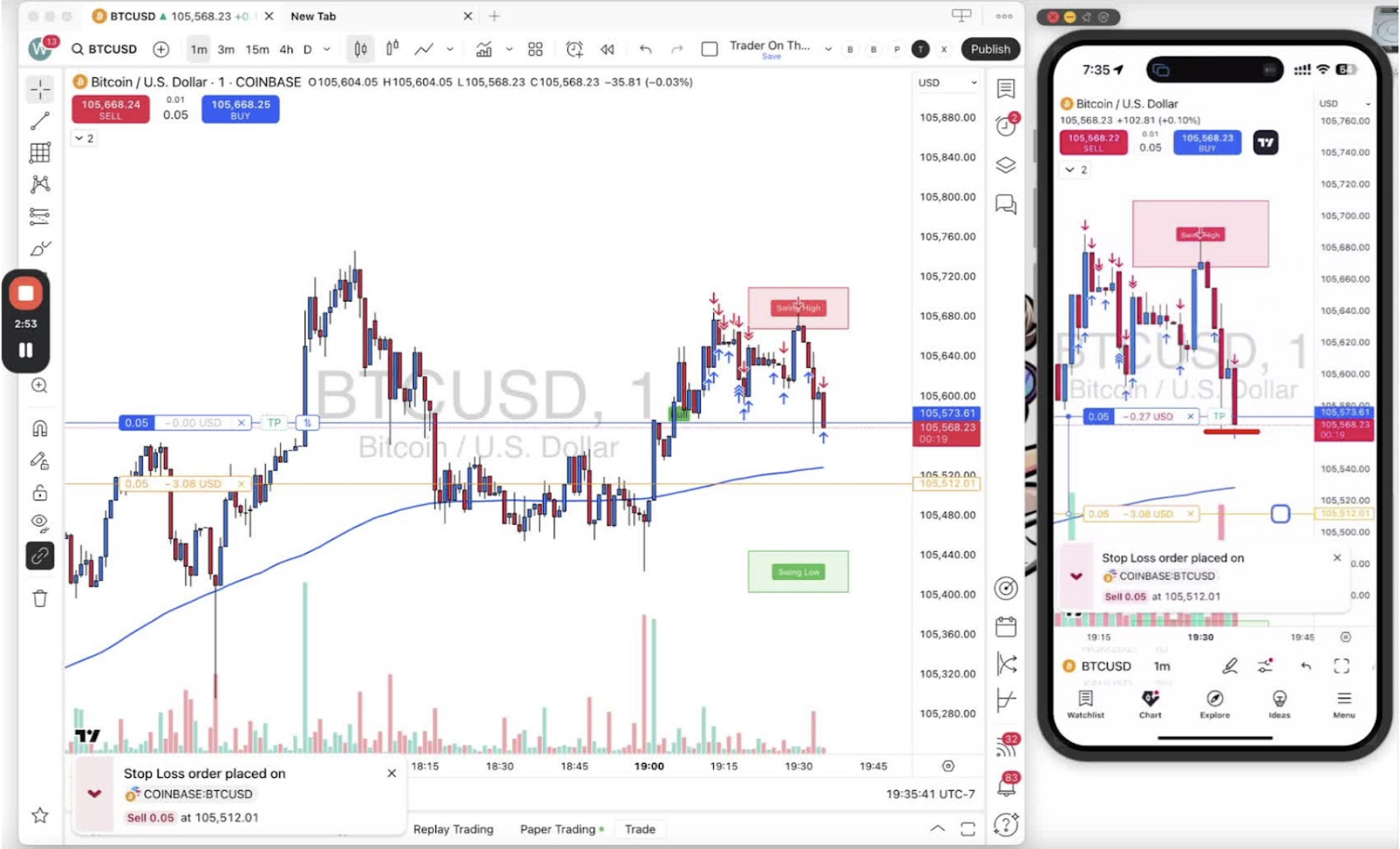
- Tap and drag the TP on the mobile chart.
Final Adjustments and Confirmation 3:12
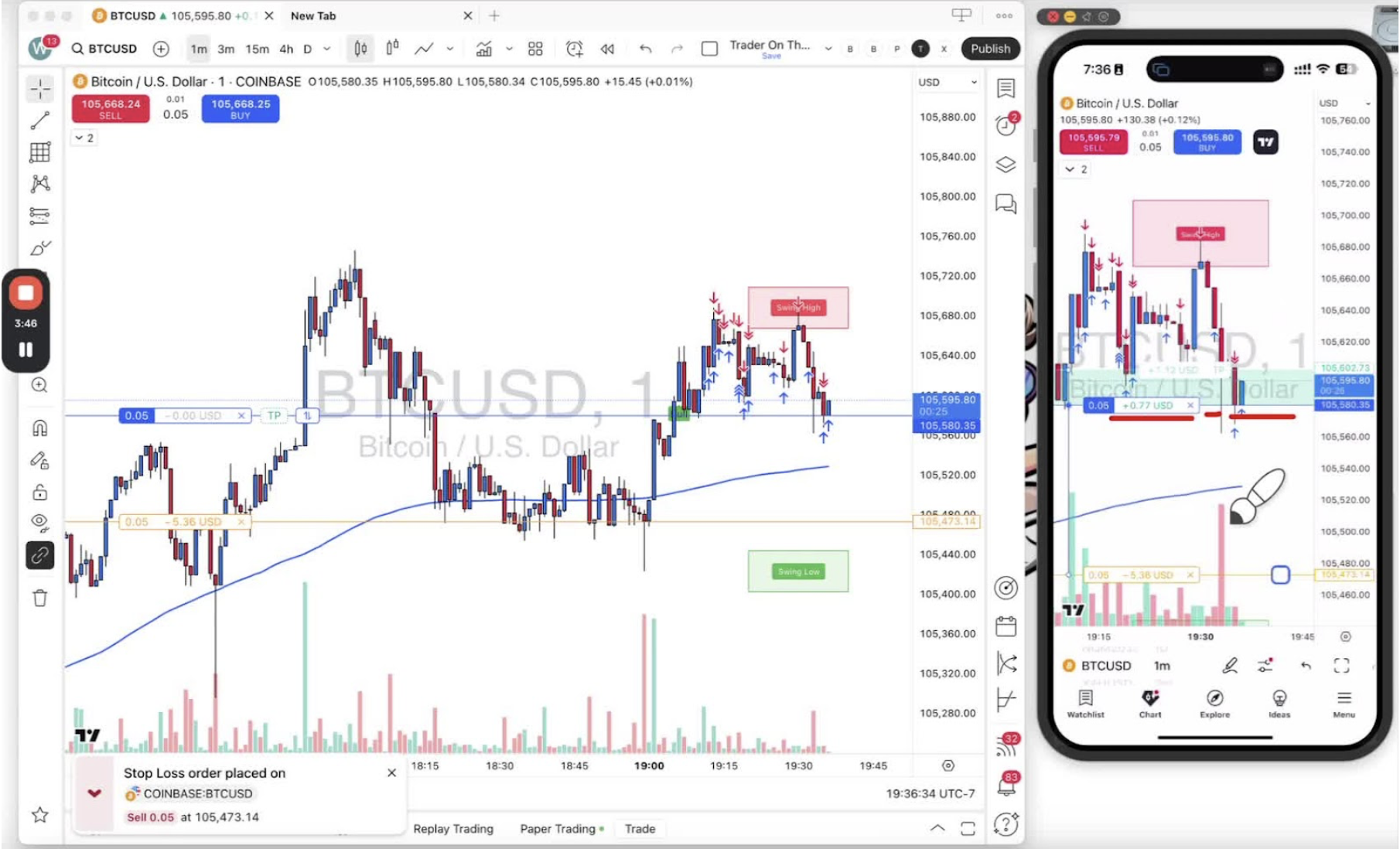
- Release to confirm the TP position.
- If the TP indicator disappears, tap your position to bring it back.