Before you place a trade, make sure the buy and sell buttons are on and ‘Instant Orders Placement’ is enabled. Desktop first, then mobile.
Access Settings on Desktop 0:11
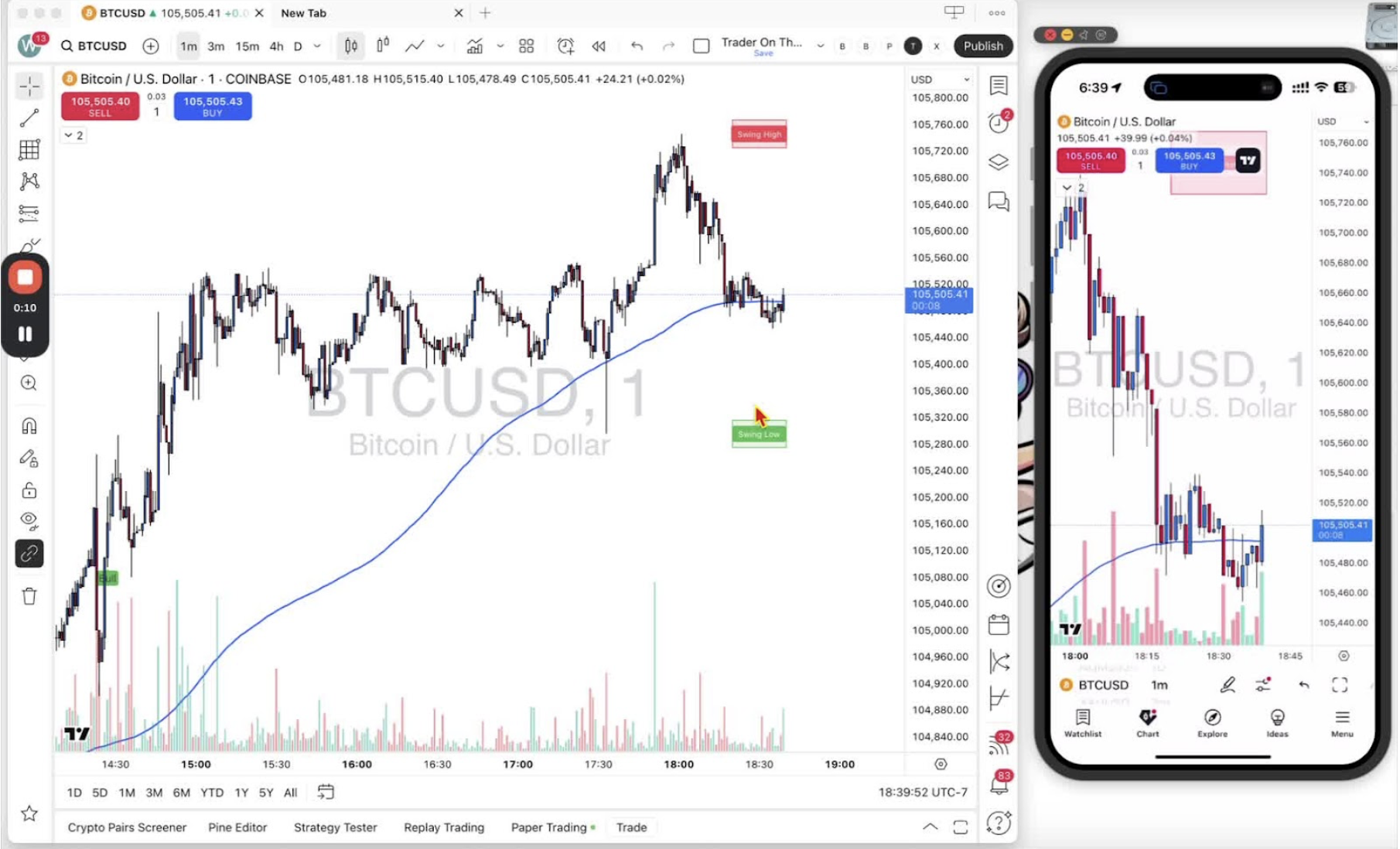
- Open the desktop app on your chart.
- Right-click to open the settings menu.
Navigate to Trading Settings on Desktop 0:24
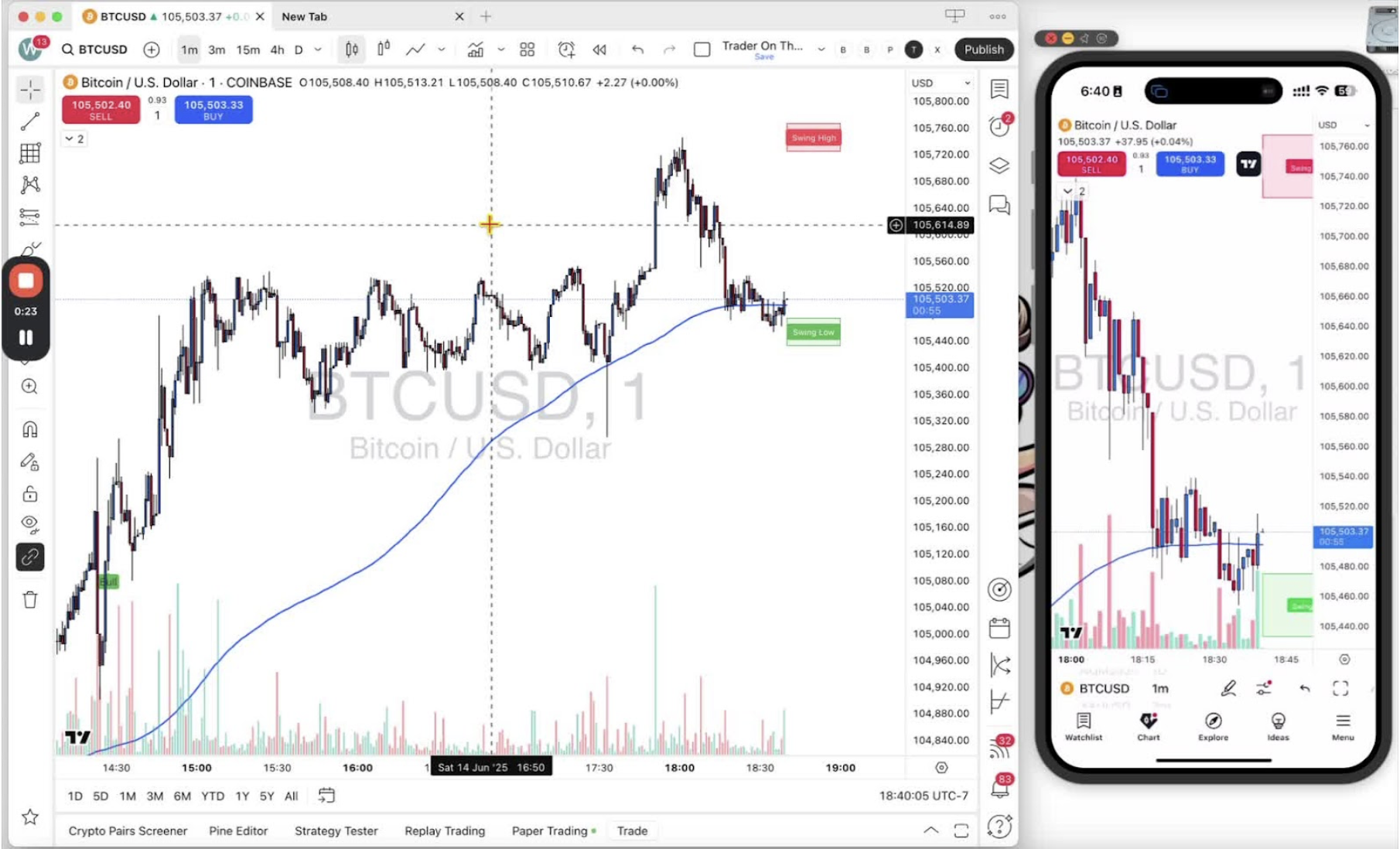
- Select ‘Trading’.
- Check the buy and sell buttons are enabled (they are on by default).
Enable Instant Orders Placement on Desktop 0:44
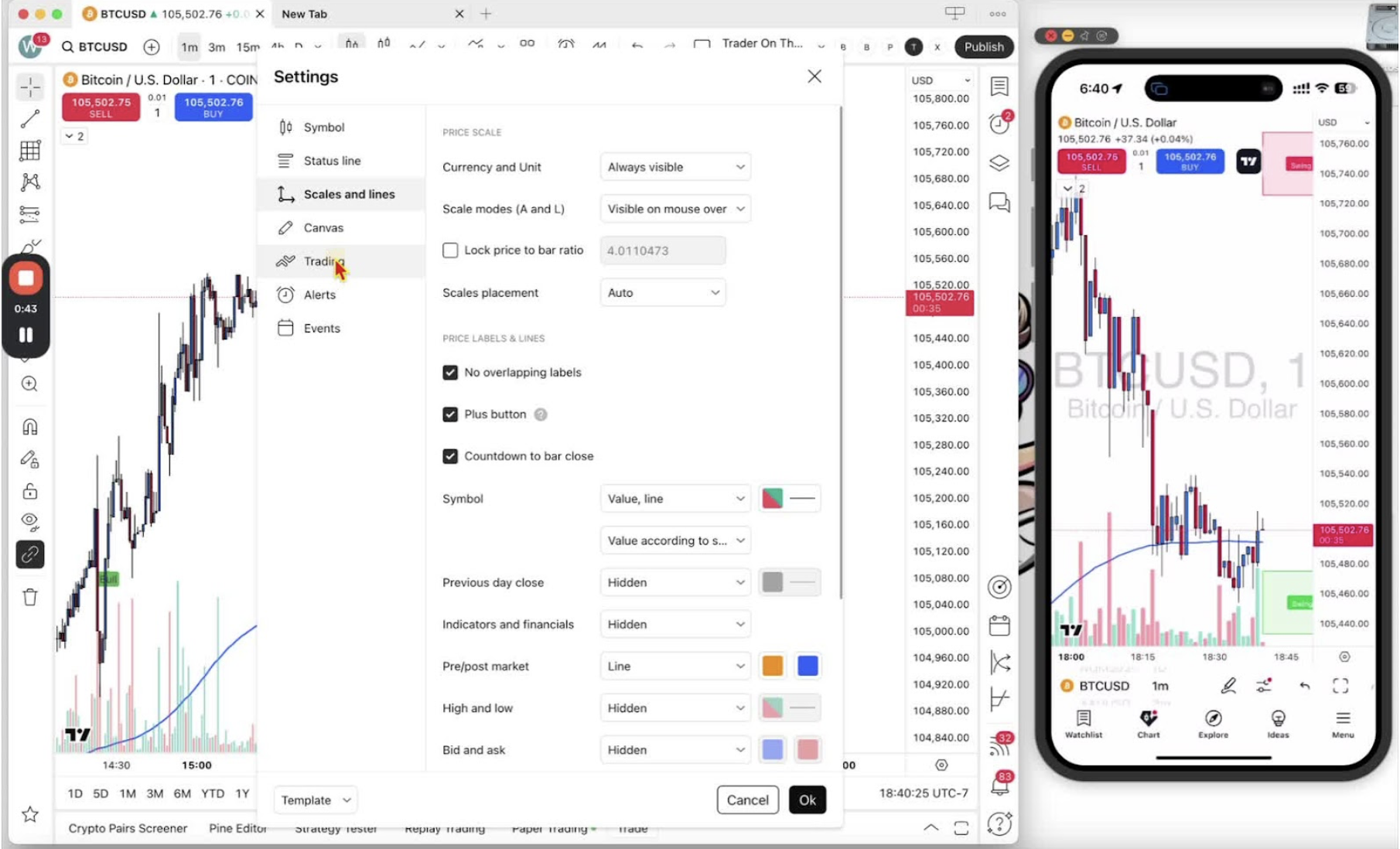
- Tick ‘Instant Orders Placement’.
Confirm Settings on Desktop 1:20

- Click ‘OK’.
- The buy and sell buttons, quantity box and spread now show on the chart.
Access Settings on Mobile 1:43
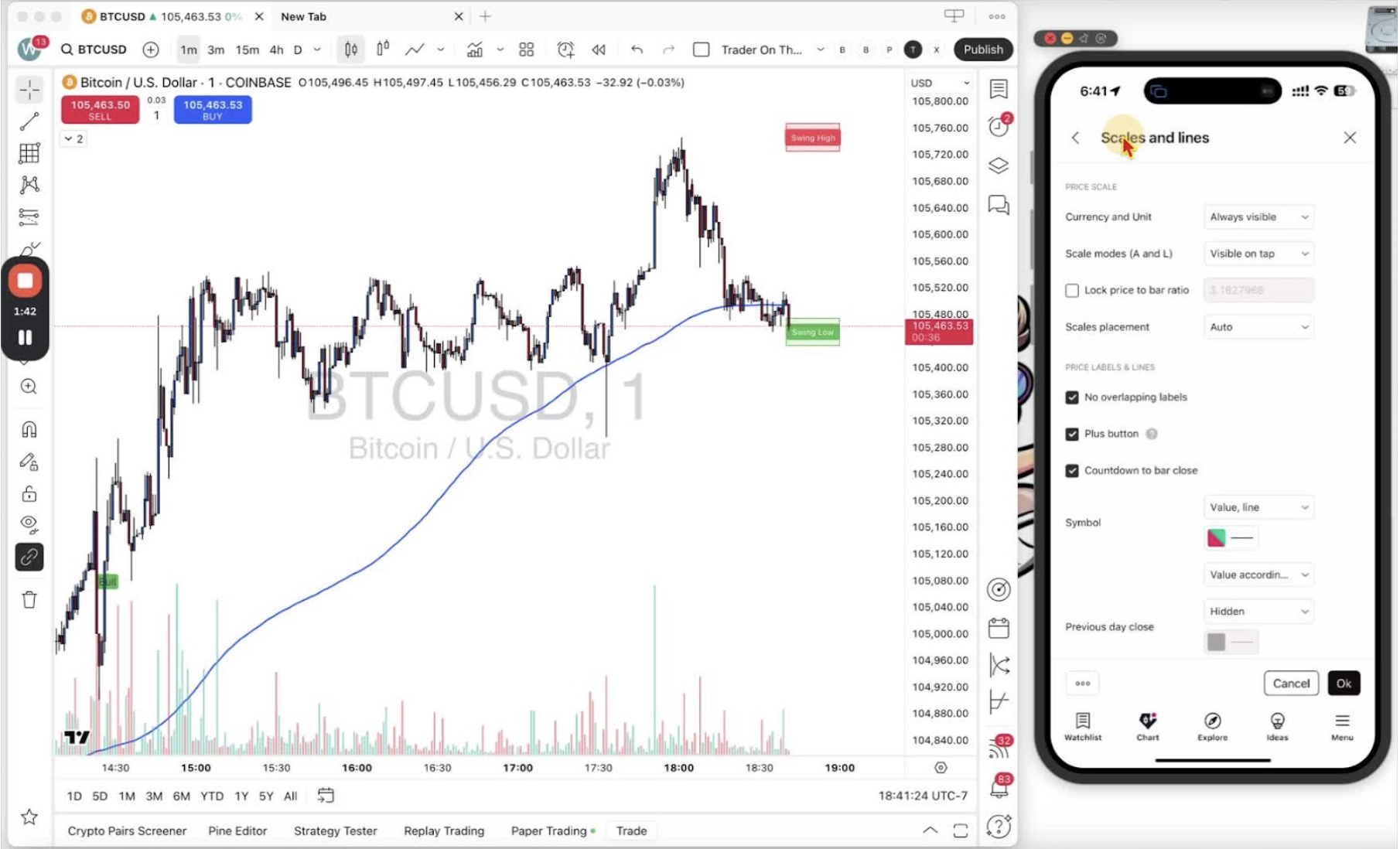
- Open the mobile app and tap the hexagon (settings) icon.
Navigate to Trading Settings on Mobile 1:43
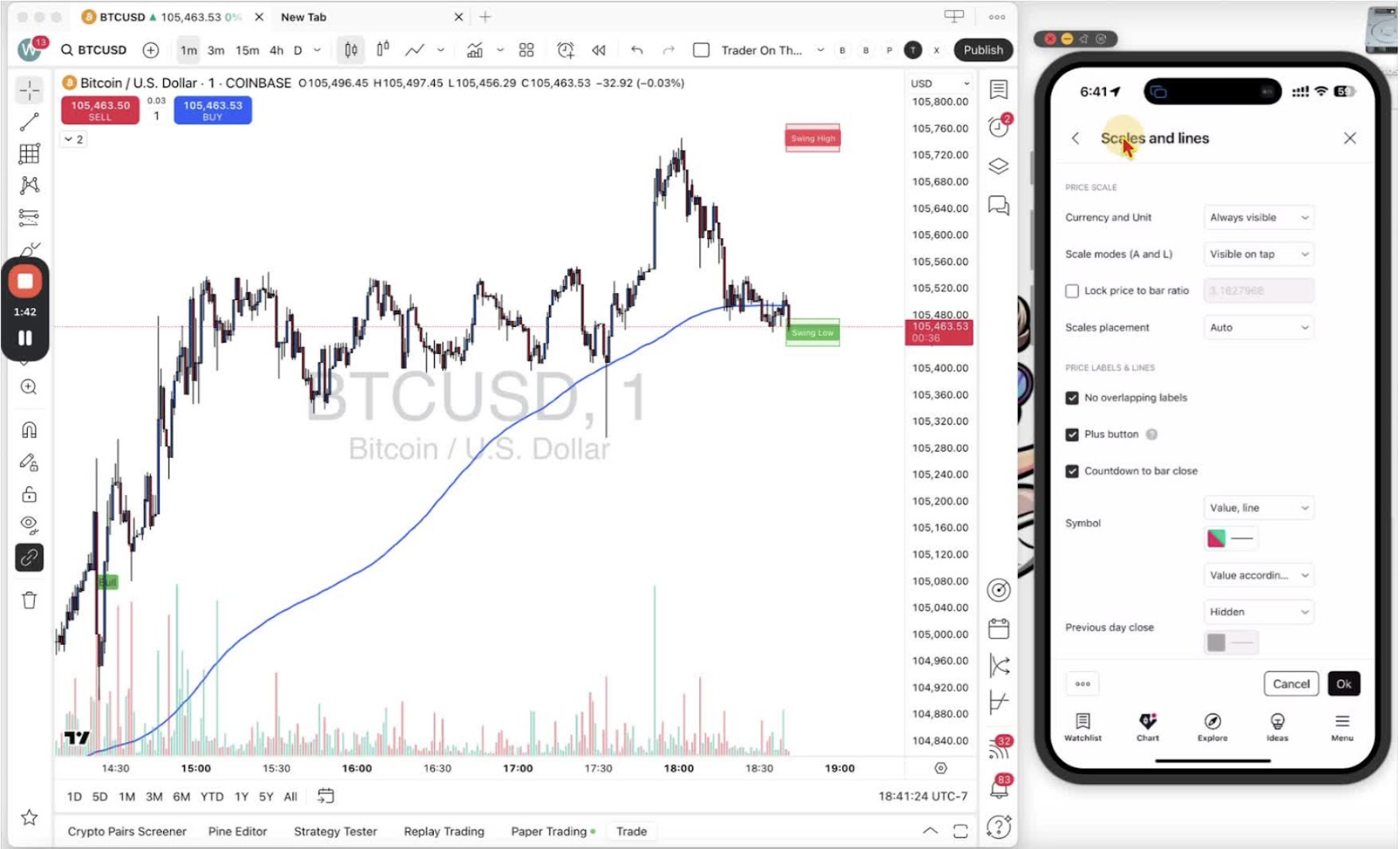
- Tap ‘More Settings’.
- If you land somewhere else, use the back button to return to the main settings menu.
Enable Buy/Sell Buttons and Instant Orders on Mobile 2:03
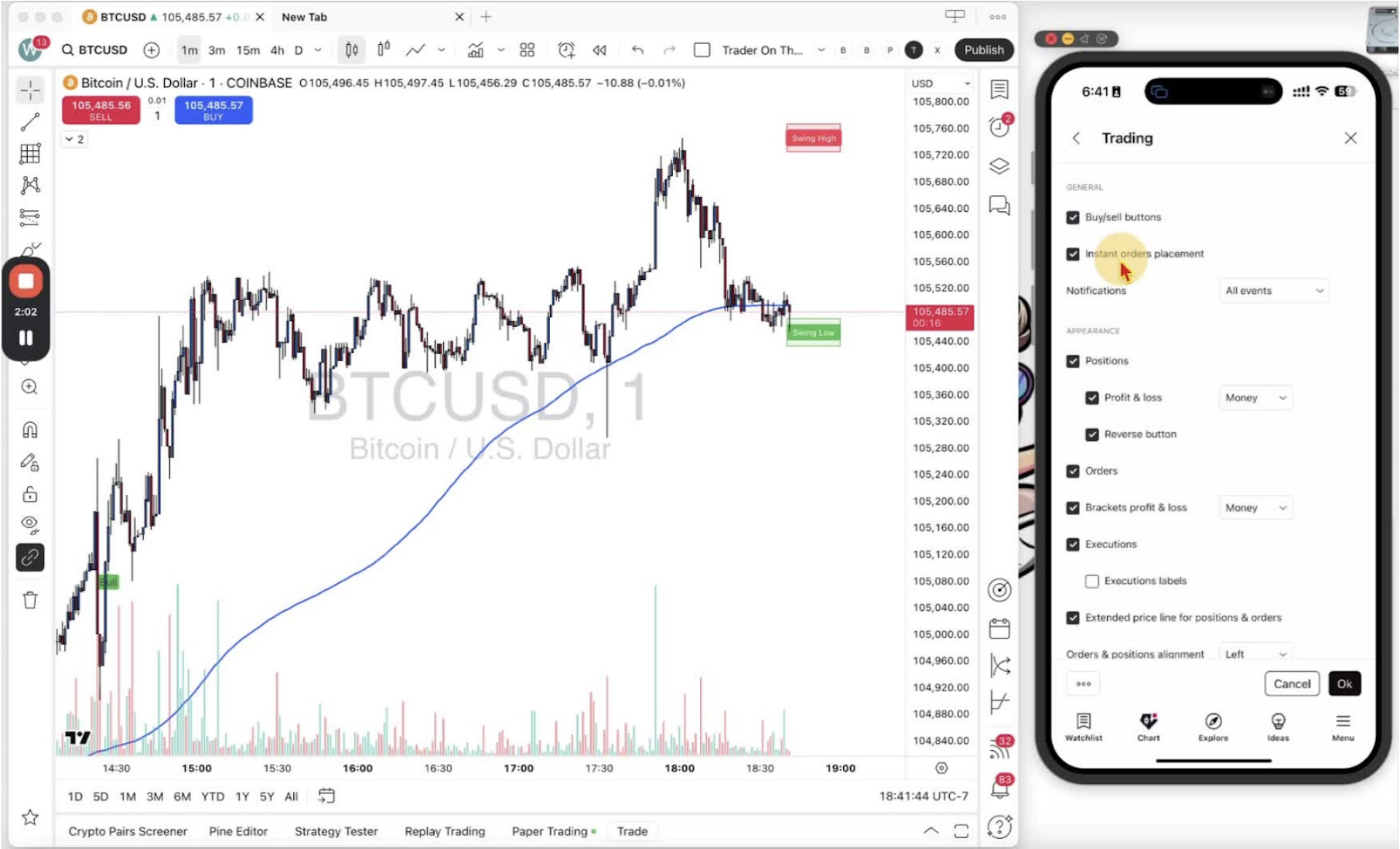
- Select ‘Trading’.
- Check both buy and sell buttons are ticked.
- Tick ‘Instant Orders Placement’.
Confirm Settings on Mobile 2:23
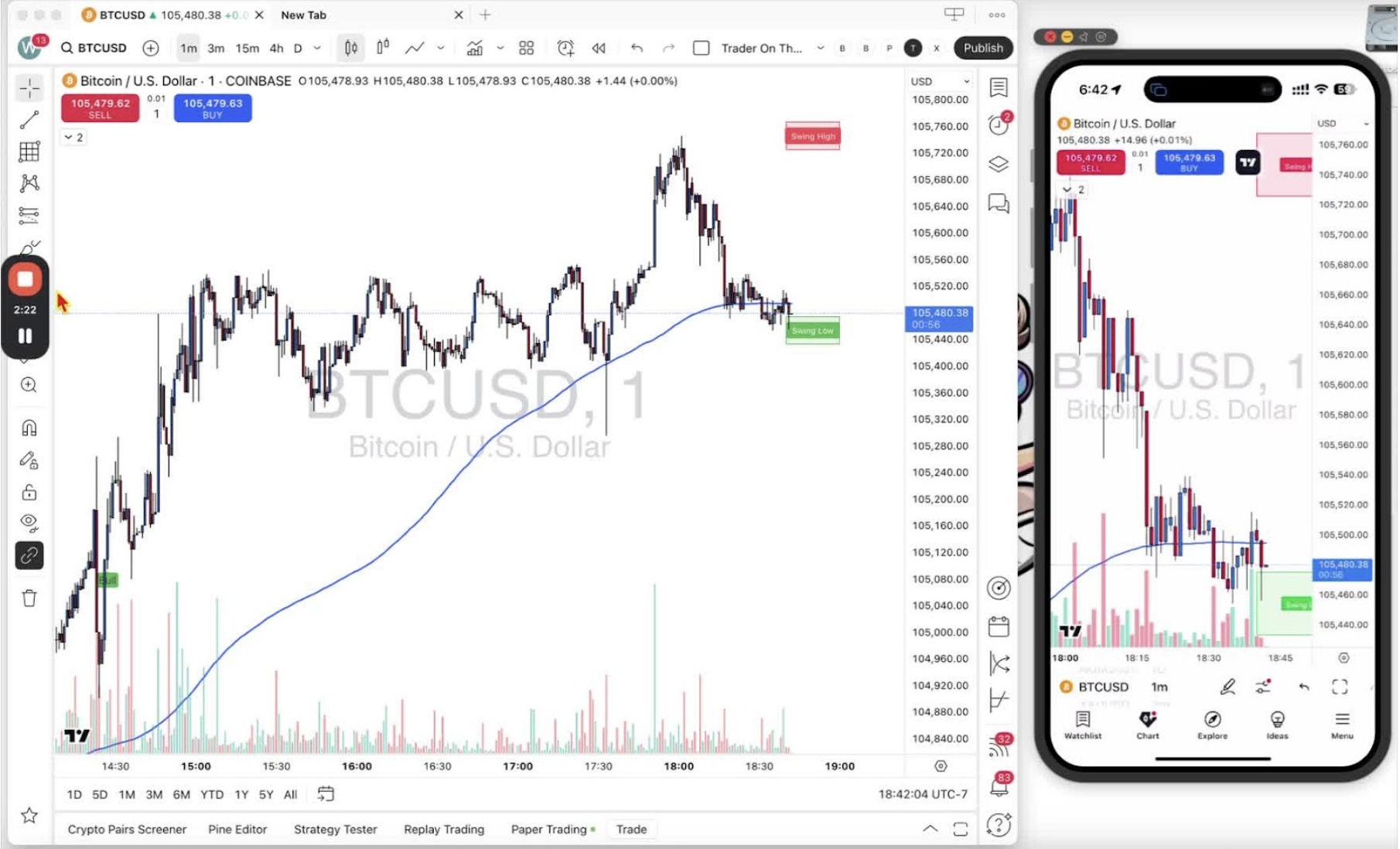
- Tap ‘OK’ in the bottom right corner.
- The buy and sell buttons, quantity box and spread now show on the chart.