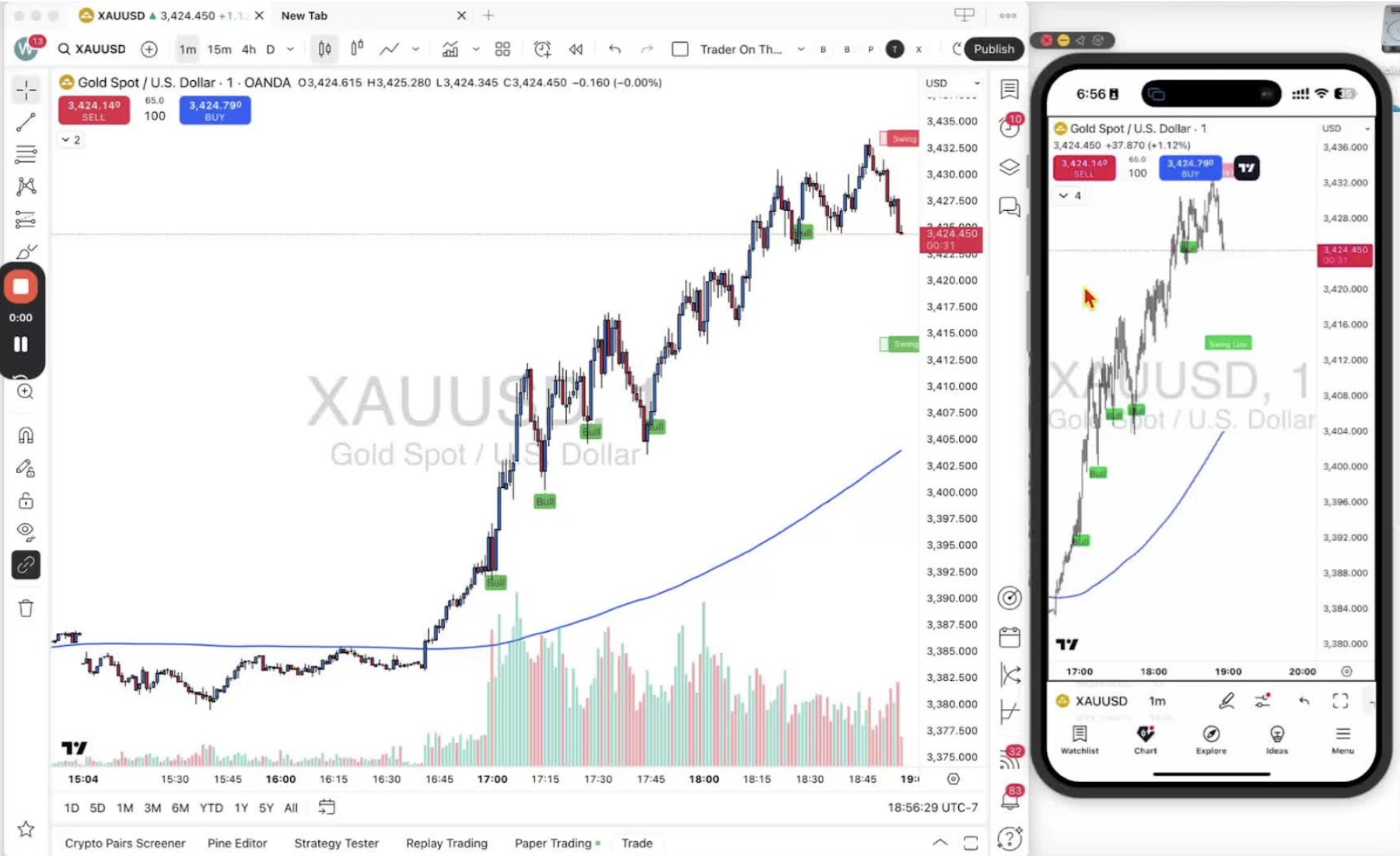
Change time frames in TradingView on desktop and mobile, and favorite the ones you use. The Trader on the Go indicator runs on the 1-minute chart.
Changing Time Frames on Desktop 0:15
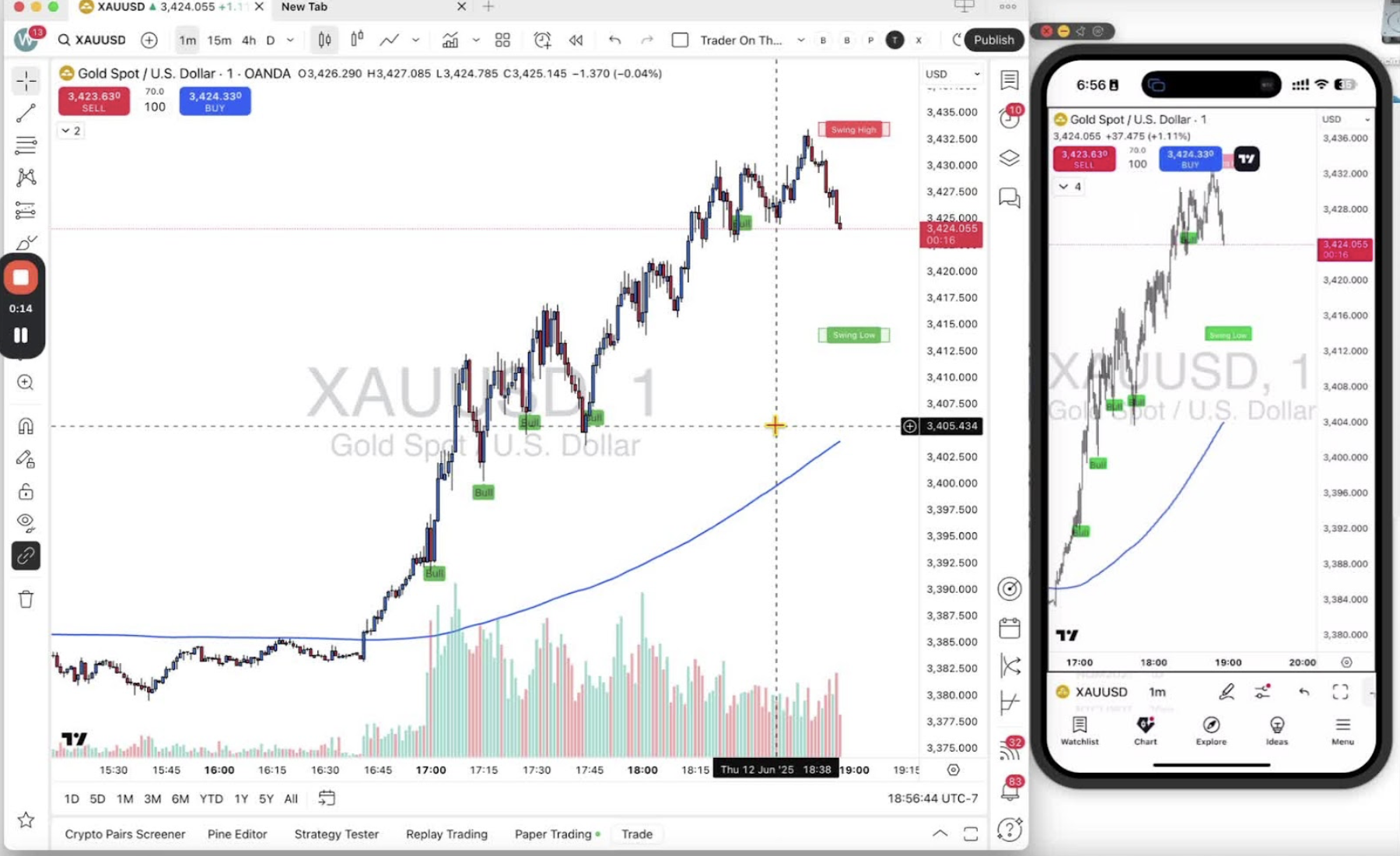
- Click the drop-down arrow on the time frame bar.
- Options: ticks, seconds, minutes, hours, days, weeks, months, years, ranges.
- Click the star next to a time frame to favorite it.
Navigating Time Frames on Desktop 1:08
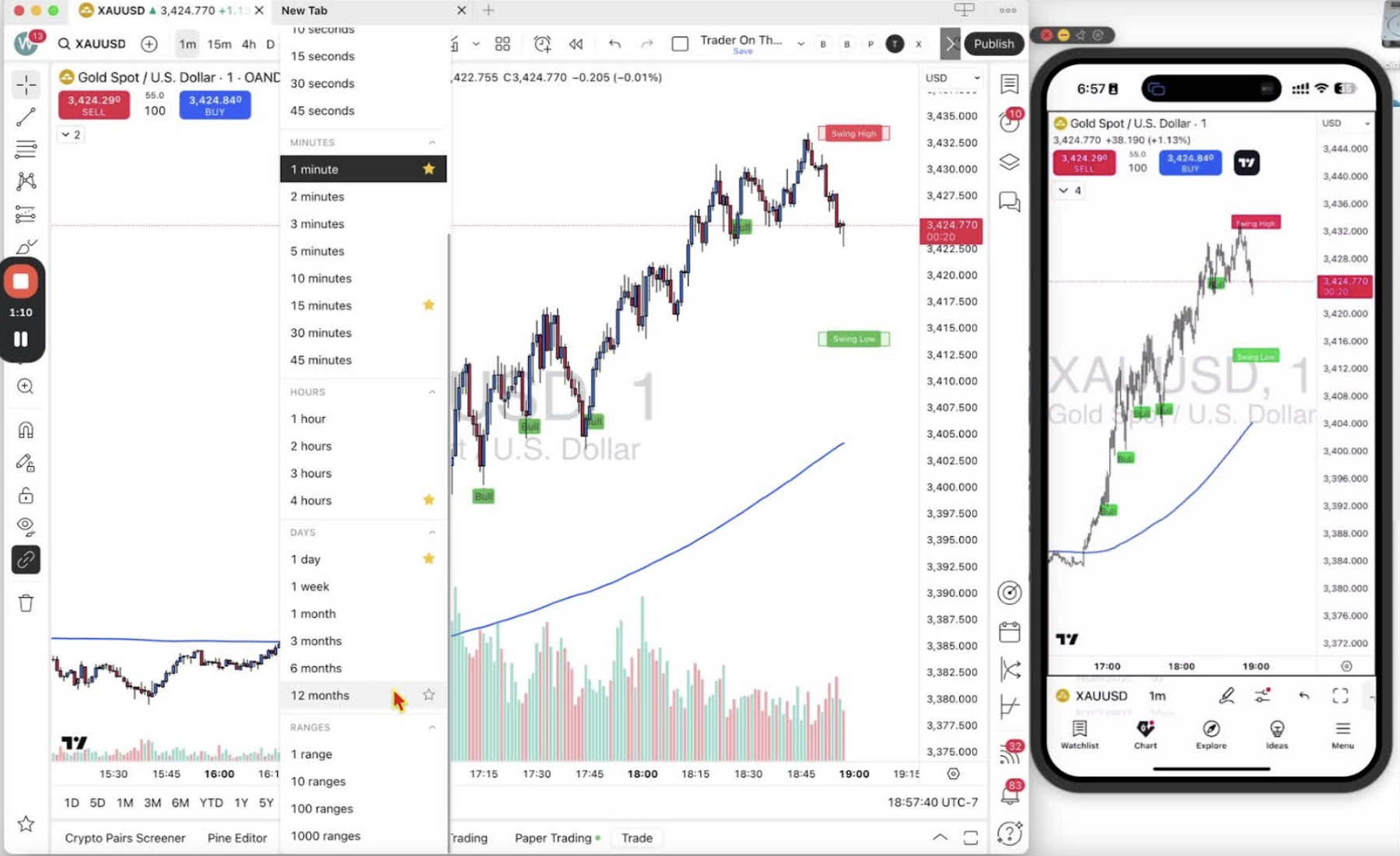
- Favorited time frames sit on the bar. Click one to switch (for example 1 minute, 15 minutes, 4 hours, daily).
Changing Time Frames on Mobile 1:25
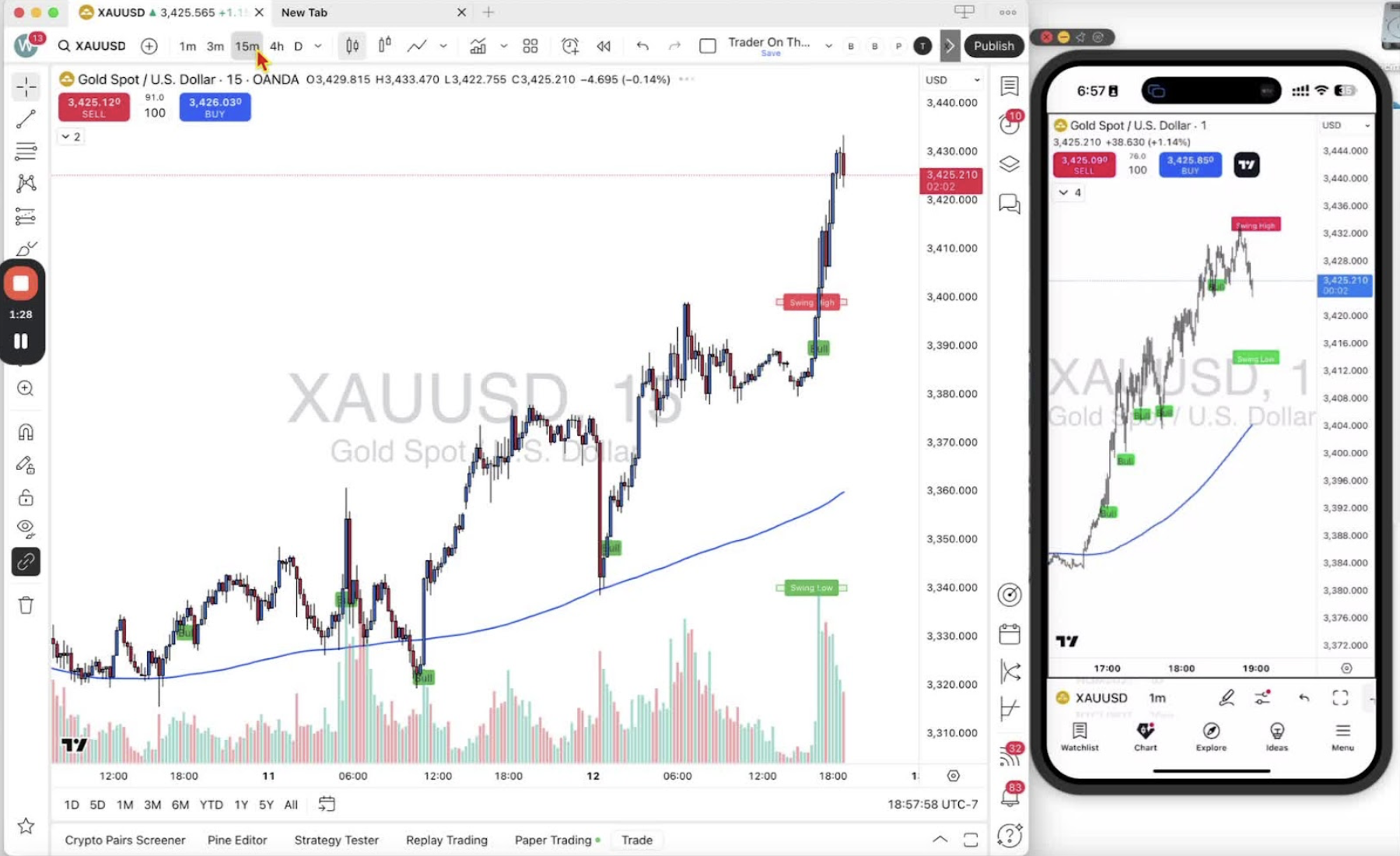
- Scroll through the favorite time frames on the bar.
Adding Favorites on Mobile 1:36
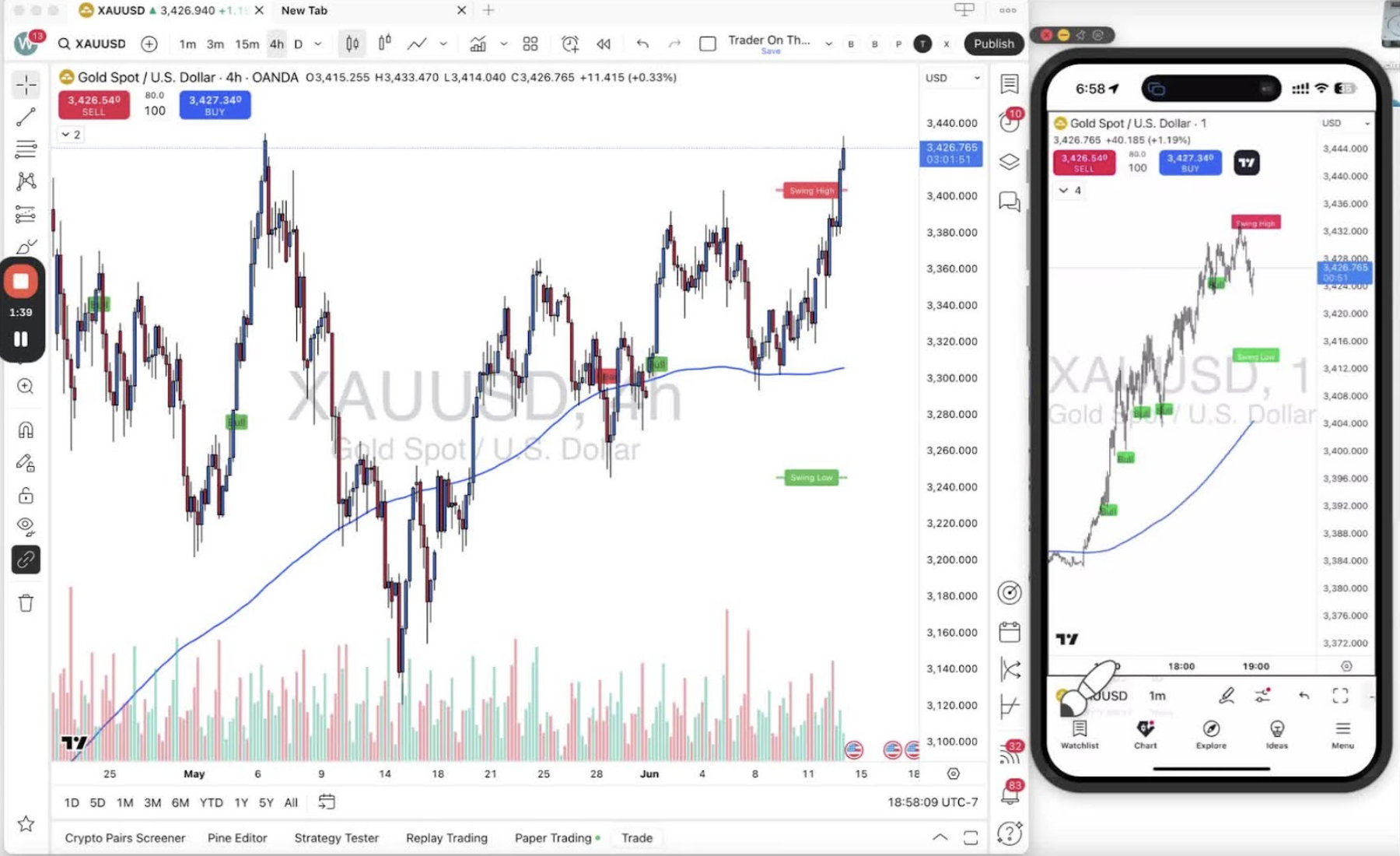
- Tap and hold a time frame (for example 3 minutes).
- Select ‘Add to favorites’. A star appears next to it.
Finalizing Time Frame Selection on Mobile 2:14
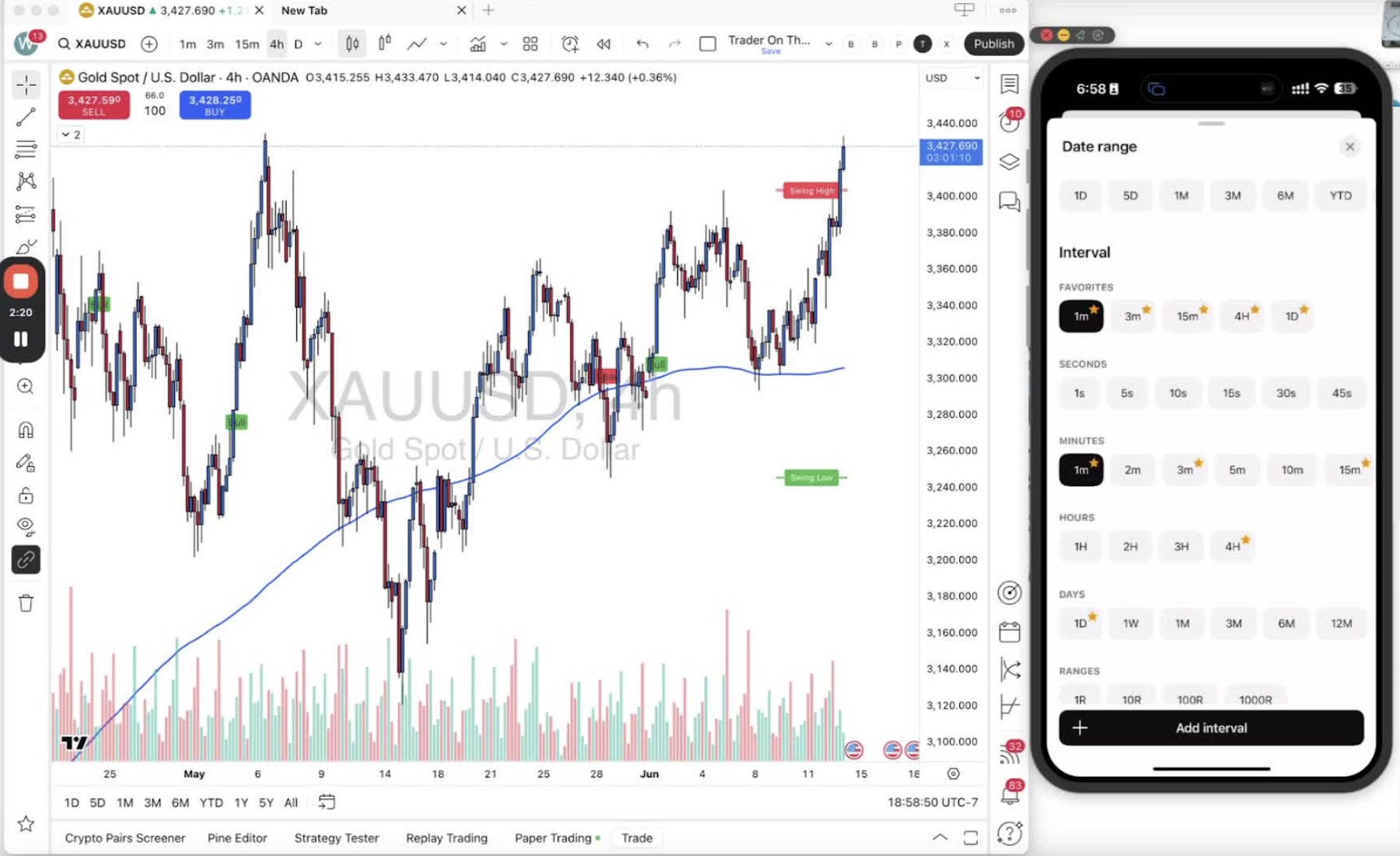
- Tap a time frame to switch to it.