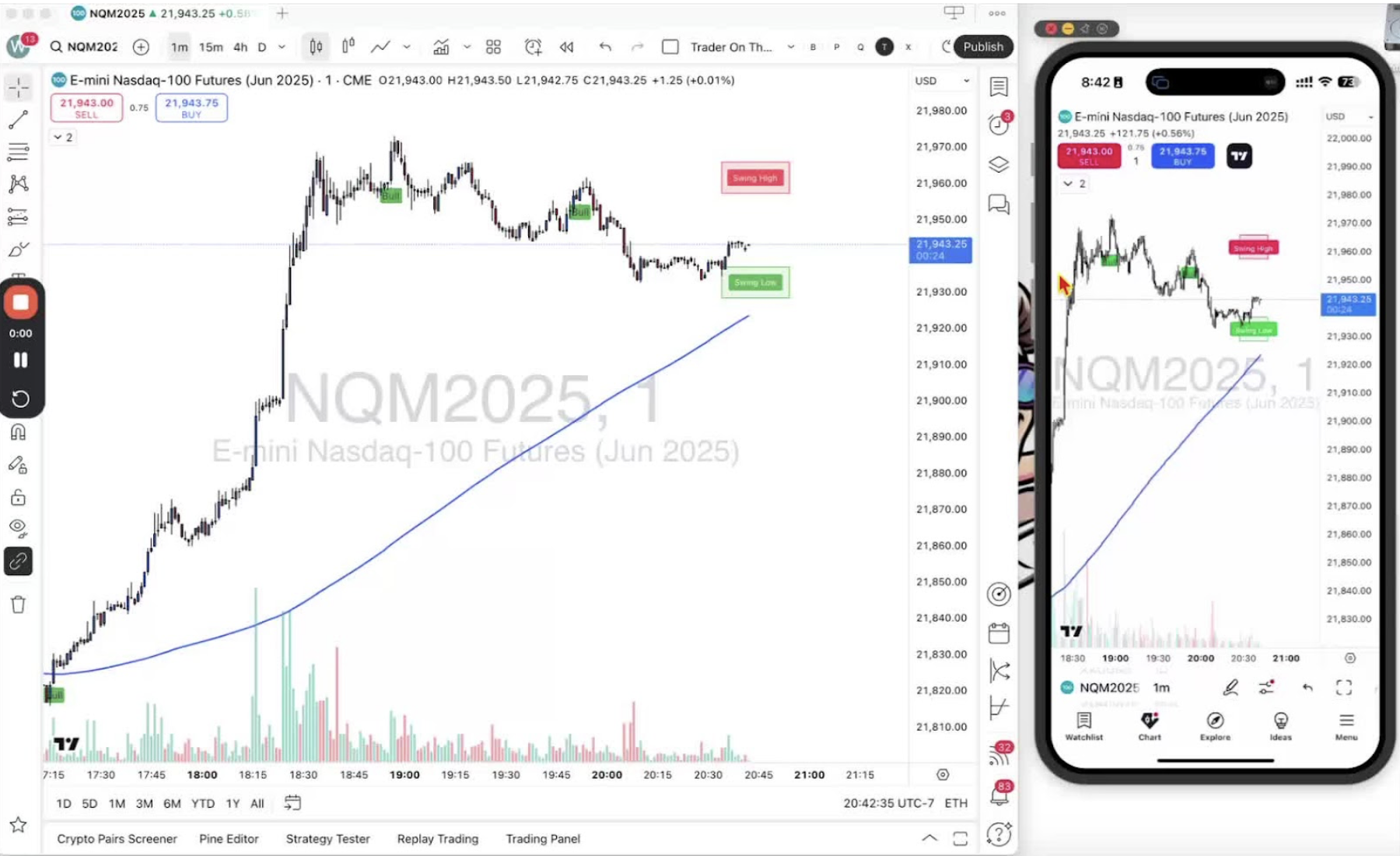
Indicator settings on desktop and mobile: hide or show an indicator, change signal colors, remove it, or add alerts.
Accessing the Indicator Menu 0:10
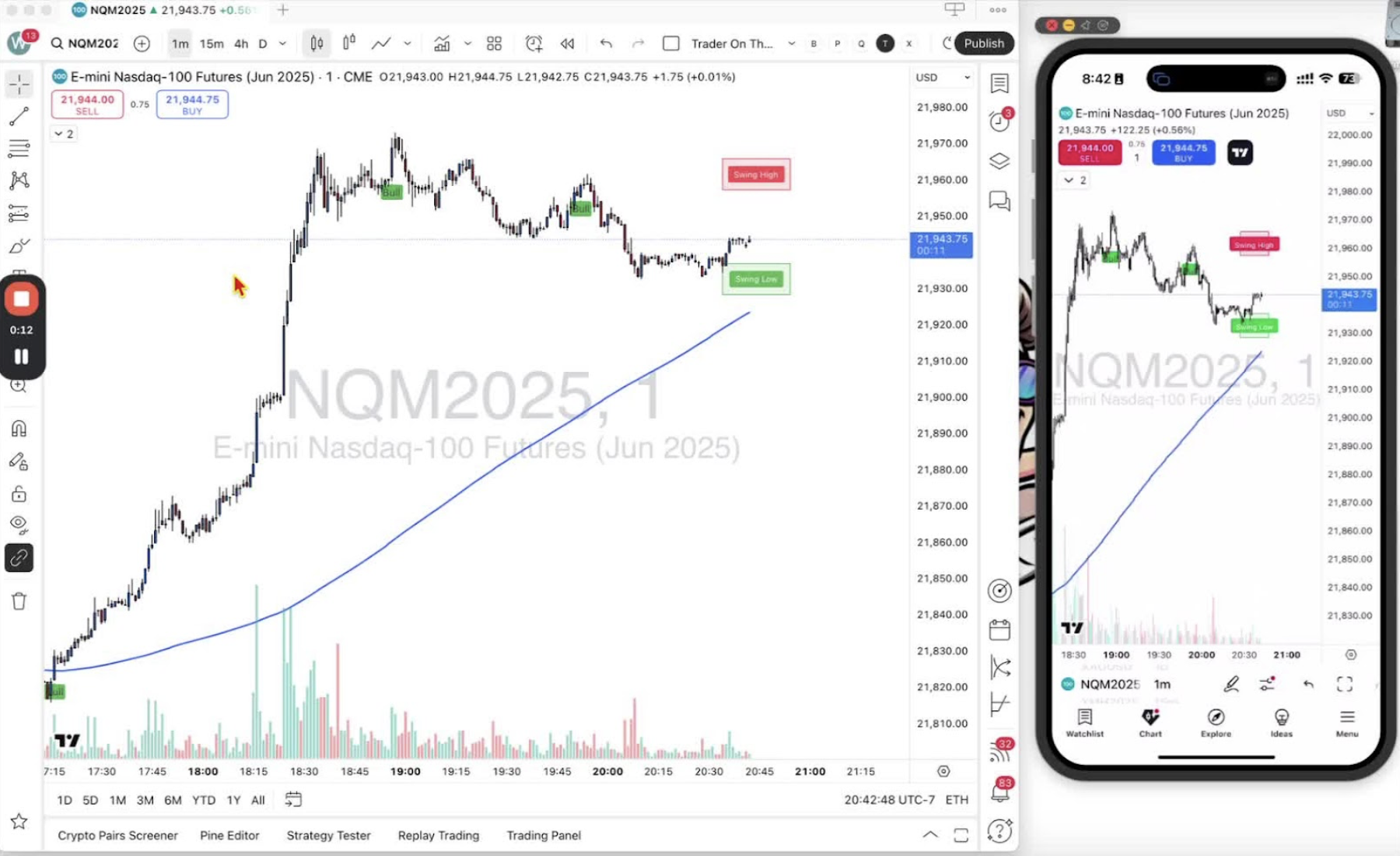
- Find the drop-down that shows ‘one’ or ‘two’.
- Desktop: hover over the ‘Trader on the Go’ layout.
- Mobile: tap the arrow to open the same layout.
Understanding Indicator Options 0:27
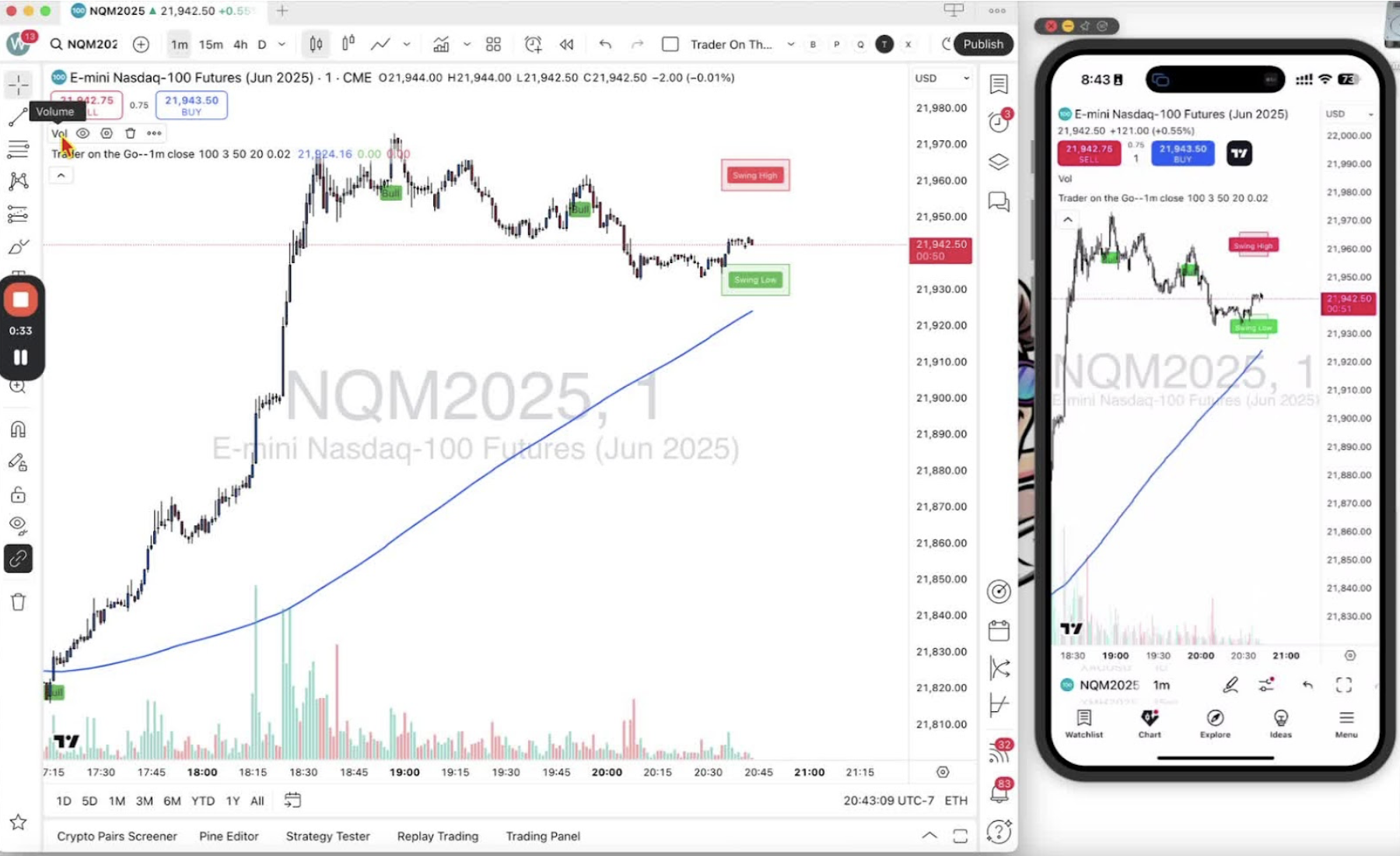
- Desktop shows four icons: an eye, a hexagon, a trashcan, and three dots.
- Mobile: tap the layout for the same options.
Hiding Indicators 0:41
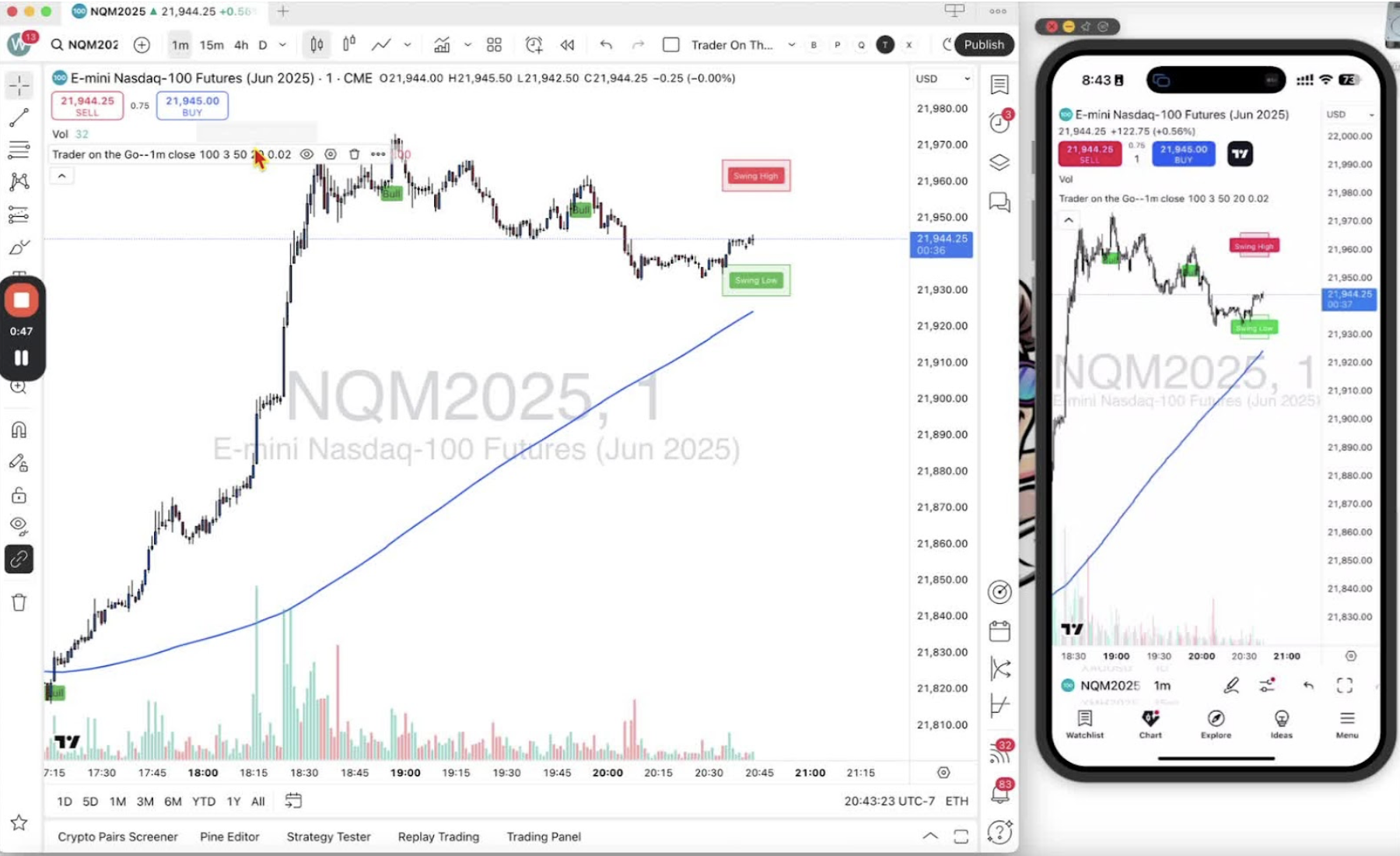
- Click or tap the eye icon to hide an indicator.
- Click or tap it again to bring it back.
Modifying Indicator Settings 1:00
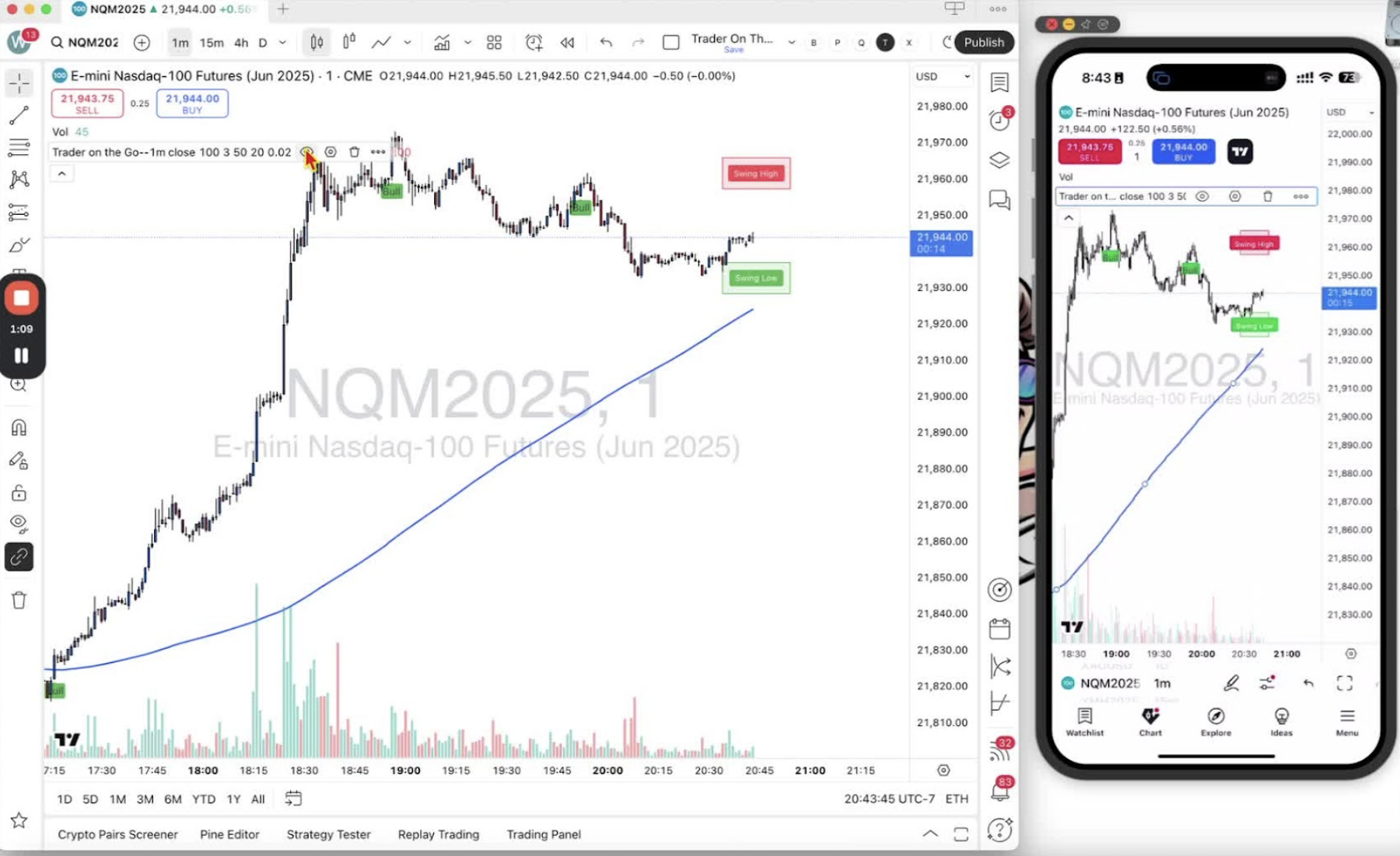
- Click the hexagon icon to open the indicator settings.
- The 200 SMA is the blue line. Untick its box to remove it from the chart.
Changing Signal Colors 1:34
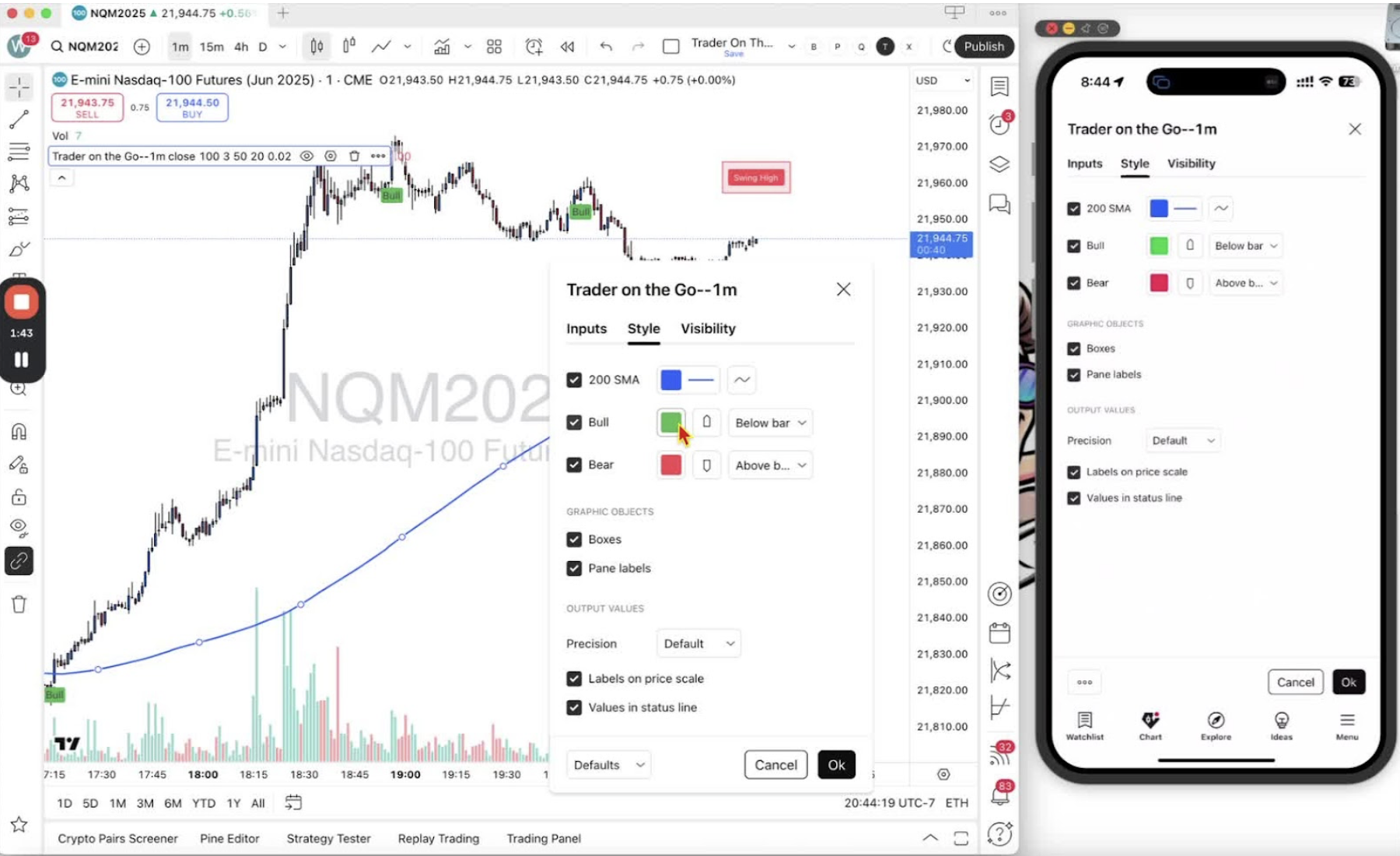
- Click the buy or sell signal option to change its color. This works on desktop and mobile.
Editing Visibility and Style 2:07
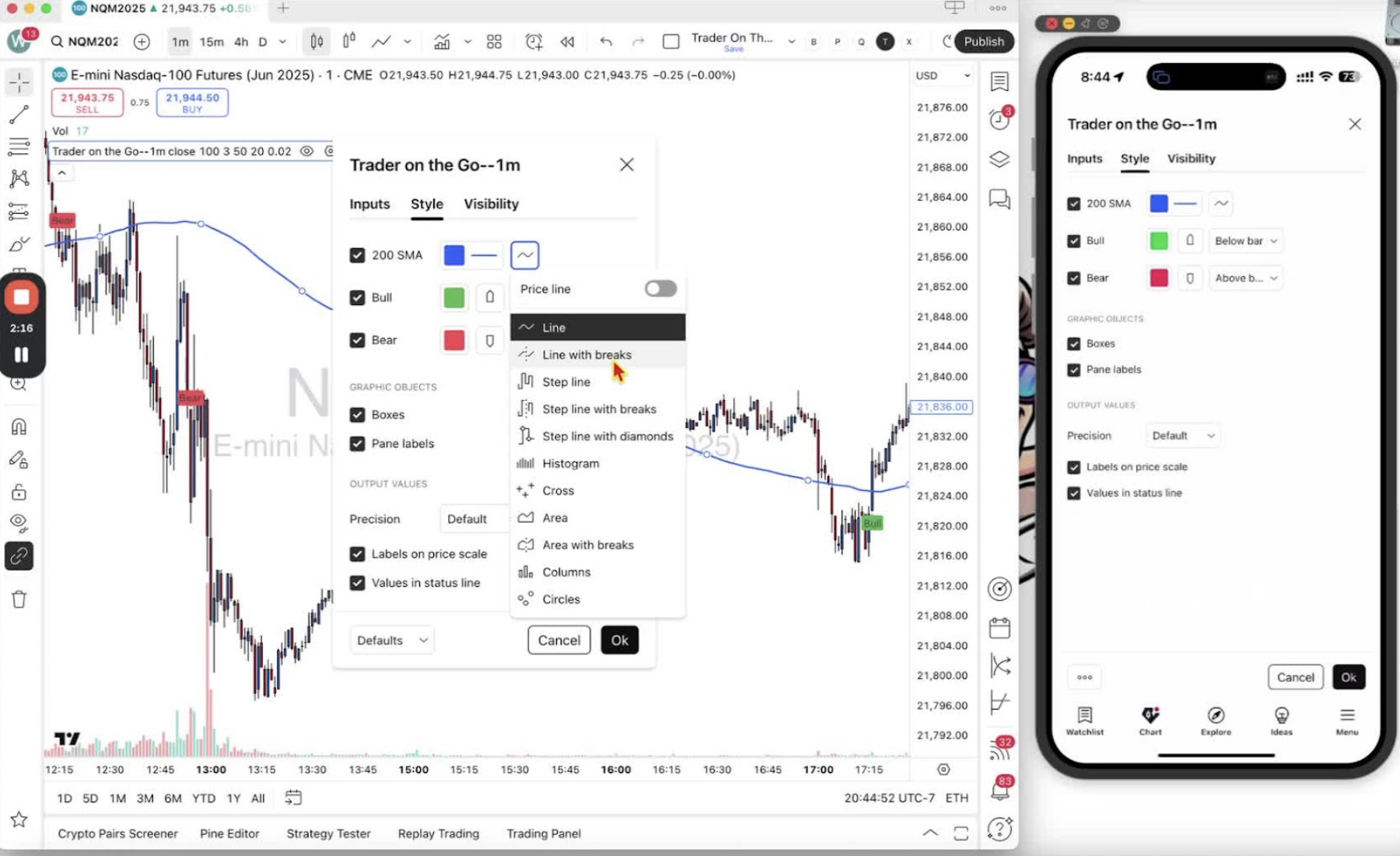
- Adjust visibility, style and colors in the same settings panel.
Removing Indicators 2:31
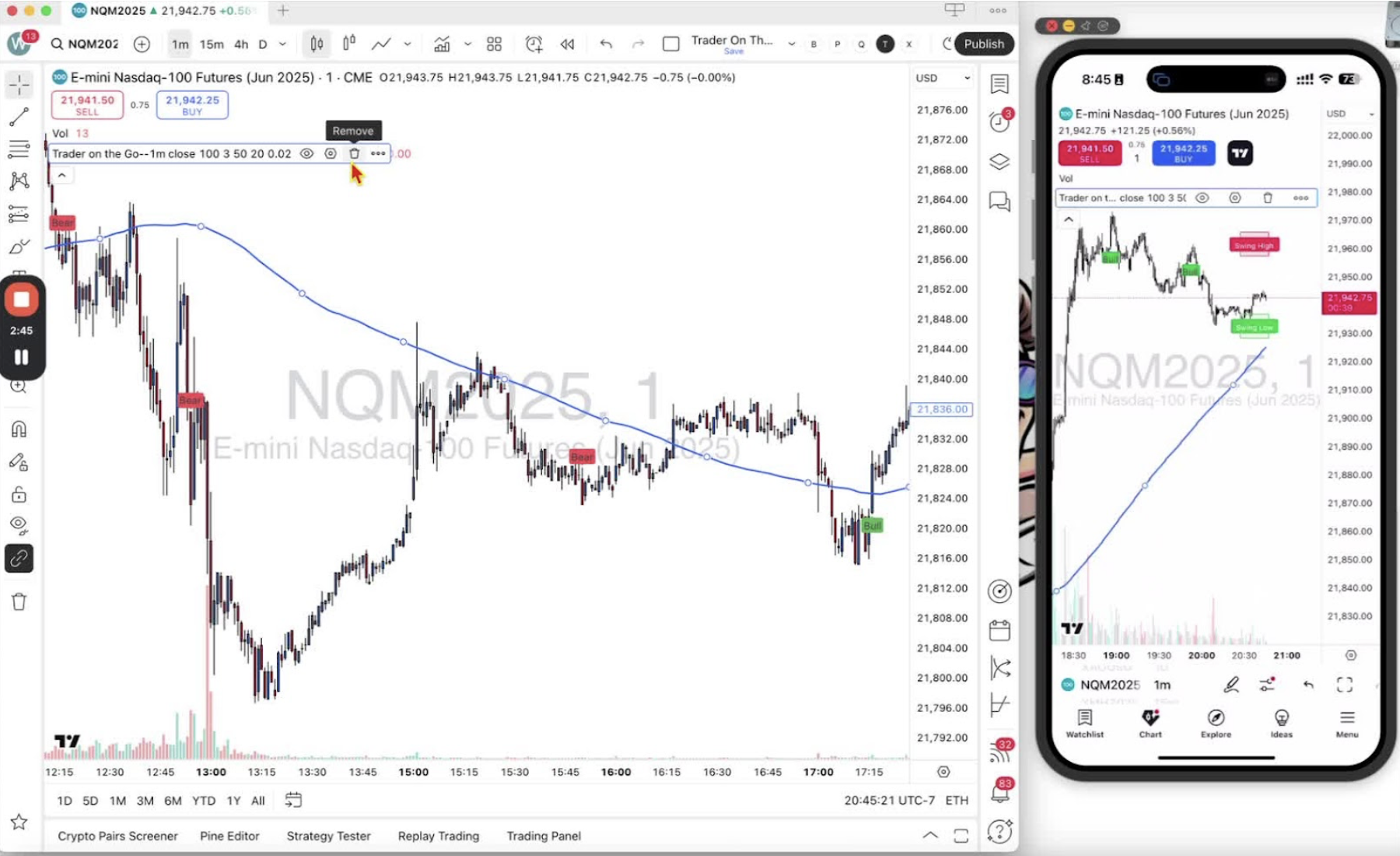
- Click the trashcan icon to remove an indicator.
- If you remove one by mistake, re-add it from the indicators menu.
Adding Alerts 3:03
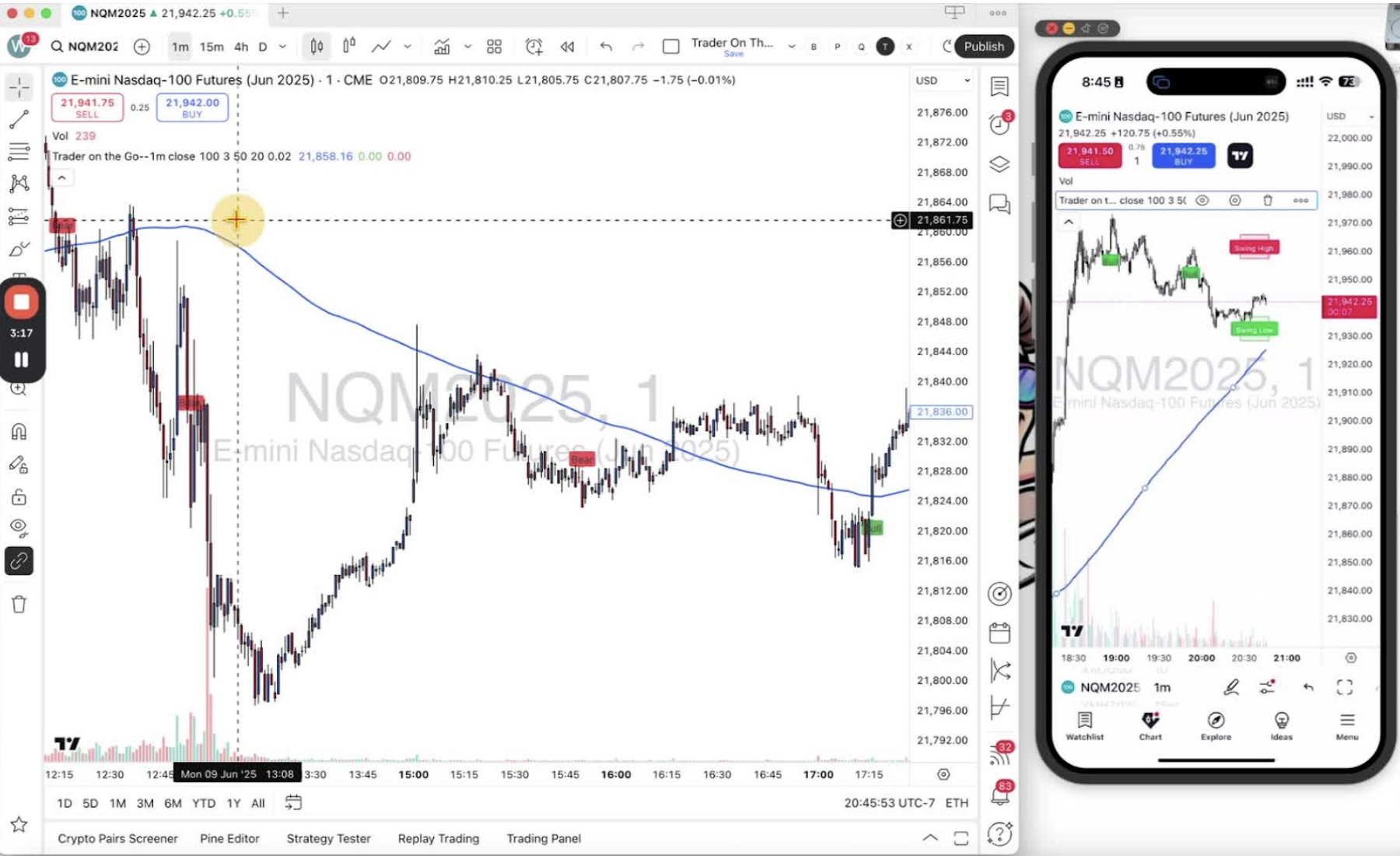
- Click the three dots for more settings, including alerts. Alerts are covered in Step 17 and Step 18.
Hiding the Menu 3:13
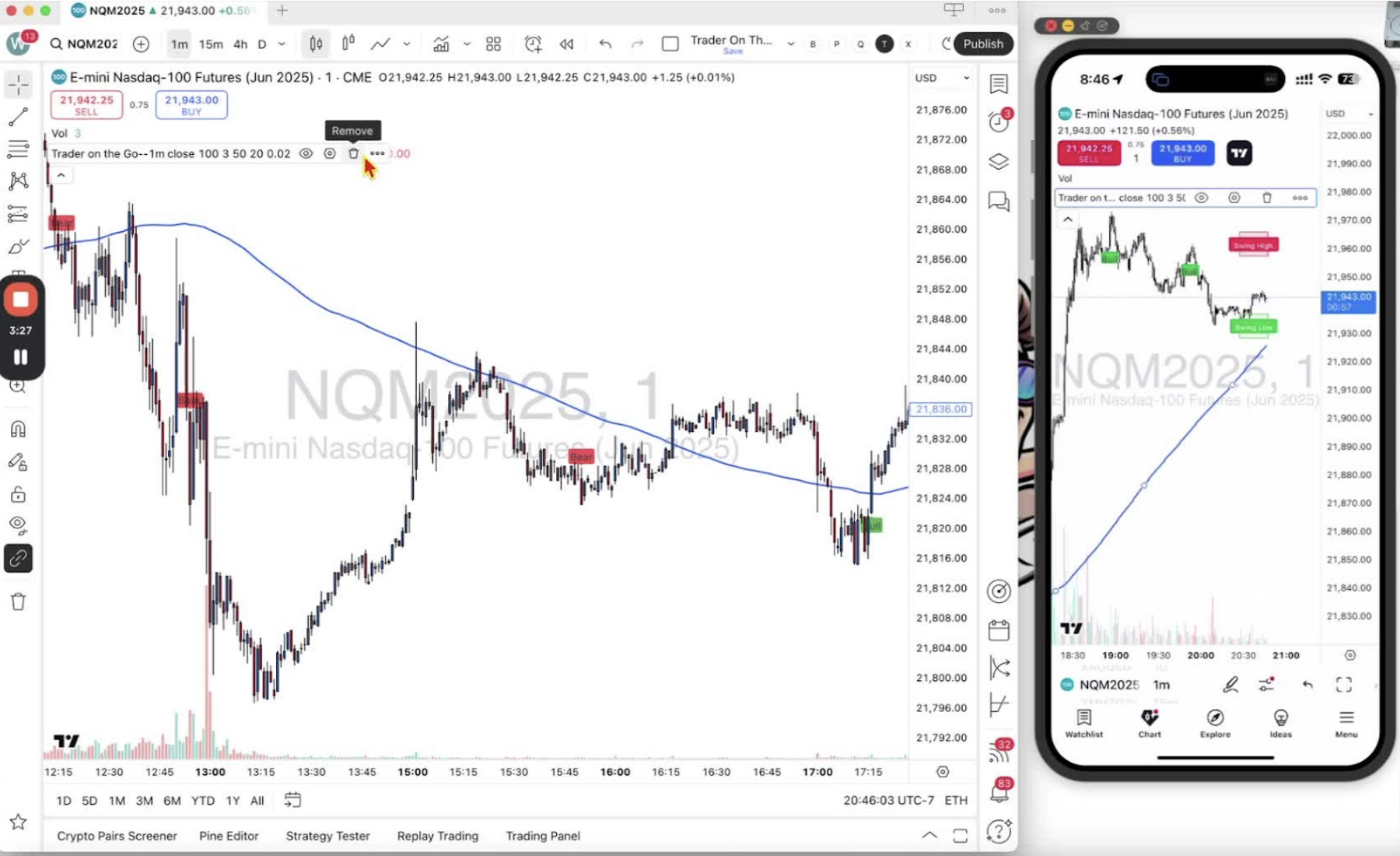
- Click the up arrow to hide the settings menu and see more of the chart.