Set up a TradingView paper trading account on desktop and mobile. You choose the starting balance and leverage. Step 14 covers placing trades on it.
Log Out of Your Current Account 0:00
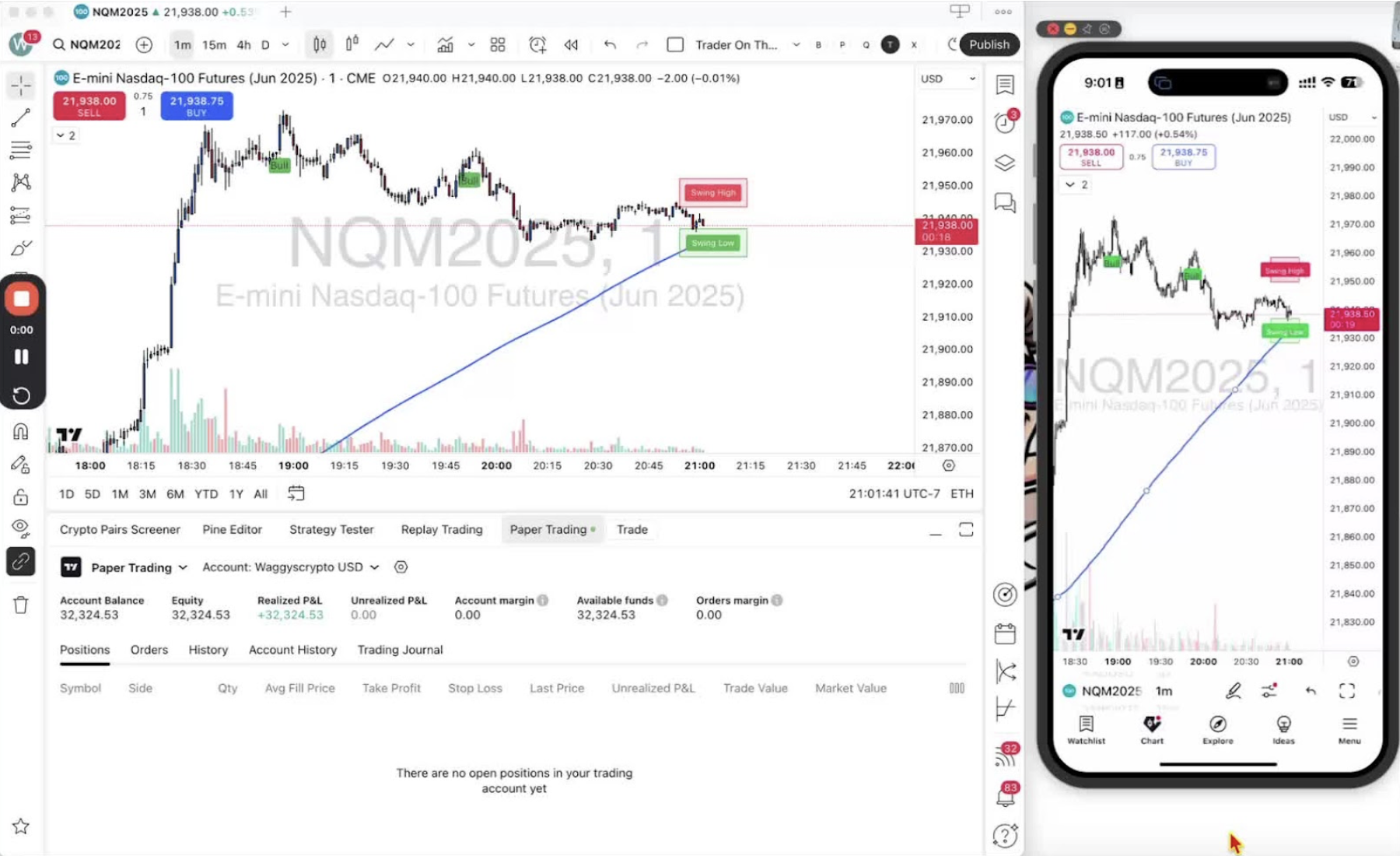
- Log out of your current TradingView account first.
Access Paper Trading Options on Desktop 0:11
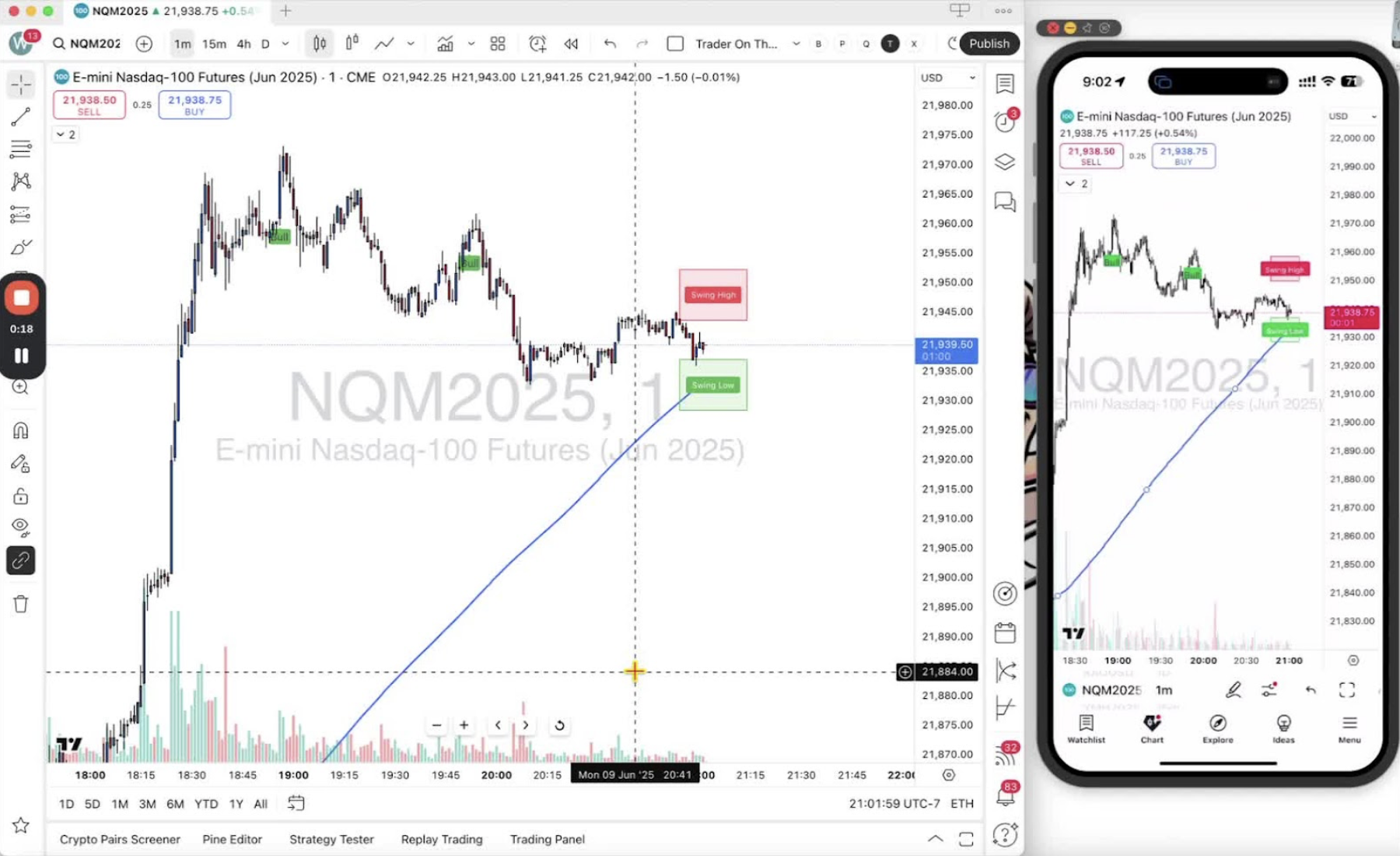
- At the bottom of the desktop app, click ‘Trading Patterns’.
- Select ‘Paper Trading’ (the one with the TradingView symbol) and click ‘Connect’.
Create a New Paper Trading Account 0:19

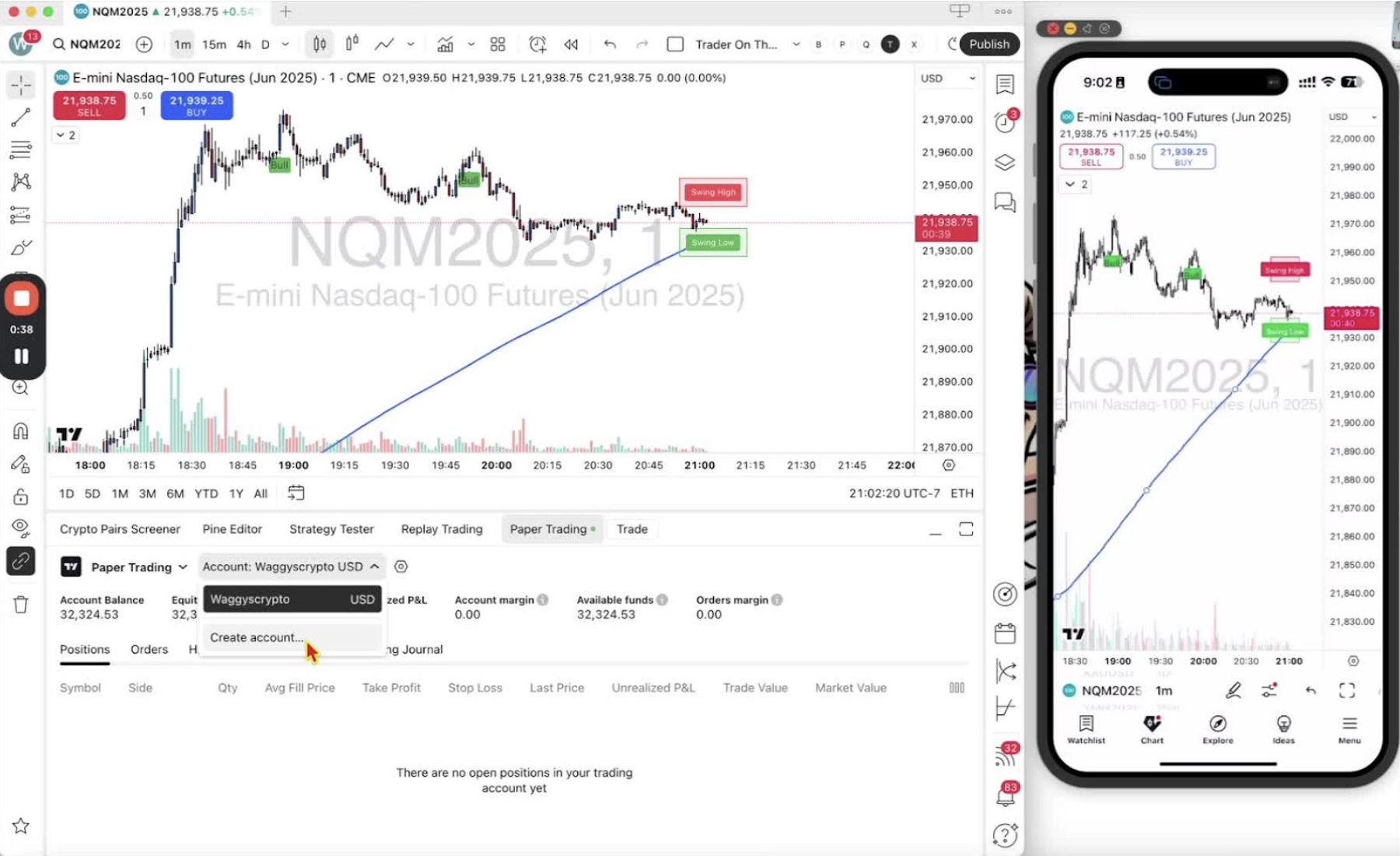
- If prompted, click the down arrow and choose ‘Create Account’.
Name Your Account and Set Balance 0:30
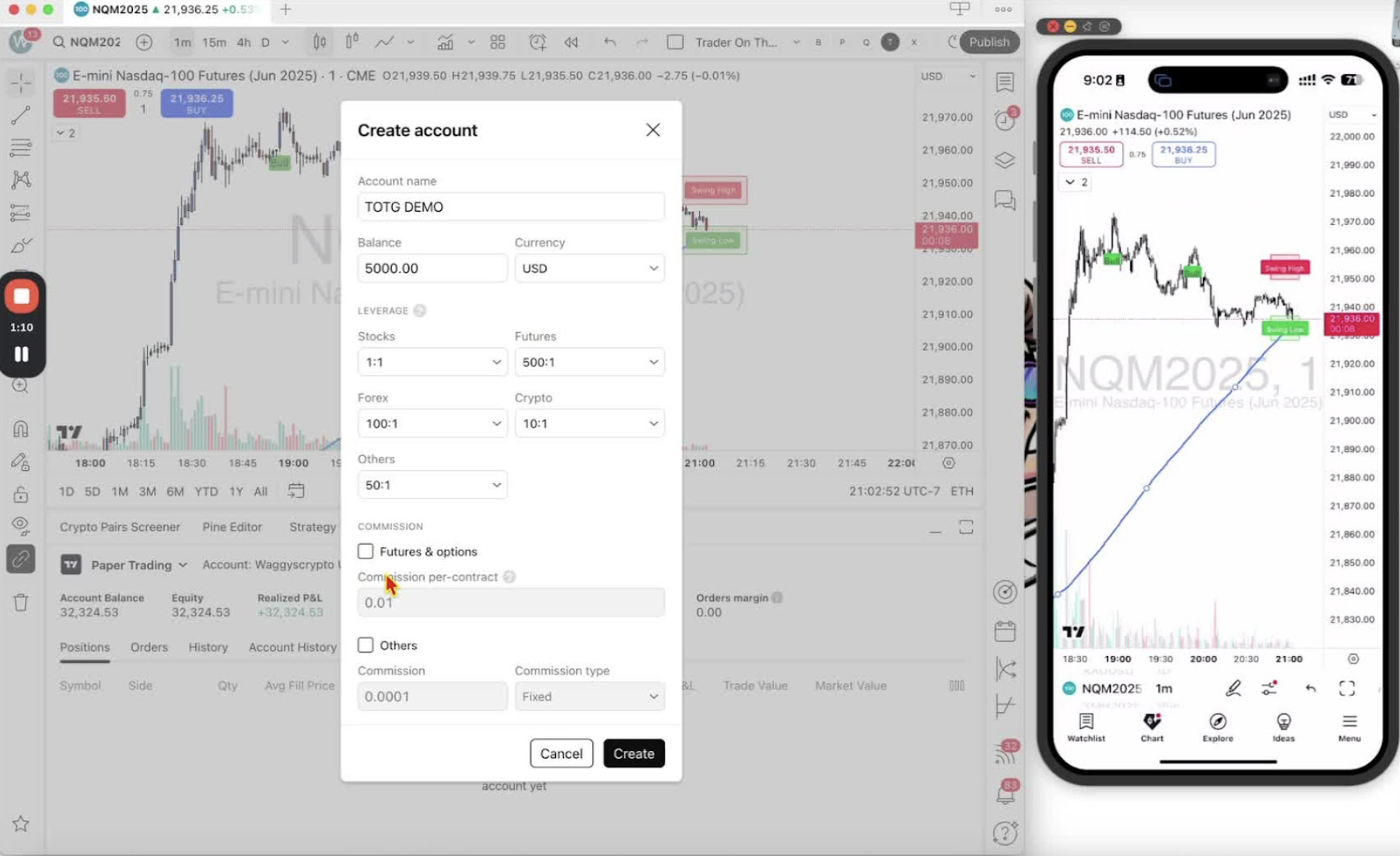
- Give it a name you will recognise (for example ‘TOTG Demo’).
- Enter a simulation balance (for example 5,000 USD).
- Set leverage: 500 to 1 for futures, 100 to 1 for forex.
Complete Account Creation 0:59
- Click ‘Create’.
- Check the balance and equity on the dashboard.
Access Paper Trading on Mobile Application 1:18
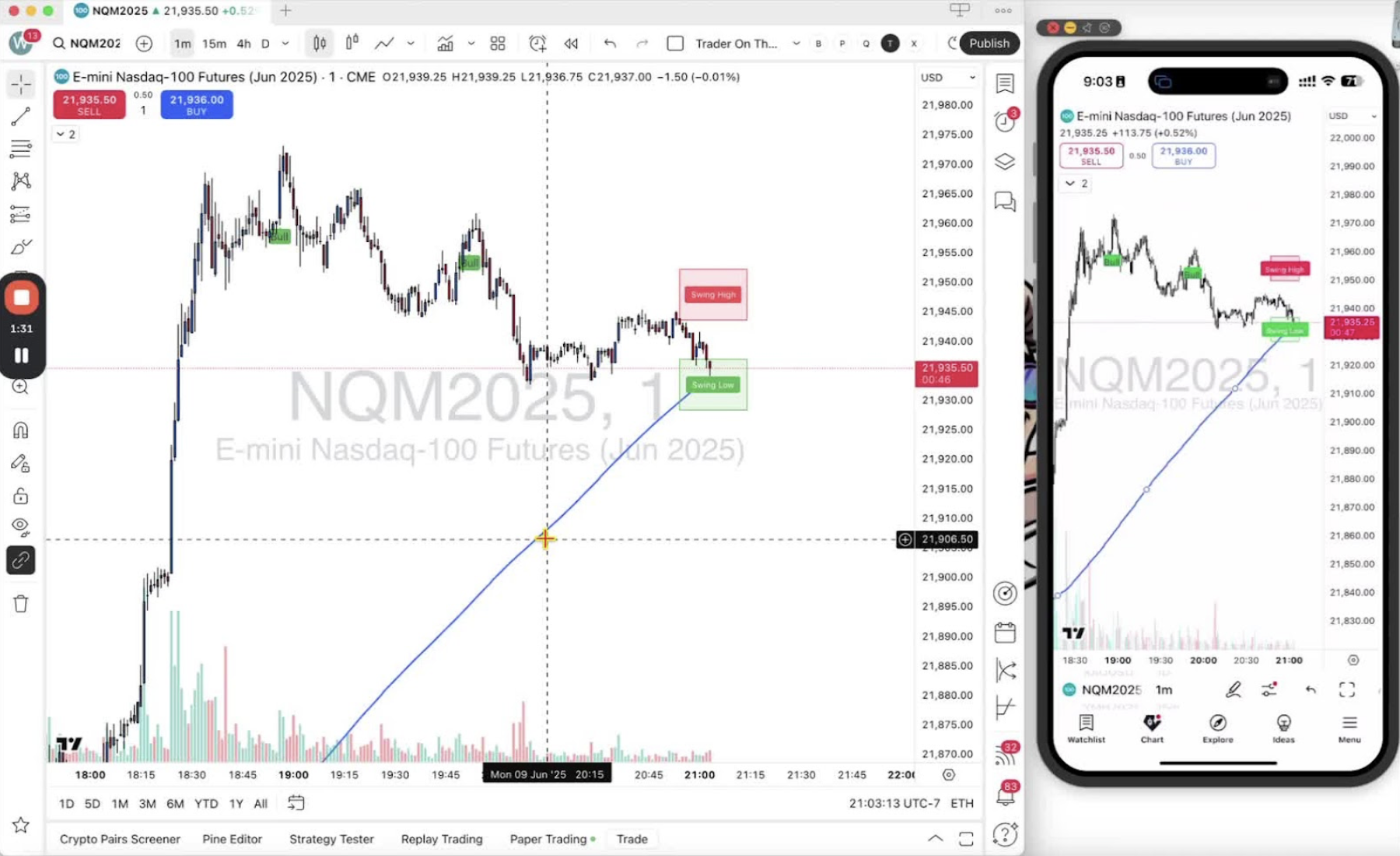
- Open the mobile app and tap the two-lines-with-circles icon.
- Select ‘Trade with Your Broker’, then ‘Paper Trading’.
Connect to Your Existing Paper Trading Account 1:30
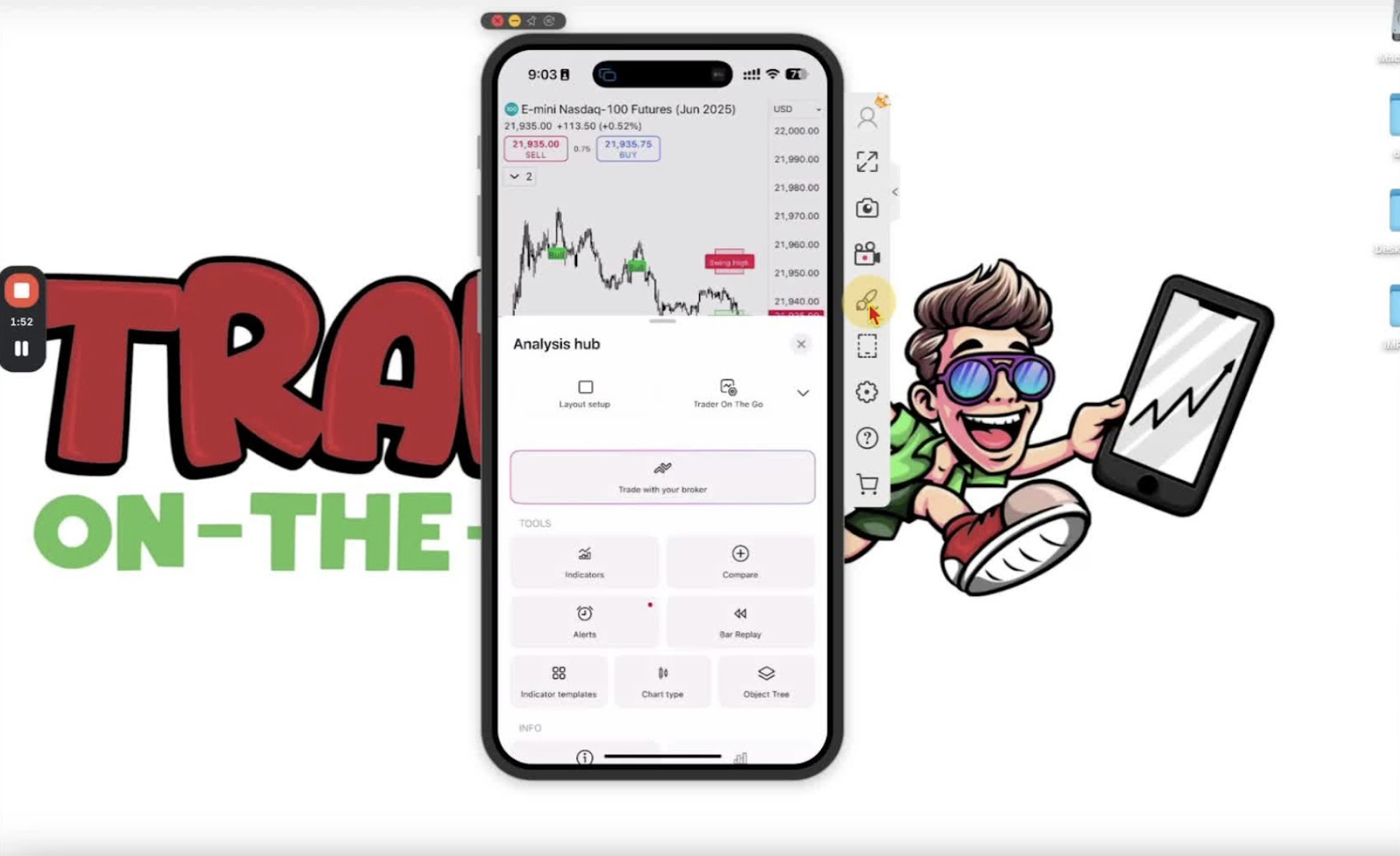
- Tap ‘Connect’.
- Your existing paper trading accounts are listed.
Create a New Paper Trading Account on Mobile (if needed) 2:14
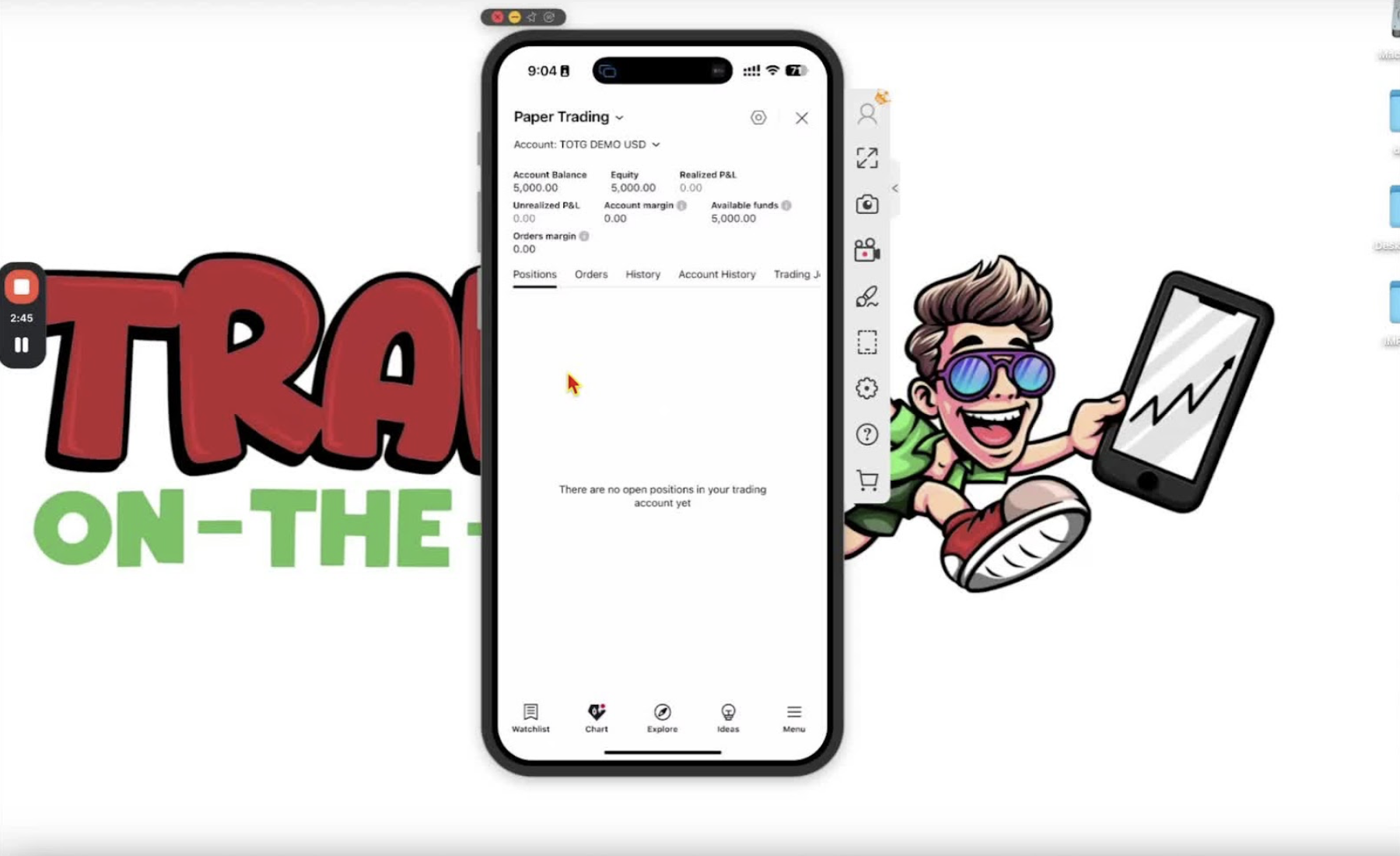
- Tap the down arrow and select ‘Create Account’.
- Name the account and set the balance the same way as on desktop.