Install the Trader on the Go indicator on desktop and mobile. Once the indicator owner has your TradingView ID, it appears in your invite-only list.
Access the Indicator Menu on Desktop 0:00
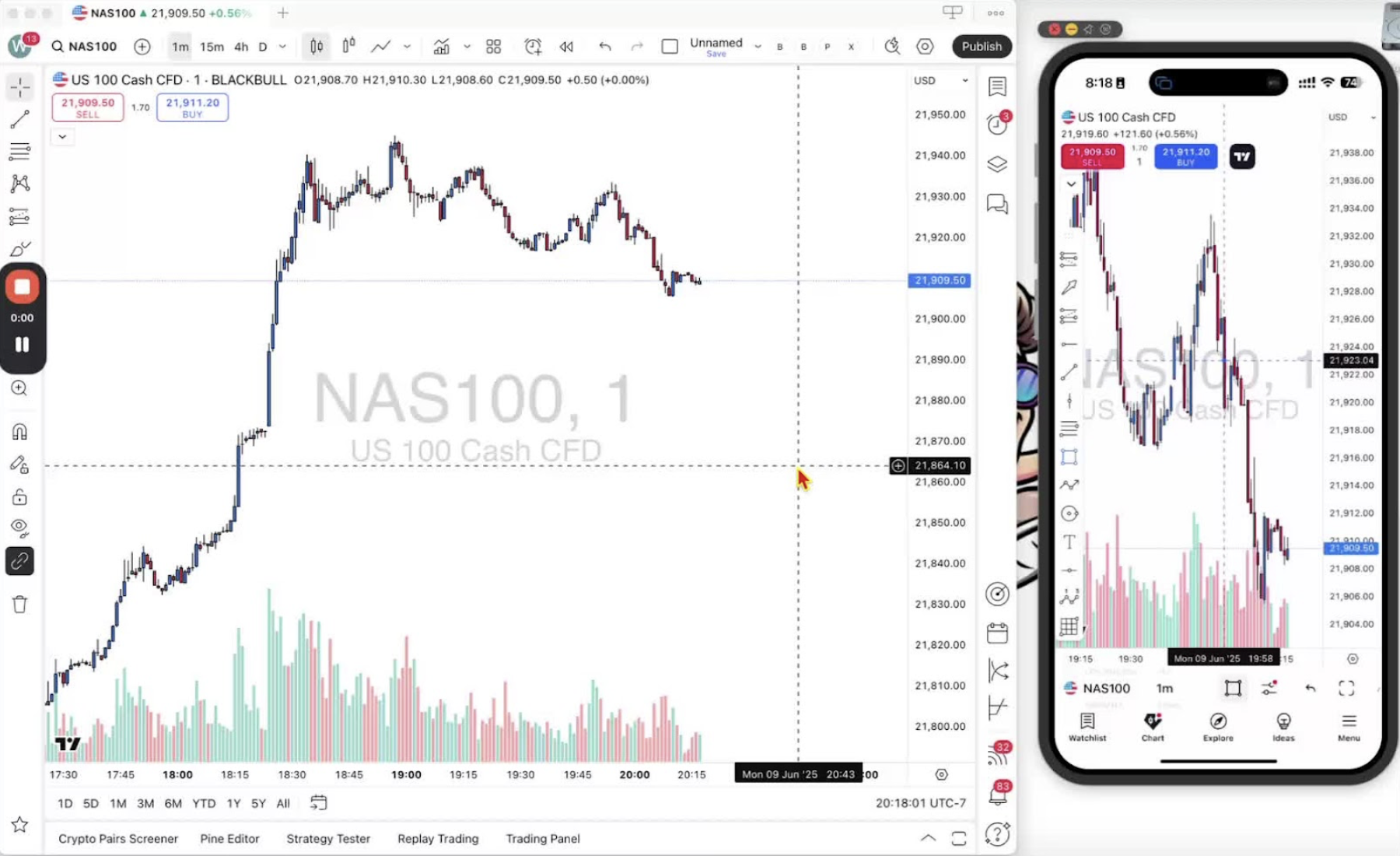
- Open the TradingView desktop app or web app.
- Click the ‘Indicators, Metrics, and Strategies’ icon in the top bar.
Find the Trader on the Go Indicator 0:34
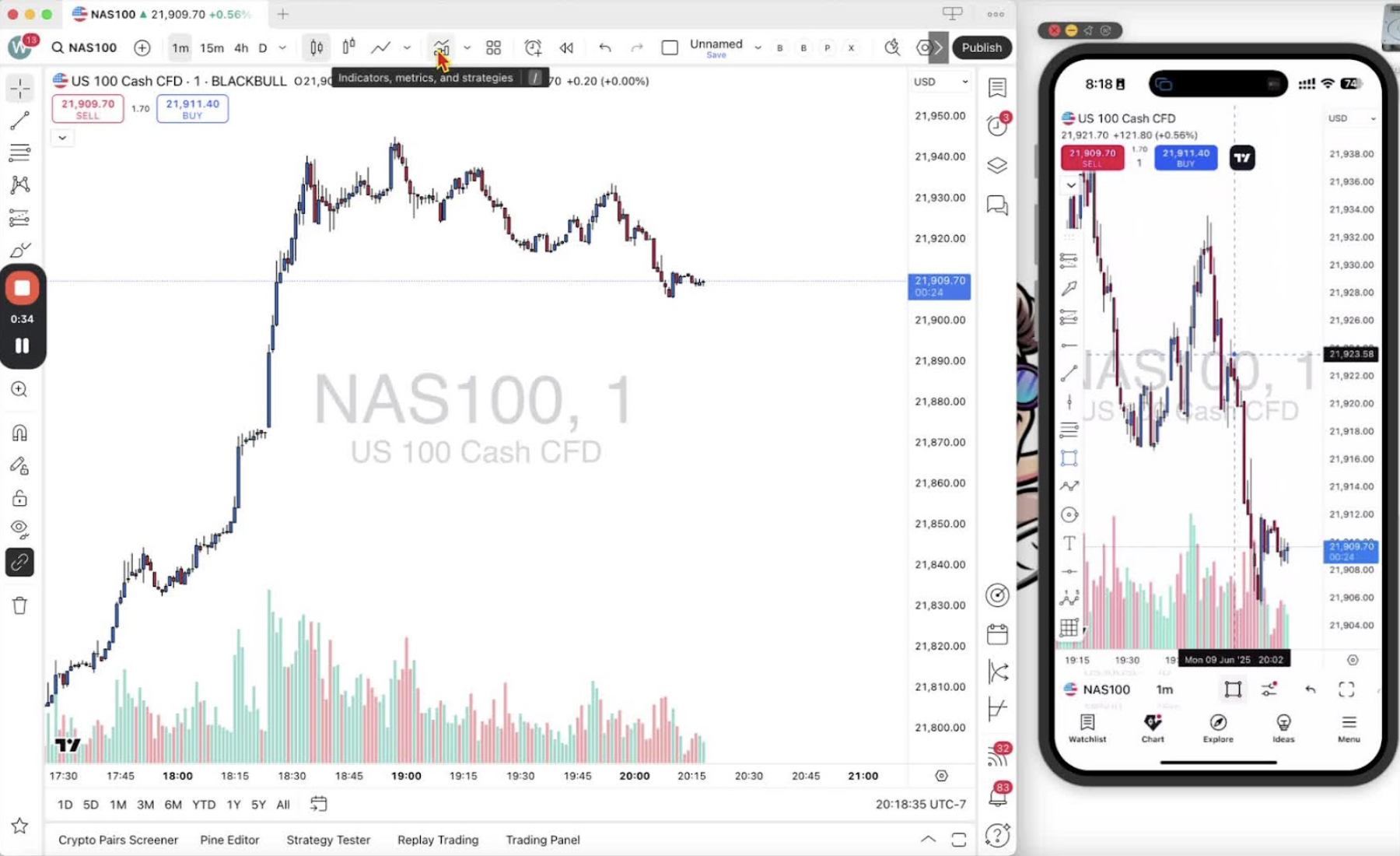
- If the owner has your TradingView ID, it is in your invite-only list.
- Otherwise type ‘trader’ in the search bar and pick ‘Trader on the Go, one minute’.
Add to Favorites 1:11
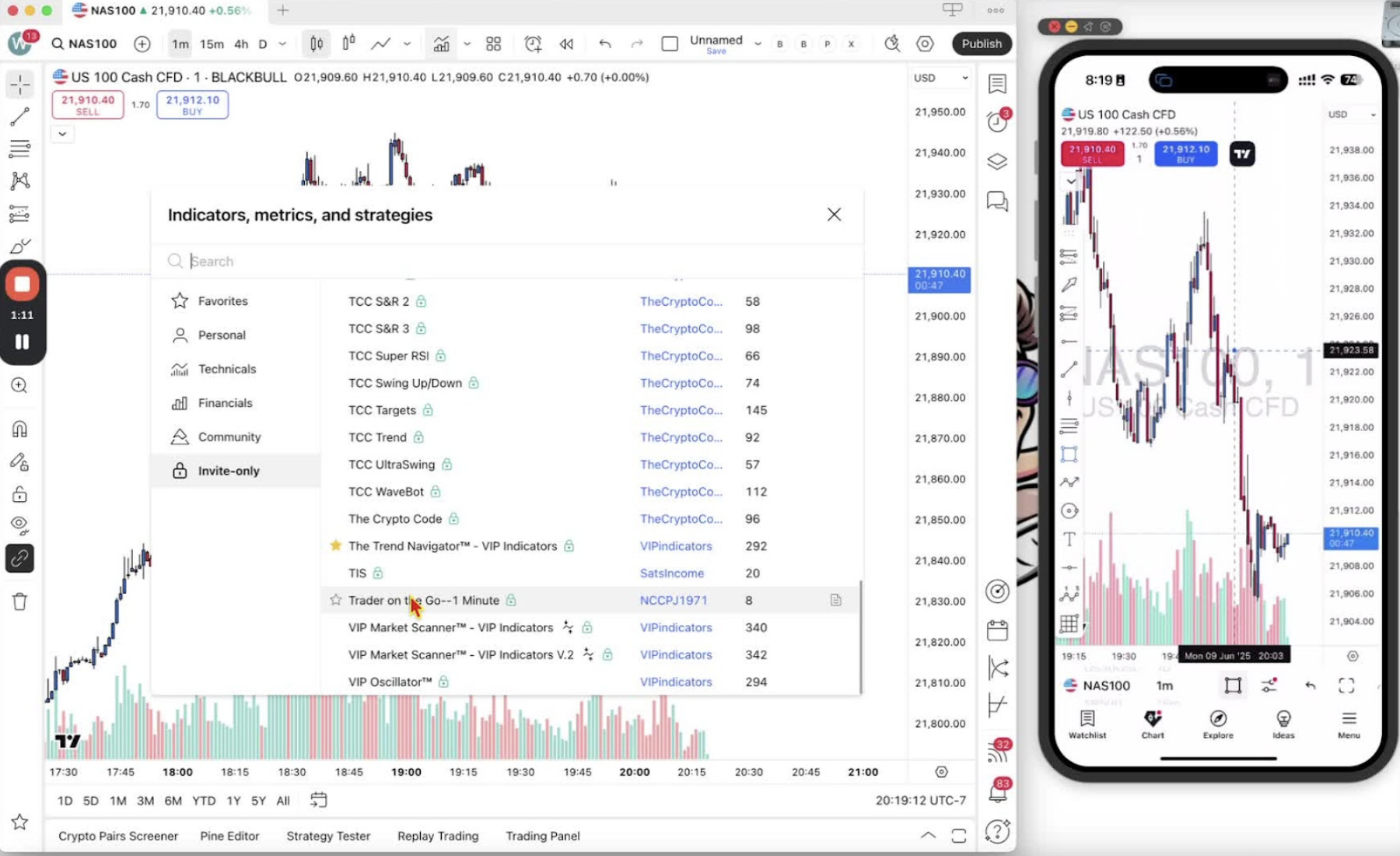
- Click the star next to ‘Trader on the Go, one minute’.
Apply the Indicator to Your Chart 1:27
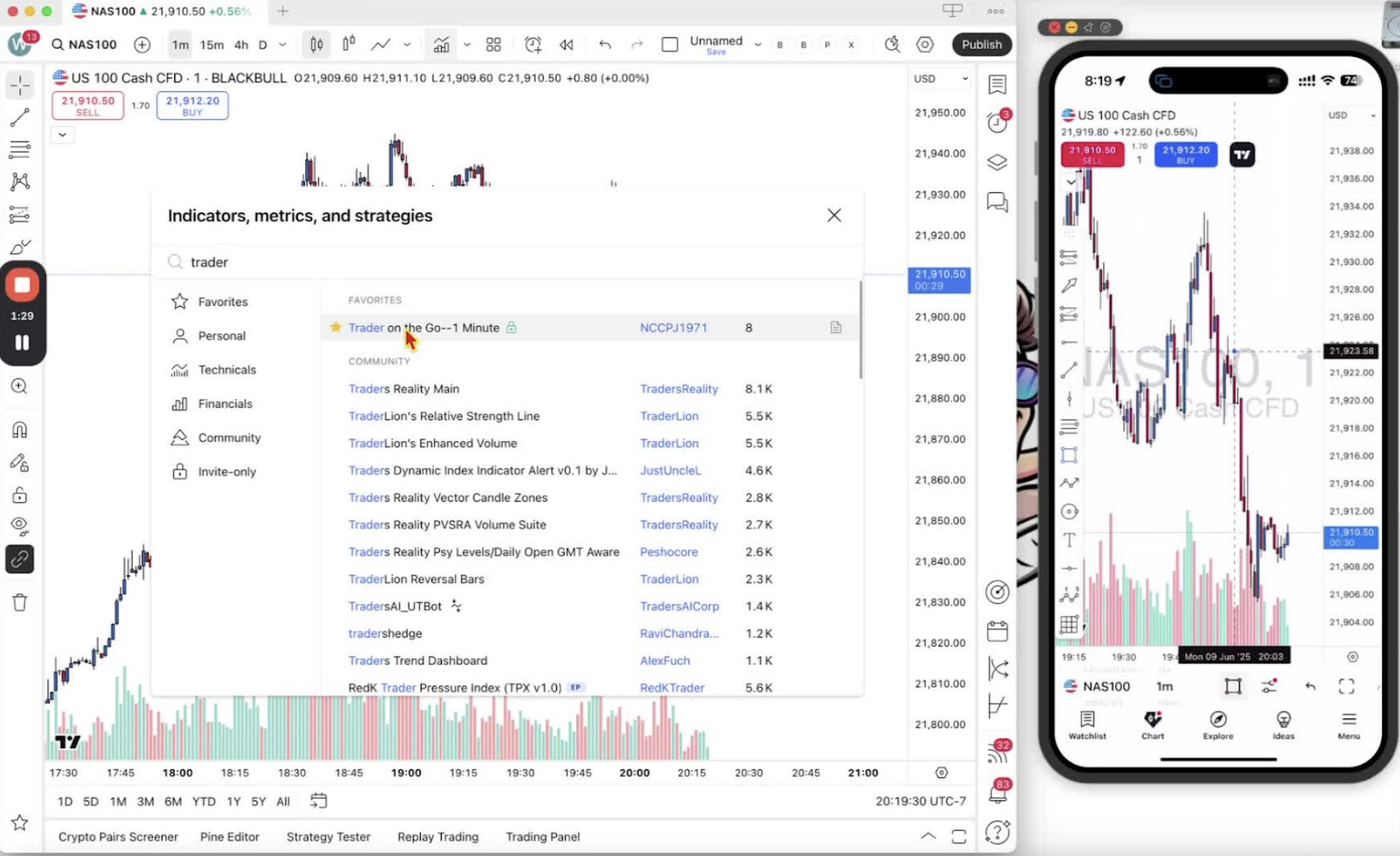
- Click ‘Trader on the Go, one minute’ to add it to the chart.
- Check the indicator legend under the buy/sell buttons to confirm it loaded.
Access the Indicator on Mobile 2:15
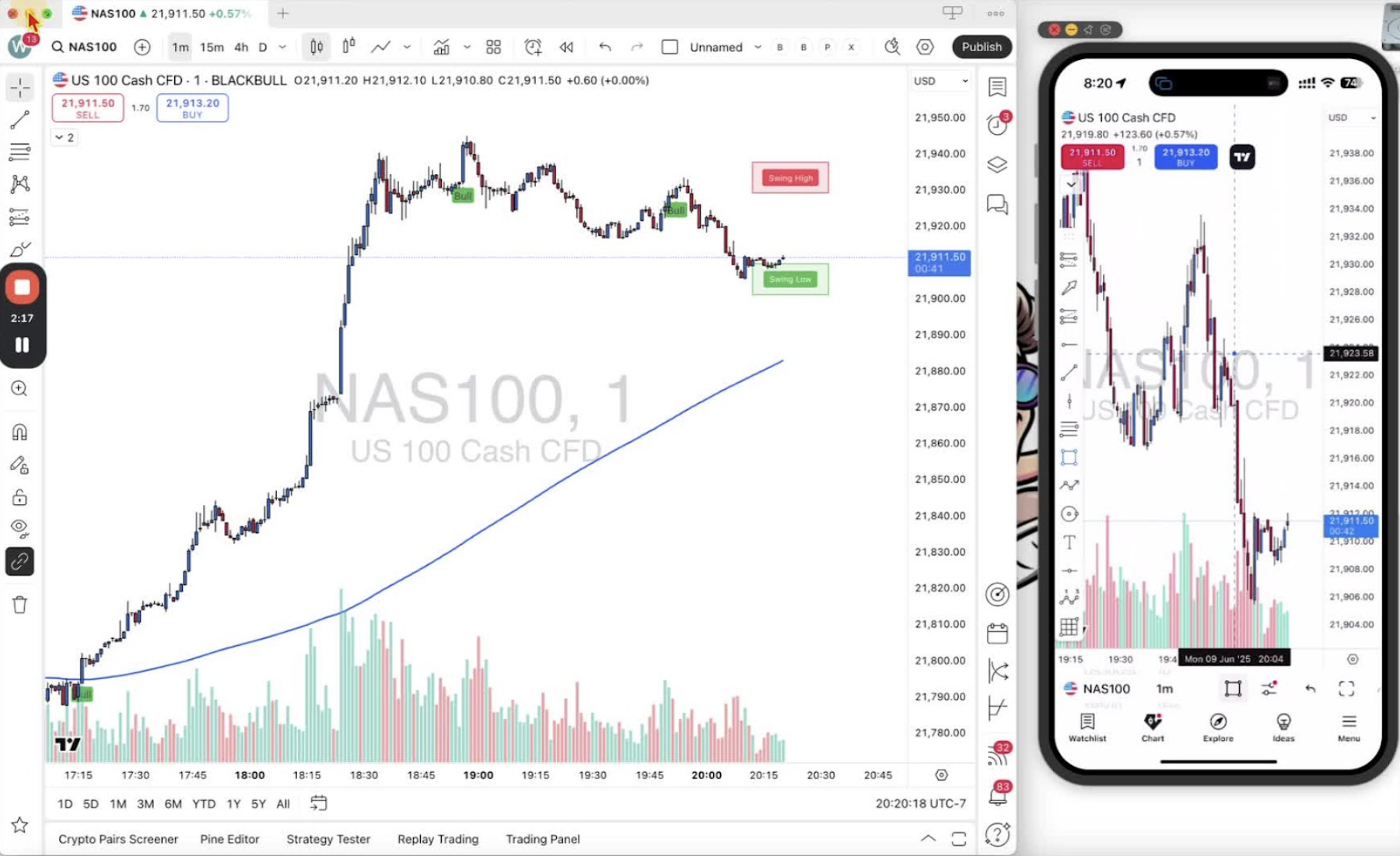
- Open the TradingView mobile app (Android or iPhone).
- Tap the icon with two dashes and two circles at the bottom.
Find and Favorite the Indicator on Mobile 2:29
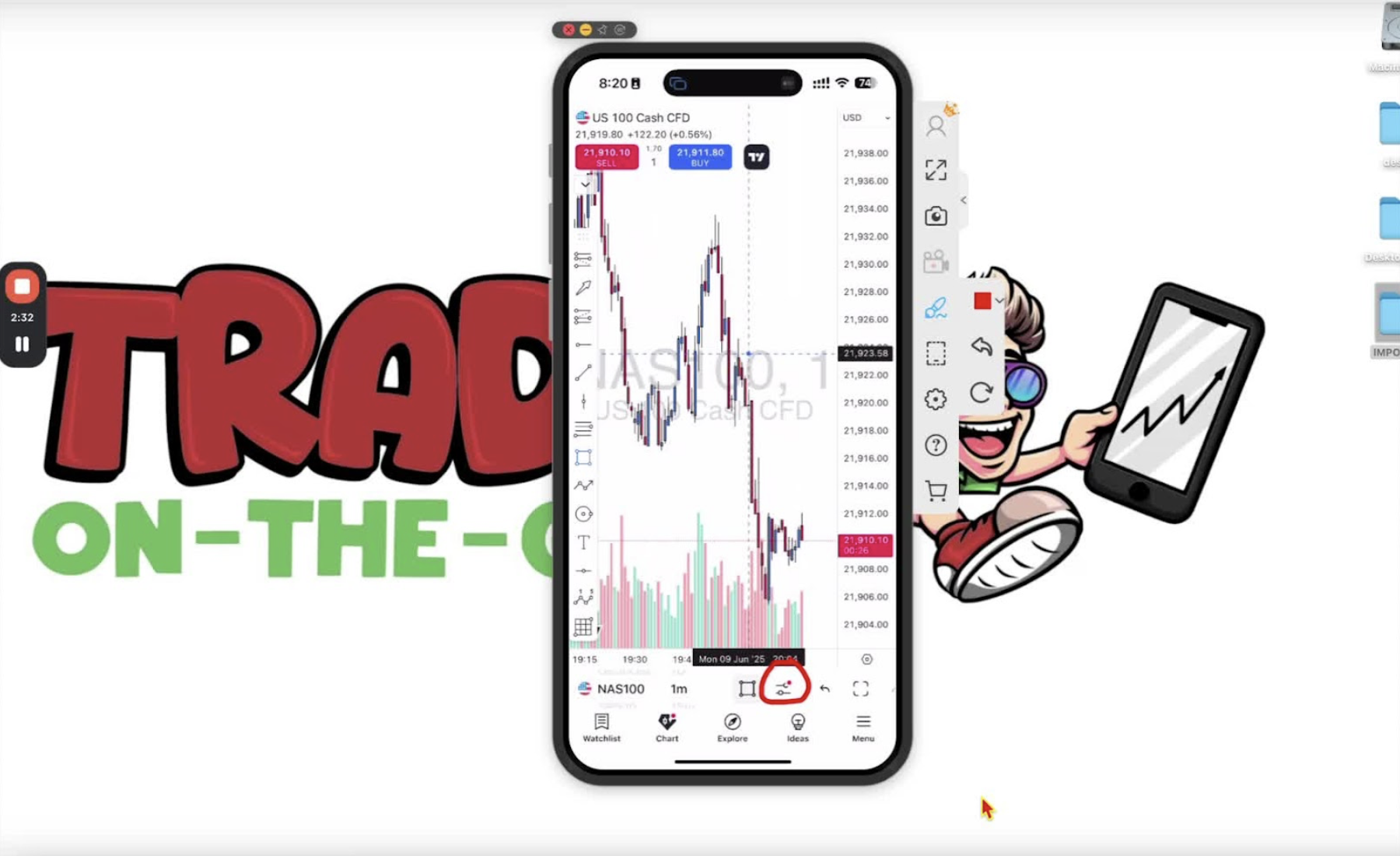
- Tap ‘Indicators’.
- Type ‘trader’ in the search bar, or scroll to the invite-only section, and find ‘Trader on the Go’.
- Tap the star to favorite it.
Add the Indicator to Your Mobile Chart 3:22
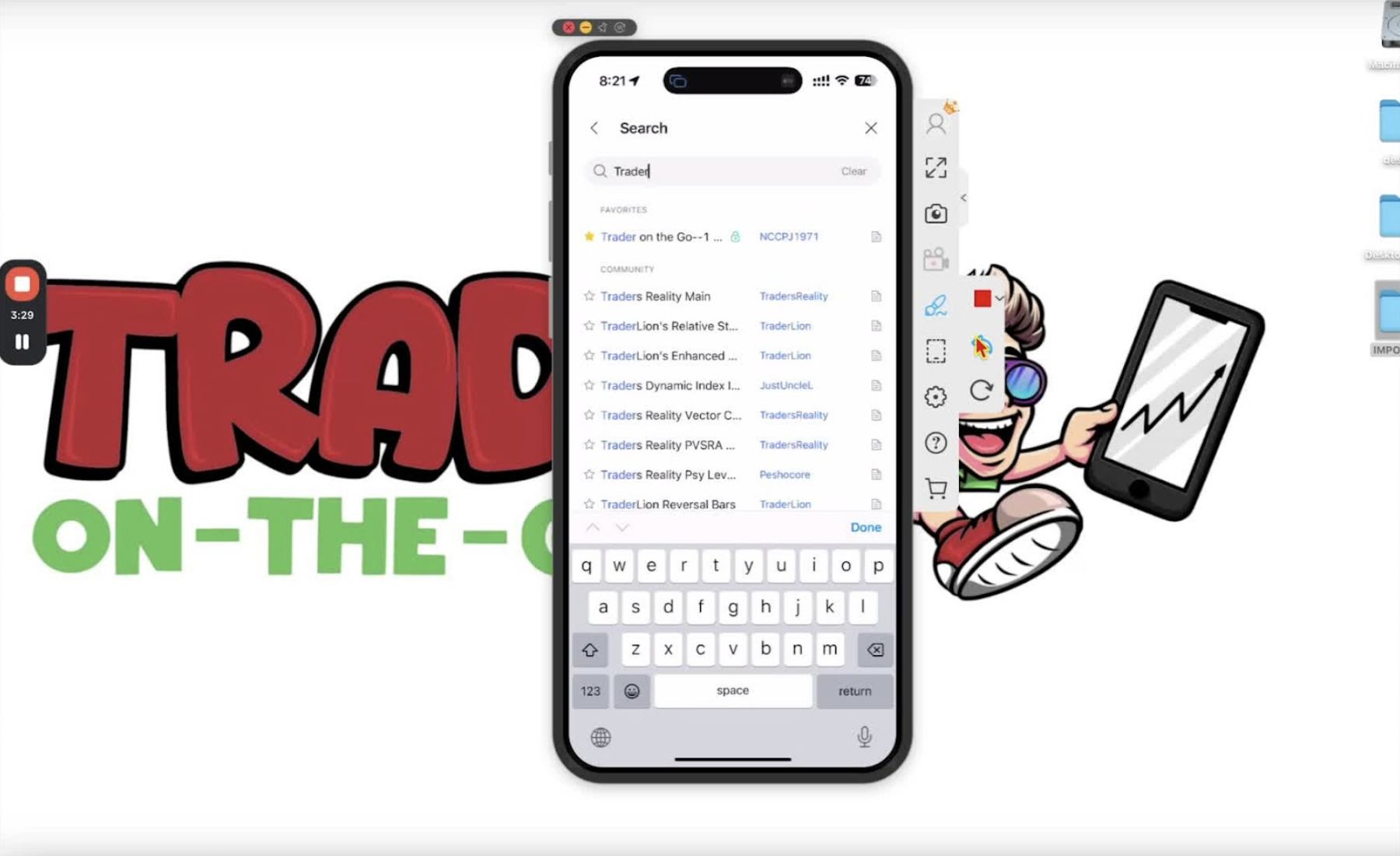
- Tap ‘Trader on the Go’ to add it.
- Look for the blue line and signals on the chart to confirm.
Access Indicator Settings 4:07
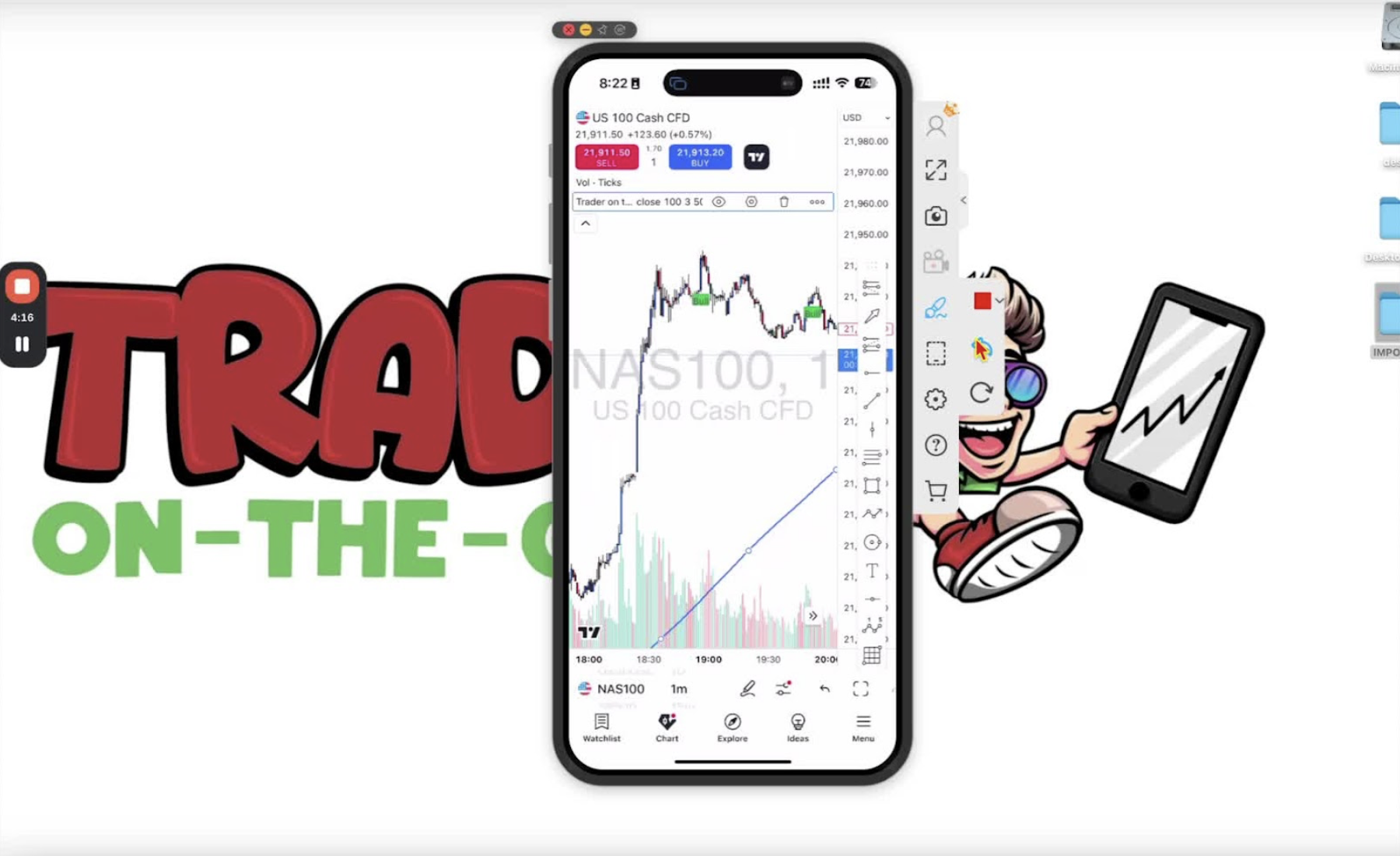
- On desktop and mobile, open the settings by clicking the indicator name in the top left corner of the chart.