Remove the swing high and swing low boxes (and their labels) from the Trader on the Go indicator on desktop and mobile. Tick the same options again to bring them back.
Access Indicator Settings on Desktop 0:14
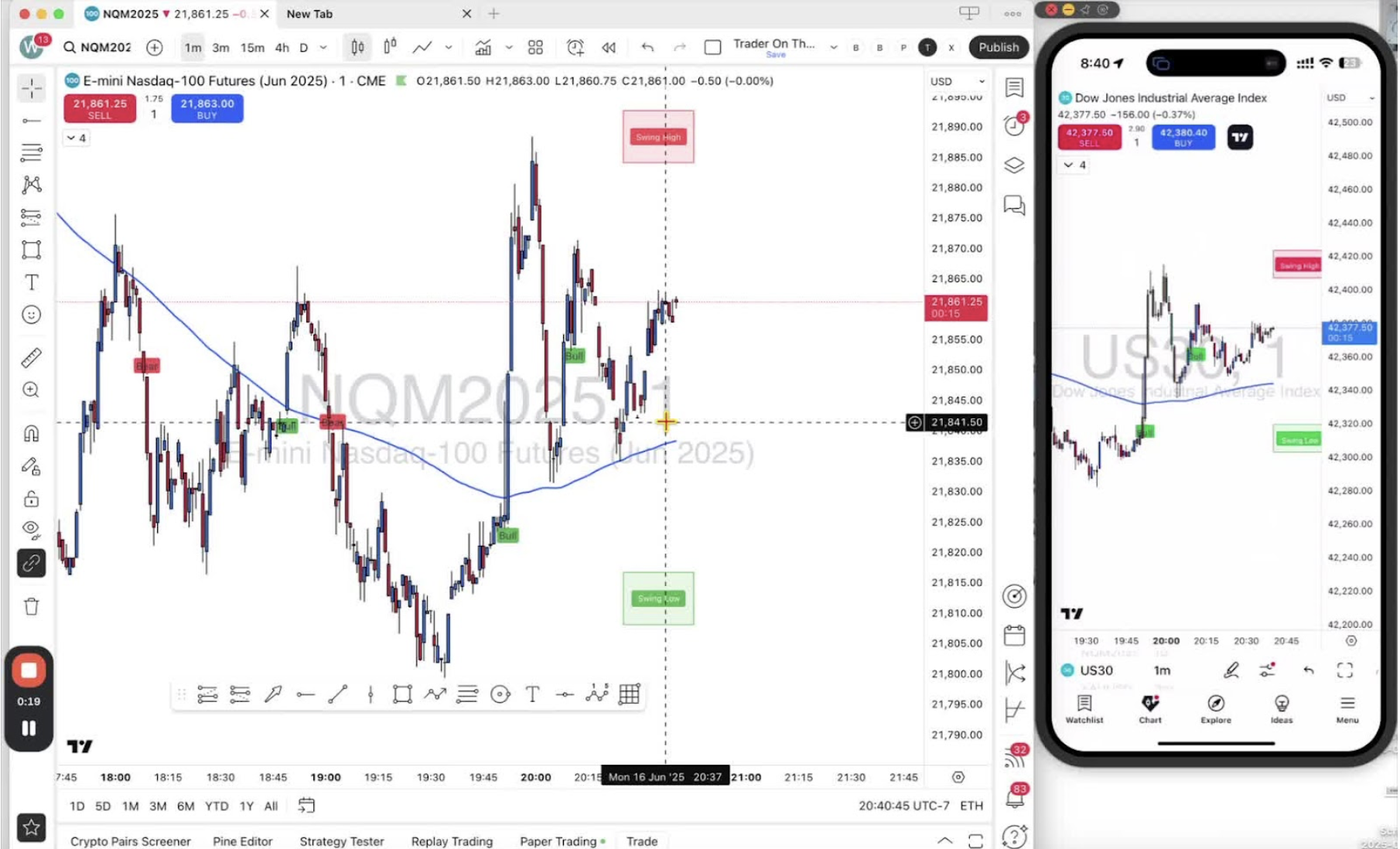
- Click the ‘Show Indicators’ legend under the red sell button. It may show as a small arrow.
Open Indicator List Menu 0:27
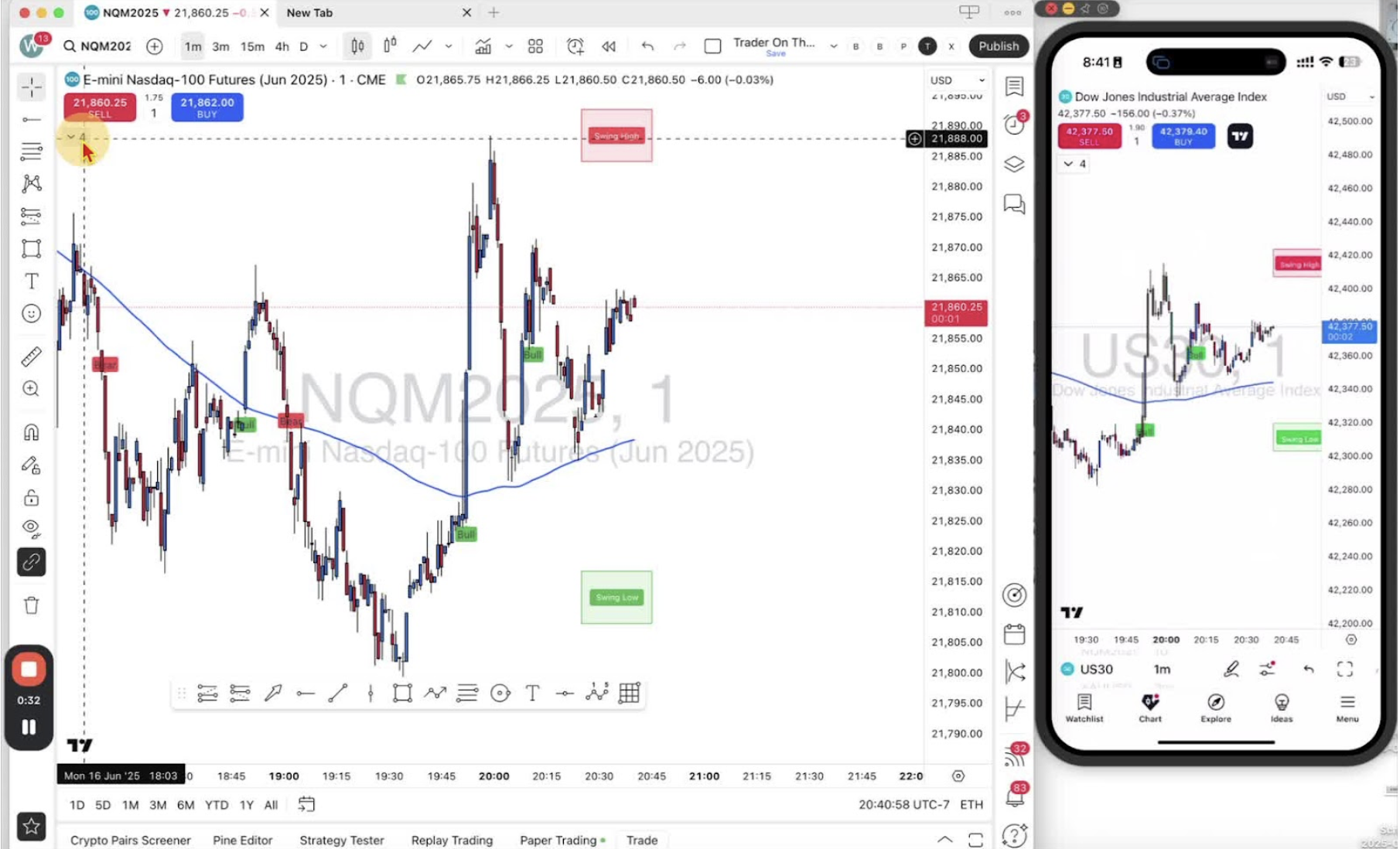
- Hover over the indicator text to reveal the options.
- Click ‘Settings’.
Navigate to Style Settings 0:40
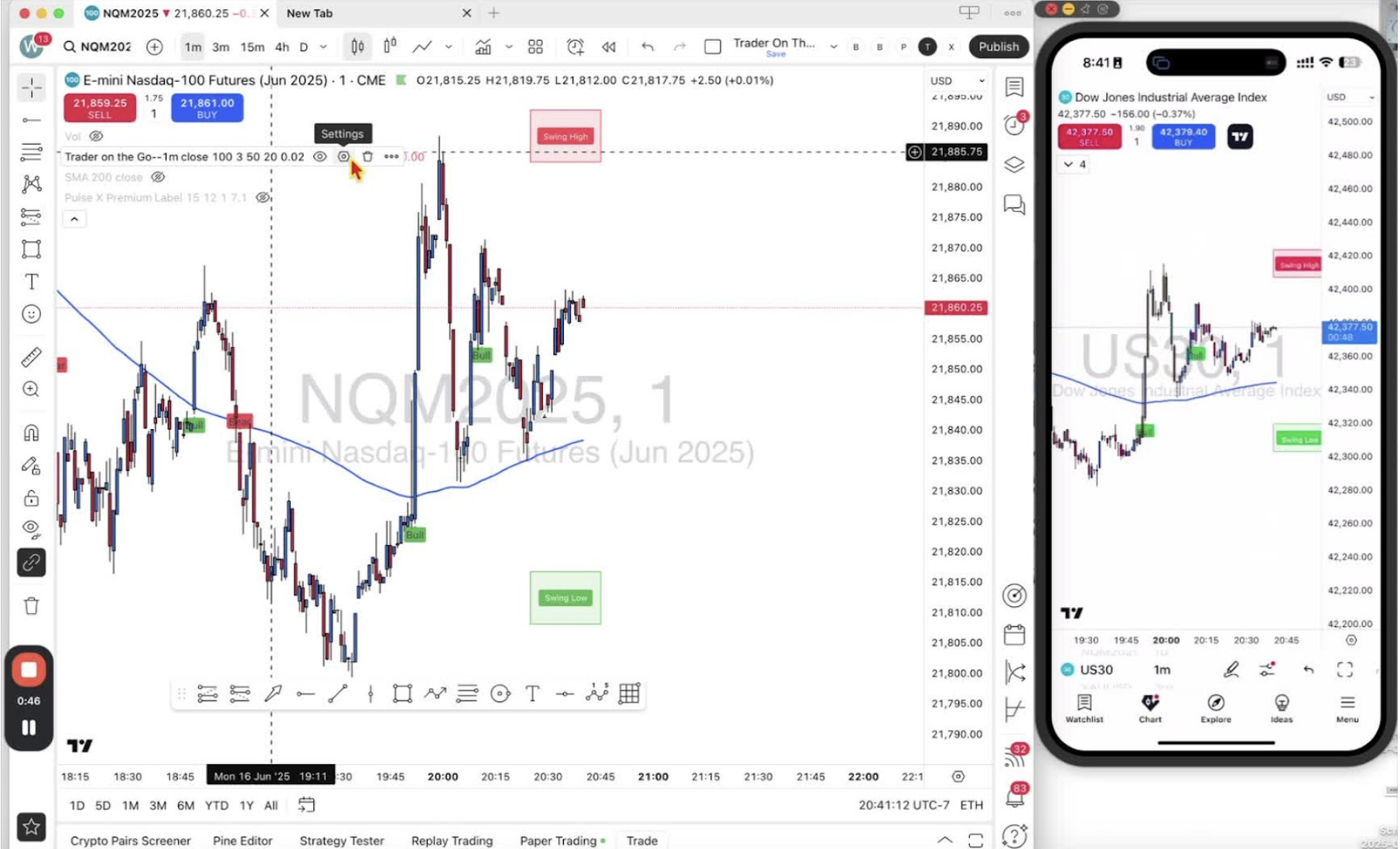
- Click ‘Style’.
- Scroll down to ‘Graphics Objects’.
Remove Swing High and Low Boxes 0:56
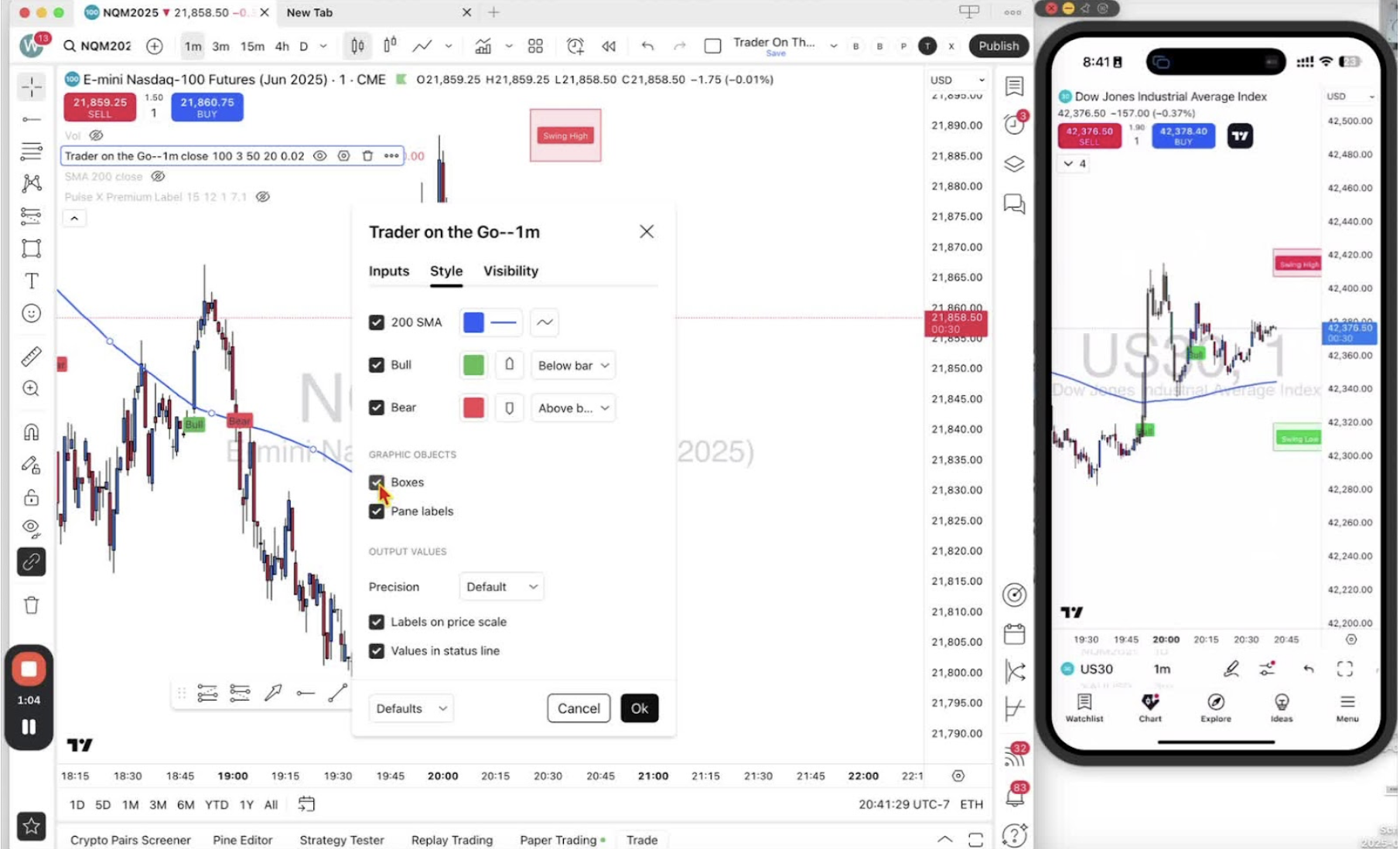
- Untick ‘Boxes’ to remove the swing high and low boxes.
- Untick ‘Paint Labels’ to remove the text labels.
Restore Swing High and Low Boxes (if needed) 1:23
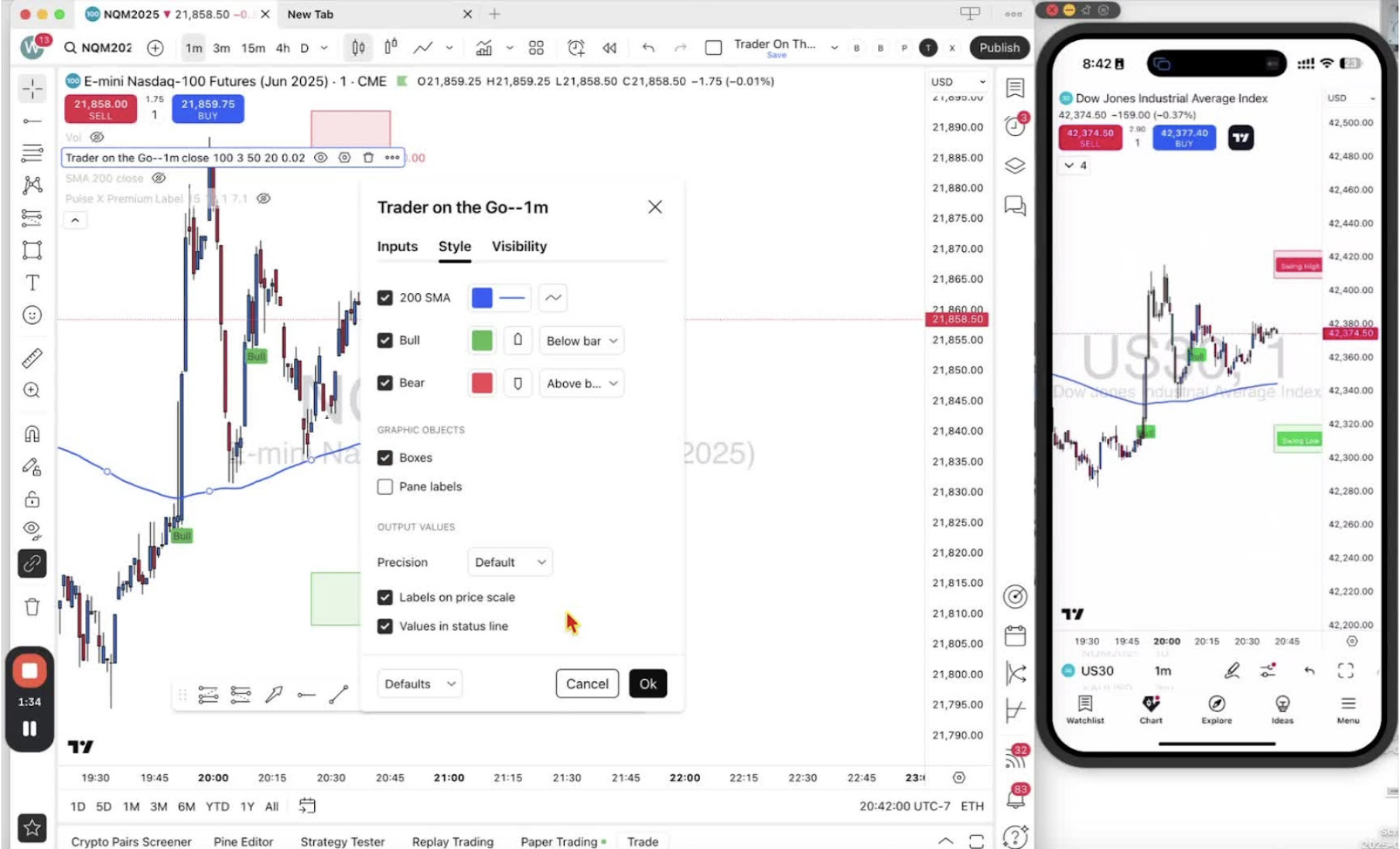
- Go back to ‘Settings’ and tick ‘Boxes’ and ‘Paint Labels’.
Access Indicator Settings on Mobile 1:31
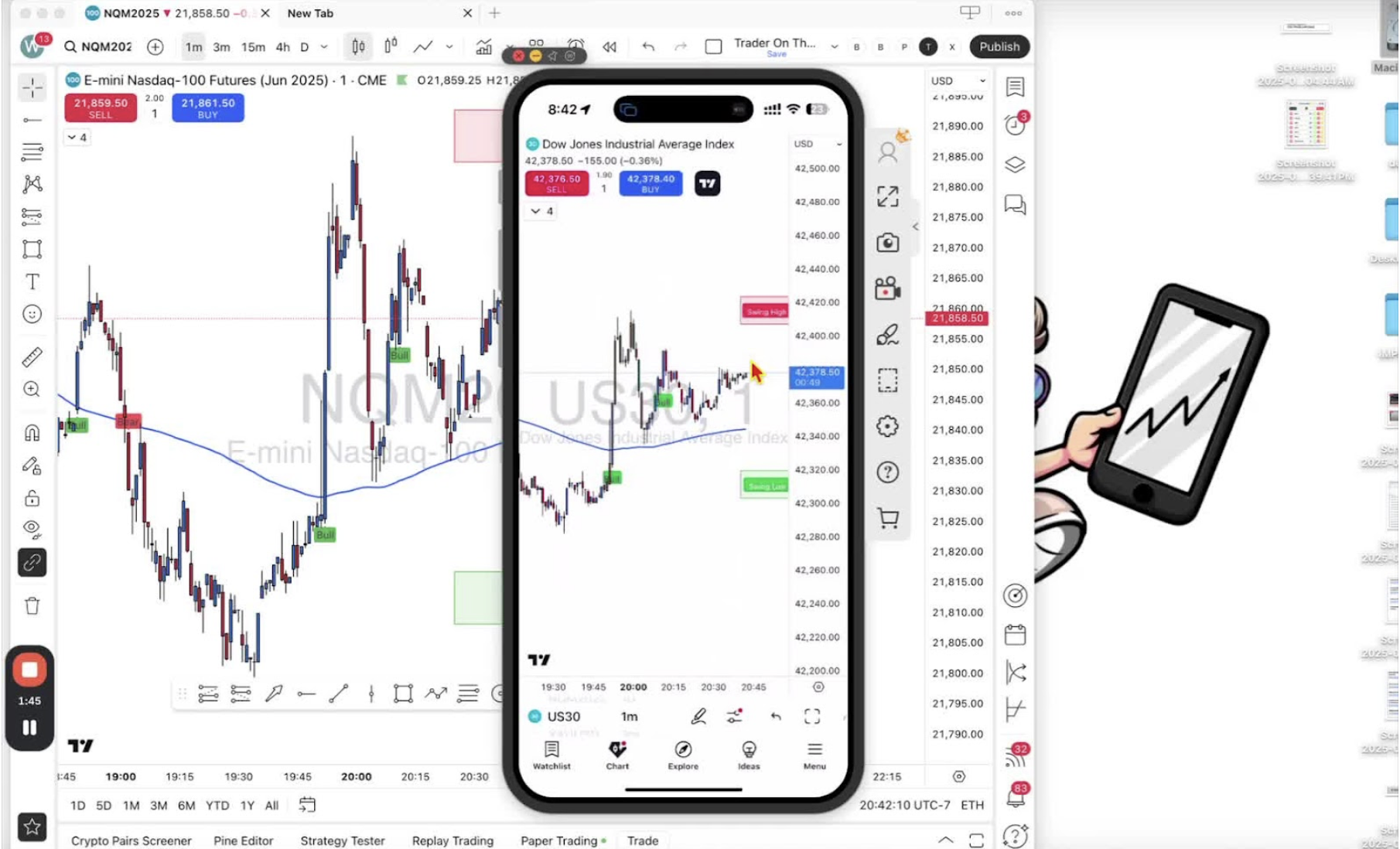
- Tap the down arrow under the sell button.
Open Mobile Indicator Menu 1:42
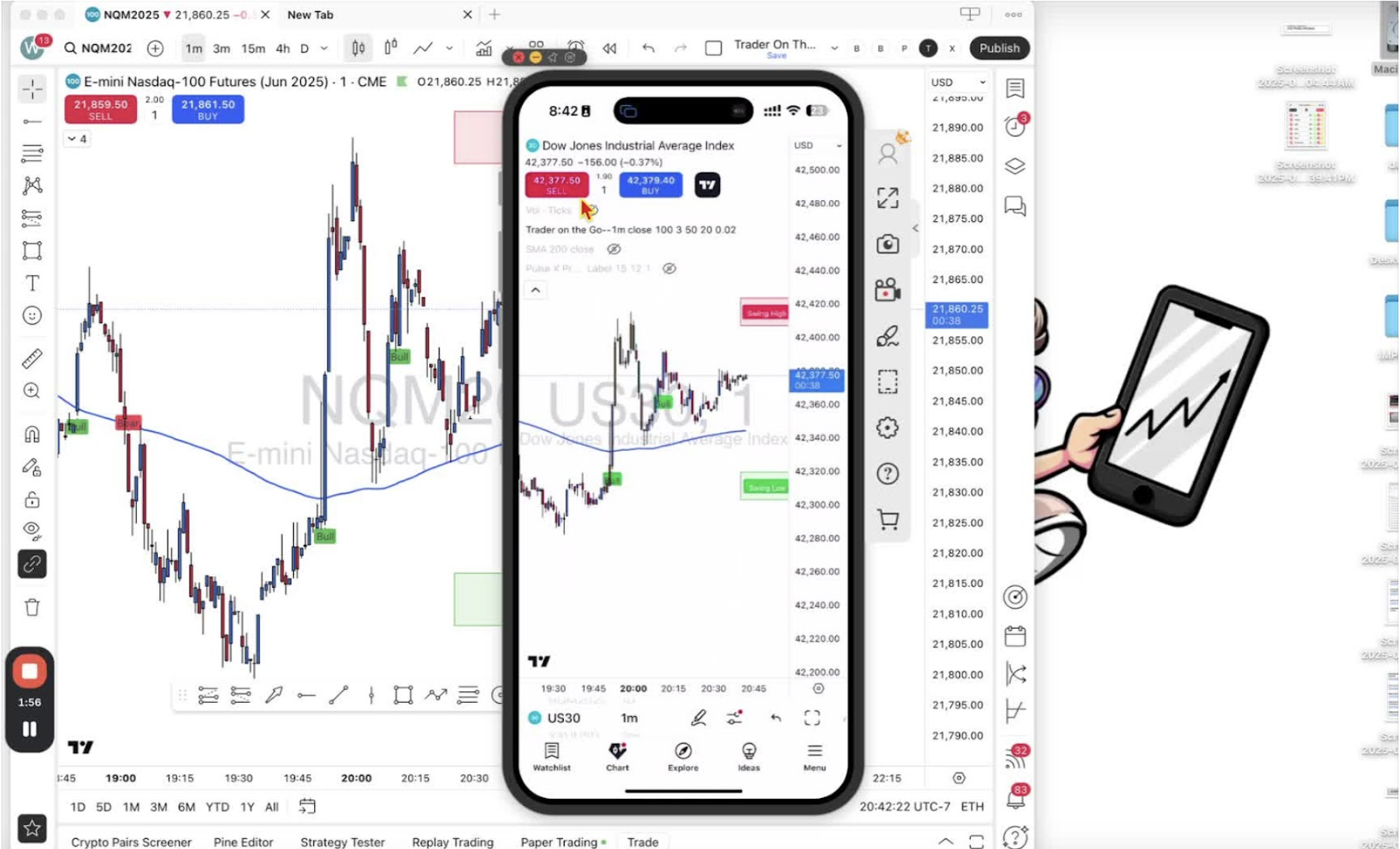
- Tap ‘Trader on the Go’.
Navigate to Mobile Settings 1:52

- Tap ‘Settings’.
Adjust Style Settings on Mobile 2:02
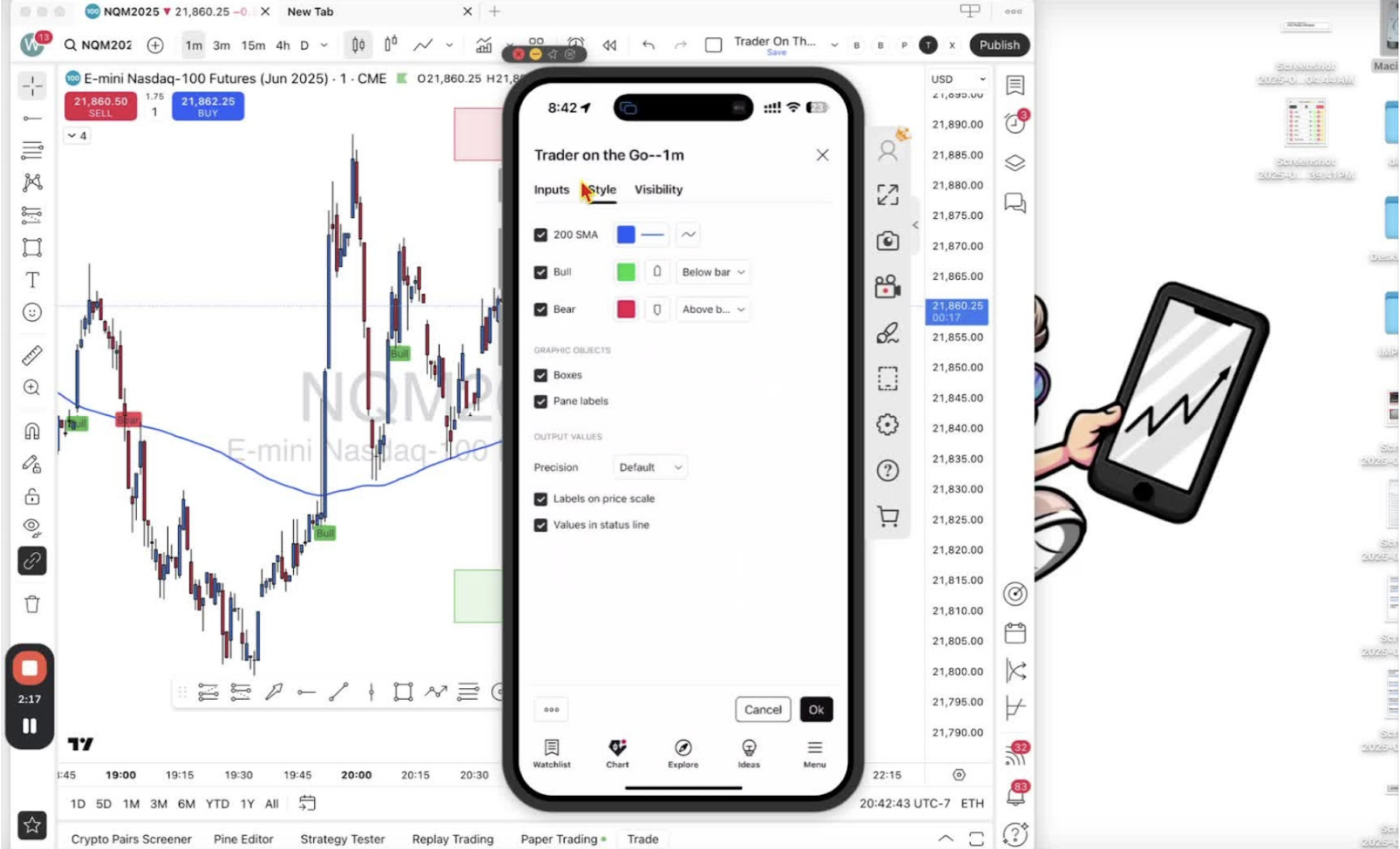
- Open the ‘Style’ tab.
- Scroll to ‘Graphics Objects’.
Remove Swing High and Low Boxes on Mobile 2:09
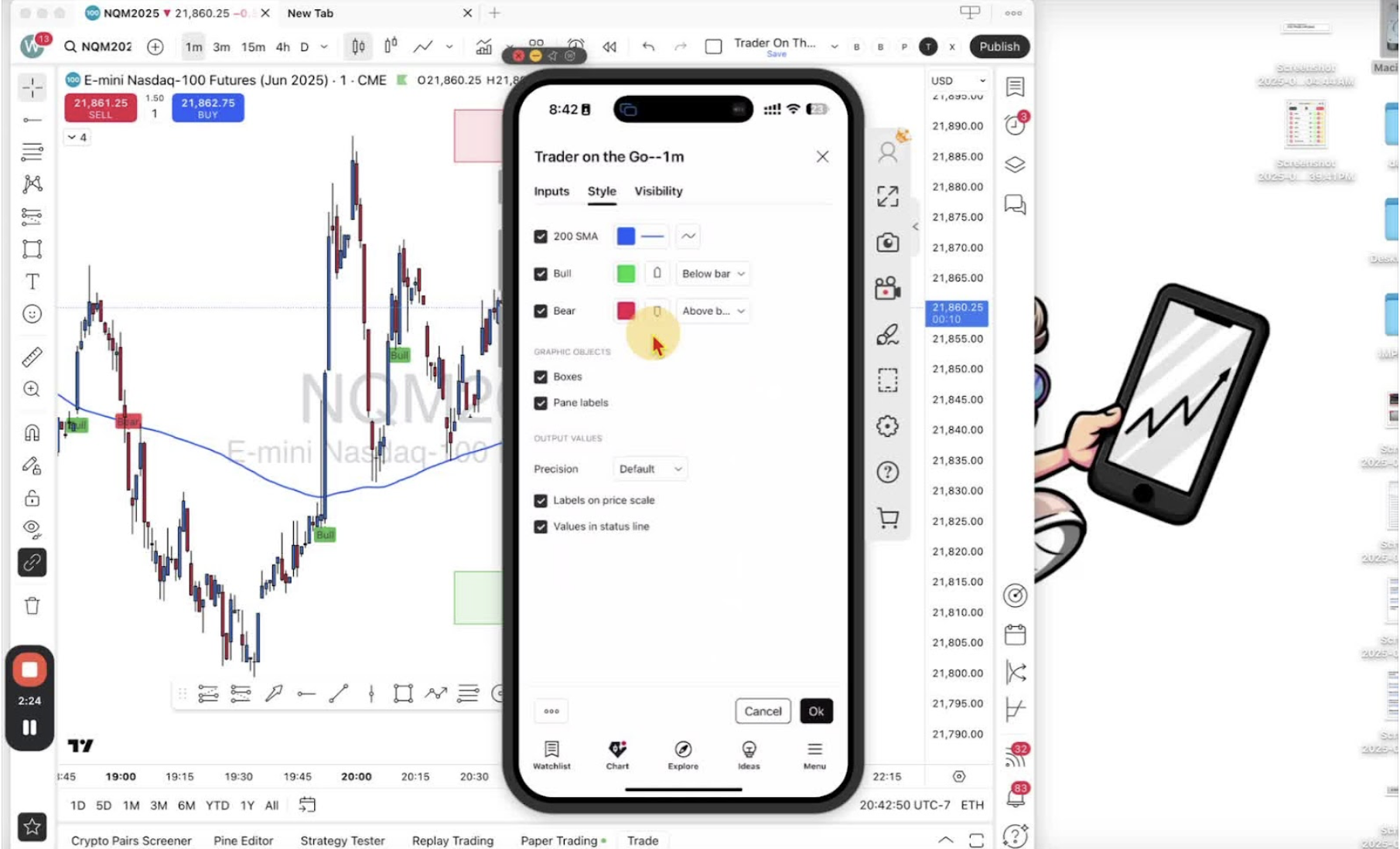
- Untick ‘Boxes’ and ‘Paint Labels’.
Restore Swing High and Low Boxes on Mobile (if needed) 2:29
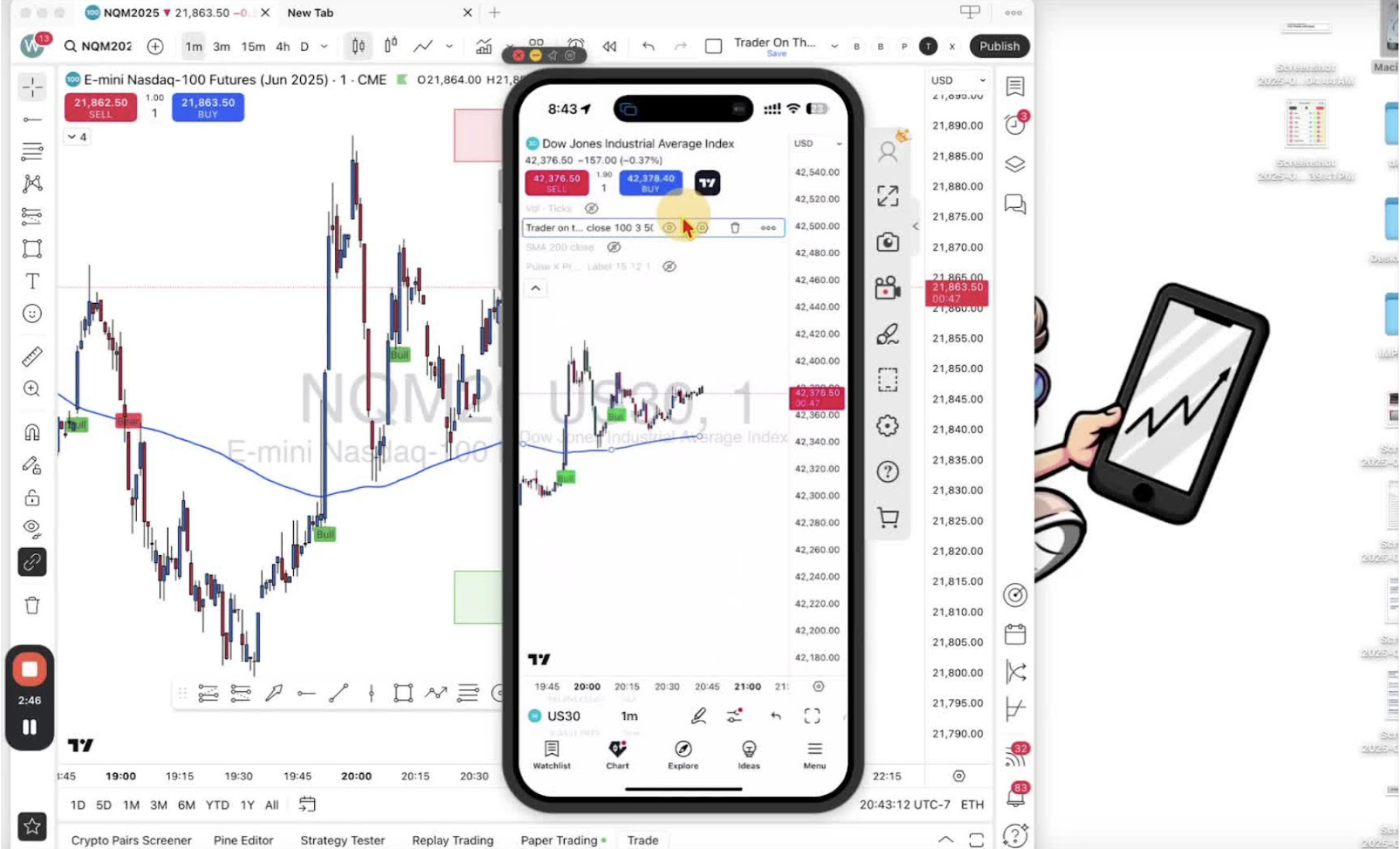
- Tap ‘Trader on the Go’ again, then ‘Settings’, and tick the boxes or labels back on.