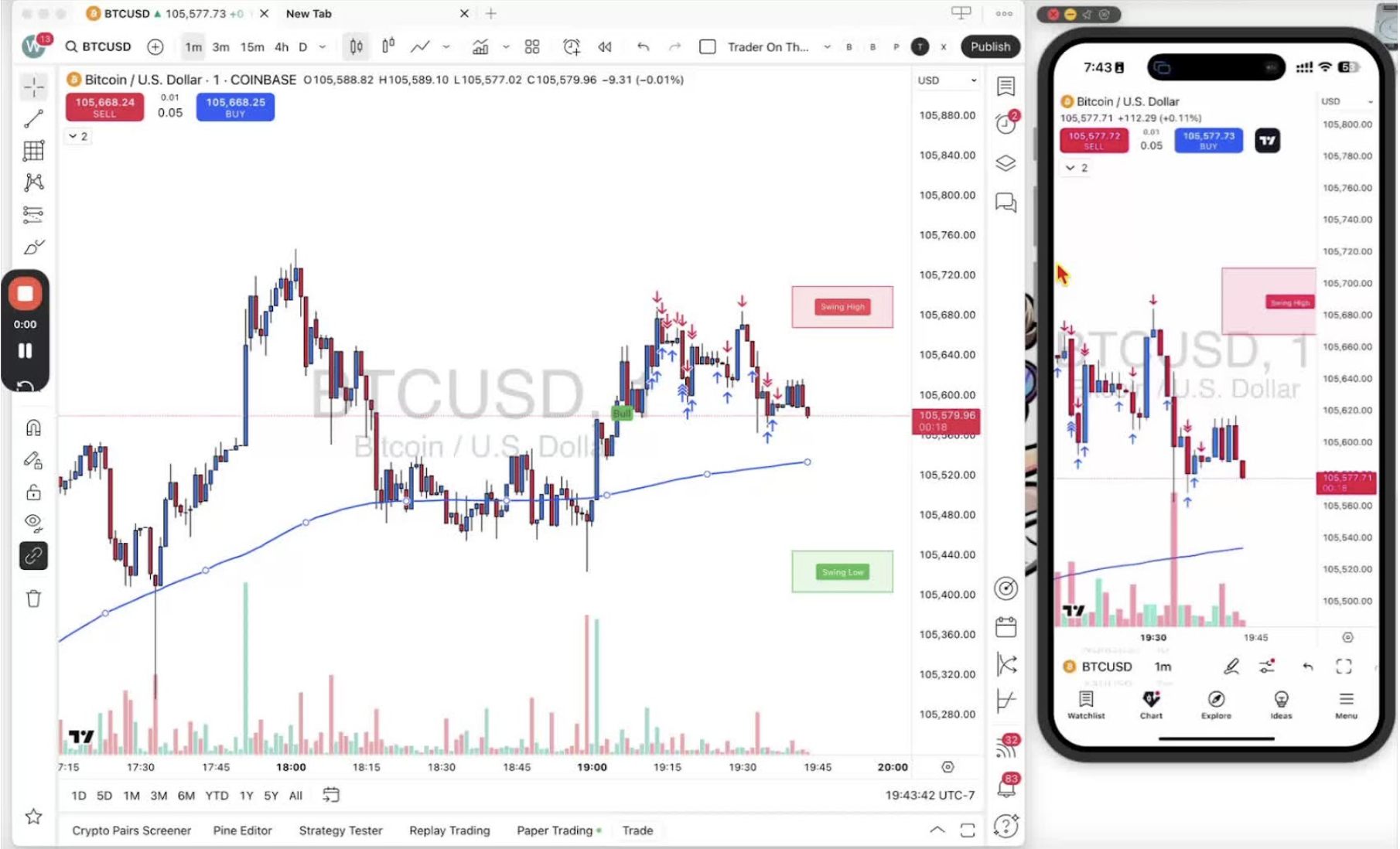
Set an alert for the Trader on the Go indicator on TradingView desktop. Add your forex and futures pairs to a watchlist first so one alert can cover all of them. Mobile alerts are in Step 18.
Accessing the Alert Setup on Desktop 0:28
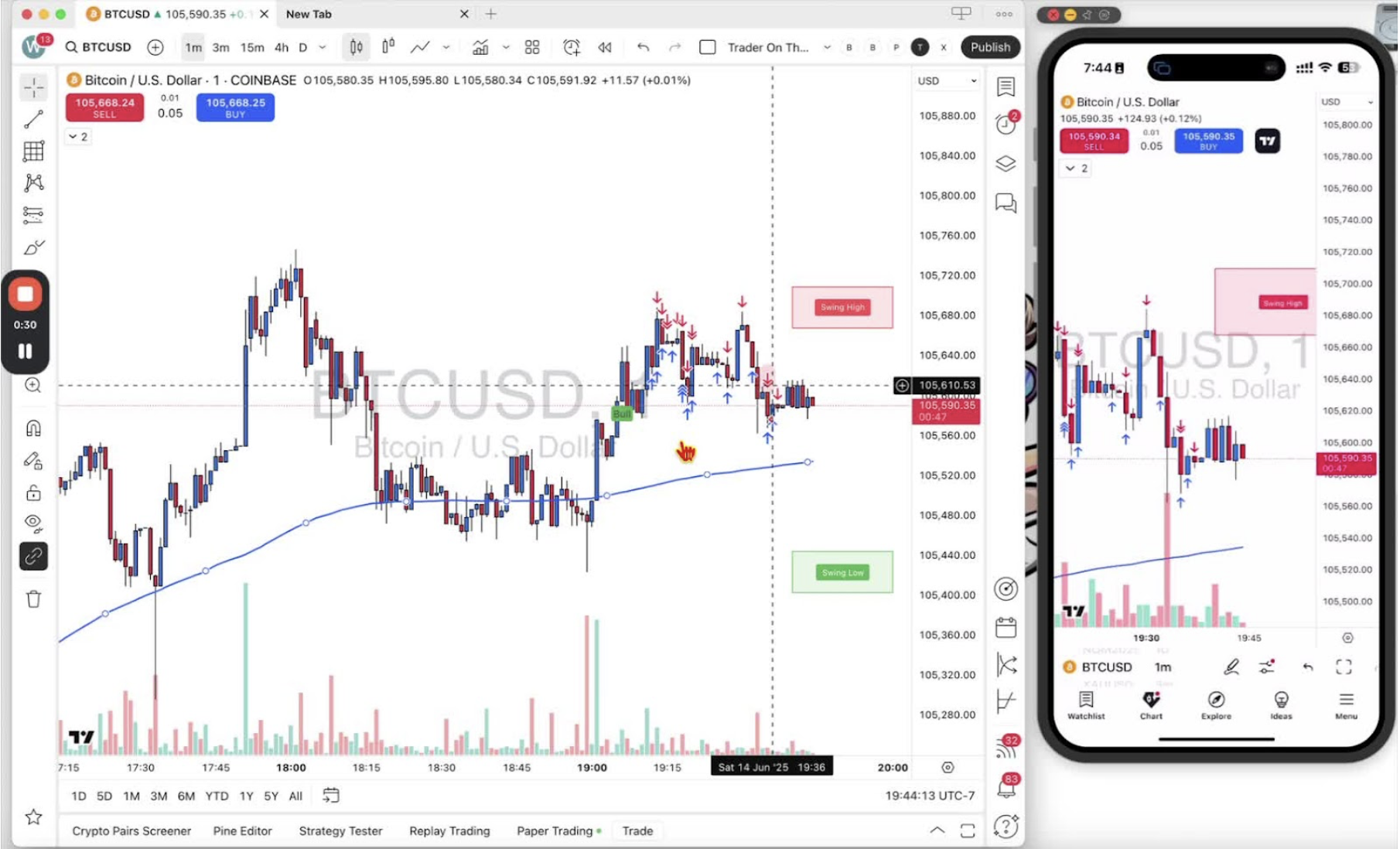
- Open the desktop app with the Trader on the Go indicator on the chart.
Creating an Alert 0:36
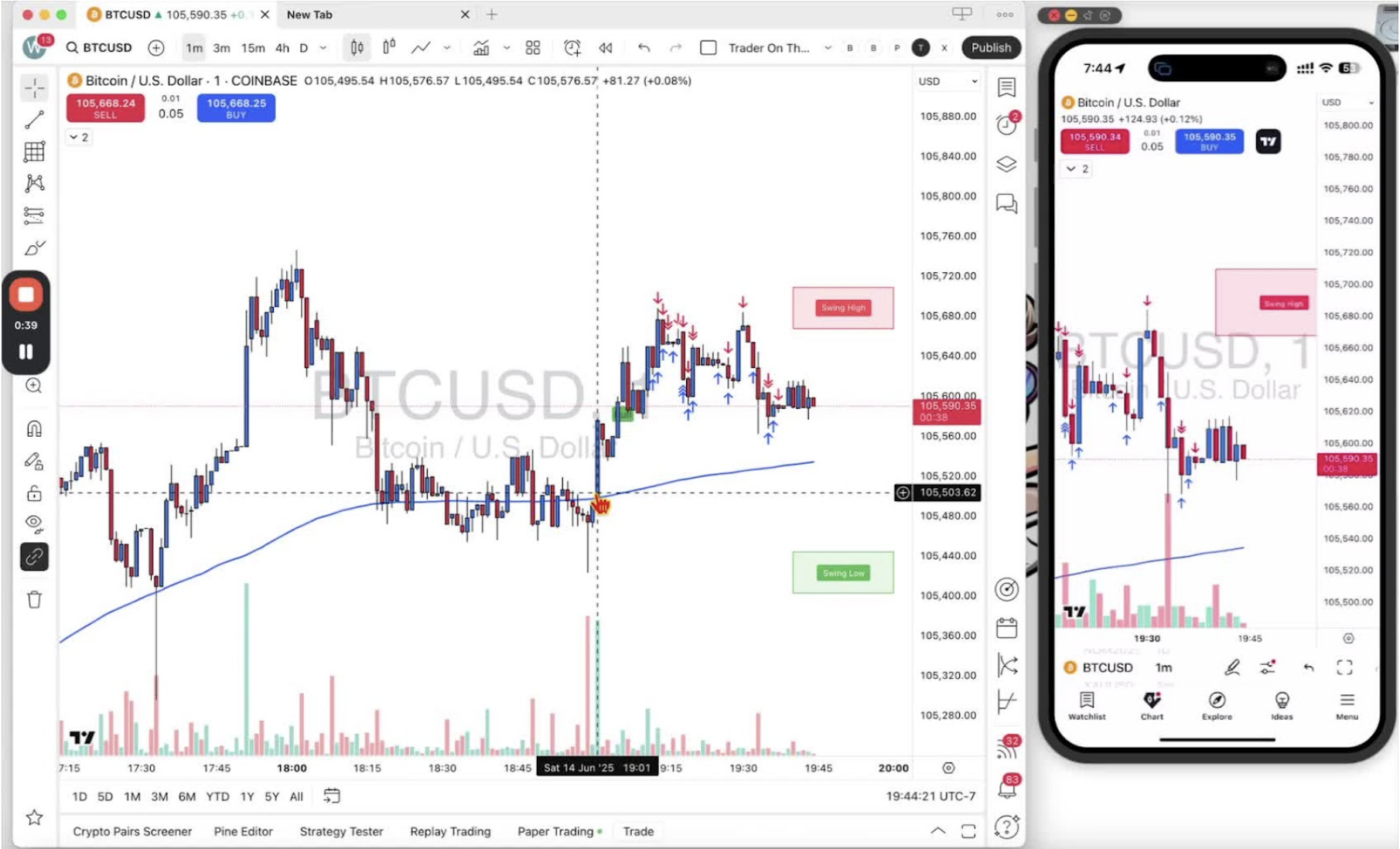
- Right-click the bull alert or the blue line on the chart.
- Select ‘Add Alert’.
Configuring the Alert Conditions 1:08
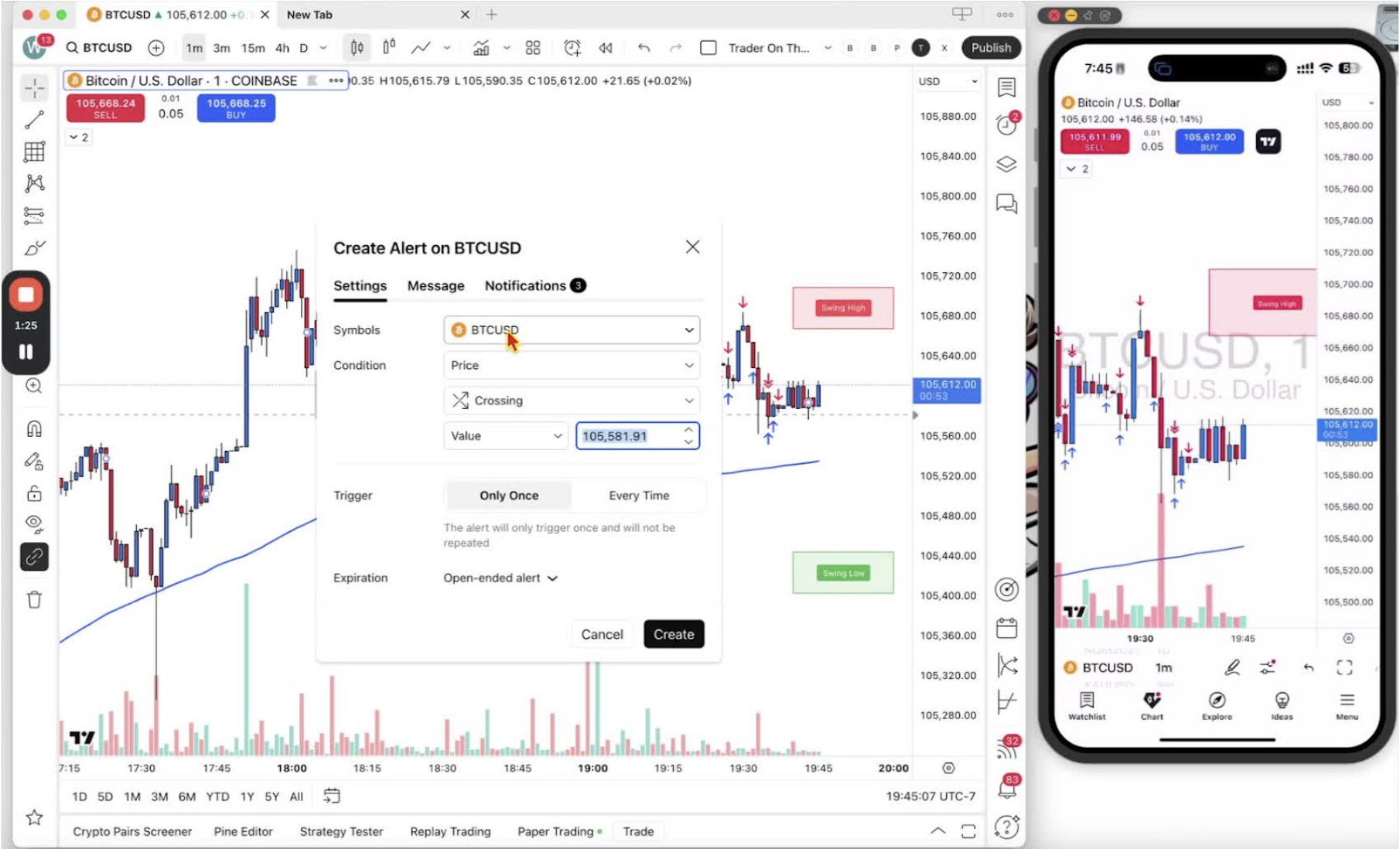
- Check the symbol is right (for example BTC/USD).
- Change the condition to ‘Trader on the Go – 1 Minute’ so alerts come from the indicator.
Utilizing the Watch List 1:48
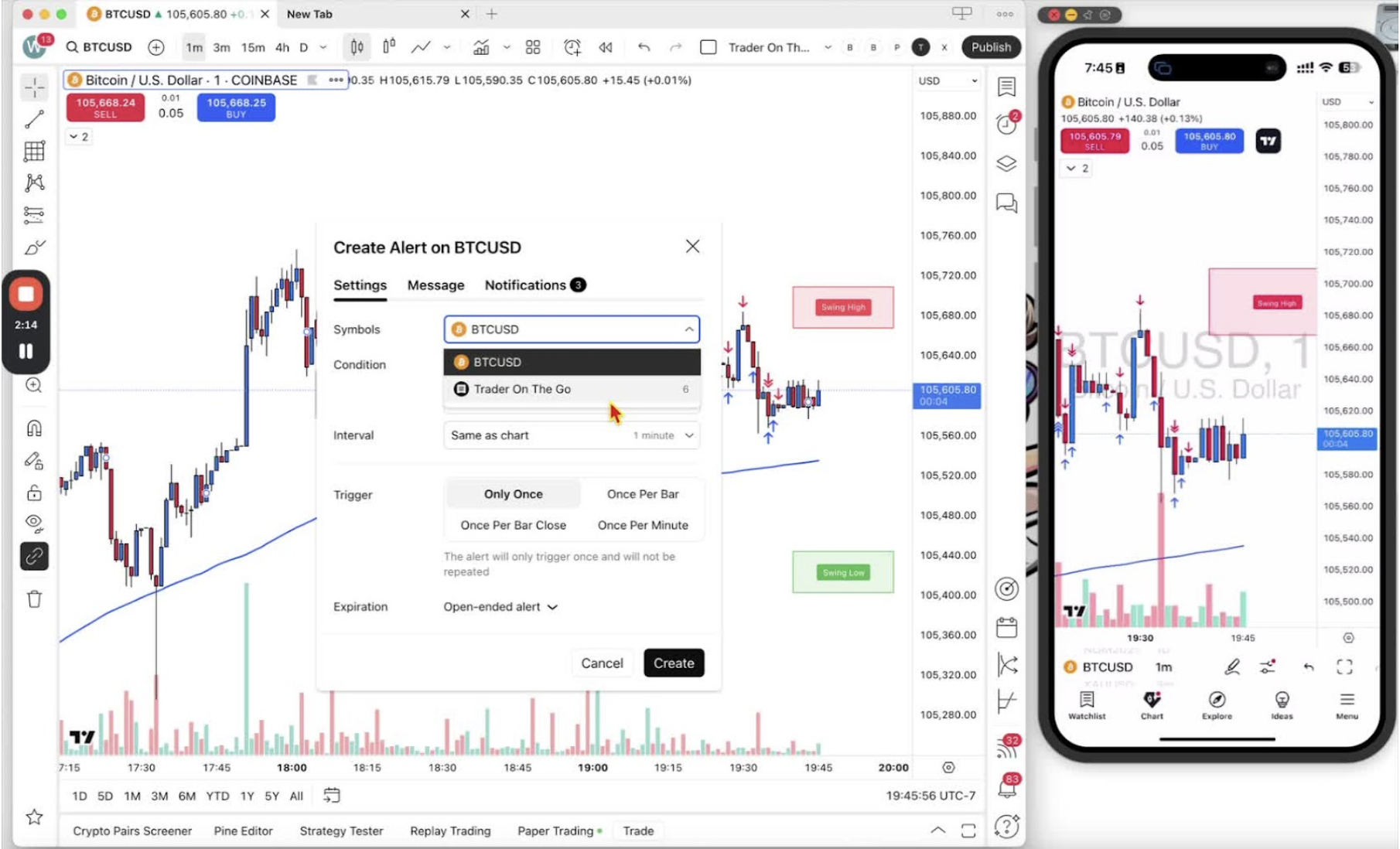
- If you have a watchlist, select it so the alert covers every pair on it.
Setting Alert Type 2:08
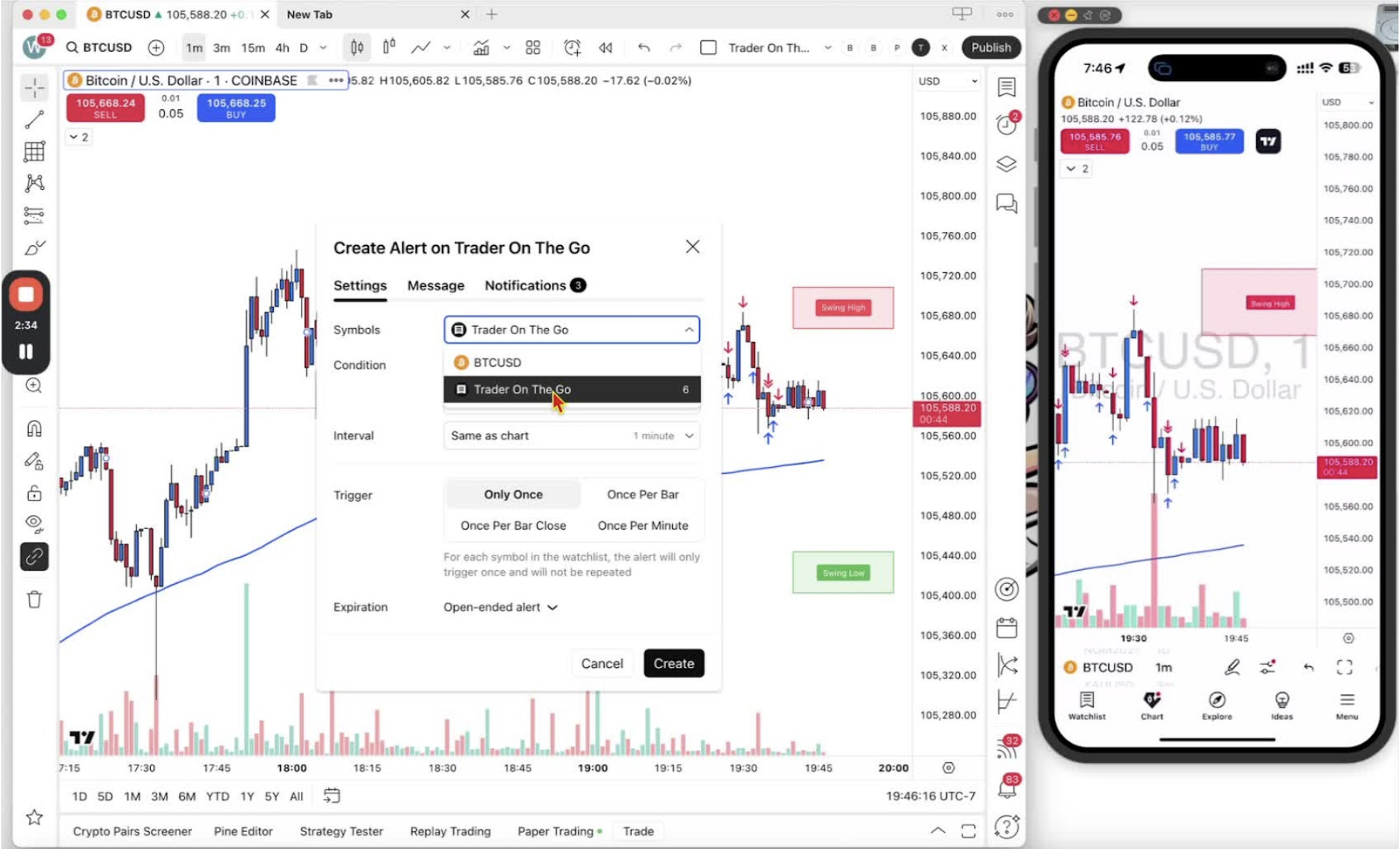
- Set the alert type to ‘Any Signal’ to get every signal, above or below the blue line.
Choosing the Time Interval 2:45
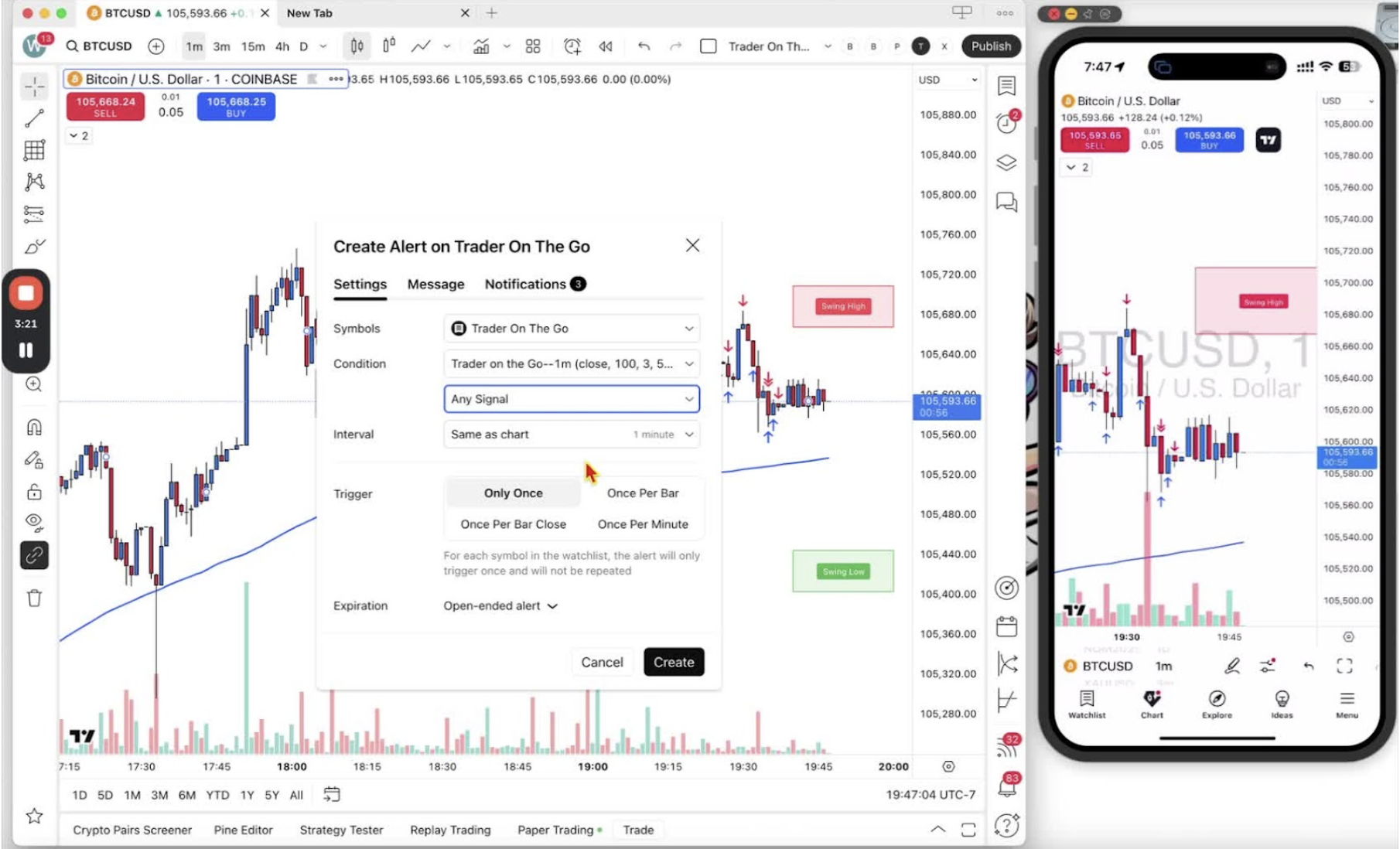
- Set the interval to ‘1 Minute’ to match the chart.
Alert Trigger Settings 3:07
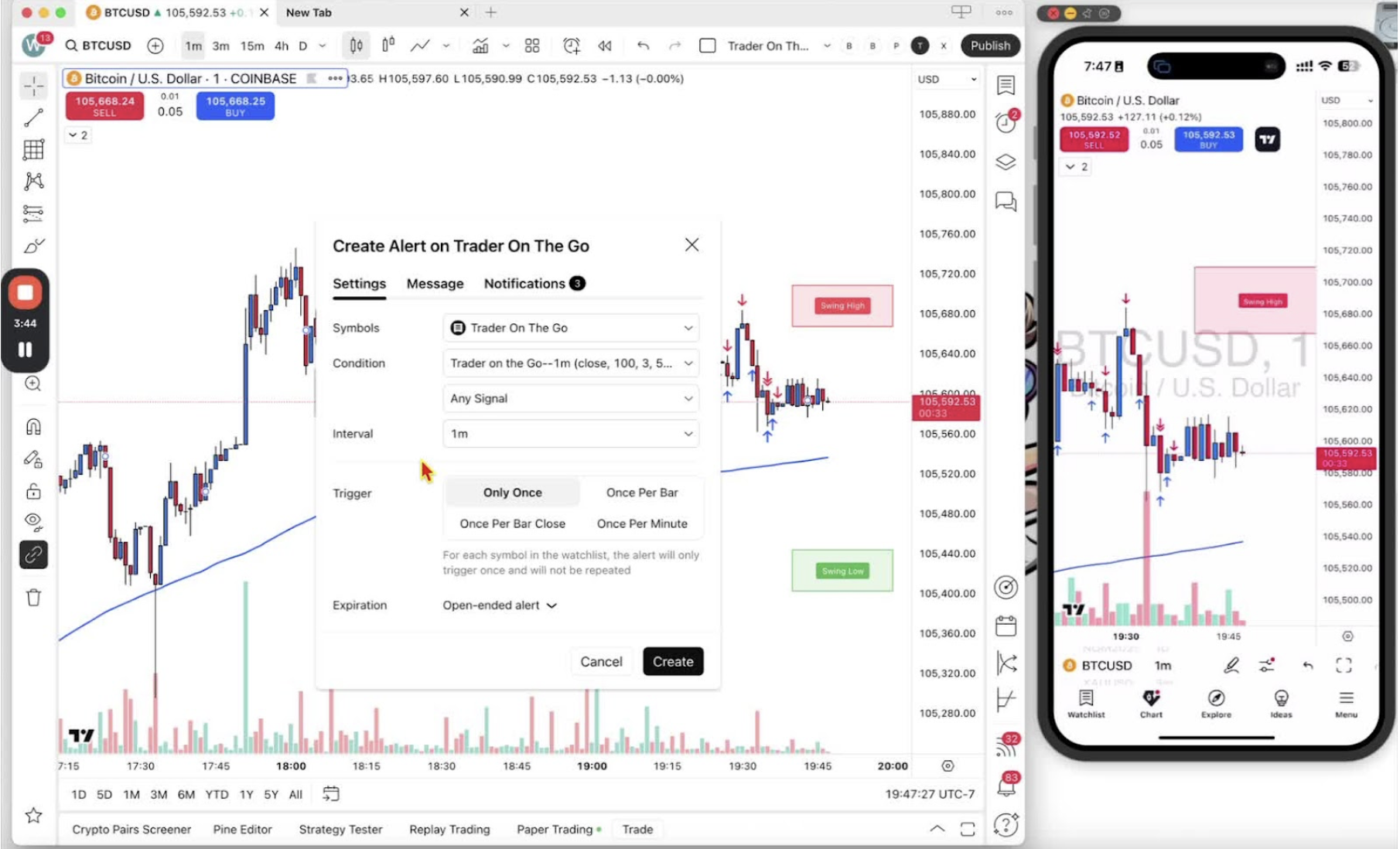
- Set the trigger to ‘Once per bar close’ so unclosed candles do not fire false alerts.
Customizing Alert Message 4:10
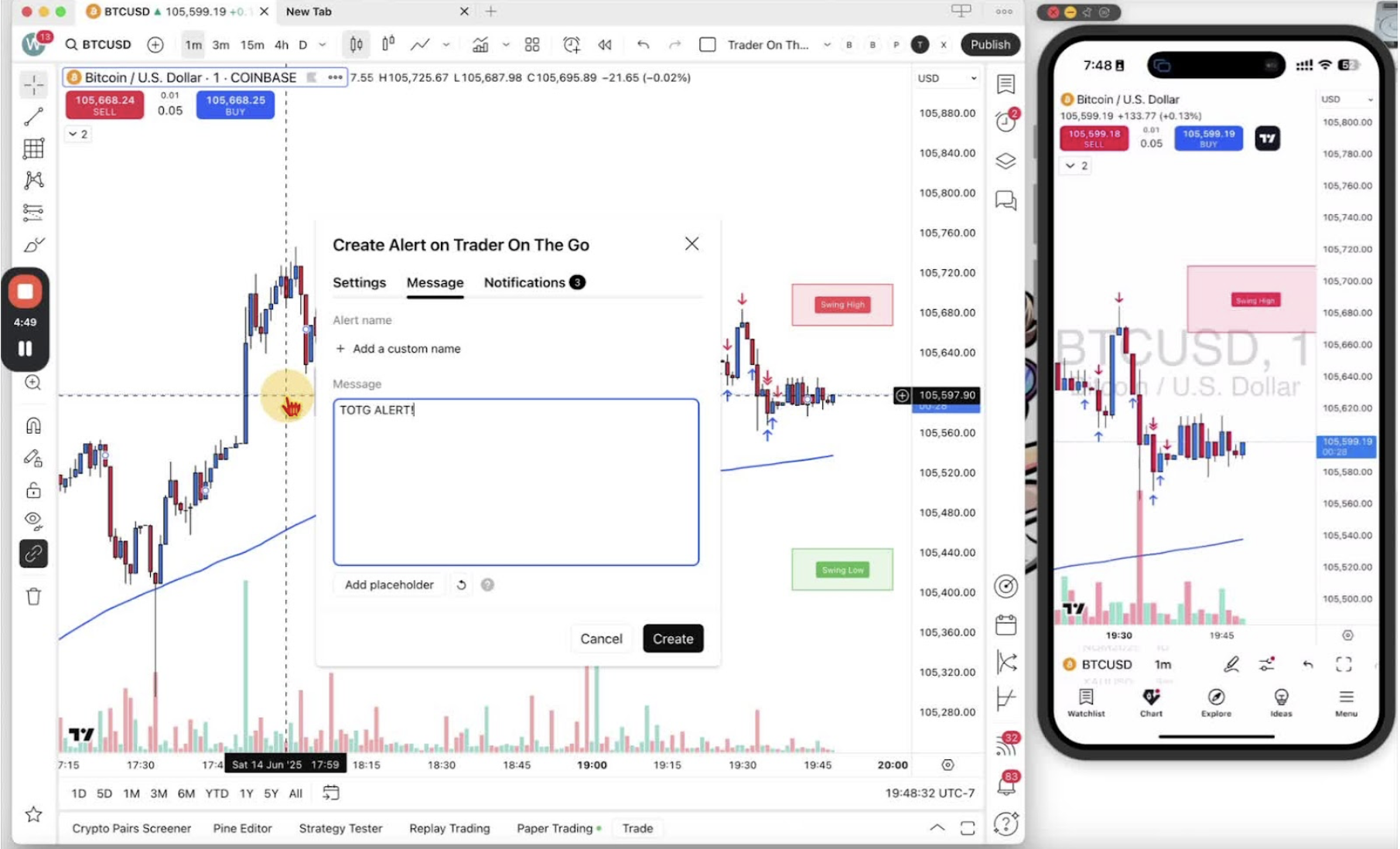
- Change the alert message to ‘TOTG alert’ so it is easy to spot.
Configuring Notification Settings 4:30
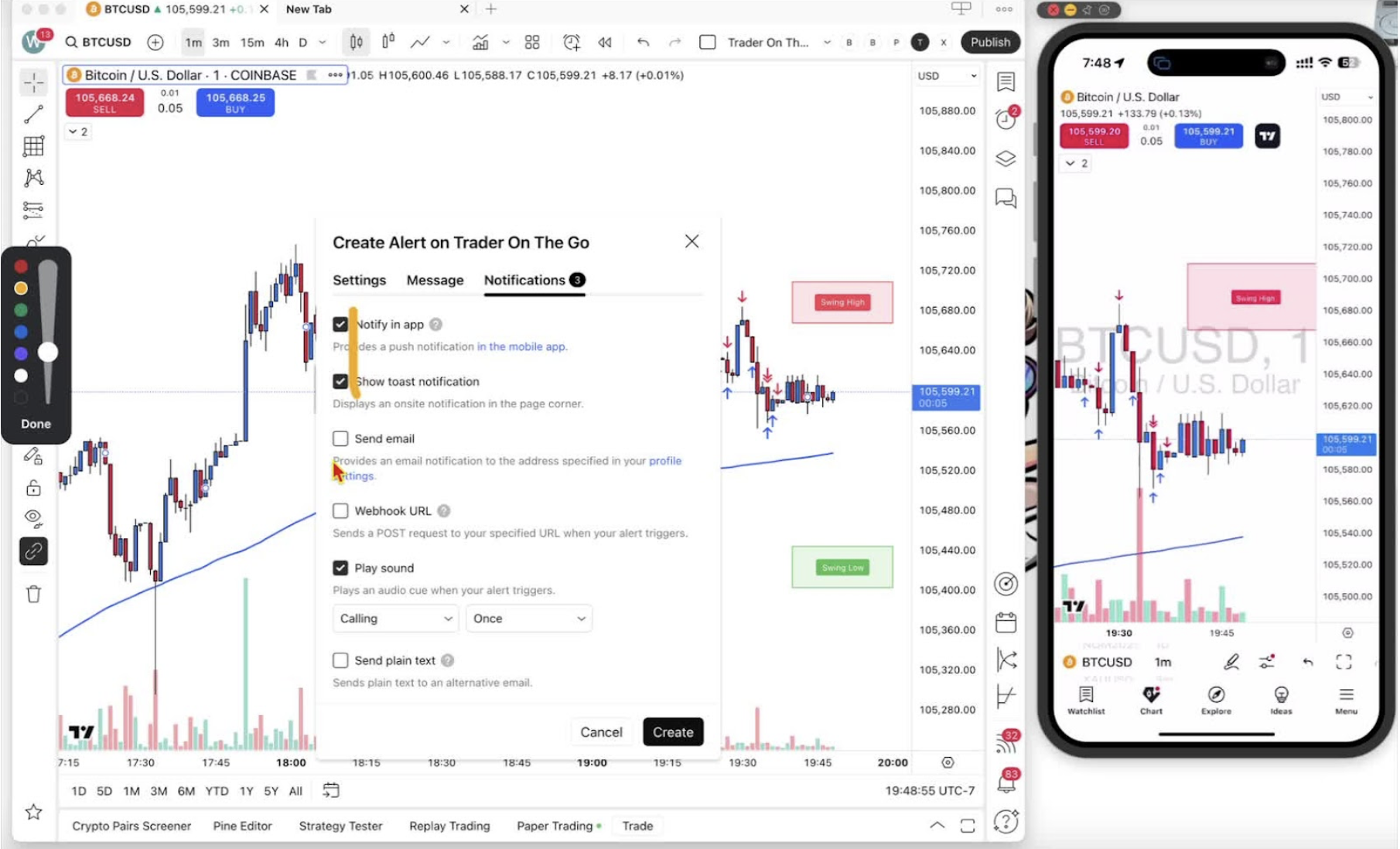
- Turn on: notify in app, show toast notification, play sound.
- Email is optional.
Finalizing the Alert 4:53
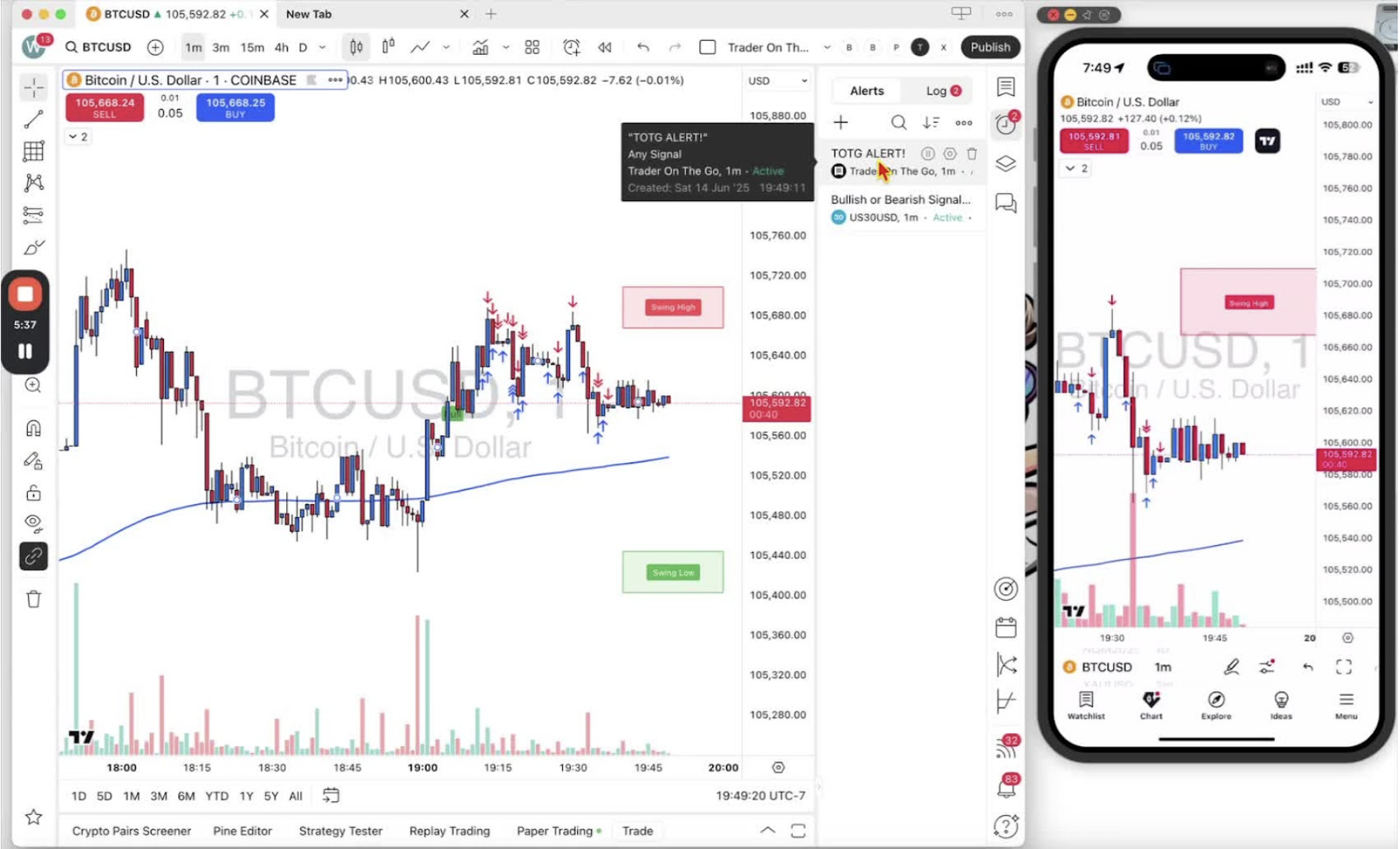
- Click ‘Create’.
- Check the alert appears in the alert clock.